Step one
Install
Put LearnBoard Where
Your People Already Are
One Moodle plugin, installed the way Moodle installs everything else. It mounts the real charts into your own pages, adds a LearnBoard page to your menu, and it is free on every plan including the one that costs nothing. Works with LearnNoow and Moodle.
Get the plugins or Open the live demo

What you install
The plugin
block_learnboardWhat your LMS administrator installs once, site-wide. It keeps the connection details in one safe place on the server, where no browser and no student can ever see them.
Site administration, Plugins, Install plugin from ZIP
Get the pluginThe block
Part of the same pluginThe part teachers actually use: a normal Moodle block anyone with edit rights can drop onto a page, and the real chart appears right there on the page.
Nothing more to install. No build tooling on your server.
See what it shows
LearnNoow and Moodle. The plugin modifies no core files and uninstalls clean.
What the plugin actually does
Nothing boxed in a frame
The chart in your LMS page is the real chart
The chart on your LMS page is the same living chart as in LearnBoard, not a picture of one and not a boxed-in frame. Your theme cannot accidentally restyle a chart and LearnBoard's CSS cannot touch your page. There is no second page loading inside your page and no scrollbar inside a scrollbar.

Zero load on your LMS
The queries do not run on your LMS server
LearnBoard reads your LMS data without ever changing it, and prepares the numbers ahead of time, so dashboards open instantly. Reporting plugins that run inside your LMS put that work on the server your learners are using. This one does not.

The learner's own record
Students see themselves, and only themselves
My Learning shows each learner their own progress and nobody else's. That limit is enforced on the server itself, not hidden in the page where it could be worked around. Profile KPIs, a skills radar, an activity heatmap, an assessment trend and course-by-course progress, in first person. Aggregate screens stay closed to them, enforced server-side.

Use cases
One ZIP, one code, and a block
The whole install, in the order you do it. Nothing here needs a developer or a change window.
Step two
Install the plugin from ZIP
Step three
Paste your connection code
Step four
Add the block and pick what it shows
Step five
Open LearnBoard from your Moodle menu
Optional
Turn on sign-in and map your roles
What a block can carry
Six cards that can sit on a LMS page
Any registered widget kind can go in a block, scoped to the course the page is about. These six are the ones people put there first.
Risk levels by group
From the learners at risk screen, on the synthetic demo dataset.

Budget gauge
From the budget utilisation screen: spend against the allocated budget.

Capability matrix
From the workforce capability screen: every role against every capability.

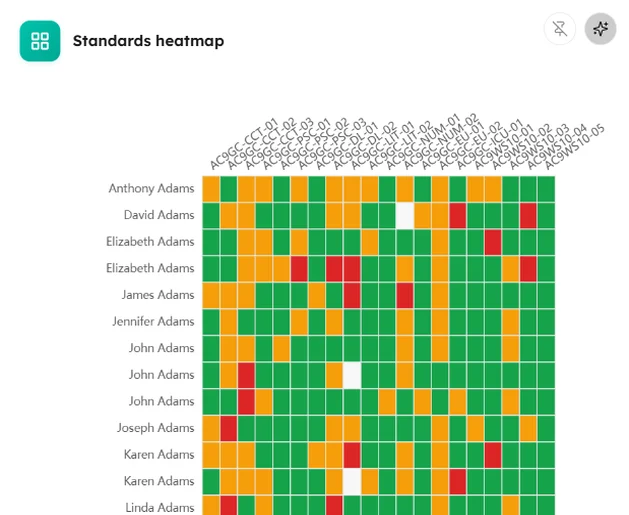
Standards heatmap
From the standards mastery screen: every learner against every standard.
Login heatmap
From the users and engagement screen: when people actually sign in.

Certificate issuance
From the certification expiry screen: what was issued, and when.

Three ways to fill a block
A block can carry one card, a whole board, or a dashboard you already built.
Editing is capability-gated: only someone holding the block-management capability, with Moodle edit mode on, can change what a block shows. Everyone else sees a read-only dashboard.
Single card
One chart, one height
Pick a chart from a curated list, or any widget kind by identifier, and set its height. A KPI tile on a course page, an activity trend on the Dashboard.
Custom dashboard
A drag-and-drop canvas inside your LMS
An Add charts picker mirrors LearnBoard's own navigation, with live search across every group, surface and widget. Tick several, add them in one action, then drag and resize on the same grid engine the product uses.
Linked dashboard
One board, authored once
An analyst builds and shares a dashboard in LearnBoard; the block renders it read-only in Moodle and always reflects the latest saved version. Central governance, no copy-paste.
Course context
A block on a course page scopes itself
Place it on a course and its charts scope to that course automatically. Nothing to configure per course.
Audience control
Managers, teachers, students or everyone
Each block instance chooses who sees it, so the same page can carry a staff view and a learner view without either seeing the other.
Theme aware
Light, dark, or follow Moodle
The block can track your LMS theme's own dark-mode toggle live, and it paints with your own brand colours and chart palette.
Better together
Three parts, one connection
There is no integration to maintain and no second system of record. The chain is this short on purpose.


Read it
One read-only connection to the database you already run. Nothing to migrate.
Draw it
Fifty dashboards and every chart kind, filled with your own numbers.
Put it where they look
On a board of their own, or on the LMS page they already open.
Questions
Questions about the Moodle plugin and what they touch.
What does the Moodle plugin do?
Your administrator installs it once. It keeps the connection details on the server, so nothing sensitive ever reaches anyone's browser. It adds the LearnBoard block, which teachers place on the Dashboard, a course page or the site home to put the live charts right there, and a full LearnBoard page in your Moodle menu. (Its install name is block_learnboard.)
Does the plugin modify Moodle core?
No. It touches no core files and installs and uninstalls cleanly through Moodle's own Install plugin from ZIP. That is also why a Moodle upgrade does not break the integration.
What has to be configured?
One connection code, and you copy rather than invent it: LearnBoard shows your administrator the code to paste into Moodle. Most installs take a few minutes.
Is it a boxed-in frame?
No. It is the real, living chart placed directly on your LMS page, not a boxed-in window showing another website. It cannot clash with your LMS theme in either direction, and the card keeps everything it has in LearnBoard: tooltips, the info explainer and the Ask AI button.
Can Moodle users sign in without a second password?
Yes. Once your administrator turns on sign-in mapping, whoever is signed in to Moodle is recognised automatically. No second password is created or stored anywhere. Staff open LearnBoard in one click; learners land straight on their own My Learning page.
How are Moodle roles mapped?
A role-mapping admin page in Moodle maps each Moodle role, including custom ones, to a LearnBoard role, with a warning badge on write-capable roles and audit logging when a mapping is applied. Where a user holds several roles, the highest privilege wins.
Which platforms work?
LearnNoow and Moodle. Every release is tested against the oldest and the newest Moodle we support before it ships, so upgrading your LMS does not break your charts. Where a version differs, a chart quietly adapts rather than failing.
Does it work on shared hosting, or behind a self-signed certificate?
Both. LearnBoard runs on ordinary shared hosting with no Node runtime on the server, and the plugin carries an allow-self-signed-SSL toggle for internal deployments.
Which platforms does LearnBoard support?
LearnNoow and Moodle. Connect either one read-only and the same dashboards, charts, alerts and AI answers run on it. LearnNoow has LearnBoard built in; Moodle has one free companion plugin.
Keep reading
What the plugin puts on the page, and what secures the connection behind them.
Dashboards
Security
AI
Pricing

Install it and see it in your own LMS
The plugin is free on every plan. Connect read-only, add a block, and the charts are on your page the same afternoon.
Built for LearnNoow and Moodle.
