Budget Utilisation / Cost-per-Learner is the L&D finance view in LearnBoard: it puts your recorded training spend against the budget allocated for it, for any cohort, program or quarter, and turns the spend into a cost per learner. L&D managers, finance partners and workspace administrators use it to see how much of a budget has gone, where the money went, which quarters ran over and what each learner cost.
Route:/corp/budget-utilisation, in the sidebar under Corporate & Enterprise as Budget Utilisation / Cost-per-Learner. The page itself is headed Budget Utilisation.
Who can open it: the Admin and Manager roles by default. The Viewer role does not include it by default. A Learner never sees it: opening the link sends them to their home page with the notice “You don’t have access to that screen, so you are on your home page instead.” See roles and permissions.
Team leads: not available. Budget is left out of the Team lead role on purpose, along with other cost screens.
Plan: part of the Corporate & Enterprise sector pack. If your plan does not include the pack, the page shows “Budget Utilisation is locked” and “Part of the Corporate & Enterprise pack, not included in your current plan.” A billing administrator sees View plans & upgrade; everyone sees Compare plans and Back to Executive Overview.
Filters: a scope switch (By cohort, By program, By quarter), a Cohort or Program picker that matches the scope, and Period. Every filter, the table sort and the table page are kept in the page address, so a refresh or a shared link opens the same view.
Data it needs: spend comes from your Training Cost Setup inputs (course development costs and a learner hourly rate) applied to your Moodle enrolments and completions. Utilisation, variance and the gauge also need a budget allocation for the selection. Learner counts come from your connected Moodle site.
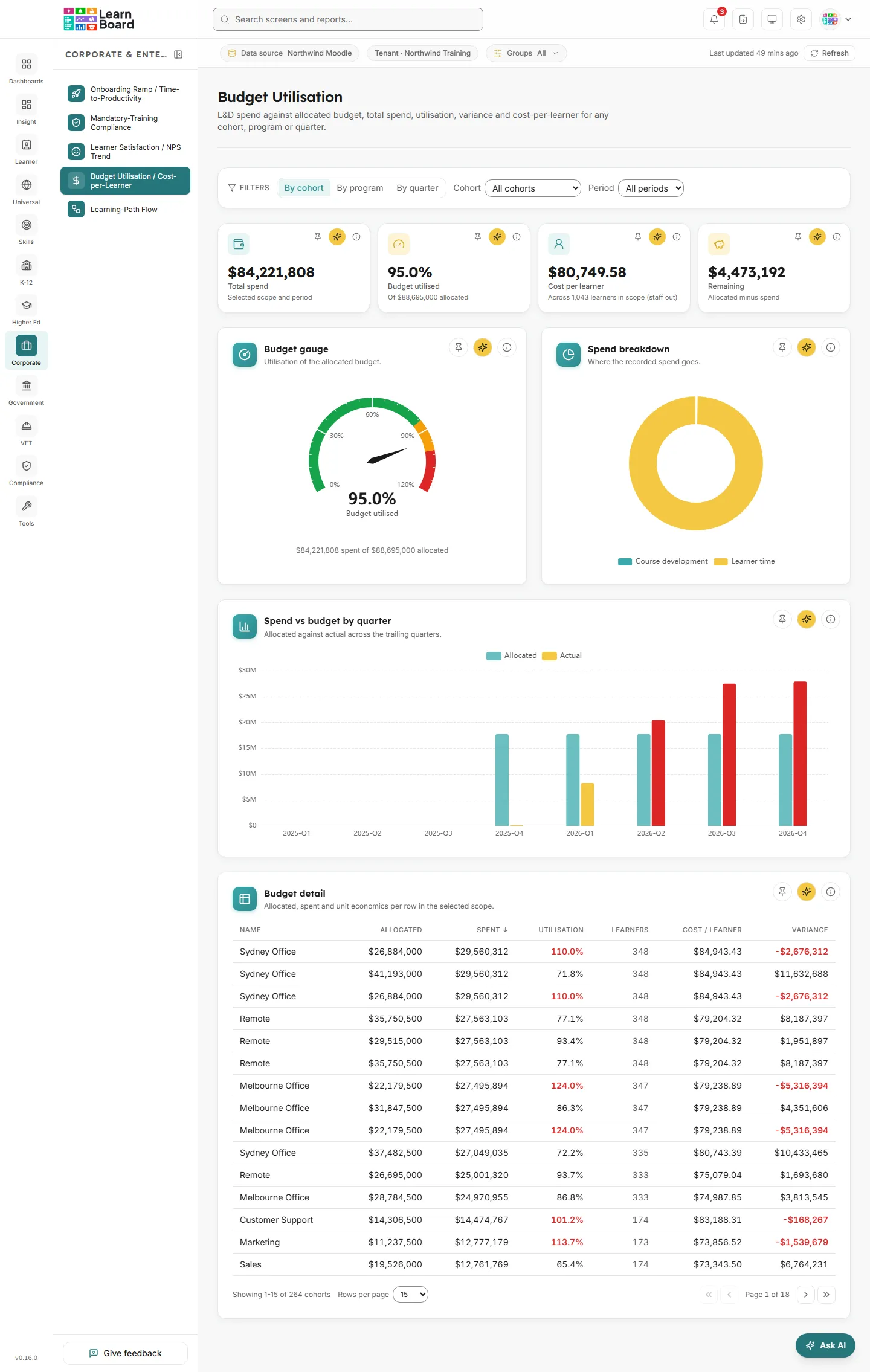
The Budget Utilisation screen: filters, four stat tiles, the budget gauge, the spend breakdown, spend against budget by quarter, and the budget detail table.
When your workspace has no training cost inputs and there is no budget allocation for the current selection either, the cards are replaced by one panel titled No spend recorded yet: “No training spend has been recorded for this Workspace yet. Add per-course development costs and a learner hourly rate under Admin to start tracking spend against budget, until then, utilisation and cost-per-learner can’t be derived.”
Open Admin and choose Training Cost Setup. You need a role that can manage training costs; the Admin role can.
Enter a Learner hourly rate, a Default course development cost, or a development cost for individual courses. Any one of these counts as configured.
Check the Currency. Every amount on this screen is shown in it.
Come back to Budget Utilisation. Spend, the breakdown and cost per learner now fill in.
Spend can show without a budget, but utilisation cannot. When no allocation exists for the scope and period you picked:
the Budget utilised and Remaining tiles read “No budget allocated”, with “Set an allocation to enable” underneath;
the Budget gauge shows a “No budget allocated” panel: “No budget allocation exists for this scope and period, so utilisation can’t be derived. Recorded spend still shows below.”;
the Allocated, Utilisation and Variance columns of the table show a dash;
Spend vs budget by quarter shows the actual bars only.
“No budget allocated” is different from a budget of zero. LearnBoard never borrows an allocation from another scope: a cohort with no allocation of its own does not take the organisation’s budget.
The filter bar stays at the top of the page as you scroll. It drives every card on the screen.
Scope: three buttons, By cohort (the default), By program and By quarter. The scope decides what one row of the detail table is, which allocation the tiles and gauge read, and how the spend breakdown splits. Switching scope clears the cohort or program you had picked.
Cohort: shown when the scope is By cohort. “All cohorts” by default, or one cohort. Cohorts are built from your Moodle course groups.
Program: shown when the scope is By program. “All programs” by default, or one program. A program here is one Moodle course. Every course counts except the site front page and the courses hidden from analytics in your workspace settings; a course hidden in Moodle itself still appears.
Period: “All periods” by default, or one quarter, written as, for example, “2026-Q3”. The list holds the current quarter and the seven before it, eight in all, on your workspace’s time zone. “All periods” covers those eight quarters together.
Changing any filter takes the detail table back to page 1.
Four tiles sit under the filters. Each has Pin to dashboard, Ask AI about this and an info (i) button that explains how the figure is counted. See Pin to dashboard and Ask AI.
All recorded L&D spend for the scope and period you picked, in your configured currency.
How to read it: the money your training cost inputs say was spent in the window. It is the figure every other tile divides or subtracts from.
How it is worked out: the sum, over every costed course in scope, of two parts:
Course development: the course’s development cost (its own cost, or your default course development cost) spread evenly over all its enrolments ever, then counted for the enrolments that started in the period.
Learner time: for completions in the period, the time from enrolment start to completion, in hours, multiplied by your learner hourly rate.
A cohort scope counts only that cohort’s members. A program scope counts only that course.
What you can do: pin it, ask AI about it, or open the info (i) text.
The share of the allocated budget that has been spent, as a percentage to one decimal place.
How to read it: 50.0% means half the budget for the selection is gone. Above 100% means spend has passed the allocation. The line underneath names the allocation, for example “Of $120,000 allocated”.
How it is worked out: total spend divided by the allocated budget for the selected scope and period, times 100. “All periods” adds up every allocated quarter in the eight-quarter window.
Empty state: “No budget allocated” with “Set an allocation to enable” when no allocation exists for the selection.
What you can do: pin it, ask AI about it, or open the info (i) text.
What each learner cost on average in the selection.
How to read it: the line underneath gives the headcount behind it, for example “Across 312 learners in scope (staff out)”.
How it is worked out: total spend divided by the distinct learners enrolled in scope during the period. A learner counts when their enrolment started on or before the end of the period and had not ended before its start. Only active learner enrolments count: teachers, other staff and suspended learners are left out. The figure assumes all the recorded spend applies to those learners.
Empty state: a dash when no training costs are configured or nobody is in scope, rather than a misleading zero.
What you can do: pin it, ask AI about it, or open the info (i) text.
How much of the budget is left, or by how much it has been overspent.
How to read it: while spend is within the allocation the tile is titled Remaining and shows what is left. Once spend passes the allocation, the title changes to Over budget and the amount, shown in red, is how far over you are.
How it is worked out: allocated budget minus total recorded spend for the selected scope and period. Positive is budget remaining; negative is over budget, shown as a positive amount under the Over budget title.
Empty state: “No budget allocated” with “Set an allocation to enable” when there is nothing to measure against.
What you can do: pin it, ask AI about it, or open the info (i) text.
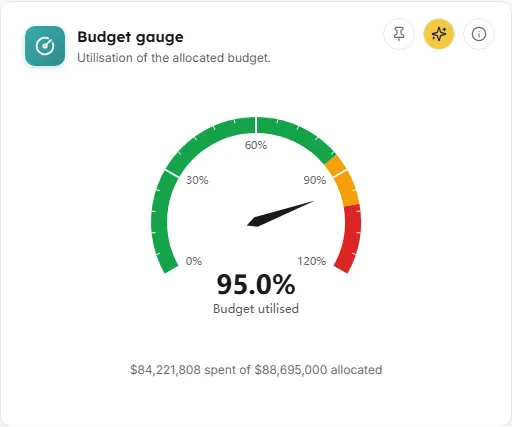
A dial showing budget utilised for the selection, with coloured zones.
How to read it: the needle and the large figure show the percentage used. The dial is coloured in three zones: green is under budget (below 85%), amber is approaching (85 to 100%) and red is over budget. The scale runs past 100%, to at least 120%, so an overspend lands clearly in the red. The line underneath reads, for example, “$96,000 spent of $120,000 allocated”.
How it is worked out: the same figure as the Budget utilised tile: total spend divided by the allocation for the selected scope and period.
Empty state: the “No budget allocated” panel when no allocation exists for the selection.
What you can do: pin it to a dashboard, ask AI about it, or open the info (i) text.
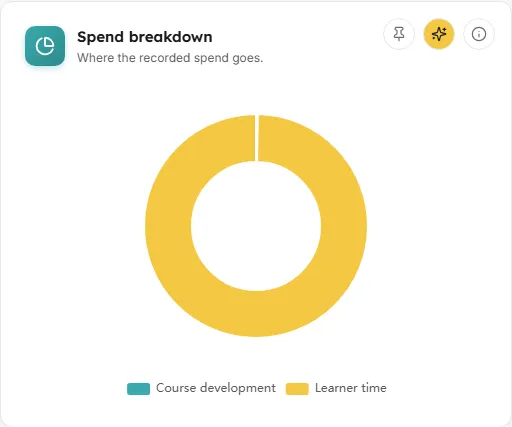
A doughnut chart splitting the recorded spend for the selection.
How to read it: each slice is one part of the spend. Hover a slice to see its amount in your currency and its share as a percentage. The legend sits under the chart.
How it is worked out: each slice sums the recorded spend it covers for the selected scope and period.
By default, and whenever a single cohort, program or quarter is picked, spend splits into cost categories: Course development (the spread development cost), Learner time (measured hours times your learner hourly rate) and Instructor time. Moodle holds no record of instructor hours, so the instructor time slice is always zero and does not appear on the chart.
With the scope set to By program and “All programs” picked, each slice is one program’s total spend. The eight biggest programs get their own slice and the rest are folded into Other programs.
Empty state: “No spend recorded for this scope yet.”
What you can do: hover for figures, pin it to a dashboard, ask AI about it, or open the info (i) text.
ChartAllocated against actual across the trailing quarters.
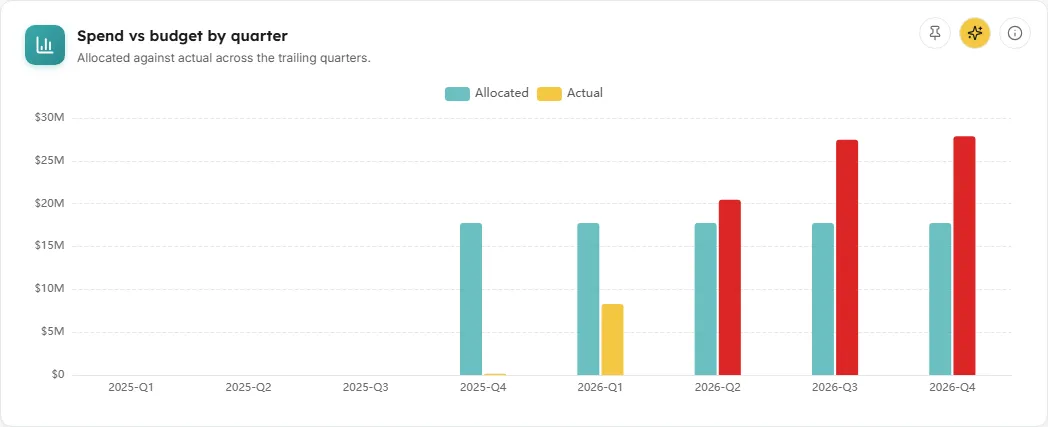
Paired bars for each of the last eight quarters: the budget allocated and the spend actually recorded.
How to read it: the lighter bar is Allocated and the other is Actual. An actual bar turns red when that quarter’s spend went over its allocation. A quarter with no allocation shows the actual bar only, and its tooltip reads “No budget allocated” for the allocation. Hover a quarter to see both amounts.
How it is worked out: for each quarter in the trailing two-year window, the allocation for the selected scope is paired with the spend recorded in that quarter. The cohort or program you picked applies. The Period filter does not narrow this chart: it always shows all eight quarters, so you can see the trend.
What you can do: hover for figures, pin it to a dashboard, ask AI about it, or open the info (i) text.
TableAllocated, spent and unit economics per row in the selected scope.
One row per cohort, program or quarter in the selected scope, with the money and the headcount side by side.
How to read it: the columns are Name, Allocated, Spent, Utilisation, Learners, Cost / learner and Variance. A utilisation above 100% and a negative variance are shown in bold red. A row with no allocation shows a dash for Allocated, Utilisation and Variance, never a made-up 0%.
What a row is:
By cohort: every cohort, or only the one you picked.
By program: every costed program, or only the one you picked.
By quarter: the eight quarters in the window. The Period filter does not narrow this view.
How it is worked out: Allocated comes from the budget allocation for that row and period; Spent from recorded training costs; Utilisation is spent divided by allocated; Learners is the distinct learners enrolled in that row’s scope during the period; Cost / learner is spent divided by Learners; Variance is allocated minus spent.
Why the rows can add up to more than the tiles: each row counts its own learners, so a learner in two programs, or two cohorts, counts in both rows. The Cost per learner tile counts each person once.
What you can do:
Click any column heading other than Learners to sort by it; click again to reverse the order. The table opens sorted by Spent, highest first.
Page through with the controls under the table, and choose 15, 50 or 100 rows per page.
Pin it to a dashboard, ask AI about it, or open the info (i) text.
Empty state: “No spend recorded for this scope yet.”
Utilisation needs an allocation for exactly the selection you picked. The tiles and gauge read the organisation-wide allocation when nothing is pinned, the cohort’s own allocation when a cohort is picked, the program’s own when a program is picked, and the quarter allocation under By quarter. If none exists for that combination and period, LearnBoard says so rather than guessing. See No budget allocated.
Rows are worked out for their own scope. Under By cohort a person in two cohorts adds spend and headcount to both rows, and spend for people in no cohort appears in the tiles but in no row. Use the tiles for the headline and the rows to compare one cohort, program or quarter against another.
It changes the tiles, the gauge, the spend breakdown and the cohort and program rows of the detail table. Spend vs budget by quarter and the By quarter table always show the full eight quarters.
Your Moodle site does not record instructor hours, so instructor time is counted as zero. Setting an Instructor hourly rate in Training Cost Setup does not add spend to this screen.