

Alerts
Alerts watch the figures for you. A workspace administrator sets rules, such as “tell us when more than 20% of learners are at risk”, and when a rule’s threshold is crossed an alert appears for everyone in the workspace who can see alerts. The Alerts screen is under Tools in the menu, and the bell in the top bar shows the latest.
At a glance
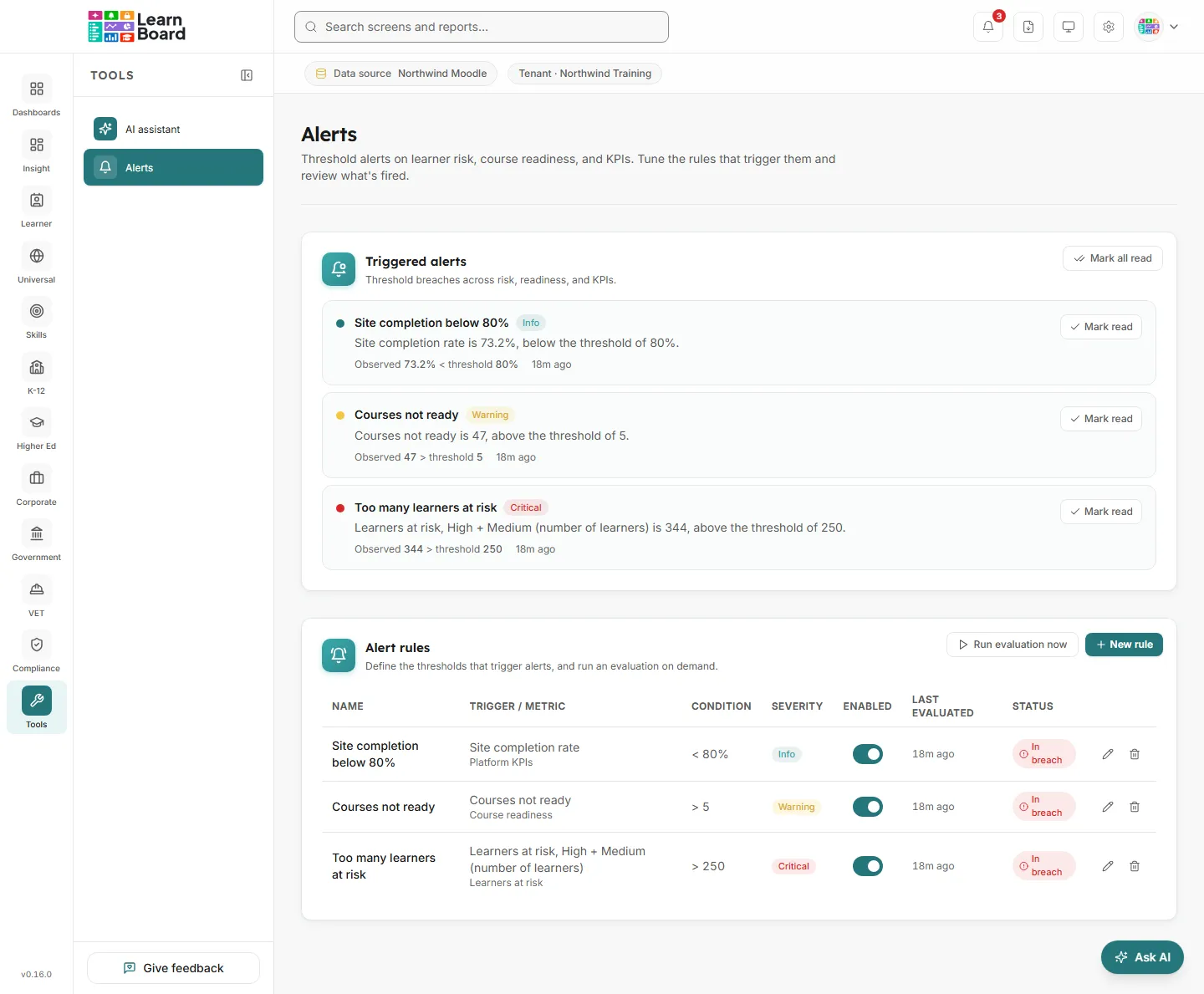
- Triggered alerts: the feed of alerts that have fired, for Admins, Managers and Viewers.
- Alert rules: what triggers them. Only workspace administrators can create and change rules.
- Rules are checked once an hour, and an administrator can check them on demand.
- An alert fires once when a figure crosses its threshold, not every hour it stays there.
- Alerts appear in LearnBoard. They are not sent by email.
The bell in the top bar
Section titled “The bell in the top bar”The bell shows a red count of the alerts you have not read yet. Press it to see the eight most recent, each with its title, how long ago it fired and what happened. Click one to mark it read, press Mark all read, or press View all alerts to open the Alerts screen. When there is nothing new it says You’re all caught up, no alerts.
Triggered alerts
Section titled “Triggered alerts”The Triggered alerts card lists every alert that has fired in your workspace, newest first. Each one shows:
- the alert’s title and its severity: Info, Warning or Critical;
- Observed, the figure that was measured, against the rule’s threshold;
- how long ago it fired.
Unread alerts are highlighted. Press Mark read on one, or Mark all read at the top. Read state is your own: marking an alert read does not mark it read for your colleagues.
If nothing has fired, the card says No alerts triggered and When a rule’s threshold is breached, the alert will appear here.
How do I create an alert rule?
Section titled “How do I create an alert rule?”Workspace administrators only.
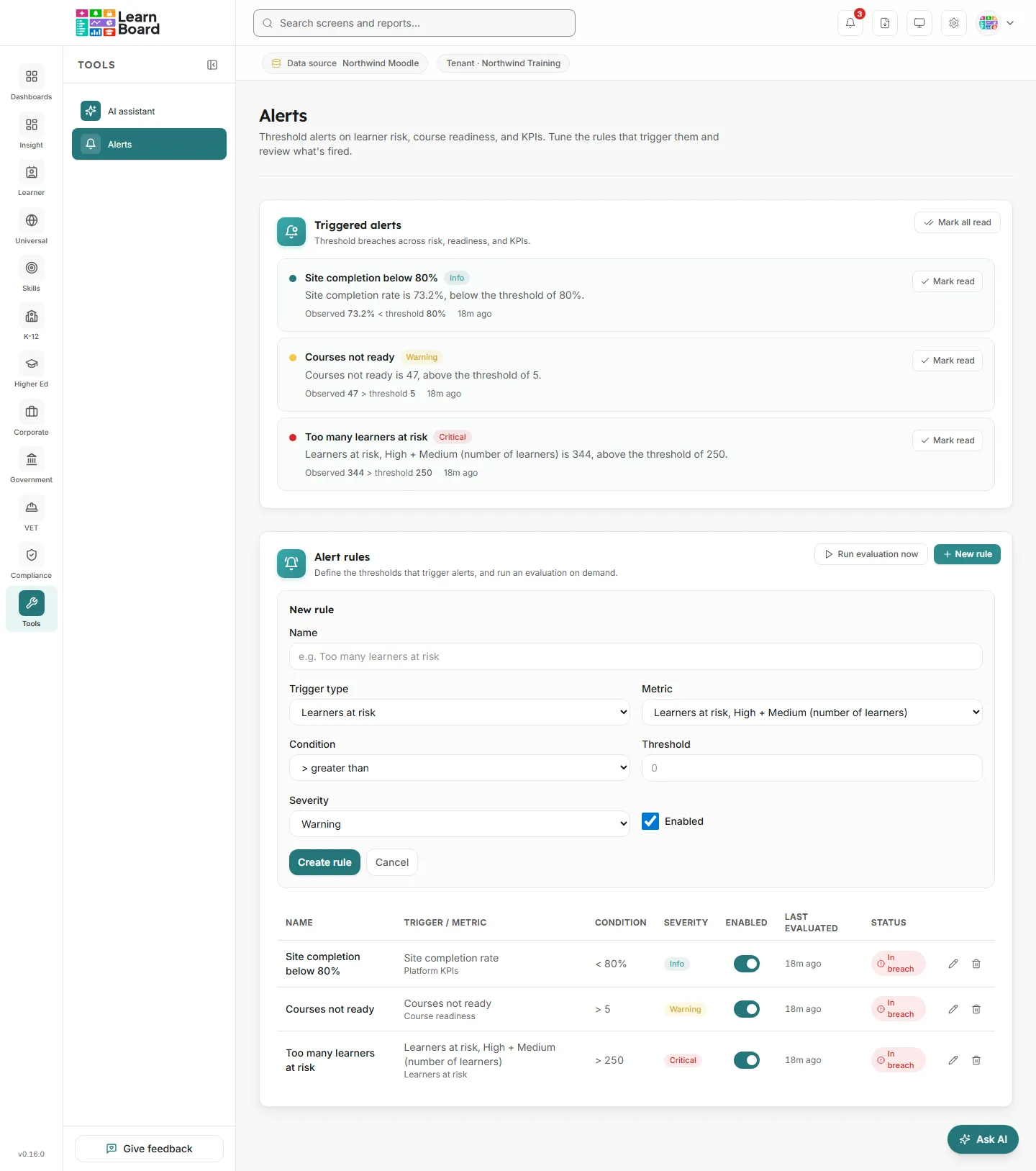
- On the Alerts screen, in the Alert rules card, press New rule.
- Name: what the alert will be called, for example “Too many learners at risk”.
- Trigger type: what to watch. Choose Learners at risk, Course readiness or Platform KPIs.
- Metric: the figure to watch. The choices depend on the trigger type (see below).
- Condition: greater than, greater than or equal, less than, or less than or equal.
- Threshold: the number to compare against. For a percentage, type the percentage, for example
20. - Severity: Info, Warning or Critical.
- Enabled: leave it ticked to start checking straight away.
- Press Create rule.
What can a rule watch?
Section titled “What can a rule watch?”Learners at risk
- Learners at risk, High + Medium (number of learners)
- Share at risk, High + Medium (% of scored learners)
- High-risk learners only (number of learners)
- Share at High risk only (% of scored learners)
Course readiness
- Courses ready, a percentage
- Courses not ready, a number of courses
Platform KPIs
- Site completion rate, a percentage
- Active users (30 days), a number of people
- Total enrolments, a number of enrolments
“At risk” means the High and Medium risk bands together, as everywhere in LearnBoard. See the definitions.
Managing rules
Section titled “Managing rules”The Alert rules table lists every rule with its Name, Trigger / metric, Condition, Severity, an Enabled switch, when it was Last evaluated, and its Status: In breach or OK.
- Turn a rule off or on with its Enabled switch.
- Edit a rule with the pencil, change it, and press Save changes.
- Delete a rule with the bin, and confirm.
- Run evaluation now checks every enabled rule straight away and says how many new alerts it created.
When does an alert fire?
Section titled “When does an alert fire?”Rules are checked against your learning platform’s figures once an hour. An alert fires when a rule moves into breach. While the figure stays past the threshold, no more alerts are raised for that rule. When the figure comes back within the threshold, the rule shows OK again and is ready to fire the next time it is crossed.