

Users and engagement
The Users and engagement screen (headed Users & engagement in LearnBoard) answers “who has an account on our Moodle site, and are they actually using it?”. It shows how many accounts are active, inactive, suspended or hidden, how new registrations are arriving, how often people sign in, whether newly registered people come back, and a searchable directory of every account. Workspace administrators, managers and team leads use it to check the health of the user base and to find individual accounts.
At a glance
Section titled “At a glance”- Route:
/users, in the Insight section of the menu as Users & engagement. - Who can open it: any role holding the
view.userspermission. By default that is Admin, Manager, Viewer and Team lead. A Learner who opens the link is taken to their own home page with the note “You don’t have access to that screen, so you are on your home page instead. Ask a workspace administrator if you need it.” - Plan: part of the Insight pack. It is included on every plan, Free included.
- Team leads: see the screen through their own Moodle groups. The sub-bar shows a Your groups only badge, and every figure counts only the people in their own Moodle groups.
- Filters: the Groups filter in the sub-bar (Programme, Department, Campus, Learner category, Cohort) narrows every card and the directory. The directory also has its own search box and status chips.
- Downloads: the All users directory has a Download CSV button for roles that hold an export permission (Admin and Manager by default) on a plan with CSV export. Viewers and Team leads see no export button.
- Units: the tiles and charts count user accounts, staff included, not only learners. Each card says what it counts in the line under its title.
Status tiles
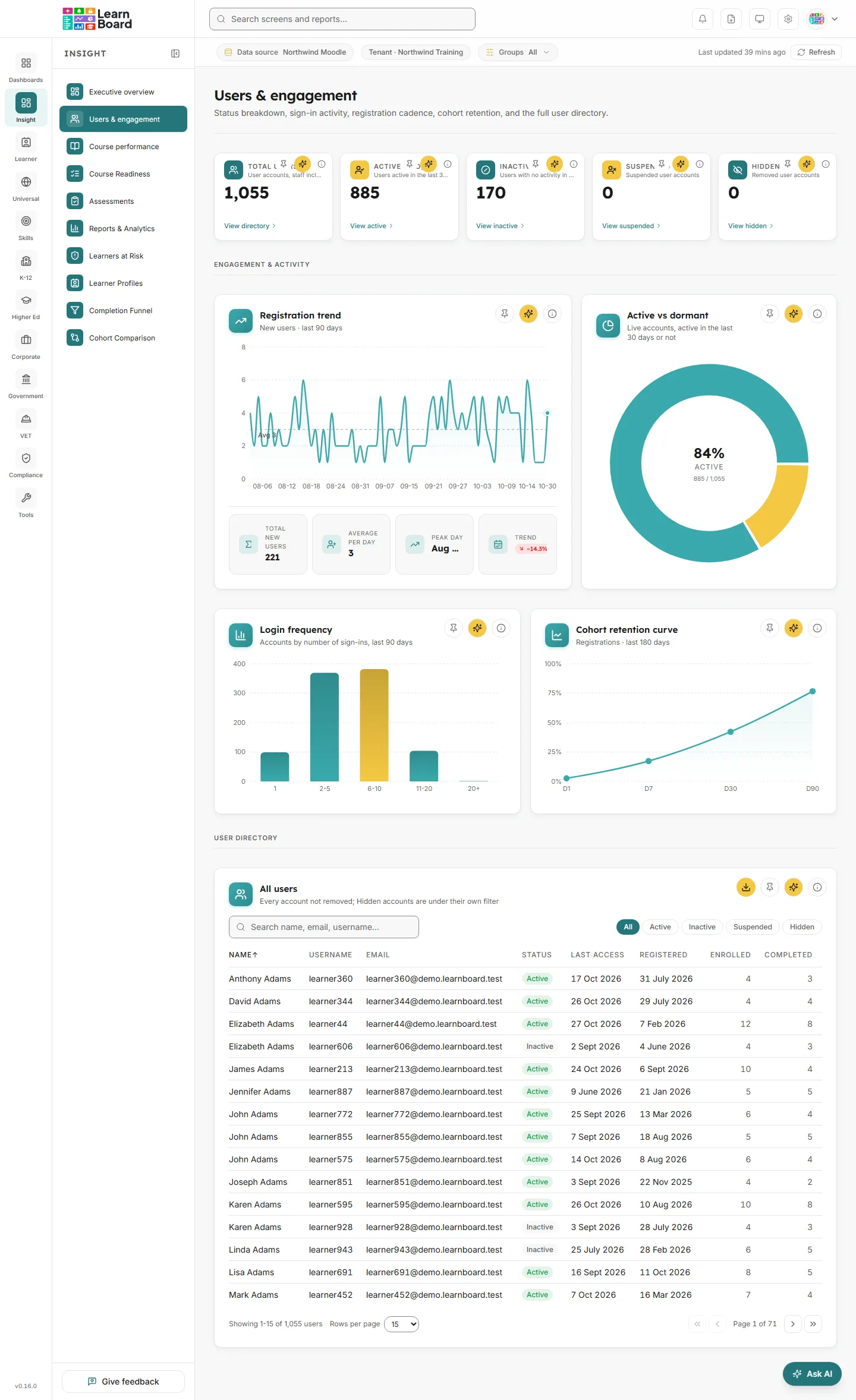
Section titled “Status tiles”Five tiles run across the top of the screen. Each one has a small row of buttons in its top-right corner: Pin to dashboard, Ask AI about this (when your role has the AI assistant) and the i info button. Each tile also has a link at the bottom that opens the directory below, filtered to that status.
Total users
Section titled “Total users”
Every user account on the connected Moodle site that has not been removed.
- How to read it: the size of your user base, counting active, inactive and suspended accounts together. Hidden (removed) accounts are not in this figure; they have their own tile.
- How it is worked out: every Moodle user account that is not deleted, excluding Moodle’s built-in guest account. It is the same figure as Total users on the Executive overview.
- What you can do: hover or click the i for the explanation, Ask AI about this, Pin to dashboard, or click View directory to show every account in the All users table.
Active (30d)
Section titled “Active (30d)”Live accounts with any recorded activity in the last 30 days.
- How to read it: how many people are really using the site right now. Compare it with Total users to see what share of your accounts is in use.
- How it is worked out: accounts that are neither suspended nor hidden and have at least one entry in Moodle’s standard log in the last 30 days. A sign-in counts, and so does anything done in a course. Staff are included, so this counts users, not only learners. It uses the one Active rule LearnBoard applies everywhere: activity in the last 30 days. It is the same figure as Active (30d) on the Executive overview.
- What you can do: Info, Ask AI, Pin, and View active to filter the directory to active accounts.
Inactive
Section titled “Inactive”Live accounts with no recorded activity in the last 30 days, including people who have never signed in.
- How to read it: dormant accounts. A rising number can mean people were registered but never started, or have drifted away.
- How it is worked out: accounts that are neither suspended nor hidden and have no entry in Moodle’s standard log in the last 30 days. Active plus Inactive equals the live accounts shown in Active vs dormant.
- What you can do: Info, Ask AI, Pin, and View inactive to filter the directory to these accounts.
Suspended
Section titled “Suspended”Accounts an administrator has suspended from signing in.
- How to read it: people who still have an account but cannot sign in.
- How it is worked out: accounts marked suspended on the connected Moodle site (and not deleted).
- What you can do: Info, Ask AI, Pin, and View suspended to filter the directory.
Hidden
Section titled “Hidden”Accounts that have been removed from active use on Moodle but kept for record-keeping.
- How to read it: accounts deleted in Moodle. Moodle does not destroy a deleted account; it marks it as deleted and keeps the row for history. LearnBoard calls these Hidden rather than deleted.
- How it is worked out: Moodle user accounts marked as deleted, excluding the guest account.
- What you can do: Info, Ask AI, Pin, and View hidden to list them in the directory.
Common questions about the tiles
Section titled “Common questions about the tiles”- Why is Total users higher than the number of users in Moodle’s own user list? It should not be: Total users counts every account Moodle still has, suspended accounts included, and leaves out deleted ones and the guest account. If Moodle’s list is filtered (for example to hide suspended accounts), the two will differ.
- Why do the tiles not add up to Total users? Total users is Active plus Inactive plus Suspended. Hidden accounts are counted on their own and are not part of Total users.
- Why is Active (30d) here different from the number of active learners on other screens? This tile counts every account with activity, staff included. Screens that count learners count only people with an active student enrolment.
- Why might Active look low? It is read from Moodle’s standard log. If your Moodle site deletes old log entries, or a log store is switched off, activity that is no longer in the log cannot be counted.
Engagement & activity
Section titled “Engagement & activity”The middle band of the screen, headed Engagement & activity, holds four charts. Each chart card has Pin to dashboard, Ask AI about this (when your role has the AI assistant) and the i info button in its top-right corner. If a chart’s data cannot be loaded you see “Something went wrong loading this data” with a Retry button; if your plan does not cover it you see the plan-limit message instead of an empty chart.
Registration trend
Section titled “Registration trend”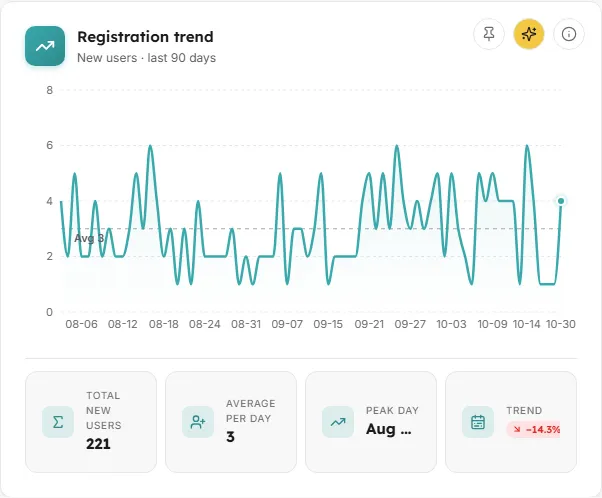
New user accounts created per day over the last 90 days.
- How to read it: each point is one day. A dashed line marked Avg shows the daily average across the window, and the last day is highlighted. Peaks usually line up with intakes, bulk uploads or a new course launch. Under the chart a strip of four figures sums the window up:
- Total new users: accounts created in the 90 days.
- Average per day: the total divided by the number of days plotted, rounded.
- Peak day: the day with the most registrations and its count.
- Trend: the average of the last 7 days compared with the average of the first 7 days, as a percentage change, marked “vs prev”. It shows a dash when fewer than 14 days are plotted.
- How it is worked out: each account is placed on the day it was created in Moodle. Accounts that have since been deleted (Hidden) are left out. Days run midnight to midnight in your workspace’s time zone; the info panel names the zone (“How we count: days run midnight to midnight, … time.”).
- What you can do: hover a point to see the date and the number of new users, Info, Ask AI, Pin.
- Empty state: “No registrations recorded in this window.”
Active vs dormant
Section titled “Active vs dormant”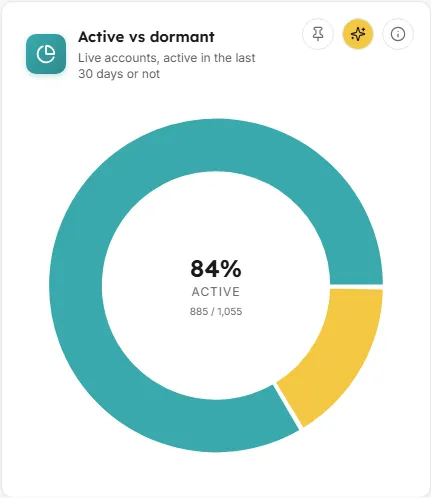
A donut showing what share of live accounts had any activity in the last 30 days.
- How to read it: the centre shows the active share as a percentage, labelled Active, with the active count over the total underneath. The two slices are Active (30d) and Dormant. Active plus dormant equals the Active and Inactive tiles above.
- How it is worked out: live accounts are those that are neither deleted nor suspended, excluding the guest account. An account is active when it has any entry in Moodle’s standard log in the last 30 days (a sign-in counts), the same rule as every Active figure. Everyone else is dormant.
- What you can do: hover a slice for its count, Info, Ask AI, Pin.
- Common question: Why does the total here differ from Total users? Suspended accounts are not live, so they are left out of this donut but included in Total users.
Login frequency
Section titled “Login frequency”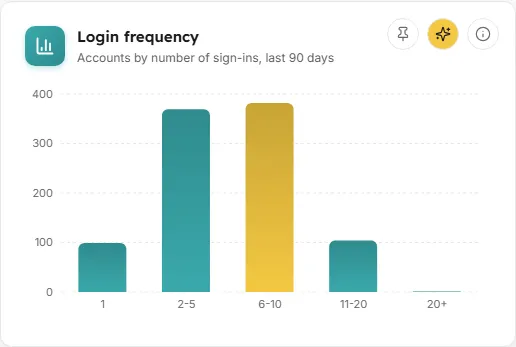
How often people signed in over the last 90 days, grouped into buckets.
- How to read it: the bars are buckets of sign-in counts: 1, 2-5, 6-10, 11-20 and 20+. The tallest bar is drawn in a stronger colour. A bar heavy on the left means many people signed in once or a few times; bars on the right are your regular users.
- How it is worked out: LearnBoard counts each person’s sign-in events in Moodle’s standard log over the last 90 days and places them in one bucket by their total. People who did not sign in at all in the 90 days are not in any bucket.
- What you can do: hover a bar for the number of users in it, Info, Ask AI, Pin.
- Empty state: “No login data recorded.”
- Common question: Why do the bars add up to fewer people than Total users? Only people with at least one sign-in in the last 90 days appear. Accounts that never signed in, or last signed in earlier, are not counted.
Cohort retention curve
Section titled “Cohort retention curve”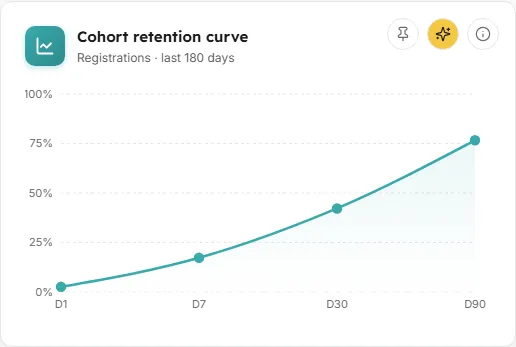
Of the people who registered in the last 180 days, the share who signed in within 1, 7, 30 and 90 days of registering.
- How to read it: the horizontal axis is days since joining (D1, D7, D30, D90) and the vertical axis is the percentage retained. A steep drop between D1 and D7 means people sign in once and do not come back.
- How it is worked out: the cohort is every account created in the last 180 days that has not been deleted. Retention at day N is the share who signed in (a sign-in event in Moodle’s standard log) within N days of their account being created. Each point is measured only over people registered at least N days ago, because someone who joined last week has not had 90 days to come back yet.
- What you can do: hover a point for the percentage retained, Info, Ask AI, Pin.
- Empty state: “Not enough cohort data yet, registrations from the last 180 days are required.”
User directory
Section titled “User directory”All users
Section titled “All users”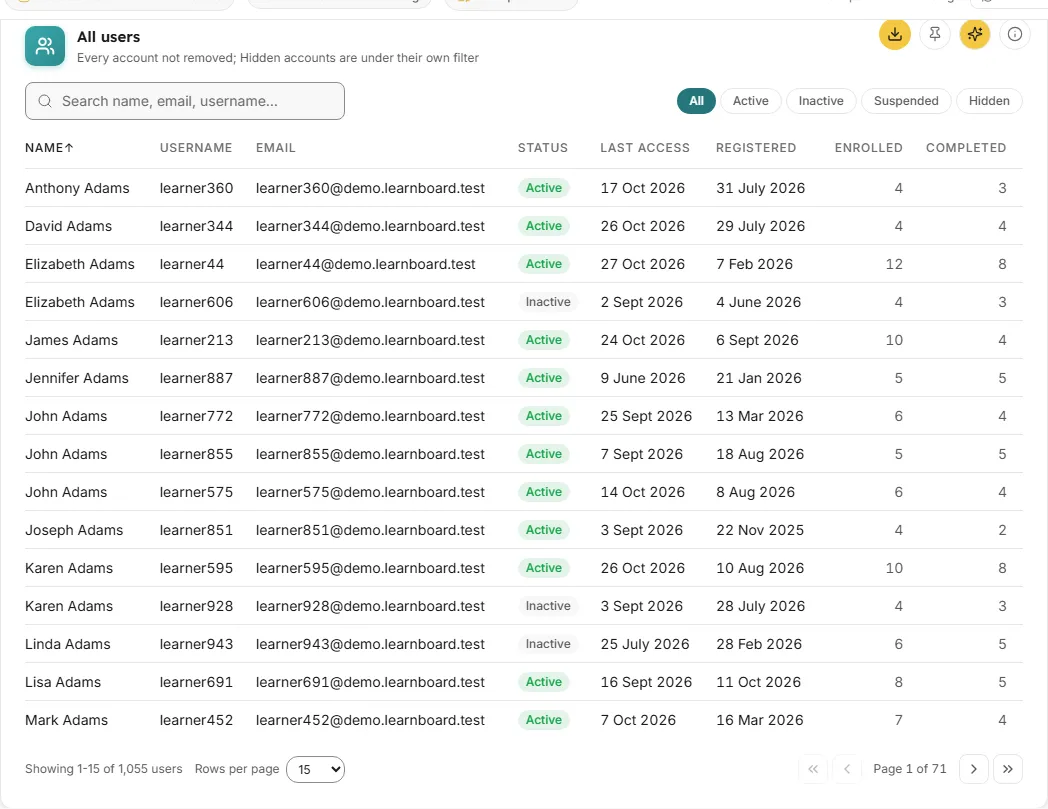
The full user directory, one row per account, with status, last access and course counts.
- How to read it: the columns are Name, Username, Email, Status, Last access, Registered, Enrolled and Completed. Status is a coloured badge: Active, Inactive, Suspended or Hidden. Last access and Registered show a date, or “Never” when there is none.
- How it is worked out:
- Active means any activity in the last 30 days (the same rule as the Active (30d) tile); Inactive means none in that time. Suspended and Hidden reflect the account’s state on the connected Moodle site.
- With the All chip, the list shows every account Moodle still has, which matches the Total users tile. Hidden (deleted) accounts appear only under the Hidden chip.
- Enrolled counts the person’s active learner enrolments: each course once, with staff roles, suspended enrolments and courses hidden from analytics left out.
- Completed counts the enrolments among those that are complete: a course completion, every tracked activity shown in the course done, or a certificate. Completed can never be higher than Enrolled.
- The built-in guest account is never listed.
- What you can do:
- Search: type in “Search name, email, username…” to match first name, last name, email or username. The list goes back to page 1 as you type.
- Status chips: All, Active, Inactive, Suspended, Hidden. One chip is selected at a time. The tile links at the top of the screen set the same chips.
- Sort: click any column header. The first click sorts ascending, the second descending, and the third clears the sort back to Name, A to Z. An arrow shows the current direction. Sorting by Status orders Active, Inactive, Suspended, Hidden.
- Paginate: choose 15, 50 or 100 rows a page, and use the First page, Previous page, Next page and Last page buttons. The footer reads “Showing 1-15 of … users” and “Page 1 of …”.
- Share the view: the page, page size, sort, search and status are kept in the address bar, so a copied link opens the same view.
- Download CSV: downloads the directory with your current search and status filters applied, up to 5,000 rows. The file has
user_id,firstname,lastname,username,email,status,last_access_iso,courses_enrolledandcourses_completed. The button appears only for roles holding an export permission, and shows a padlock when your plan does not include CSV export. If nothing matches, the download is refused with “There is nothing to export for this view yet. Change the filters or the date range, or come back once there is data.” - Info, Ask AI (it reads the rows on screen at the moment you ask, with your sort and filters) and Pin to dashboard.
- Empty states: “No users match the current filters.” when a search or chip finds nobody; “No users to display.” when there is nothing to list.
Common questions about the directory
Section titled “Common questions about the directory”- Why does a person’s Enrolled count differ from the number of courses Moodle shows on their profile? Moodle lists every course the person is enrolled in, in any role. LearnBoard counts only active learner enrolments: a course where they are a teacher, a suspended enrolment or a course hidden from analytics is not counted.
- Why is someone Inactive when they signed in recently? Status reads Moodle’s standard log. If the sign-in is not in the log (for example because old log entries are deleted on your site), it cannot be counted. The Last access column shows Moodle’s own last access date for the account.
- Where are deleted accounts? Under the Hidden chip. They are never in the All list.
Filters and controls
Section titled “Filters and controls”- Groups (sub-bar): narrows every card, the directory and its CSV by Programme, Department, Campus, Learner category or Cohort, until you clear it. The choices come from your workspace’s groupings; if none are set up, the panel says “Nothing to filter by yet.”
- Last updated and Refresh (sub-bar): show how old the figures are and work this screen’s figures out again. The server accepts a refresh at most once a minute per workspace.
- Search box and status chips (All users card): see the directory above.
- Tile links (View directory, View active, View inactive, View suspended, View hidden): jump to the directory filtered by that status.