

Course Feedback
The Course Feedback screen shows what learners say about the courses they finish, read from the end-of-course surveys already running in your Moodle site. Course owners, quality teams and managers use it to see how each survey question scores, which courses stand out, how opinion moves over time, and what learners wrote in their own words.
Survey numbers are often small, so every figure on this screen is shown with the count behind it, and thin averages are marked rather than hidden.
At a glance
Section titled “At a glance”- Route:
/insights/course-feedback. In the sidebar it sits under Universal as Course Feedback. - Who can open it: the Admin and Manager roles hold it by default (permission
view.universal.course-feedback). The Viewer role does not get it by default, because the Universal screens are held back from Viewer until a workspace grants them. A Learner cannot open it. - Team leads: a Team lead can open it. Figures are limited to the people in their own Moodle groups, and the bar under the top bar shows the Your groups only pill.
- Plan: part of the Universal pack, on the Pro, Business, Scale and Enterprise plans. The Free plan does not have it.
- When your plan does not include it: the screen shows Course Feedback is locked and “Part of the Universal pack, not included in your current plan.” Billing administrators see View plans & upgrade; everyone sees Compare plans and Back to Executive Overview.
- Filters: the screen has no filters of its own. The workspace-wide Groups filter in the bar under the top bar applies.
- Source: the Moodle Questionnaire activity (
mod_questionnaire). The separate Moodle Feedback activity is not read.
What you need in Moodle
Section titled “What you need in Moodle”- Install the Questionnaire activity. LearnBoard reads the Moodle Questionnaire plugin (
mod_questionnaire). Without it, the screen has nothing to read. - Add a questionnaire to your courses. Use rating-scale questions for scores and text questions for written comments. Each course can carry its own copy of the same survey: LearnBoard groups questions with the same wording together.
- Let learners submit it. Only submitted responses count. A survey a learner started but did not submit is left out.
When the Questionnaire activity is missing
Section titled “When the Questionnaire activity is missing”If your Moodle site does not have the Questionnaire activity, the whole screen shows one panel instead of the cards: No end-of-course surveys on this platform, “The connected learning platform has no end-of-course survey module installed, so there is nothing to report yet. Add a questionnaire to your courses and responses will appear here.”
When there are surveys but no responses yet
Section titled “When there are surveys but no responses yet”The cards appear, each with its own empty message, listed under each card below. For example Satisfaction by Question shows No rated answers yet, “Surveys exist but nobody has answered a rating question yet.”
How the figures are counted
Section titled “How the figures are counted”- Answers, responses and learners are different counts. One learner who submits one survey with five rating questions adds one response and five answers. Each card says which it counts.
- The scale comes from your data. LearnBoard reads the lowest and highest rating actually given, so if your surveys use 1 to 10 the averages read “out of 10”, and they stay right if a course author changes the scale.
- Response rate is distinct learners who replied divided by distinct learners enrolled in a course that has a survey. Learners are distinct people with an active student enrolment, so staff and suspended accounts who answered are left out of the rate.
- Freshness: the figures are kept for 15 minutes between reads. Comments are never kept: they are read live every time.
Headline figures
Section titled “Headline figures”The four tiles across the top each have an info button. While the screen first loads it says “Reading course feedback…”.
Average score
Section titled “Average score”
The mean rating across every rating question learners answered.
- How to read it: the line under the value gives the top of your scale and how many rated answers the average rests on. A dash means no rated answers yet.
- How it is worked out: the average of every rating answer in a submitted response. It counts answers, not learners.
Completed surveys
Section titled “Completed surveys”How many survey submissions learners finished and submitted.
- How to read it: the line under the value gives how many separate surveys (questionnaire activities) the submissions came from.
- How it is worked out: submissions, not learners. Part-finished attempts are left out, because a survey abandoned halfway is not an opinion.
Learners who replied
Section titled “Learners who replied”Distinct people who completed at least one end-of-course survey.
- How to read it: the line under the value is everyone enrolled in a course that has a survey. This tile divided by that figure is the response rate.
- How it is worked out: distinct learners with a learner enrolment in a course that has a survey, who completed one there. Somebody who filled in three surveys counts once; staff and suspended accounts who answered are left out.
Response rate
Section titled “Response rate”The share of learners who could have answered a survey and did.
- How to read it: when the rate is under 20%, the line under it changes to “Low, read every average with that in mind”. A low rate does not make the scores wrong, but the scores then represent the people who chose to answer, who are rarely a random sample.
- How it is worked out: distinct learners who replied, divided by distinct learners enrolled in a course that has a survey.
Charts
Section titled “Charts”Each chart and table below has Pin to dashboard, Ask AI and an info button.
Satisfaction by Question
Section titled “Satisfaction by Question”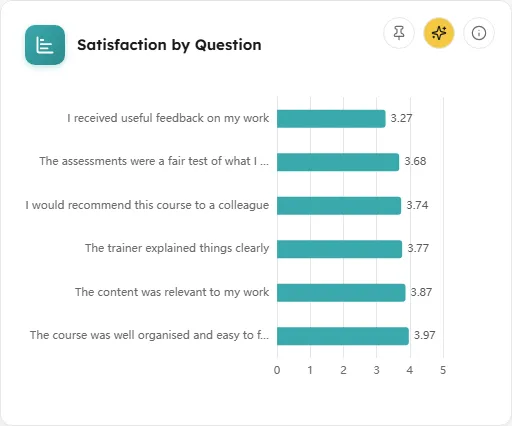
The average rating learners gave each question, lowest first. The bar at the top is the thing most worth fixing.
- How to read it: one bar per question, measured from 0 to the top of your scale, with the average printed at the end of the bar. Long questions are shortened on the axis. Hover a bar to see the full question, its average, how many answers it rests on, how many courses asked it, and the lowest and highest rating given.
- How it is worked out: answers, not learners. Questions are grouped by their wording, because every course carries its own copy of the same survey; grouping by the copy would split one question into many single-answer rows. Deleted questions are left out.
- Empty state: No rated answers yet, “Surveys exist but nobody has answered a rating question yet.” While loading: “Scoring questions…”.
How Ratings Are Spread
Section titled “How Ratings Are Spread”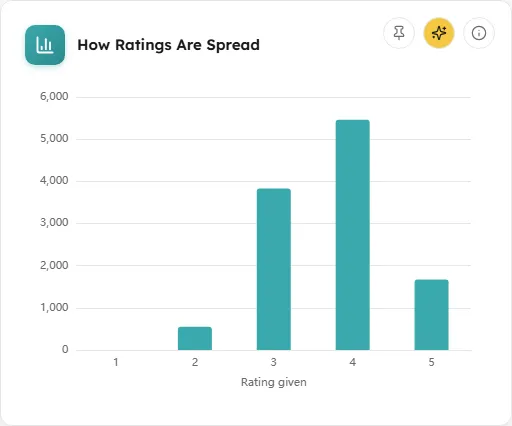
How many answers landed on each point of the scale, across every question.
- How to read it: Rating given runs across and the number of answers runs up. An average of 8 built from a wall of 8s is a different course from an average of 8 built from 10s and 4s, and only this chart tells them apart. Hover a bar for its count.
- How it is worked out: every rating answer in a submitted response, grouped by the value given. One person answering five rating questions contributes five.
- Empty state: No ratings yet, “No rating answer has been submitted.” While loading: “Counting ratings…”.
Feedback Over Time
Section titled “Feedback Over Time”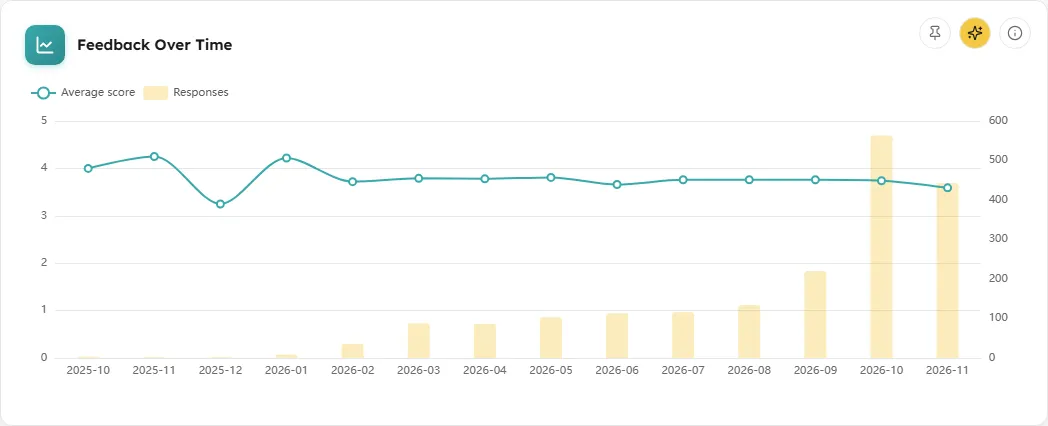
The average rating by month, with the number of responses behind each point.
- How to read it: the faint bars are Responses (right-hand scale) and the line is Average score (left-hand scale, 0 to the top of your scale). Read them together: a month with three responses moves the line much further than a month with thirty. A month with no rating answers breaks the line rather than being joined across. Hover a month for both figures.
- How it is worked out: submitted responses grouped by the month they were submitted, on your workspace’s clock. The info panel notes which time zone the months follow.
- Empty state: Nothing submitted yet, “No survey has been completed, so there is no trend to draw.” While loading: “Building the trend…”.
Tables
Section titled “Tables”Feedback by Course
Section titled “Feedback by Course”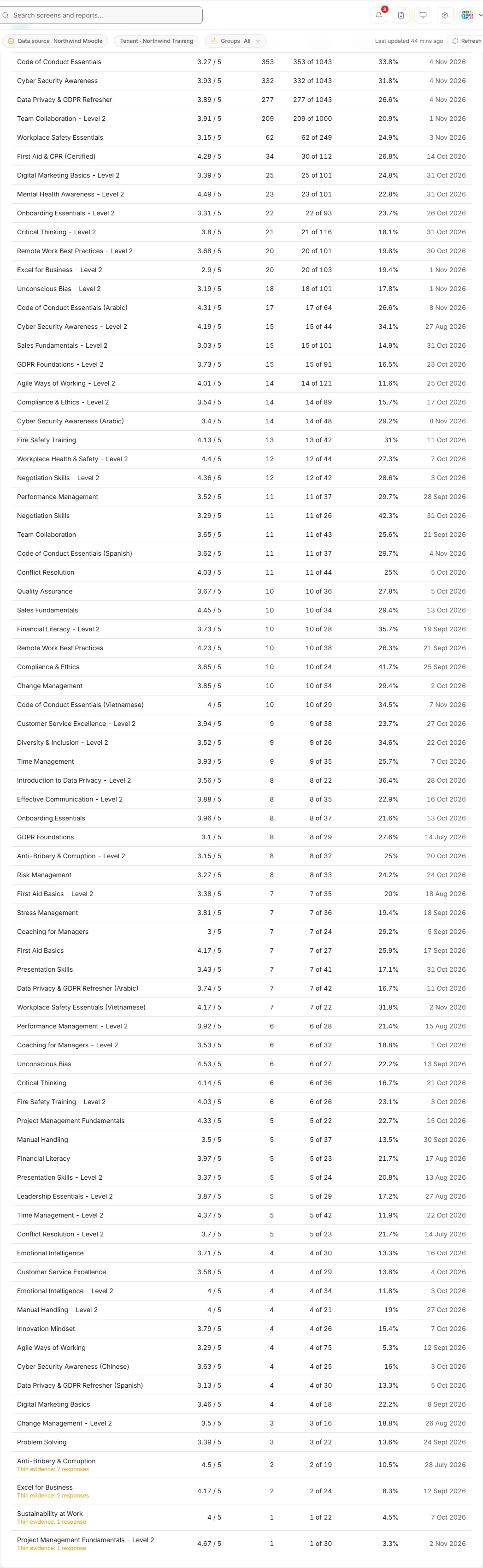
Every course with survey responses, its average rating, and how many of its learners replied.
- How to read it: the columns are Course, Average (for example “8.6 / 10”), Responses, Replied (“4 of 37”: learners who replied out of learners enrolled), Response rate and Last response. Courses with the most responses come first. A course with fewer than 3 responses carries the line “Thin evidence: 2 responses” under its name: the average is still shown, because hiding it would misrepresent coverage, but it must not be read as a verdict.
- How it is worked out: the average is over rating answers in that course’s submitted responses. Response rate is distinct learners who replied divided by learners enrolled in the course.
- Empty state: No course has feedback yet, “Surveys exist but none has been completed.” While loading: “Ranking courses…”.
- What you can do: Download CSV saves every row as
course-feedback-by-course.csv, with the columns Course, Average score, Responses, Learners who replied, Enrolled, Response rate % and Last response.
What Learners Wrote
Section titled “What Learners Wrote”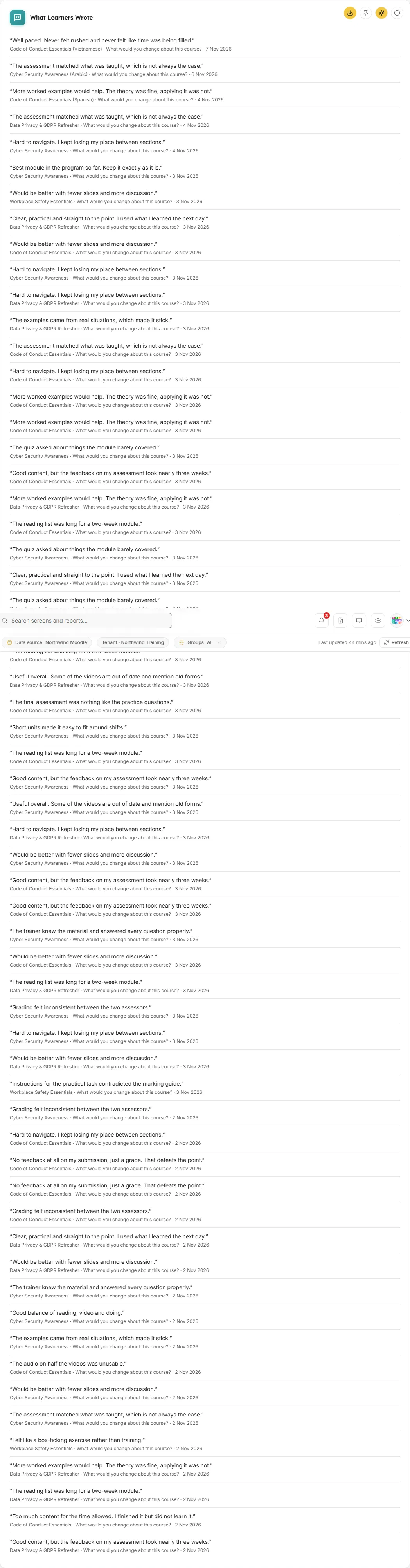
Free-text answers, newest first, with the course and question they answered.
- How to read it: each item is the comment in quotation marks, then the course, the question and the date it was submitted. The list shows up to 60 comments.
- How it is worked out: one row per written answer in a submitted response, shown as written and never summarised or edited. Answers of two characters or fewer are left out. The newest 200 are read.
- Privacy: these surveys record who answered, so treat the text as attributable even though no name is shown here.
- Empty state: Nothing written yet, “Learners have rated courses but left no written comments.” While loading: “Loading comments…”.
- What you can do: Download CSV saves the comments read (up to 200) as
course-feedback-comments.csv, with the columns Course, Question, Comment and Submitted.
If any card cannot load, it shows “Something went wrong loading this data” with a Retry button.
Common questions
Section titled “Common questions”Why does the screen say there are no end-of-course surveys?
Section titled “Why does the screen say there are no end-of-course surveys?”Your Moodle site does not have the Questionnaire activity (mod_questionnaire) installed, or LearnBoard cannot read it. Install the plugin and add a questionnaire to your courses; responses appear here once learners submit them.
We use the Moodle Feedback activity. Why is nothing showing?
Section titled “We use the Moodle Feedback activity. Why is nothing showing?”LearnBoard reads the Questionnaire activity only. The Feedback activity uses its own scales, and mixing the two into one average would not mean anything.
Why does one question appear once when every course has its own survey?
Section titled “Why does one question appear once when every course has its own survey?”Questions are grouped by their wording, so “How well organised was the course?” asked in 20 courses is one bar, built from all the answers. Hover the bar to see how many courses asked it.
Why is a course marked thin evidence?
Section titled “Why is a course marked thin evidence?”It has fewer than 3 responses, so its average is one or two opinions rather than a finding. The figure is still shown so you can see the course has feedback.
Why does the Average score not match the average of the course rows?
Section titled “Why does the Average score not match the average of the course rows?”The tile averages every rating answer across all courses. A course with many answers weighs more in the tile than a course with few, so the tile is not the average of the course averages.