

Skip to content

Light and dark themes

LearnBoard has a light theme and a dark theme, and by default it follows the setting of your computer or phone. You can choose one yourself from the top bar. This works for every role.

At a glance
  • The theme button is in the top bar, just right of Download PDF.
  • Each press moves to the next setting: match system, light, dark, then back to match system.
  • The choice is remembered in this browser.
  • Printing and PDFs always use the light theme.
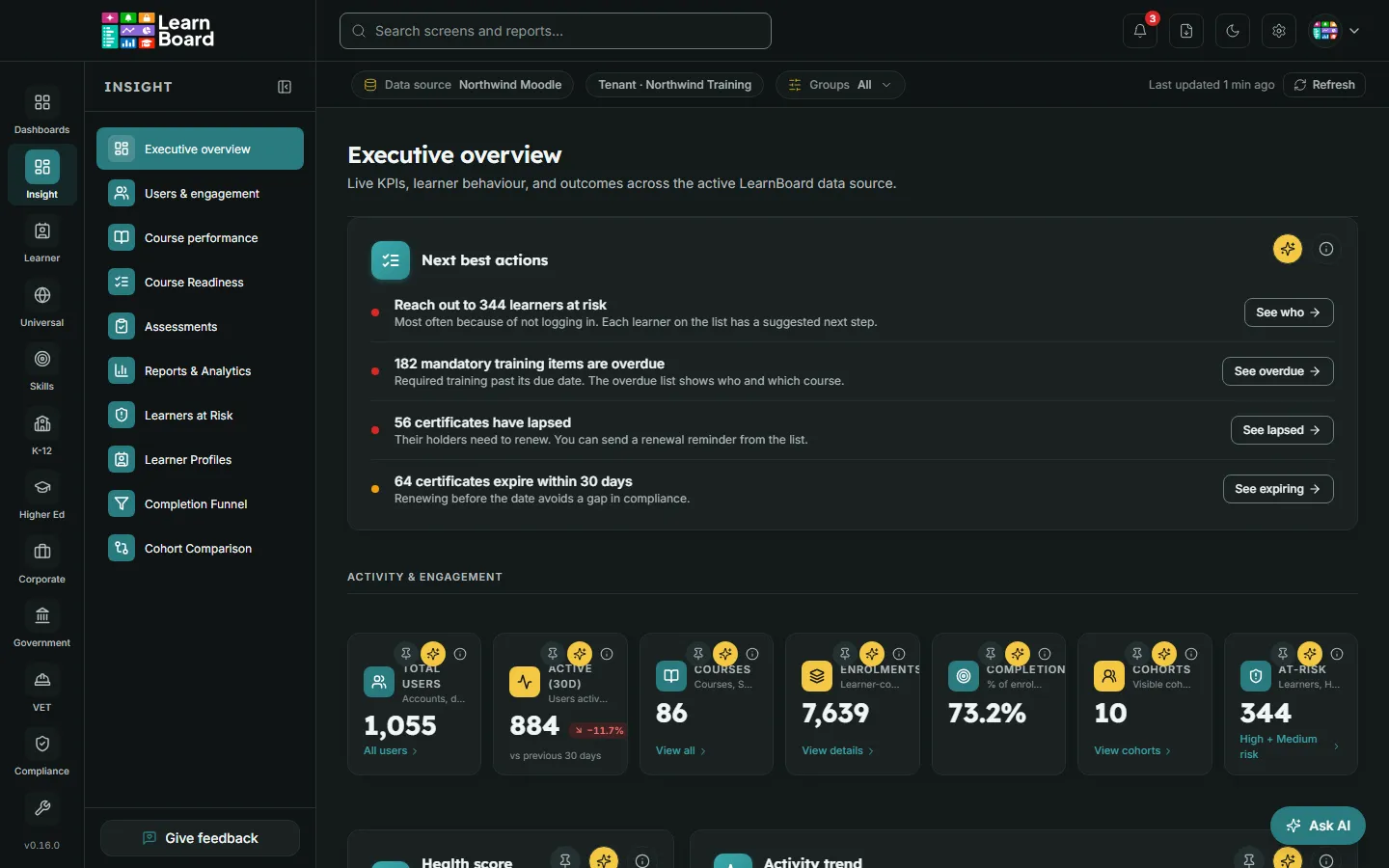
The LearnBoard Executive overview in the dark theme
  1. Find the theme button in the top bar. Its icon shows the current setting: a screen for Match system theme, a sun for Light theme, a moon for Dark theme. Hover it to read which.
  2. Press it to move to the next setting.

Match system theme

Follows your device. If your device switches between light and dark during the day, LearnBoard follows it straight away.

Light theme

Always light, whatever your device says.

Dark theme

Always dark, whatever your device says.

  • The theme is saved in this browser, so it is the same next time you open LearnBoard here. Another browser or device keeps its own setting.
  • Charts and tiles switch colours with the theme, so they stay readable in both.