

Workspace administrators
Connect the learning platform, brand the workspace, invite colleagues and choose what each of them can see.
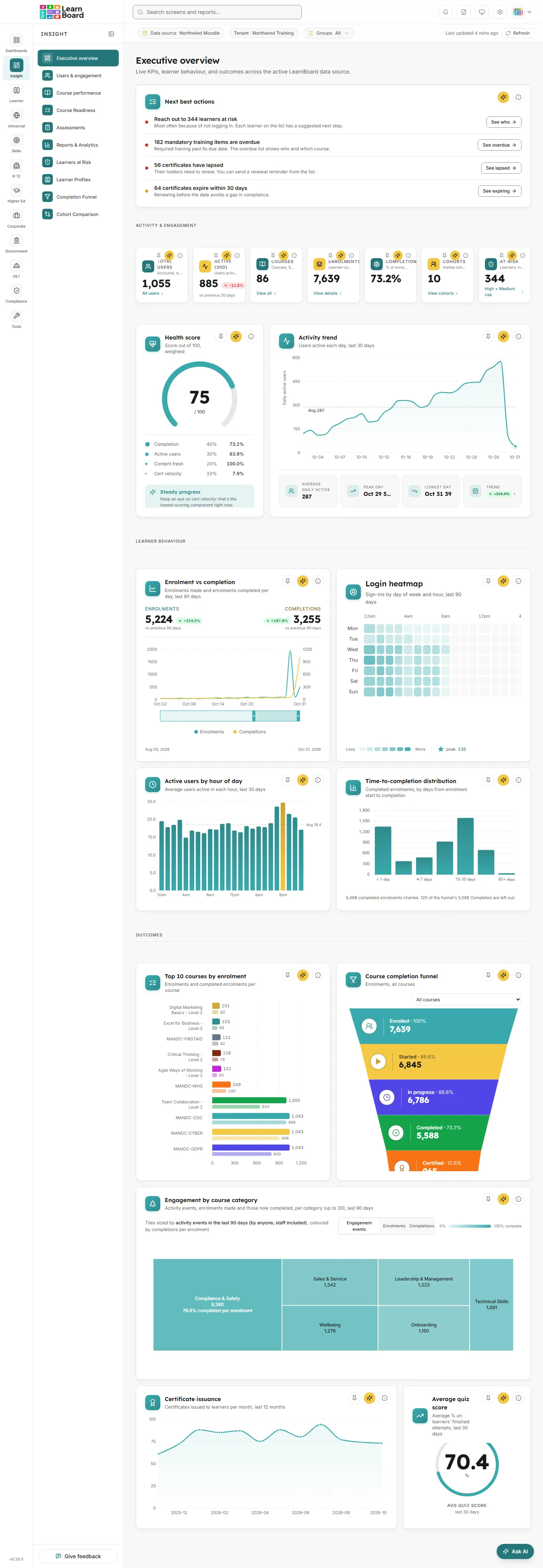
LearnBoard is analytics for Moodle. It reads your learning platform and shows what is happening in it as dashboards, cards, charts and tables, with an AI assistant that answers questions about the same data. It is for the people who run learning, and for learners who want to see their own progress.
At a glance
Workspace administrators
Connect the learning platform, brand the workspace, invite colleagues and choose what each of them can see.
Managers and analysts
Read every screen, compare cohorts, find learners at risk, download the figures and set up dashboards.
Teachers and team leads
Signing in from Moodle, they see the same screens counted over their own Moodle groups only.
Learners
See their own progress, assessments and certificates in My Learning, and ask the assistant about their own records.
The details of each role are on Roles and what each person sees.
Each workspace has a data source: the Moodle site it reads. A workspace administrator connects it once, from the setup walkthrough or from Admin console, Data sources. There are three ways to connect:
A workspace can hold more than one data source, for example a live Moodle and a dump taken from it, but exactly one is active at a time. Every figure on every screen comes from the active one, and the bar under the top bar names it. See Finding your way around.
A workspace is your organisation’s own space in LearnBoard. It holds:
Every LearnBoard account belongs to one workspace. The bar under the top bar shows which one you are in.
The left rail groups the screens into sections: Insight, Learner, Universal, Skills, K-12, Higher Ed, Corporate, Government, VET, Compliance and Tools. A Dashboards section appears at the top as soon as you save your first dashboard. The industry sections, such as K-12 or VET, are separate packs that a workspace’s plan may or may not include. See Plans and locked screens.
LearnBoard counts the same things the same way everywhere. “Learners”, “enrolments”, “completion rate”, “at risk” and “active” each have one meaning across the product. They are defined on the definitions page.