

Linked dashboards
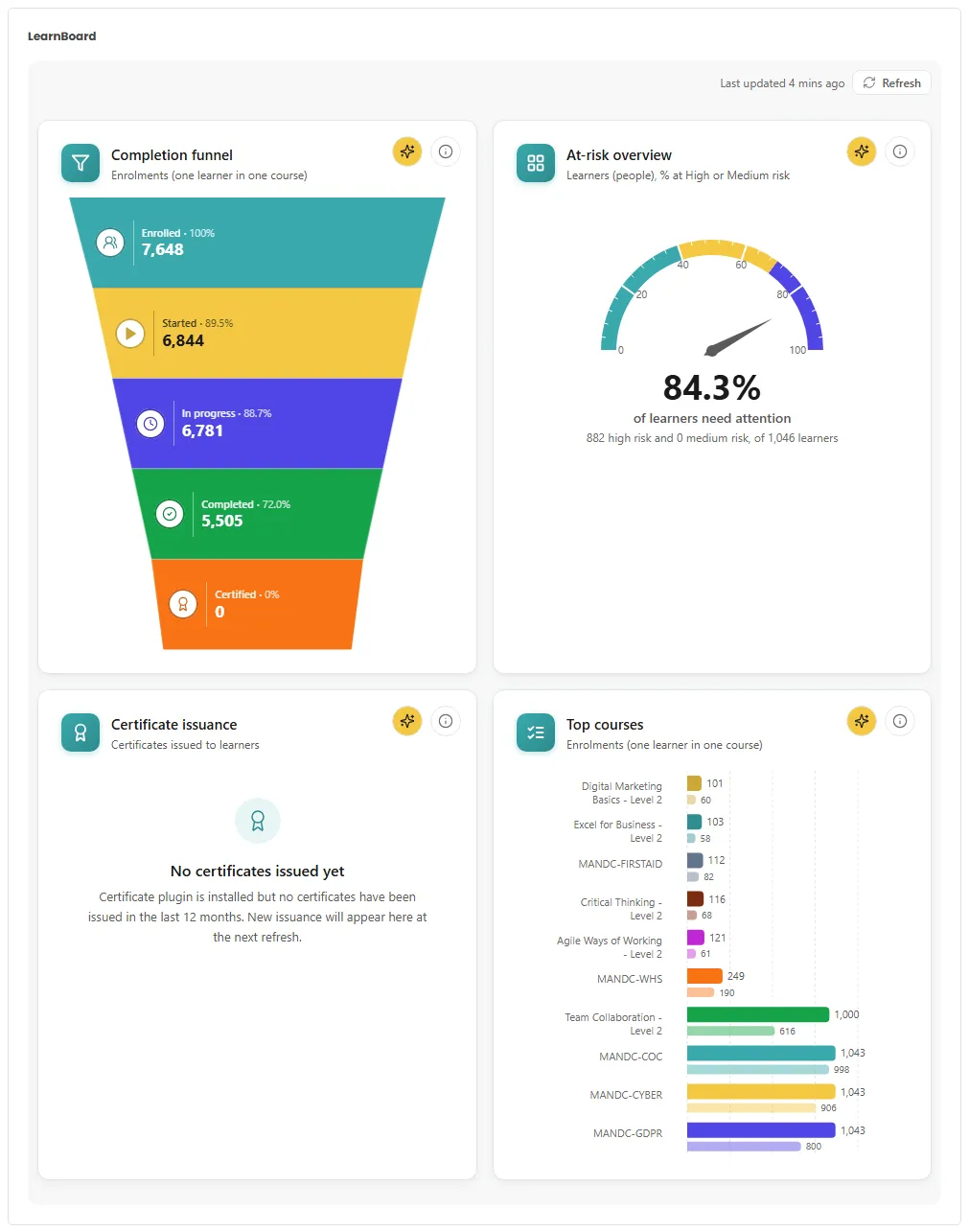
A linked block mirrors a dashboard you built in LearnBoard. It shows the same charts in the same layout, live and read-only, and any change you make in LearnBoard appears in Moodle on the next page load. This page is for whoever builds dashboards in LearnBoard and places them in Moodle.
At a glance
Section titled “At a glance”- In LearnBoard, the dashboard must be visible to Moodle: the LMS Overview, a dashboard published to everyone in the workspace, or one shared with Moodle Embed (read-only).
- In Moodle, set the block’s Dashboard source to Linked to a LearnBoard dashboard and pick it in LearnBoard dashboard.
- Nothing is edited in Moodle. The block never writes back.
- The same dashboards are the tabs on the LearnBoard page.
Which dashboards Moodle can show
Section titled “Which dashboards Moodle can show”| Dashboard | Shown in Moodle when |
|---|---|
| LMS Overview | Always. Every workspace starts with it, and Moodle sees it with no share needed, until you delete it. |
| Any dashboard published to everyone | Its Visibility in LearnBoard’s Share dialog is Everyone at your workspace. Publishing to everyone starts at a higher plan. |
| Any dashboard shared with Moodle | In LearnBoard’s Share dialog, under Share with people, you added Moodle Embed (read-only). Every paid plan can do this. |
A private dashboard shared with nobody never appears in Moodle.
Link a block to a dashboard
Section titled “Link a block to a dashboard”-
In LearnBoard, open the dashboard and click Share. Either add Moodle Embed (read-only) under Share with people, or set Visibility to everyone in the workspace. (Skip this for the LMS Overview.)
-
In Moodle, turn Edit mode on and open the block’s Configure LearnBoard block.
-
Set Dashboard source to Linked to a LearnBoard dashboard.
-
Pick the dashboard in LearnBoard dashboard.
-
Click Save changes.
The list in LearnBoard dashboard is read from LearnBoard when the form opens. If you shared a dashboard after opening the form, reopen it.
What the block shows
Section titled “What the block shows”- The dashboard’s charts, at the sizes and positions they have in LearnBoard. A chart that was never placed is laid out from the size it was given in LearnBoard.
- Last updated and Refresh at the top.
- Each chart’s info and Ask AI buttons.
With per-user sign-in on, the figures on the dashboard are the viewer’s own, limited by their role. The dashboard is the same for everyone; what each person can see on it is not.
Messages a linked block can show
Section titled “Messages a linked block can show”| Message | Why | What to do |
|---|---|---|
| This block is set to “Linked” but no LearnBoard dashboard is chosen yet. Turn editing on and pick one in the block settings. | The source is linked but no dashboard was picked. Only people editing the page see this; others see nothing. | Pick a dashboard in the block settings. |
| No shared dashboards found. In LearnBoard, open the dashboard, click Share, and either publish it to everyone in the workspace or add “Moodle Embed (read-only)” under Share with people. Then reopen these settings. | Shown in the block settings when Moodle can see no dashboard. | Share a dashboard with Moodle, then reopen the settings. |
| Loading dashboard… | The dashboard is being fetched. | Wait a moment. |
| This LearnBoard dashboard is no longer available. | It was deleted, unshared, or belongs to another workspace. | Share it again, or pick another dashboard. |
| This LearnBoard dashboard has no charts yet. | The dashboard is empty in LearnBoard. | Add charts to it in LearnBoard. |
| This dashboard could not be loaded just now. Reload the page to try again. | A temporary problem reaching LearnBoard. | Reload the page. |
| Your session has ended. Reload the page to see this dashboard again. | The page was left open too long to renew its pass. | Reload the page. |
