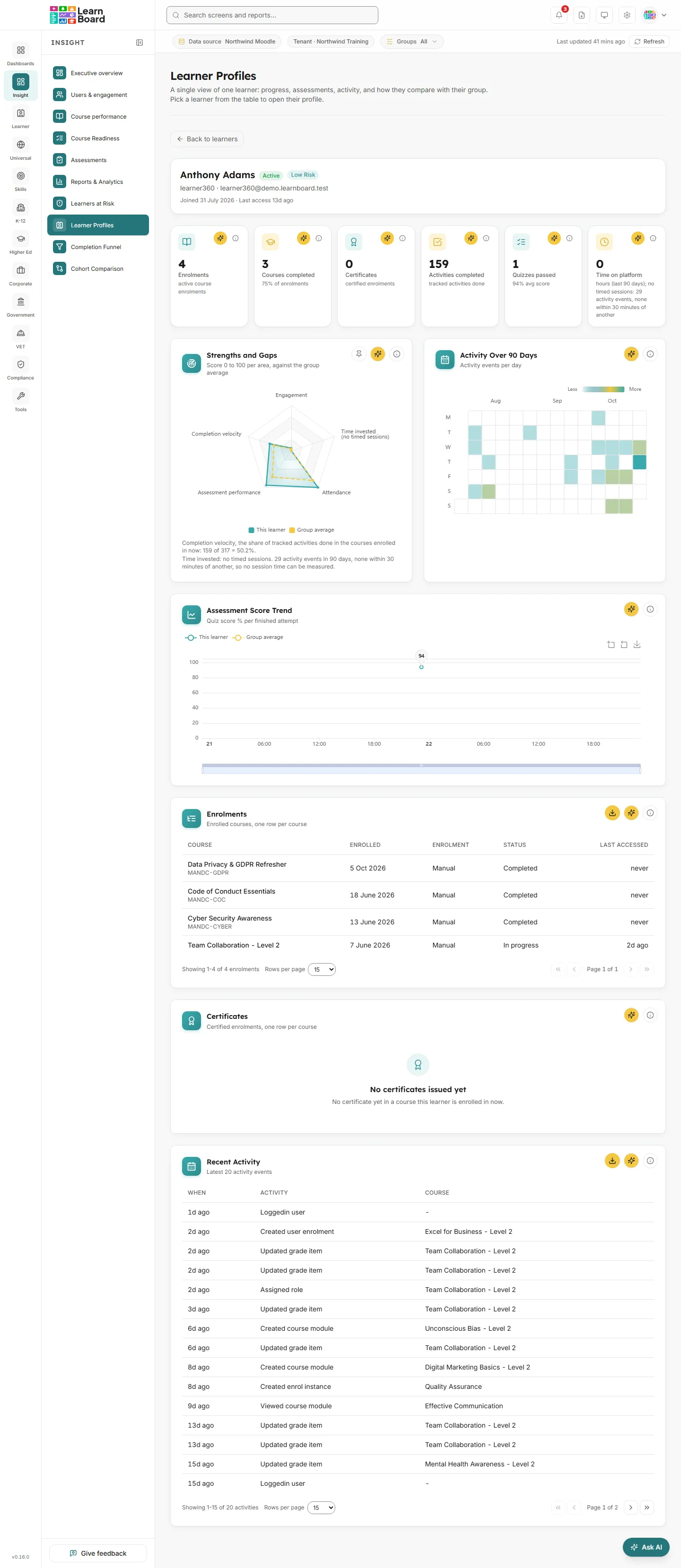
A learner profile is one learner’s whole record on one screen: their courses and progress, quiz scores over time, certificates, how active they have been over 90 days, and how they compare with the rest of their group. You open it from the Learner Profiles list, and it is for teachers, managers and team leads who need the facts about one person before acting.
How to get here: Insight, then Learner Profiles, then View Profile on a learner’s row. The profile opens in place on the /learners screen; the address does not change, and Back to learners returns you to the list.
Who can open it: the same people as Learner Profiles: by default Admin, Manager, Viewer and Team lead.
Plan: part of the Insight pack. The Free plan leaves Learner Profiles out, and Pro and above include it.
Team leads: can open only the people in their own Moodle groups, and every figure is read through those groups.
Learners: cannot open other people’s profiles. Their own record is My Learning, in the Learner section, which shows the same cards for themselves only.
Ask AI on this screen: every question you ask from a card is about this one learner, not the workspace as a whole. The assistant is told the learner’s name and username.
A learner profile: header, KPI strip, three charts and three tables.
The learner’s name, status, risk band, username, email and key dates.
How to read it:
The status badge reads Active (any activity in the last 30 days), Inactive, Suspended (the Moodle account is suspended) or Hidden (the account is deleted in Moodle). Hover it for “Active means any activity in the last 30 days”.
A risk badge, High Risk, Medium Risk or Low Risk, appears when the Learners at Risk scores have been worked out in the last five minutes. Opening a profile never starts that calculation on its own, so the badge can be missing; open Learners at Risk first to see it.
Under the name: the username, and the email when it differs from the username.
“Joined” is the date the Moodle account was created. “Last access” is how long ago the account last accessed Moodle.
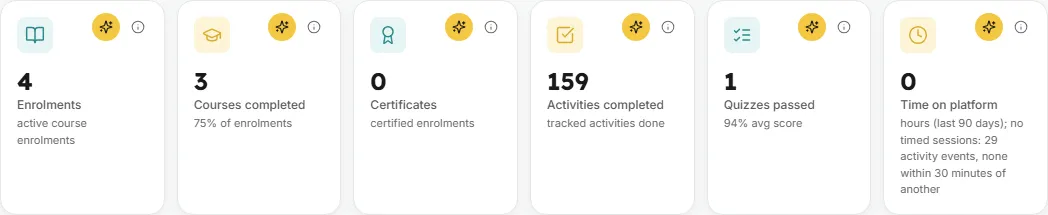
How many courses this learner is enrolled in now as a learner.
How it is worked out: courses this learner is actively enrolled in as a learner, each course once. Suspended enrolments, disabled enrolment methods, courses hidden from analytics and courses they teach are left out. This matches the shared definition of enrolments.
What you can do:Info and Ask AI in the tile’s corner.
How many of those enrolments are completed, and what share of them that is.
How it is worked out: enrolments completed, as a share of their enrolments. A course counts as completed with a Moodle course completion record, every tracked activity shown in the course done, or a certificate issued in it. With no enrolments the share shows “-”.
What you can do:Info and Ask AI.
Why does Moodle show fewer completions? Moodle’s course completion report counts only its own completion records. LearnBoard also counts a course as completed when every tracked activity is done or a certificate has been issued.
How many of the learner’s current courses have a certificate issued to them.
How it is worked out: certified enrolments, the courses this learner is enrolled in now with a certificate issued there, from any certificate tool. A re-issued certificate counts once, and certificates from courses no longer enrolled in are left out.
How many completion-tracked activities the learner has finished.
How it is worked out: completion-tracked activities shown in the course (hidden ones are not counted) that this learner has completed or passed in the courses they are enrolled in. A failed attempt is not counted as done.
How many quizzes the learner has passed, with their average score.
How it is worked out: quizzes this learner has passed, with an attempt at or above the quiz’s own pass grade, each quiz once however many attempts it took. The line under the figure is the average score across their finished attempts, or “no scores yet”. Only quizzes in courses they are enrolled in now count, and teacher previews are left out.
What you can do:Info and Ask AI.
Why does a learner with good scores show 0 passed? A quiz with no pass grade set in Moodle’s gradebook counts no passes. Set a grade to pass on the quiz to have passes counted.
Hours the learner spent working in Moodle over the last 90 days.
How it is worked out: the gaps of 30 minutes or less between this learner’s activity events are added up, and a longer gap starts a new session, so idle tabs are not counted.
When it reads 0 with activity on the heatmap: the unit line explains, for example “hours (last 90 days); no timed sessions: 4 activity events, none within 30 minutes of another”. Single, isolated clicks show as activity but give no measurable session.
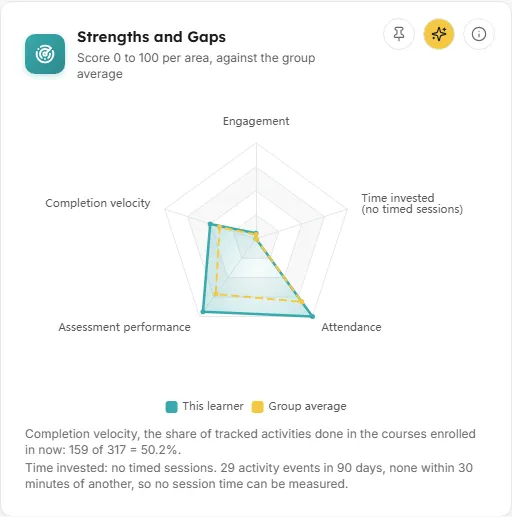
ChartScore 0 to 100 per area, against the group average
A radar chart comparing the learner with their group across five areas, each scaled 0 to 100.
How to read it: the filled shape is This learner; the dashed line is the Group average. A spoke where the learner sits inside the dashed line is a gap; outside it is a strength.
The five areas, and how each is scaled (all over the last 90 days):
Engagement: activity events; 500 events is 100.
Completion velocity: tracked activities done out of every tracked activity shown in the courses enrolled in now, started or not, as a percentage. 30 done of 60 reads 50.
Assessment performance: the average score of finished quiz attempts in those courses, previews left out. With no scored attempt the spoke reads “no quiz attempts”, not 0.
Attendance: active days in the activity log, on the workspace clock; 20 days is 100. Moodle keeps no attendance register, so this is days with any activity.
Time invested: session hours, adding up the gaps of 30 minutes or less between activity events; 40 hours is 100. With no timed session the spoke reads “no timed sessions”.
Who the group is: the learner’s first group in a course they take as a learner, counting only members who are learners there. Each spoke of the group average is the mean of each member’s own figure, so every member counts the same.
Lines under the chart: spell out what two spokes rest on, for example “Completion velocity, the share of tracked activities done in the courses enrolled in now: 30 of 60 = 50%.” and “Time invested: 12 hours from 340 activity events in 90 days.” They also say why there is no dashed line: “No group: not in a group in any course taken as a learner, so there is no group average.” or “Group too small: 2 other learners in the group, and a group average needs at least 3.”
What you can do: hover a point for every spoke’s value; Info; Ask AI; Pin to dashboard pins this learner’s radar to one of your personal dashboards.
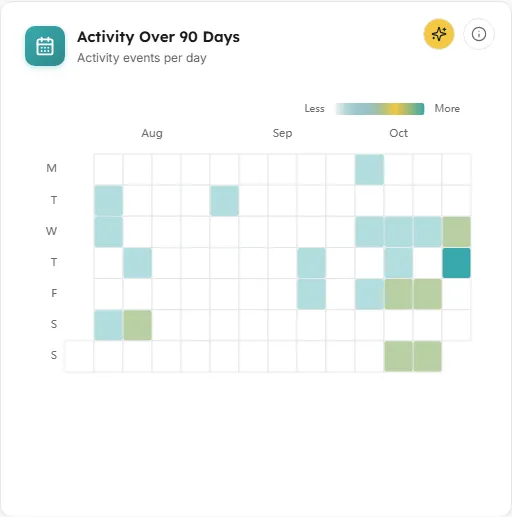
A calendar heatmap of the last 90 days, one square per day. Darker squares are busier days.
How to read it: months run across the top and weekdays down the side, weeks starting on Monday. The scale at the top right runs from Less to More, set by the learner’s own busiest day.
How it is worked out: each square is the number of recorded activity events (from Moodle’s standard log) that day. Days run midnight to midnight in the workspace’s time zone, and the Info panel names the zone.
Limited data: when the learner was active on fewer than 7 days in the period the unit line reads “Activity events per day; limited activity data”.
What you can do: hover a square for the date and its count, for example “12 activities”; Info; Ask AI.
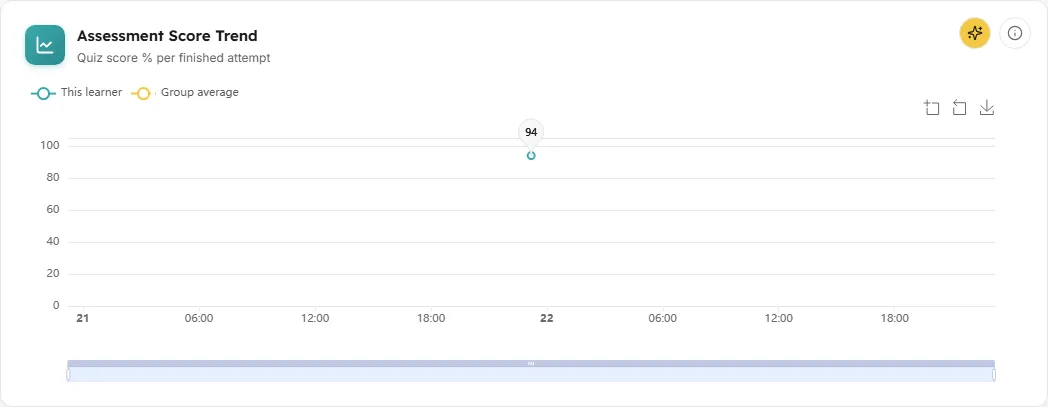
A line chart of the learner’s finished quiz attempts over time, with the group average as a dashed reference line.
How to read it: each point is one finished attempt, as a percentage of the quiz’s marks. The highest and lowest points are labelled High and Low. A falling line is worth a conversation.
How it is worked out: finished attempts in courses the learner is enrolled in now, previews left out. The dashed Group average is each group learner’s own average of their finished attempts in their current courses, then the mean of those, the same number as Assessment performance on the Strengths and Gaps radar. It is shown only for a learner in a group with at least 3 other learners.
What you can do: hover for the score at each point; drag the slider under the chart or use Zoom and Reset zoom to look at a stretch of time; Save downloads the chart as an image; Info; Ask AI.
Empty state: “No assessment attempts yet. This learner has not completed any scored assessments, so there is nothing to chart.”
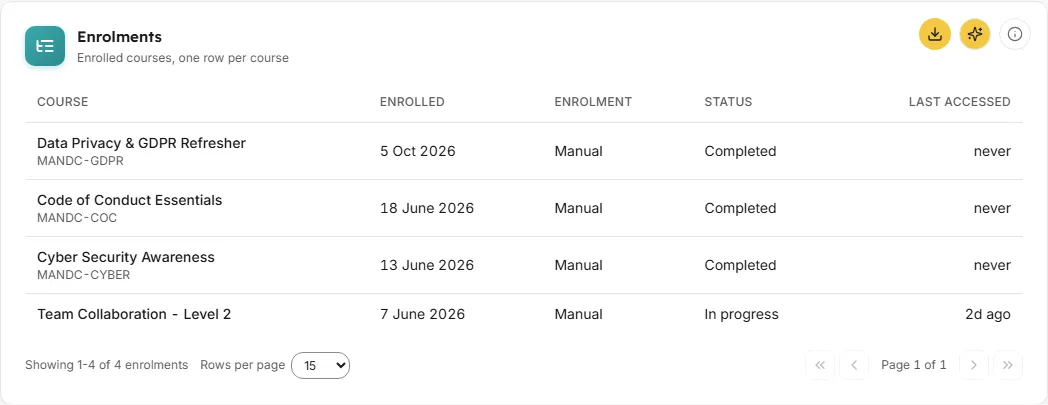
Every course this learner is enrolled in now, with its status and last access.
Columns:Course (with the course short name underneath when two courses share a name), Enrolled (the earliest enrolment start date), Enrolment (the enrolment method, such as manual or self), Status (Completed or In progress) and Last accessed (how long ago they last did anything in that course).
How it is worked out: one row per course enrolled in now as a learner, the Enrolments tile’s count. Two enrolment methods in one course are one row. Last accessed is the most recent recorded activity in that course.
What you can do: sort by Course, Enrolled, Status or Last accessed; page through 15 rows at a time or change rows per page; Download CSV saves every row; Info; Ask AI.
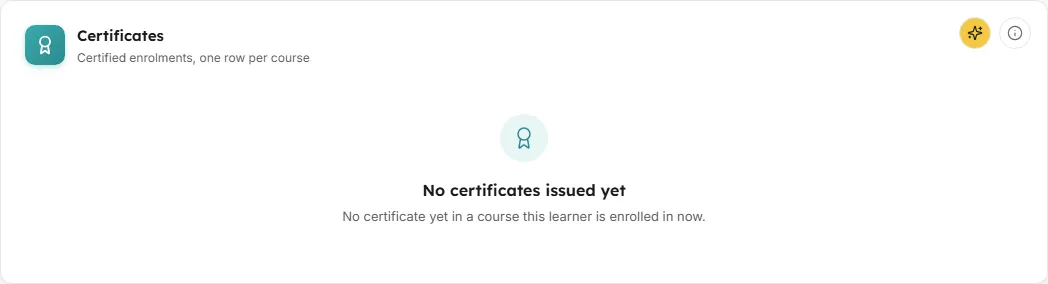
The courses this learner is enrolled in now where they have been issued a certificate.
Columns:Certificate (the certificate names in that course), Course, Issued (the latest issue date) and Expires, which shows “-”.
How it is worked out: one row per course enrolled in now with a certificate issued there, from any certificate tool LearnBoard finds on your Moodle site. A re-issued certificate does not add a row, and certificates from courses no longer enrolled in are left out.
What you can do: sort by Certificate, Course or Issued; page through; Download CSV saves every row; Info; Ask AI.
Empty state: “No certificates issued yet. No certificate yet in a course this learner is enrolled in now.”
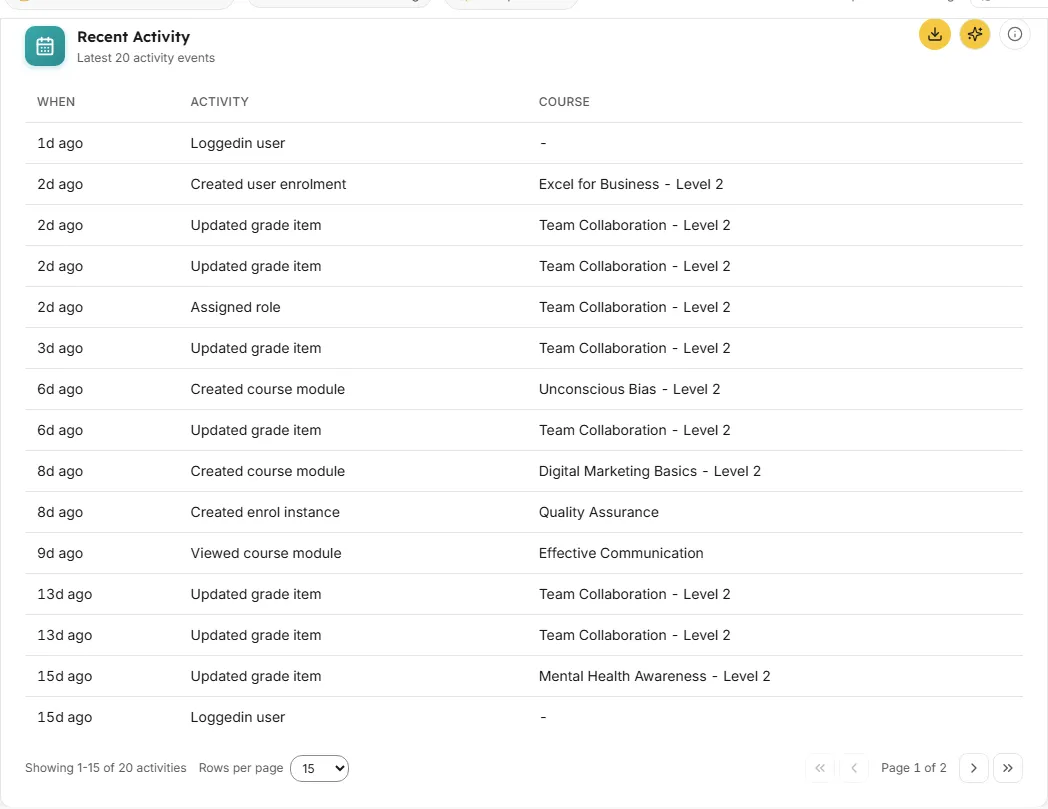
The learner’s 20 most recent recorded actions in Moodle, newest first.
Columns:When (how long ago), Activity (what they did, built from Moodle’s log action and target, for example “Viewed course module”) and Course (“-” for actions outside a course, such as on the dashboard).
How it is worked out: the latest 20 events in Moodle’s standard log for this learner, with their course context.
What you can do: sort by When; Download CSV saves the 20 rows; Info; Ask AI.
Either the learner is not in a group in any course they take as a learner, or their group has fewer than 3 other learners. LearnBoard holds the average back so it never shows one or two classmates’ own figures. The line under the radar says which.
Why do this learner’s figures differ from Moodle’s own reports?
LearnBoard counts only courses the person is enrolled in now as a learner, leaves out teacher previews of quizzes, and counts a course as completed by any of three routes (completion record, every tracked activity done, or a certificate). Moodle’s reports each apply their own rules, so a course they have left or teach, or a preview attempt, can appear there and not here.
The profile opens in place on the Learner Profiles screen, so the address stays /learners. To keep one learner’s radar to hand, pin Strengths and Gaps to a personal dashboard.
Returns to the Learners list on the Learner Profiles screen.
Groups
The Groups button in the bar under the top bar narrows what LearnBoard reads to a programme, department, campus, learner category or cohort, until you clear it.
Refresh
Last updated shows how old the figures are. Refresh works them out again.
Card buttons
Info explains a card, Ask AI asks the assistant about this learner, Pin to dashboard (on Strengths and Gaps) and Download CSV (on the three tables).