

Plugin settings
The LearnBoard settings page holds everything the plugin does site-wide. Most sites never need to change it: the connection code fills in the connection and switches on what you need. This page explains each setting, for the Moodle administrator.
At a glance
Section titled “At a glance”- Open it from Site administration > Plugins > Blocks > LearnBoard, or the Settings link in Plugins overview.
- Four sections: LearnBoard connection, the theme, Data connector, and sign-in and the main menu.
- The connection fields are filled in by the connection code. Change them only if LearnBoard support asks you to.
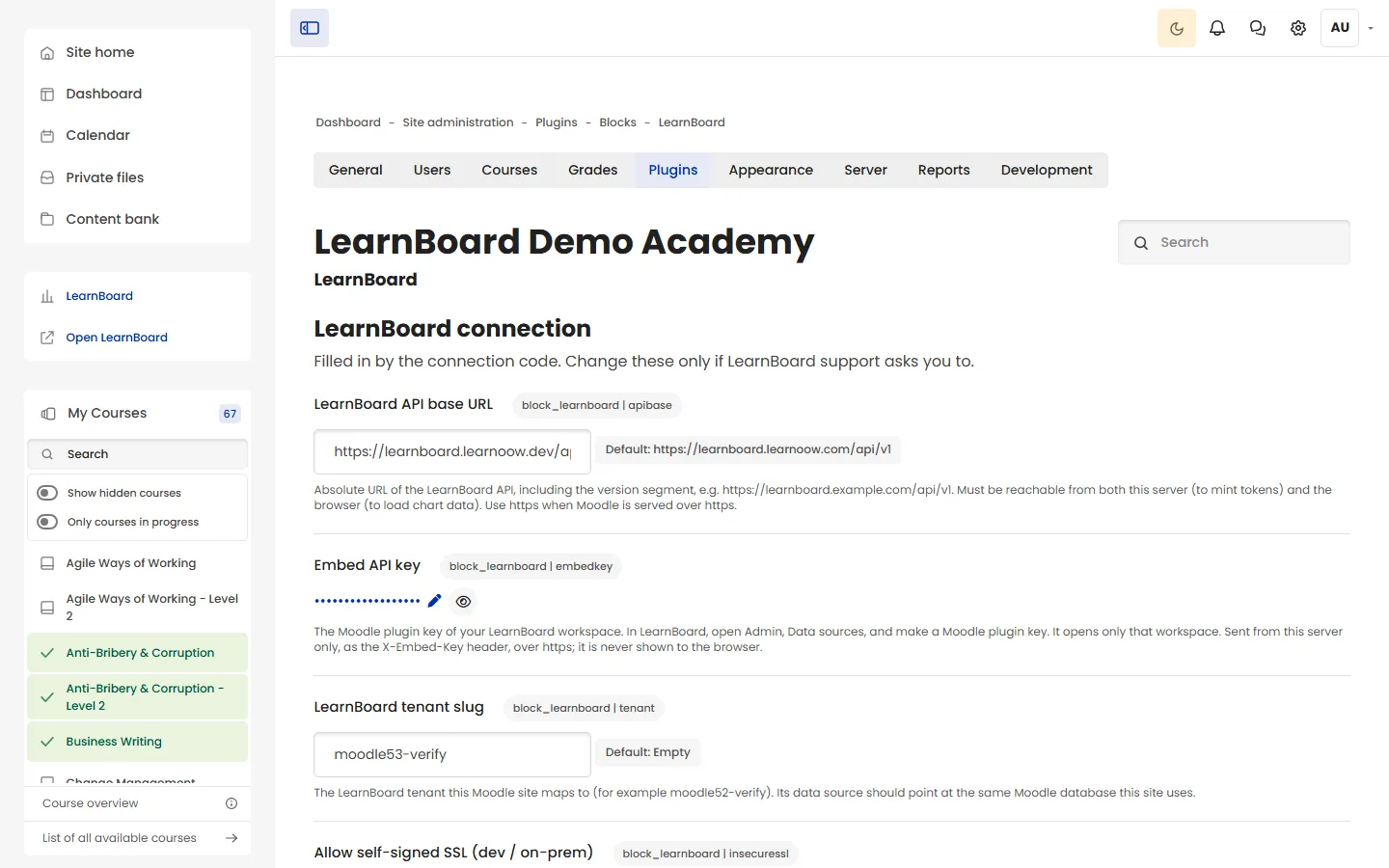
LearnBoard connection
Section titled “LearnBoard connection”“Filled in by the connection code. Change these only if LearnBoard support asks you to.”
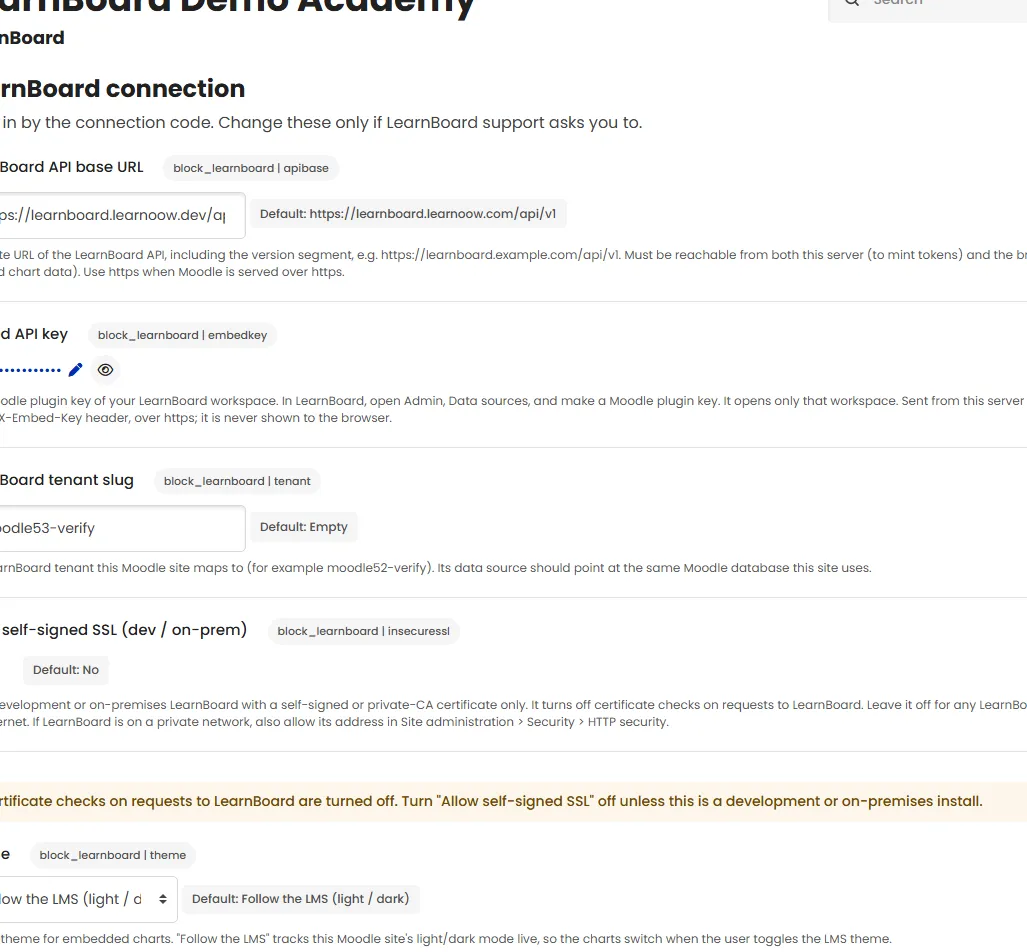
| Setting | Default | What it does |
|---|---|---|
| LearnBoard API base URL | https://learnboard.learnoow.com/api/v1 |
The address of the LearnBoard API, including /api/v1. It must be reachable from your Moodle server (to get chart passes) and from your users’ browsers (to load the charts). Use https when Moodle is served over https. |
| Embed API key | Empty | The Moodle plugin key of your LearnBoard workspace. It opens only that workspace. It is sent from your server only, as the X-Embed-Key header, over https, and is never shown to the browser. |
| LearnBoard tenant slug | Empty | The LearnBoard workspace this Moodle site maps to. Its data source should read the same Moodle database this site uses. |
| Allow self-signed SSL (dev / on-prem) | No | For a development or on-premises LearnBoard with a self-signed or private certificate only. It turns off certificate checks on requests to LearnBoard. Leave it off for any LearnBoard on the internet. |

Theme sets the colours of the embedded charts.
| Option | What it does |
|---|---|
| Follow the LMS (light / dark) (default) | Tracks your Moodle site’s light or dark mode live, so the charts switch when someone toggles the theme. |
| Follow the device | Follows the light or dark setting of the viewer’s device. |
| Light | Always light. |
| Dark | Always dark. |
Data connector
Section titled “Data connector”“Lets LearnBoard read the reporting data of this site through the plugin, so the database never has to accept connections from outside this server.” The heading also shows the address LearnBoard sends its queries to, which is your site’s /blocks/learnboard/query.php.
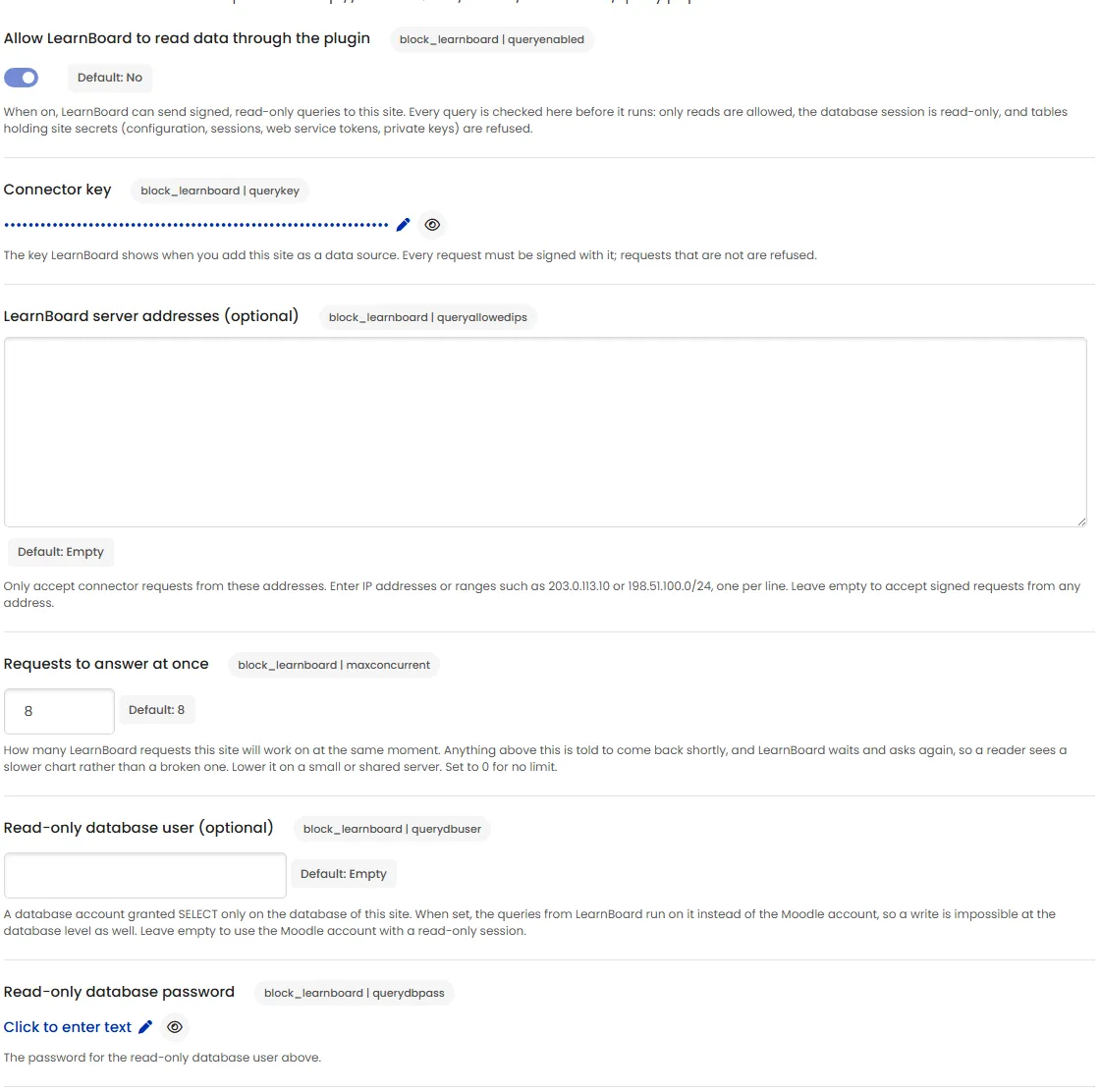
| Setting | Default | What it does |
|---|---|---|
| Allow LearnBoard to read data through the plugin | No (the connection code turns it on) | The master switch. When on, LearnBoard can send signed, read-only queries to this site. Off, and query.php answers nothing. |
| Connector key | Empty (filled by the code) | The key every request from LearnBoard must be signed with. Requests that are not are refused. |
| LearnBoard server addresses (optional) | Empty | Accept connector requests only from these IP addresses or ranges, one per line, such as 203.0.113.10 or 198.51.100.0/24. Empty accepts signed requests from any address. |
| Requests to answer at once | 8 | How many LearnBoard requests this site works on at the same moment. Anything above this is told to come back shortly; LearnBoard waits and asks again, so a reader sees a slower chart rather than a broken one. Lower it on a small or shared server. 0 means no limit. |
| Read-only database user (optional) | Empty | A database account with SELECT only on this site’s database. When set, LearnBoard’s queries run on it instead of the Moodle account, so a write is impossible at the database level as well. |
| Read-only database password | Empty | The password for that user. |
More on how this works in The data connector.
Per-user sign-in and the main menu
Section titled “Per-user sign-in and the main menu”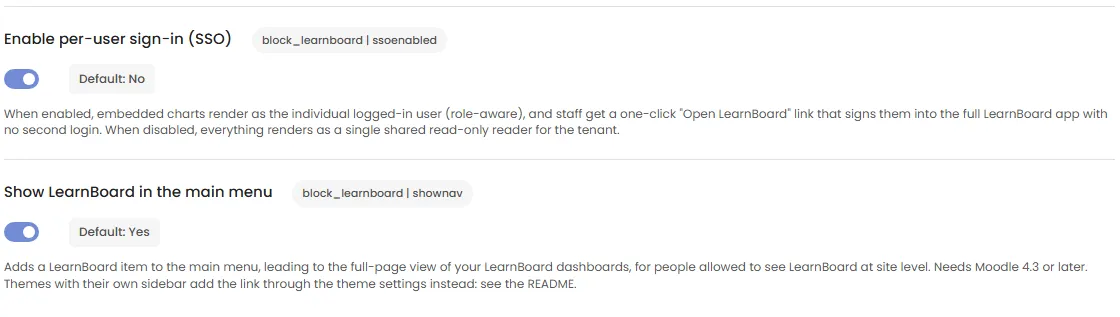
| Setting | Default | What it does |
|---|---|---|
| Enable per-user sign-in (SSO) | No (the connection code turns it on) | When on, charts render as the individual signed-in person, limited by their role, and people can open the full LearnBoard app from Moodle with no second login. When off, everything renders as one shared read-only reader for the workspace. See Per-user sign-in. |
| Show LearnBoard in the main menu | Yes | Adds a LearnBoard item to Moodle’s main menu, leading to the full-page view, for people allowed to see LearnBoard at site level. Needs Moodle 4.3 or later. See The full-page view and main-menu link. |
The other two pages
Section titled “The other two pages”Beside LearnBoard, the Blocks list holds:
- Connect to LearnBoard: the connection code. See Connect to LearnBoard.
- Role mapping: which LearnBoard role each Moodle role receives with per-user sign-in on. See Role mapping.
Upgraded from the two-plugin version?
Section titled “Upgraded from the two-plugin version?”If the separate LearnBoard connector (local_learnboard) is still installed, the top of this page says “The LearnBoard connector plugin is no longer needed”. Its settings were copied here when you upgraded. Once the charts and the LearnBoard page work, uninstall the connector. See Upgrading and uninstalling.