

AI-Generated Insight Summary
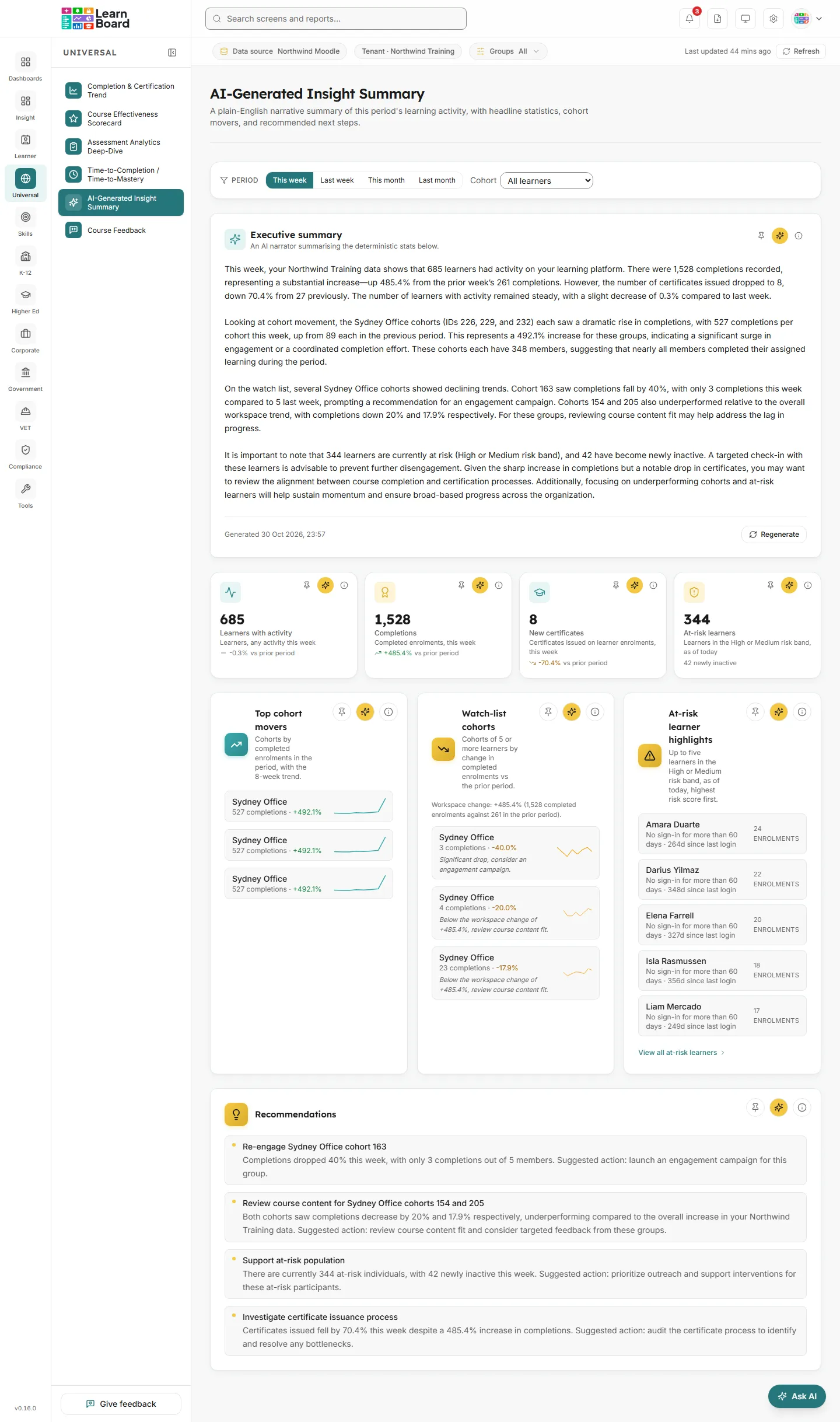
The AI-Generated Insight Summary screen gives you a short, plain-English summary of a week or a month of learning activity, with the headline figures, the cohorts moving most, the cohorts to watch, the learners most at risk and a few suggested next steps. It is written for managers and learning leaders who want the story of the period without reading every chart.
The figures on the screen are worked out directly from your training data. Only the wording of the summary and the recommendations is written by AI, from those figures.
At a glance
Section titled “At a glance”- Route:
/insights/ai-summary. In the sidebar it sits under Universal as AI-Generated Insight Summary. - Who can open it: the Admin and Manager roles hold it by default (permission
view.universal.ai-summary). The Viewer role does not get it by default, because the Universal screens are held back from Viewer until a workspace grants them. A Learner cannot open it. - Team leads: the Team lead role does not include this screen, so it is not in a Team lead’s menu, and typing the address takes them to their home page with the note “You don’t have access to that screen, so you are on your home page instead.”
- Plan: part of the Universal pack, on the Pro, Business, Scale and Enterprise plans. The Free plan does not have it.
- When your plan does not include it: the screen shows AI-Generated Insight Summary is locked and “Part of the Universal pack, not included in your current plan.” Billing administrators see View plans & upgrade; everyone sees Compare plans and Back to Executive Overview.
- Filters: Period (This week, Last week, This month, Last month), Cohort, and the workspace-wide Groups filter in the bar under the top bar.
- Shareable: the period and cohort are kept in the address, so a shared link opens the same view.
- It only reads. Nothing on this screen changes anything in Moodle or in your workspace. Regenerate only writes a fresh summary text.
How the summary is made
Section titled “How the summary is made”- LearnBoard works out the figures. For the chosen period and cohort it counts learners with activity, completions, new certificates and at-risk learners, compares each with the period before, and ranks the cohorts. These are the same figures you see on the tiles and cards. They are not written by AI.
- Only the figures go to the AI. The AI narrator receives a structured set of those statistics, nothing else: not the Moodle records behind them and not learners’ names. It is told to use only the numbers it is given, never to invent or change one, to call the data “your training data”, and to recommend a check-in for at-risk learners without naming anyone.
- The AI writes the text. It writes a 3 to 4 paragraph executive summary, and separately 3 to 5 short recommendations.
- The text is cleaned before you see it. A sanitiser removes any platform or technical wording from the AI’s reply before it is stored and shown. If the reply is a refusal such as “insufficient data”, LearnBoard replaces it with its own plain message.
- The text is kept for those figures. The summary is written once for each set of figures and kept for up to 30 days. Opening the page again for the same period, with the same figures, shows the same text without asking the AI again. As soon as a figure changes, a new summary is written, so the text never describes numbers the tiles no longer show.
Each generation, regeneration and fallback is recorded in the workspace’s audit log.
What happens when the AI allowance is used up
Section titled “What happens when the AI allowance is used up”Each plan includes a monthly AI token allowance, and the AI summary draws on it like the AI assistant does. When your workspace has used its tokens for the month, LearnBoard does not call the AI. Instead:
- The Executive summary shows a short summary built directly from the figures, for example: “This week activity: 412 learners with activity, 96 completions (completed enrolments), and 18 certificates issued. As of today, 37 learners are at risk (High or Medium risk band) and would benefit from a manager check-in. The AI narrator is temporarily unavailable, these figures come directly from your training data.” The footer carries the label AI summary temporarily unavailable.
- Recommendations show items built from the figures (such as “Check on at-risk learners” and “Acknowledge completion volume”), with the note “AI recommendations temporarily unavailable, the items above are derived directly from the stats.”
- The tiles and cards are not affected: they never use AI.
The same plain fallback appears if the AI provider cannot be reached. It is not kept, so the next visit tries the AI again. When the allowance resets for the new month, summaries are written by AI again.
When there is too little activity
Section titled “When there is too little activity”If the period has no learners with activity, no completions, no certificates and no at-risk learners, the AI is not asked at all. The summary reads “Insufficient activity in this week for a meaningful summary. Try expanding the period or selecting a different range.” with the label Insufficient activity, and Recommendations show a single item, No data this period.
Filters and controls
Section titled “Filters and controls”Period
Section titled “Period”Chooses the window every card describes and the window it is compared with.
- How to read it: four buttons, This week (the default), Last week, This month and Last month. The highlighted one is in use.
- How it is worked out: weeks run Monday to Sunday and months run from the 1st to the last day, on your workspace’s clock. The “prior period” every change is measured against is the window of the same length just before.
Cohort
Section titled “Cohort”Narrows the summary, the four tiles and the at-risk highlights to one cohort.
- How to read it: All learners is the default; the list holds your Moodle course groups, joined by name or kept per course depending on how your workspace’s reporting is set up.
- What it does not change: Top cohort movers and Watch-list cohorts always compare all cohorts with each other, so the cohort choice does not change them.
Groups and Refresh
Section titled “Groups and Refresh”The Groups pill in the bar under the top bar narrows every card on this screen by programme, department, campus, learner category or cohort, until you clear it. Last updated and Refresh on the right of the same bar show how fresh the figures are and work them out again. The figures behind the cards are kept for an hour between refreshes.
The summary
Section titled “The summary”Executive summary
Section titled “Executive summary”A 3 to 4 paragraph plain-English summary of the period’s activity, written by AI from the figures on this screen.
- How to read it: the summary opens with the period’s headline figure, gives a paragraph to the cohort movers and the watch-list, and closes with what to pay attention to next. When learners are at risk it mentions the number and suggests a check-in, without naming anyone. The footer reads “Generated” with the date and time the text was written.
- How it is worked out: see How the summary is made. The figures come from your training data; the wording is AI.
- While it is being written: the card says “Hang tight, we’re looking through this period’s data and putting your summary together. This can take a few moments; it’ll appear here automatically once it’s ready.” and steps through messages such as “Reading this period’s numbers…” and “Drafting the plain-English summary…”.
- Labels you may see: AI summary temporarily unavailable (the plain fallback, for example when the monthly AI allowance is used up) and Insufficient activity (too little happened in the period).
- What you can do: Regenerate writes a new summary for the same figures, using AI tokens. It does not regenerate the recommendations. You can also open the info button, Ask AI about the summary, or pin it to a dashboard (the pin keeps the period and cohort).
Headline figures
Section titled “Headline figures”Every tile has an info button, Ask AI and Pin to dashboard. The first three also show their change against the prior period (“+12.0% vs prior period”, or “- vs prior period” when there is nothing to compare with). While the tiles load, the strip says “Calculating period stats”.
Learners with activity
Section titled “Learners with activity”How many learners did anything at all in the chosen period. Learners are distinct people with an active student enrolment.
- How to read it: the unit line follows the period, for example “Learners, any activity last month”. A rise means more people were in during this period than the one before.
- How it is worked out: learners with any logged activity in the period, each counted once; staff are left out.
- Not the same as Active: Active means activity in the last 30 days. This tile follows the period you chose, so it will not match the Active figure on other screens.
Completions
Section titled “Completions”Enrolments completed in the period. Completions are counted as completed enrolments, never as learners.
- How to read it: one learner who finishes two courses adds two. The change compares with the prior period of the same length.
- How it is worked out: an enrolment counts as complete on the first of a course completion, every tracked activity shown in the course done, or a certificate, the same rule every other screen uses, on your workspace’s clock. With a cohort chosen, each learner counts once however many of its groups they are in.
New certificates
Section titled “New certificates”Certificates issued in the period.
- How to read it: this counts certificate issues. A learner given two certificates in one course adds two. It is the same figure as Total certificates on the Completion and Certification Trend for the same dates.
- How it is worked out: certificates from any certificate tool LearnBoard detects, in a course where the person is an active learner. Staff, suspended enrolments and people not enrolled in that course are left out.
At-risk learners
Section titled “At-risk learners”How many learners are at risk today: the risk-score bands, where “at risk” counts High plus Medium.
- How to read it: this is today’s figure, not the period’s, so it has no change line. Under it you see either “12 newly inactive” or “Stable population”.
- How it is worked out: the same at-risk number as the Executive Overview tile and Learners at Risk. “Newly inactive” counts those at-risk learners who stopped being Active during the period: their last logged activity turned 30 days old within it.
Cohorts and learners
Section titled “Cohorts and learners”Top cohort movers
Section titled “Top cohort movers”
The three cohorts with the most completed enrolments in the period.
- How to read it: each row shows the cohort name, its completions (“24 completions”), the change against the prior period, and a small line of weekly completed enrolments over the last 8 weeks.
- How it is worked out: cohorts ranked by completed enrolments in the period, using the shared completion rule. A cohort is its learners: group members with an active learner enrolment in the group’s own course. Their completions are those learners’ completed enrolments in any course, each counted once.
- Empty state: “No cohort activity in this period.”
- What you can do: info, Ask AI, pin to a dashboard.
Watch-list cohorts
Section titled “Watch-list cohorts”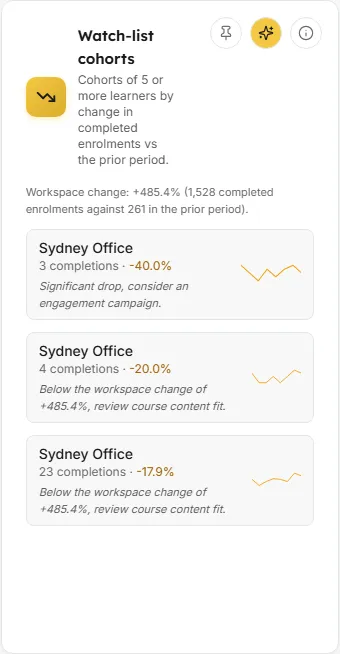
Up to three cohorts with the weakest completion momentum, each with a suggested next step.
- How to read it: a line at the top gives the workspace’s own change, for example “Workspace change: +8.0% (96 completed enrolments against 89 in the prior period).” Each row shows the cohort, its completions, its change, the 8-week line and a suggestion such as “Significant drop, consider an engagement campaign.”, “No completions this period, check on the cohort.” or “Below the workspace change of +8.0%, review course content fit.”
- How it is worked out: cohorts ranked from the lowest percentage change in completed enrolments against the prior period, leaving out the three top movers. Cohorts with fewer than 5 learners are left out so small groups do not swing the list. A row is called below the workspace only when its own change is lower.
- Empty state: “No cohorts (with at least 5 learners) showed weakened momentum this period.”
- What you can do: info, Ask AI, pin to a dashboard.
At-risk learner highlights
Section titled “At-risk learner highlights”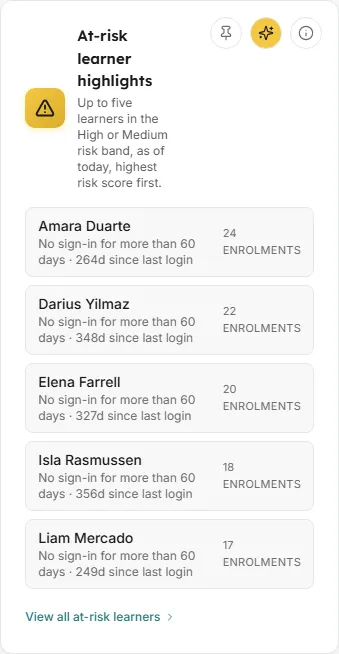
The five at-risk learners with the highest risk scores, enough to start a check-in.
- How to read it: each row gives the learner’s name, the main reason, how many days since they last signed in, and how many enrolments they have. The reason reads “Never signed in despite an active enrolment”, “No sign-in for more than 60 days”, “No sign-in for more than two weeks” or “Falling behind on course progress”.
- How it is worked out: learners in the High or Medium band, highest score first. The score combines days since last login, course progress, recent grades and drop in activity; learners who have finished every course are never at risk. With a cohort chosen, only that cohort’s learners are listed.
- Empty state: “No learners are in the High or Medium risk band today.”
- What you can do: View all at-risk learners opens Learners at Risk for the full list. You can also open the info button, Ask AI, or pin the card to a dashboard.
Next steps
Section titled “Next steps”Recommendations
Section titled “Recommendations”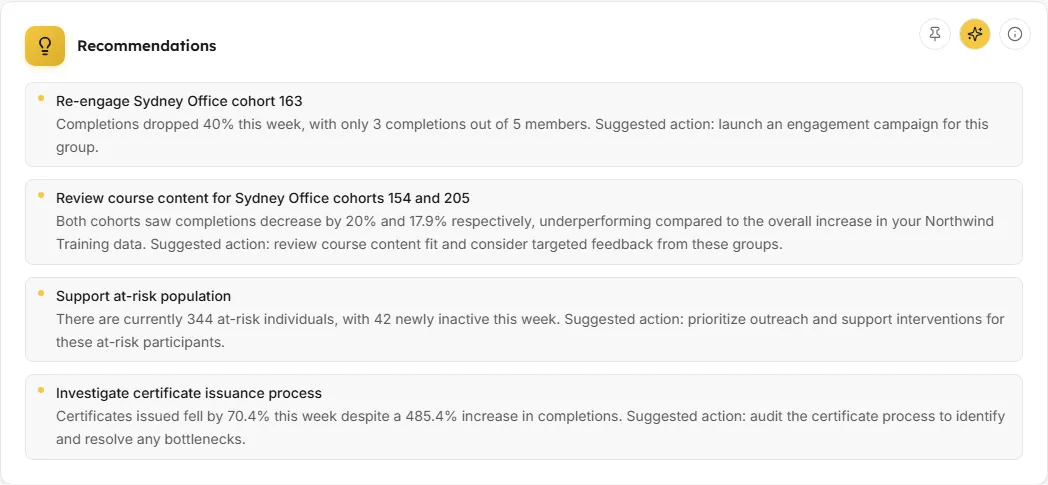
Three to five short, specific next steps suggested from the period’s figures.
- How to read it: each item has a short title and one or two sentences ending in a suggested action, for example “Reach out to the Onboarding cohort” with the reason and “Suggested action: manager check-in this week.”
- How it is worked out: the AI receives the same figures as the Executive summary and is asked for action-oriented items. It is told to address a watch-list cohort where there is one, and the at-risk learners where there are any. The output is cleaned before display and kept for each set of figures, like the summary.
- Fallbacks: when the AI is unavailable or the monthly allowance is used up, the items are built from the figures and a note says “AI recommendations temporarily unavailable, the items above are derived directly from the stats.” With no activity in the period, a single item No data this period appears.
- Empty and error states: “No recommendations generated this period.” If the card cannot load at all: No recommendations, “The recommendation engine could not generate items for this period.” While it loads it says “Generating recommendations”.
- What you can do: info, Ask AI, pin to a dashboard.
Common questions
Section titled “Common questions”Does the AI see my learners’ data?
Section titled “Does the AI see my learners’ data?”It sees only the figures shown on this screen, as a structured set of numbers: counts, changes and cohort names. It does not receive Moodle records and is never given learners’ names. The at-risk names in At-risk learner highlights come from LearnBoard’s own risk score, not from the AI.
Why did the summary not change after I pressed Refresh?
Section titled “Why did the summary not change after I pressed Refresh?”The summary is kept for each set of figures. If Refresh produced the same figures, the same text is shown. Press Regenerate to have a new one written.
Does Regenerate cost anything?
Section titled “Does Regenerate cost anything?”Each regeneration asks the AI again and uses tokens from the workspace’s monthly AI allowance. Opening the page again for the same figures does not.
Why does the summary say the AI narrator is temporarily unavailable?
Section titled “Why does the summary say the AI narrator is temporarily unavailable?”Either the workspace has used its monthly AI allowance or the AI provider could not be reached. The figures are still correct; only the wording is plain. Ask your workspace administrator about the allowance.
Why can a Team lead not see this screen?
Section titled “Why can a Team lead not see this screen?”The Team lead role is limited to screens read through their own groups, and the AI summary is one of the screens deliberately left out of it.