

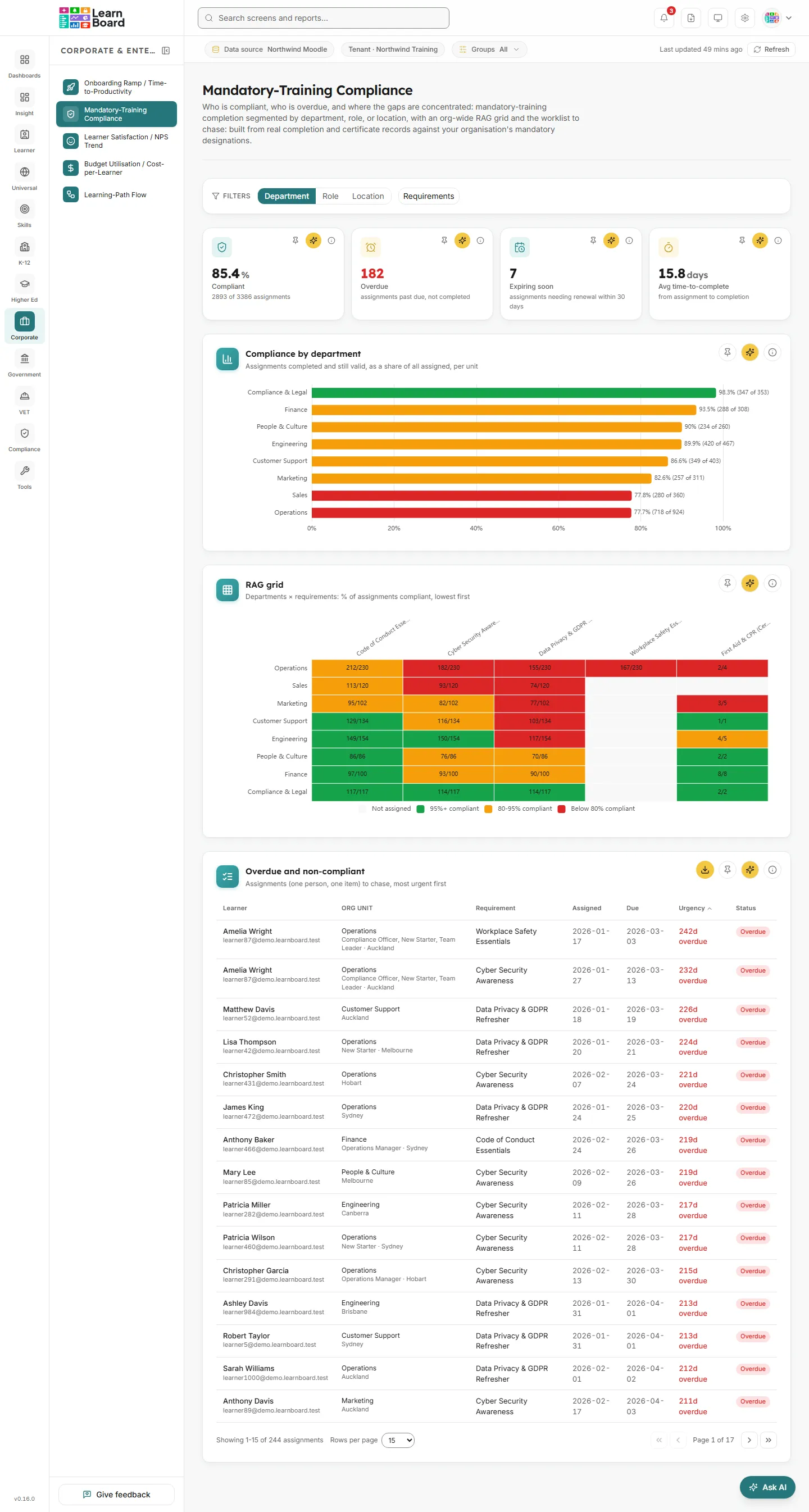
Mandatory-Training Compliance
Mandatory-Training Compliance shows who has completed the training your organisation requires, who is overdue, and where the gaps are concentrated. It segments compliance by department, role or location, colours every unit and requirement on a red, amber and green grid, and gives you a worklist of assignments to chase. Compliance officers, HR, L&D managers and team leads use it to prove coverage and follow up the people who are behind. It is built from real completion and certificate records in Moodle, measured against the training you mark as mandatory in LearnBoard.
At a glance
Section titled “At a glance”- Route:
/corp/mandatory-compliance, in the sidebar under Corporate & Enterprise as Mandatory-Training Compliance. - Who can open it: the Admin and Manager roles by default. The Viewer role does not include it by default. A Learner never sees it: opening the link sends them to their home page with the notice “You don’t have access to that screen, so you are on your home page instead.” See roles and permissions.
- Team leads: a Team lead can open this screen. Every figure, the grid and the worklist are limited to the people in their own Moodle groups. Team leads do not get the CSV download.
- Plan: part of the Corporate & Enterprise sector pack. If your plan does not include it, the page shows “Mandatory Compliance is locked” with an upgrade prompt instead of the cards.
- Filters: Department, Role or Location segmenting, and a Requirements multi-select. Both are kept in the page address.
- Data it needs: at least one mandatory requirement set up under Admin, Mandatory training. Departments and locations come from the Department and City fields on people’s Moodle profiles. Roles come from Workforce setup.
Compliance setup required
Section titled “Compliance setup required”Until your organisation has marked at least one course or certificate as mandatory, the screen shows a single card titled Mandatory-Training Compliance with the message “Compliance setup required”. It explains that tracking starts once you designate which training is mandatory, for all learners or per department, role or location, and that completions are already being recorded. The link Admin → Mandatory training opens the setup screen.
Nothing on the screen is made up while it is empty. Once a requirement exists, every card fills in from the completions Moodle already holds.
Set up what is mandatory
Section titled “Set up what is mandatory”The setup lives on its own admin screen, Mandatory training, at /admin/mandatory-training. It needs a role with permission to change reporting configuration, which the Admin role has by default. Anyone else sees “You do not have permission to change mandatory training.”
- Open Admin, then Mandatory training.
- Select Add required training.
- In Required training, choose a course or a certificate. Certificates are listed when your Moodle site has a certificate tool.
- In Required for, choose All learners, A department, A role or A location. For anything but all learners, pick the department, role or location in the next box.
- In Complete within, choose how long people have after being assigned: 7, 14, 30, 60, 90 or 180 days, or 1 year.
- In A completion counts for, choose Ever, no renewal, or 180 days, 1 year, 2 years or 3 years, after which it must be redone.
- Select Save. The compliance screen starts tracking the requirement straight away.
Required training
Section titled “Required training”The list of mandatory requirements on the Mandatory training admin screen. It is the setup that feeds this compliance screen.
- Columns: Required training (the course or certificate name, marked Course or Certificate), Required for (All learners, or for example “Department: Finance”), Complete within and Counts for (“Ever” when there is no renewal).
- Add required training: the button in the card header opens the form described above.
- Edit: the pencil button opens the same form in the row. Select Save changes or Cancel.
- Remove: the bin button asks “Stop requiring …? Mandatory Compliance stops tracking it.” and removes the requirement when you confirm.
- Empty state: “Nothing is required yet. Add the courses or certificates your organisation requires, and Mandatory Compliance starts tracking who has completed them.”
- When a choice is missing: if no roles exist yet, the form says “No roles yet. Add them in Workforce setup.” If nobody has a department or city on their Moodle profile, it says “No learner in your learning platform has a department on their profile yet.” (or location).
- What you can do: add, edit and remove requirements. This card has no Ask AI button.
How assignments work
Section titled “How assignments work”Everything on this screen counts assignments: one person and one mandatory item. One person with two overdue items counts twice.
- Who is assigned: people with an active learner enrolment, filtered by the requirement’s audience. A site admin or manager enrolled as a learner counts. Suspended accounts, people with no learner enrolment, and a course’s own teachers and managers (for that course) are not assigned anything. See shared definitions.
- Assigned date: the enrolment date for a course requirement, or the date the requirement was set up for a certificate requirement.
- Due date: the assigned date plus the requirement’s Complete within window.
- Completed: a course requirement is complete under the same rule as the Completion Funnel: a course completion, every tracked activity shown in the course done (complete or passed, a failed activity does not count), or a certificate issued in the course. A certificate requirement is complete when the certificate is issued, from any certificate tool Moodle uses.
- Validity: runs from the latest completion. A certificate issued again, or a genuine re-completion, restarts it.
- Dates: every date and “today” use your workspace’s time zone. An item due or expiring today still counts as inside its window.
Each assignment has one status:
- Compliant: completed and still within its valid period, or it never expires.
- Expiring soon: completed and still valid, but the validity ends within 30 days.
- Expired: completed, but the validity period has passed.
- Due soon: not completed and due within 14 days.
- Overdue: not completed and past the due date.
- In progress: not completed, with more than 14 days until the due date.
Compliant and expiring soon both count as compliant. The red, amber and green bands on the bar and grid use the compliance rate: 95% or more is green, 80% to 95% is amber, below 80% is red.
Filters
Section titled “Filters”The filter bar stays at the top of the page as you scroll.
- Department, Role, Location: the segment buttons. They choose the grouping for Compliance by … and the rows of the RAG grid. Department is the default. Department and location read the Department and City fields from Moodle profiles; a blank field shows as “Not specified”. Roles come from your organisation’s role assignments in Workforce setup; a person with none shows under “Unassigned”. A person holding several roles counts once per role.
- Requirements: a drop-down of checkboxes, one per mandatory requirement. Tick some to narrow every card to those requirements; the button shows how many are ticked, for example “Requirements (2)”. Clear selection unticks them all. With none set up it reads “No mandatory requirements defined.”
- Clear all: appears once you have changed a filter and puts everything back to Department and all requirements.
Changing a filter takes the grid and the worklist back to page 1. The filters, the worklist sort, page and page size are all kept in the page address, so a refresh or a shared link opens the same view.
Stat tiles
Section titled “Stat tiles”Each tile has Pin to dashboard, Ask AI about this and an info (i) button. See Pin to dashboard and Ask AI. A figure that cannot be worked out shows a dash.
Compliant
Section titled “Compliant”
The share of all assigned mandatory requirements that are completed and still valid.
- How to read it: the line under the figure gives the counts, for example “182 of 240 assignments”.
- How it is worked out: compliant and expiring-soon assignments divided by all assignments in scope, using the completion and validity rules above.
- What you can do: narrow it with the Requirements filter; pin it, ask AI about it, or read the info text.
Overdue
Section titled “Overdue”The number of assignments whose due date has passed with no recorded completion.
- How to read it: the number turns red when it is above zero. It counts assignments, not people.
- How it is worked out: assignments with the Overdue status. The due date is the assigned date plus the requirement’s due window.
- What you can do: work through them in Overdue and non-compliant below; pin it, ask AI about it, or read the info text.
Expiring soon
Section titled “Expiring soon”The number of completed assignments whose validity ends within 30 days.
- How to read it: these people are compliant today but need to renew soon. Only requirements with a validity period can expire.
- How it is worked out: assignments with the Expiring soon status.
- What you can do: pin it, ask AI about it, or read the info text.
Avg time-to-complete
Section titled “Avg time-to-complete”The average number of days people take to finish a mandatory item after it is assigned.
- How to read it: shown in days. A rising figure means people are leaving required training later.
- How it is worked out: the average, across every completed assignment, of the days from the assigned date to the first completion. Course items are assigned at enrolment; other items when the requirement was set up.
- What you can do: pin it, ask AI about it, or read the info text.
Charts
Section titled “Charts”Compliance by department
Section titled “Compliance by department”
One horizontal bar per org unit, ranked by compliance rate. The title follows the segment filter: Compliance by department, Compliance by role or Compliance by location.
- How to read it: the healthiest unit is at the top. Each bar is coloured by its band (green 95% or more, amber 80% to 95%, red below 80%) and labelled with its rate and counts, for example “40% (2 of 5)”. Hover a bar for the unit’s compliance and its full breakdown: compliant (with any expiring within 30 days), due within 14 days, overdue or expired, and not yet due. These add up to the unit’s assignments.
- How it is worked out: compliant assignments (expiring ones included) divided by everything assigned to people in that unit. A unit’s counts are the sums of its cells in the RAG grid.
- Empty state: “Nothing assigned yet: No mandatory assignments resolve to any department yet.”
- What you can do: switch the segment, narrow by requirement; pin it, ask AI about it, or read the info text.
RAG grid
Section titled “RAG grid”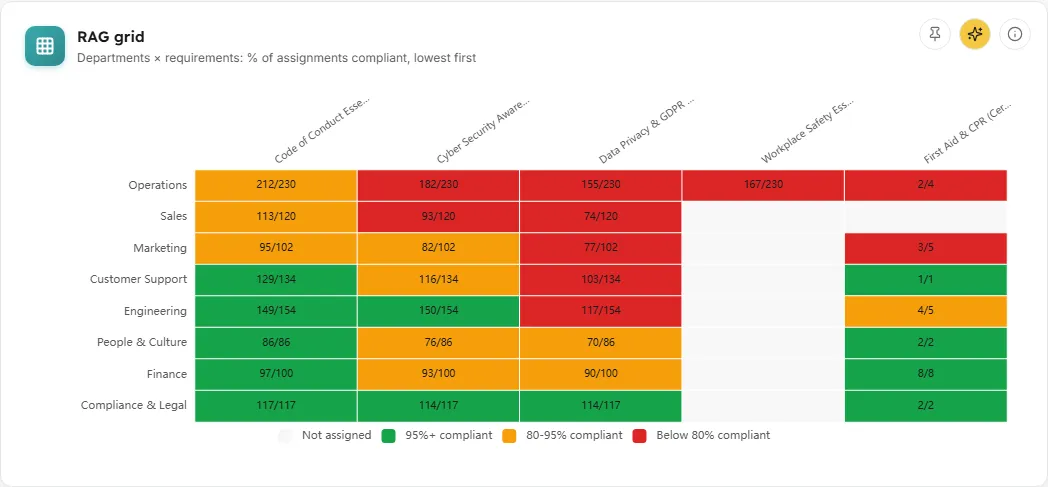
A grid of org units (rows) against mandatory requirements (columns), each cell coloured by that unit’s compliance with that requirement.
- How to read it: the units with the lowest compliance are at the top. Each cell shows “compliant/assigned”, for example “2/5”. The legend reads “Below 80% compliant” (red), “80-95% compliant” (amber), “95%+ compliant” (green) and “Not assigned” (grey, nobody in that unit has this requirement). Hover a cell for its rate and breakdown. The unit line follows the segment, for example “Roles × requirements”.
- How it is worked out: for each unit and requirement, compliant assignments out of those assigned. A unit’s cells add up to its bar on Compliance by ….
- Paging: 15 units per page. When there are more, the footer shows the count and page with Prev and Next buttons.
- Empty state: “Nothing to grid yet: The grid fills in as mandatory assignments resolve to org units.”
- What you can do: page through units, switch the segment, narrow by requirement; pin it, ask AI about it, or read the info text.
Overdue and non-compliant
Section titled “Overdue and non-compliant”
The worklist: every assignment that needs chasing.
- What is on it: assignments that are Overdue, Expired, Expiring soon or Due soon. Compliant and In progress items are left off.
- Columns:
- Learner: name and email.
- Org unit: department, with role and location underneath.
- Requirement: the mandatory item.
- Assigned and Due: the dates, on your workspace’s clock.
- Urgency: for example “12d overdue”, “expired 5d ago”, “expiring in 9d” or “due in 3d”. Red for overdue and expired, amber for the rest.
- Status: the status badge.
- Sorting: the default is Urgency, most urgent first: the longest overdue, then the longest expired, then the soonest to expire, then the soonest due. Click Learner, Requirement, Assigned, Due, Urgency or Status to sort; click again to reverse. Org unit does not sort.
- Paging: 15 rows per page by default; choose 15, 50 or 100 and move between pages under the table.
- Empty state: “Nothing to chase: No overdue, expired, or expiring assignments right now.”
- What you can do: click a row (or press Enter on it) to open that person’s drawer; Download CSV to save the worklist for the current segment and requirement filters as
mandatory-compliance-worklist.csv; pin it, ask AI about it, or read the info text.
Learner compliance detail drawer
Section titled “Learner compliance detail drawer”The panel that slides in when you click a worklist row: one person’s full list of mandatory requirements.
- Header: the person’s name with an (i) explaining the drawer, and their department, roles and location, or “No org-unit details on file”.
- One panel per requirement: the requirement name and status badge, then Assigned, Due, Completed (“Not yet” when it is not done) and Valid until (“No expiry” when the completion never lapses). Items that need action also show their urgency, for example “12d overdue”.
- How dates are worked out: the completion date is the latest completion under the shared rule, and the validity runs from it.
- Empty state: “No mandatory requirements apply to this person.”
- Closing it: the close button, a click outside the panel, or the Escape key.
Common questions
Section titled “Common questions”Why does the Overdue tile not match the number of people behind?
Section titled “Why does the Overdue tile not match the number of people behind?”It counts assignments, one person and one item. Someone overdue on two requirements counts twice.
Why does a department show as “Not specified”?
Section titled “Why does a department show as “Not specified”?”Departments and locations come from the Department and City fields on Moodle user profiles. People with a blank field are grouped under “Not specified”. Fill those fields in Moodle and the units appear after the next refresh.
Why is a course teacher not on the worklist for their own course?
Section titled “Why is a course teacher not on the worklist for their own course?”A course’s own teachers and managers run it rather than take it, so that course is not assigned to them.
Someone completed the course again. Why did their validity date move?
Section titled “Someone completed the course again. Why did their validity date move?”Validity runs from the latest completion. A certificate issued again, or a real re-completion, restarts it.
How fresh are the figures?
Section titled “How fresh are the figures?”The Moodle reads behind this screen are cached for 15 minutes, shorter than other screens because overdue counts change by the day. Statuses are worked out against today’s date every time you open the page.