

Instructor / Tutor Performance
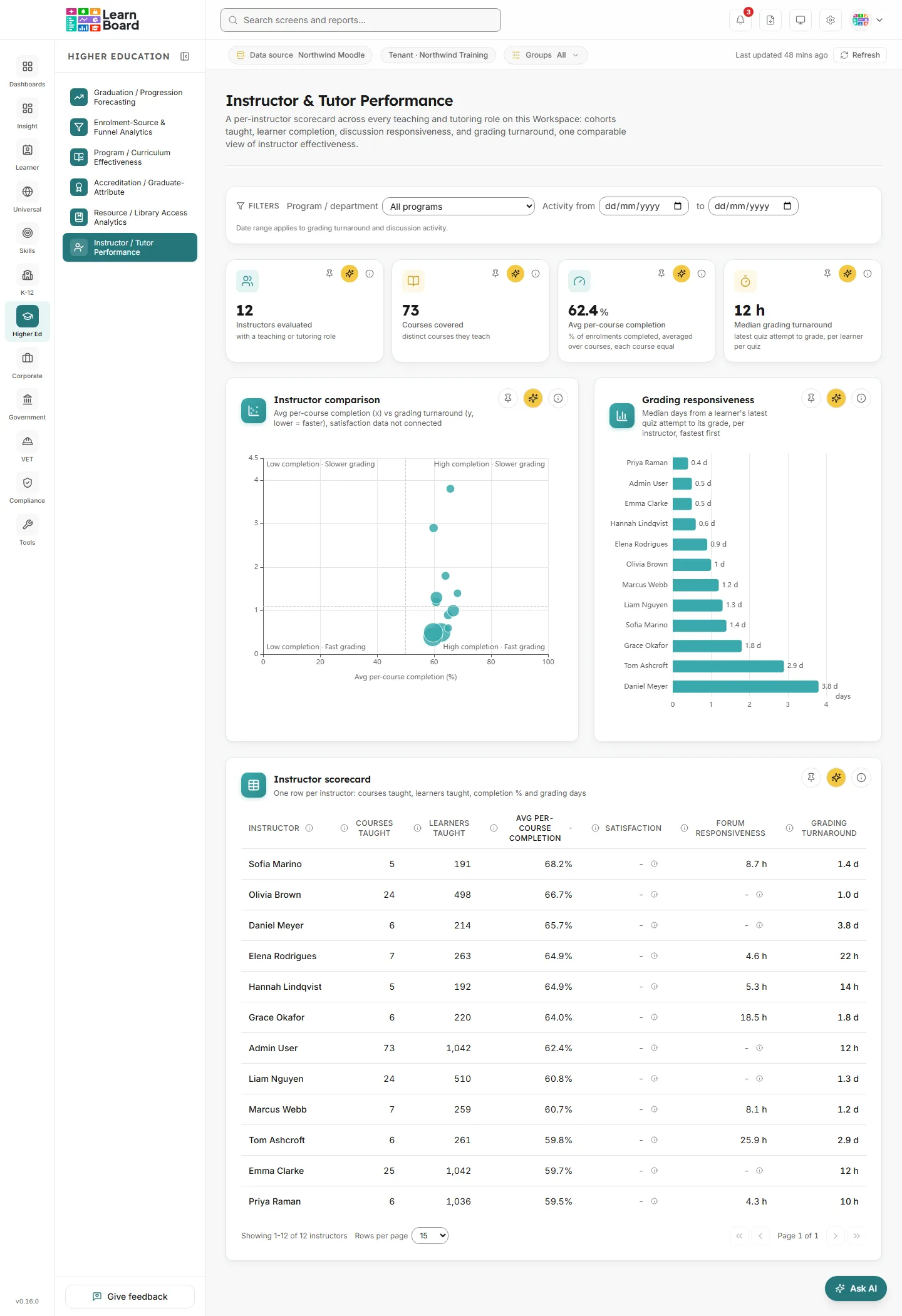
The Instructor & Tutor Performance screen is a per-instructor scorecard across every teaching and tutoring role in your Moodle site: courses taught, learners taught, completion in their courses, discussion responsiveness and grading turnaround, in one comparable view. Heads of school, program directors and teaching-quality leads use it to see which instructors’ courses complete well, who grades quickly, and where support is needed.
At a glance
Section titled “At a glance”- Route:
/he/instructor-performance. In the sidebar it sits under Higher Education as Instructor / Tutor Performance. - Who can open it: the Admin and Manager roles by default. The Viewer role does not get it by default, because the sector screens are granted to Viewers deliberately. The Team lead role does not include this screen. A Learner never sees it: opening the link sends them to their home page with the notice “You don’t have access to that screen”. See roles and permissions.
- Plan: part of the Higher Education sector pack. If your plan does not include the pack, the page shows “Instructor Performance is locked” with an upgrade prompt instead of the screen.
- Filters: Program / department, Activity from and to. The date range applies only to grading turnaround and discussion activity. Every filter, sort and page choice is kept in the page address, so a refreshed or shared link opens the same view.
- Data it needs: nothing to set up. Instructors are read from the teaching-role assignments in your Moodle courses; learners, completion, quiz grading and forum activity come from Moodle too. Satisfaction needs survey data that is not connected on this screen yet, so the Satisfaction column always shows a dash.
Who counts as an instructor
Section titled “Who counts as an instructor”- An instructor is anyone holding a teaching role in at least one course: the Moodle teacher (non-editing) or editing teacher role, or any custom role built on either of them, such as a tutor role. The standard teacher shortnames still count when a site has cleared a role’s archetype.
- These are the same course roles that leave a person out of that course’s learners, so nobody is both an instructor and a learner in the same course.
- Deleted and suspended accounts are not instructors. Courses hidden from analytics are left out; a course hidden in Moodle still counts.
- There is no workspace setting on this screen that changes which roles count. To include a tutor role, build it on the teacher or editing teacher archetype in Moodle.
Filters
Section titled “Filters”The filter bar is labelled Filters and stays at the top of the page as you scroll.
- Program / department: All programs, or one Moodle course category, listed with how many of the instructors’ courses sit in it. Choosing one keeps only the courses directly in that category, on every card. An instructor with no course in the category drops out.
- Activity from and to: a date range. The note beside them reads “Date range applies to grading turnaround and discussion activity.” Who teaches what, learners taught and completion are current figures and are not date-filtered.
- Clear all: appears once you change a filter and removes them all.
Changing a filter takes the scorecard back to its first page.
When no instructors are in scope
Section titled “When no instructors are in scope”Instructor & Tutor Performance
Section titled “Instructor & Tutor Performance”When nobody holds a teaching or tutoring role on a course in scope, the tiles and charts are replaced by the message “No instructors in scope”.
- Why it happens: your Moodle courses have no teacher or editing teacher assignments, or the Program / department filter leaves none.
- What to do: clear or change the filter. If you expected teaching staff, check the Moodle role assignments and your data source.
KPI strip
Section titled “KPI strip”Four tiles sit under the filter bar. Each has a Pin to dashboard button, an Ask AI about this button and an info button that explains the count. See Ask AI and pinning.
Instructors evaluated
Section titled “Instructors evaluated”
How many people hold a teaching role in at least one course in scope.
- How to read it: a count of people, not role assignments. Someone teaching five courses counts once.
- How it is worked out: the instructor rule above, after the Program / department filter.
- What you can do: read the info text, Ask AI, or pin the tile.
Courses covered
Section titled “Courses covered”How many different courses those instructors teach.
- How to read it: a count of courses. A course taught by two instructors counts once.
- How it is worked out: distinct courses with a teaching-role assignment, courses hidden from analytics left out.
- What you can do: read the info text, Ask AI, or pin the tile.
Avg per-course completion
Section titled “Avg per-course completion”The typical completion rate of a course in scope.
- How to read it: a percentage with one decimal place, or a hyphen when no covered course has learners. Each course weighs the same, so a small course moves it as much as a large one.
- How it is worked out: for each covered course, completed enrolments divided by enrolments (the completion rate), then the average of those rates. Completed means a course completion, every tracked activity shown in the course done, or a certificate issued in the course. Staff and suspended or deleted accounts are left out.
- Keep in mind: because it averages per-course rates, it can differ from a rate over all enrolments such as the one on Program / Curriculum Effectiveness. The tile used to be called “Avg course completion”.
- What you can do: read the info text, Ask AI, or pin the tile.
Median grading turnaround
Section titled “Median grading turnaround”How long a learner typically waits for a quiz grade after finishing.
- How to read it: days with one decimal place (for example “2.4 d”), or hours under a day (“5 h”, “< 1 h”). A hyphen means no graded quiz submission in scope.
- How it is worked out: one graded submission per learner per quiz in the covered courses: the time from the learner finishing their latest attempt to the grade being recorded. A learner with three attempts counts once, from the last attempt. Preview attempts are left out. The tile shows the median, and only submissions finished inside the date range count.
- Keep in mind: this covers quizzes only. Other assessment types do not record a reportable submission time, so they are left out rather than guessed.
- What you can do: read the info text, Ask AI, or pin the tile.
Instructor comparison
Section titled “Instructor comparison”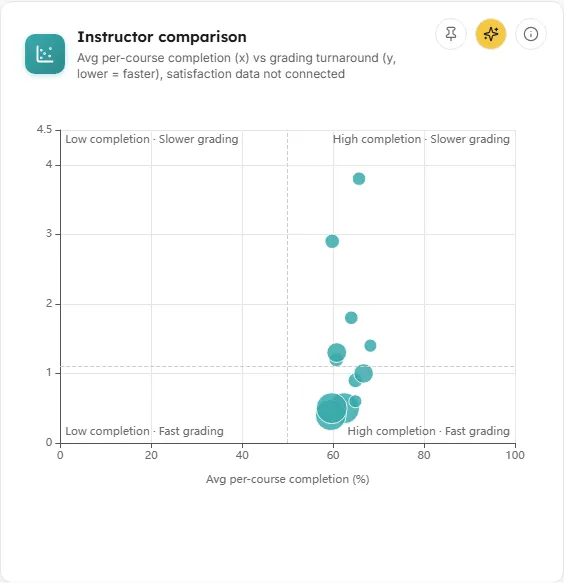
A scatter chart with one dot per instructor, so strong and struggling instructors stand out at a glance.
- How to read it: the horizontal axis is Avg per-course completion (%), from 0 to 100. The vertical axis is Grading turnaround (days, lower = faster). Bigger dots teach more learners. Dashed lines split the chart at 50% completion and at the median turnaround of the instructors shown, into four labelled corners: “High completion · Fast grading”, “High completion · Slower grading”, “Low completion · Fast grading” and “Low completion · Slower grading”. Dots at or above 50% completion take one colour, the rest another. Hover a dot for the instructor’s name, learners, courses, completion and turnaround.
- How it is worked out: each instructor’s average per-course completion and median grading turnaround, after the filters. Instructors missing either figure are not plotted.
- About the axes: the chart is built to compare completion against learner satisfaction once satisfaction data is connected, and then switches its subtitle and corners to satisfaction. With no satisfaction source, which is the case today, it uses grading turnaround so the chart is never empty.
- What you can do: click a dot to scroll to the scorecard and briefly highlight that instructor’s row. Read the info text, Ask AI, or pin the chart.
- Empty state: “Not enough measurable data to compare instructors under the current filters.”
Grading responsiveness
Section titled “Grading responsiveness”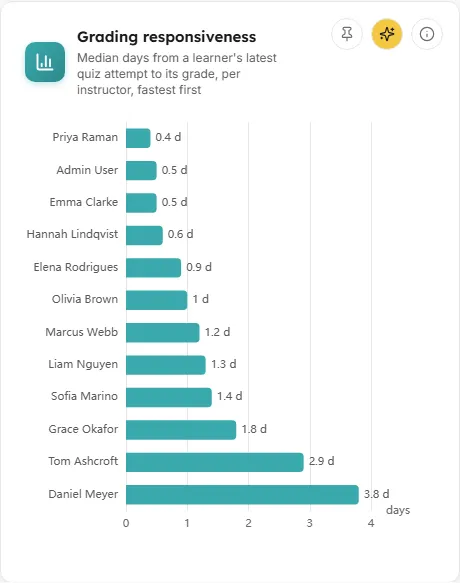
A horizontal bar chart ranking instructors by how quickly grades follow learner submissions, fastest at the top.
- How to read it: each bar is one instructor, its length and label their median grading turnaround in days. Long names are shortened; hover a bar for the full name, the median, how many graded submissions it is based on, and their discussion responsiveness where it exists (“No discussion-responsiveness data” otherwise).
- How it is worked out: the same per-learner, per-quiz turnaround as the tile, as a median for each instructor’s courses. Only instructors with at least one graded quiz submission appear. Discussion responsiveness never changes the ranking.
- What you can do: click a bar to scroll to the scorecard and highlight that instructor’s row. Read the info text, Ask AI, or pin the chart.
- Empty state: “No graded quiz submissions found, so grading turnaround cannot be ranked.”
Instructor scorecard
Section titled “Instructor scorecard”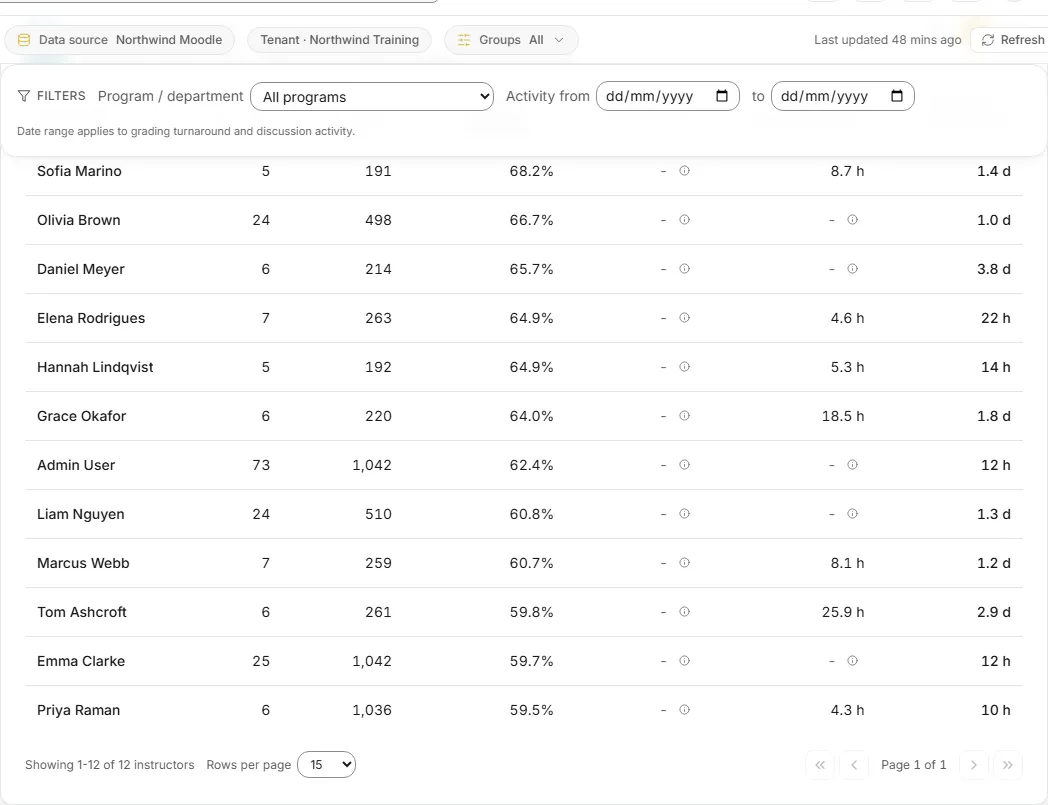
Every instructor and tutor in scope with their teaching load, completion, responsiveness and grading turnaround.
- Columns: every heading has its own info button explaining the figure.
- Instructor: the person, from their teaching-role assignments.
- Courses taught: distinct courses where they hold a teaching role.
- Learners taught: distinct learners with an active enrolment across all their courses. A learner in two of their courses counts once.
- Avg per-course completion: the average of their courses’ completion rates.
- Satisfaction: average learner satisfaction from connected survey data. No source is connected yet, so it shows a dash whose marker reads “No learner satisfaction survey data is connected for this LMS connection yet.”
- Forum responsiveness: a proxy from discussion activity over the last 12 months: the median time from a learner’s post in a course’s forums to this instructor’s next post there. Shown in hours, or in days from 48 hours. It approximates responsiveness; it is not a full reply-time record.
- Grading turnaround: their median quiz grading time, as on the tile.
- Dashes: a dash with a marker means there is nothing to measure. Hover the marker to see why: the whole connection lacks that data, or this instructor has none for the selected period.
- Sorting: click a heading to sort by it, largest first; click again to reverse. The default is Avg per-course completion, highest first.
- Paging: 15 rows a page by default, with a rows-per-page choice of 15, 50 or 100 and page buttons.
- What you can do: click a row, or press Enter on it, to open the instructor’s detail drawer. A row flashes for a moment when you click that instructor in either chart. Read the info text, Ask AI, or pin the table; the pinned copy keeps your filters, sort and page size.
- Empty state: “No instructors match the current filters.”
Instructor detail drawer
Section titled “Instructor detail drawer”Instructor detail
Section titled “Instructor detail”A side panel for one instructor, opened from a scorecard row. It follows the same filters as the page.
- Header: the instructor’s name, with their course count and learners, and an info button on how the drawer is built.
- Headline figures: Avg per-course completion, Grading turnaround (“median over N graded quiz submissions, latest attempt each”), Forum responsiveness (“median over N responses”, or “no discussion activity recorded”) and Satisfaction, which shows a dash with the reason no survey data is connected.
- Courses taught: one panel per course with its name, category, learner count, completion rate and a completion bar, plus “Grading:” (the median and graded count, or “no graded quiz submissions”) and “Discussions:” (the median response, or “No forum activity recorded”).
- Closing it: the close button, a click on the shaded background, or the Escape key.
Common questions
Section titled “Common questions”Why does the Satisfaction column only show dashes?
Section titled “Why does the Satisfaction column only show dashes?”Satisfaction needs learner survey data, and no survey source feeds this screen yet. LearnBoard shows a dash with the reason rather than an estimated score.
Why does the date range not change completion or learners taught?
Section titled “Why does the date range not change completion or learners taught?”Who teaches which course, learner counts and completion are current figures. The range only narrows the figures that are about time: grading turnaround and discussion activity.
Why is an essay-heavy course missing a grading figure?
Section titled “Why is an essay-heavy course missing a grading figure?”Grading turnaround is measured on quizzes only. Assignments and other assessment types do not record a submission time LearnBoard can report, so they are left out.
Can a Team lead see this screen?
Section titled “Can a Team lead see this screen?”No. The Team lead role leaves this screen out.
How fresh are the figures?
Section titled “How fresh are the figures?”The underlying dataset is cached for up to an hour. Changing filters does not wait for a fresh read.