

Assessor Activity and Validation
Assessor Activity and Validation lets you interrogate assessment judgements by learner, assessor, question, mapping criteria and unit, see which assessors judge out of line with their peers, and then draw a seeded, auditable validation sample and export it as the evidence for your validation exercise. It is for RTO compliance managers, validation panels, assessment leads and quality teams.
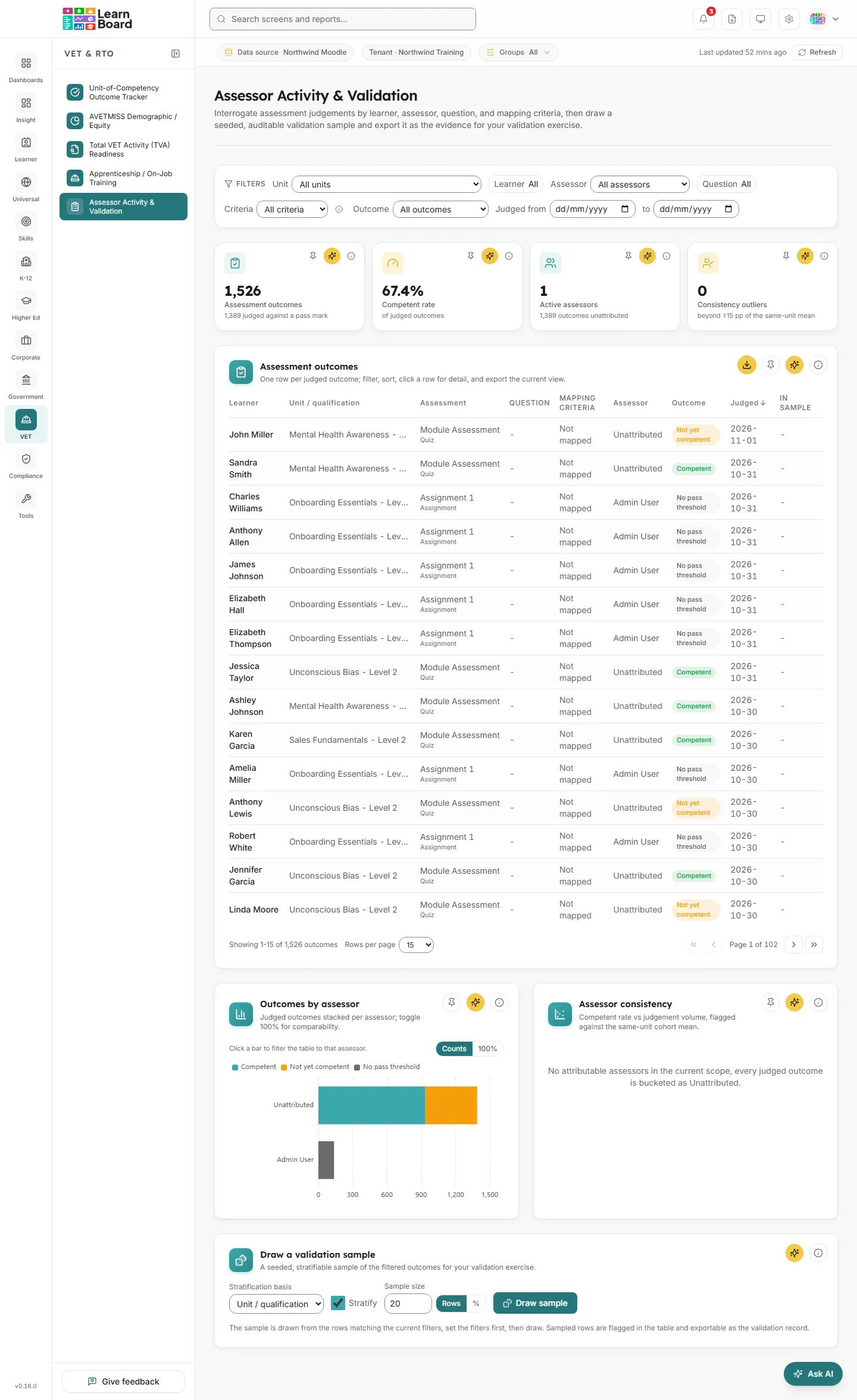
The screen is titled Assessor Activity & Validation in the app. The filterable outcomes table is the heart of the screen; the tiles and the two assessor charts help you slice into it, and the sampling panel is the compliance payoff.
At a glance
Section titled “At a glance”- Route:
/vet/assessor-validation. In the sidebar: VET & RTO, then Assessor Activity & Validation. - Who can open it: the Admin and Manager roles by default. The Team lead role does not include this screen. The Viewer role does not include the specialist sector screens by default, and the Learner role cannot open it.
- Plan: part of the VET & RTO pack. Without the pack the screen is greyed out with a lock in the sidebar and opens to a locked page. The CSV exports also need a plan that includes CSV export.
- What it needs: a connected Moodle data source with graded assessment activities. Mapping criteria come from your workspace’s own assessment-to-criterion mapping; without one, every row shows “Not mapped”.
- Filters: Unit / qualification, Learner, Assessor, Question (when question data exists), Criteria, Outcome and a Judged from and to window. Filters, sort and page are kept in the page address, and every applied filter flows into the CSV exports.
- Exports: the outcomes table and the drawn sample both export as CSV, each with a preamble stating the generation time, the filters, the methodology and a SHA-256 checksum of the data rows.
What is a judged outcome?
Section titled “What is a judged outcome?”One outcome is one learner’s recorded final grade on one graded assessment activity. Where the activity defines a pass threshold, the outcome is Competent (a final grade at or above the threshold) or Not yet competent. Activities with no pass threshold show as No pass threshold and are left out of every rate. When you pick a question in the filter, the table switches to question level: one row per learner answer to that question, judged from its recorded grading state.
The assessor on an outcome is the grader recorded on the grade, when that person is not the learner. Otherwise it is the sole teacher of the unit. If neither can be found, the outcome is Unattributed.
The unit is the Moodle course the assessment sits in.
Stat tiles
Section titled “Stat tiles”Four tiles sit across the top. Each has Pin to dashboard, Ask AI and an info button.
Assessment outcomes
Section titled “Assessment outcomes”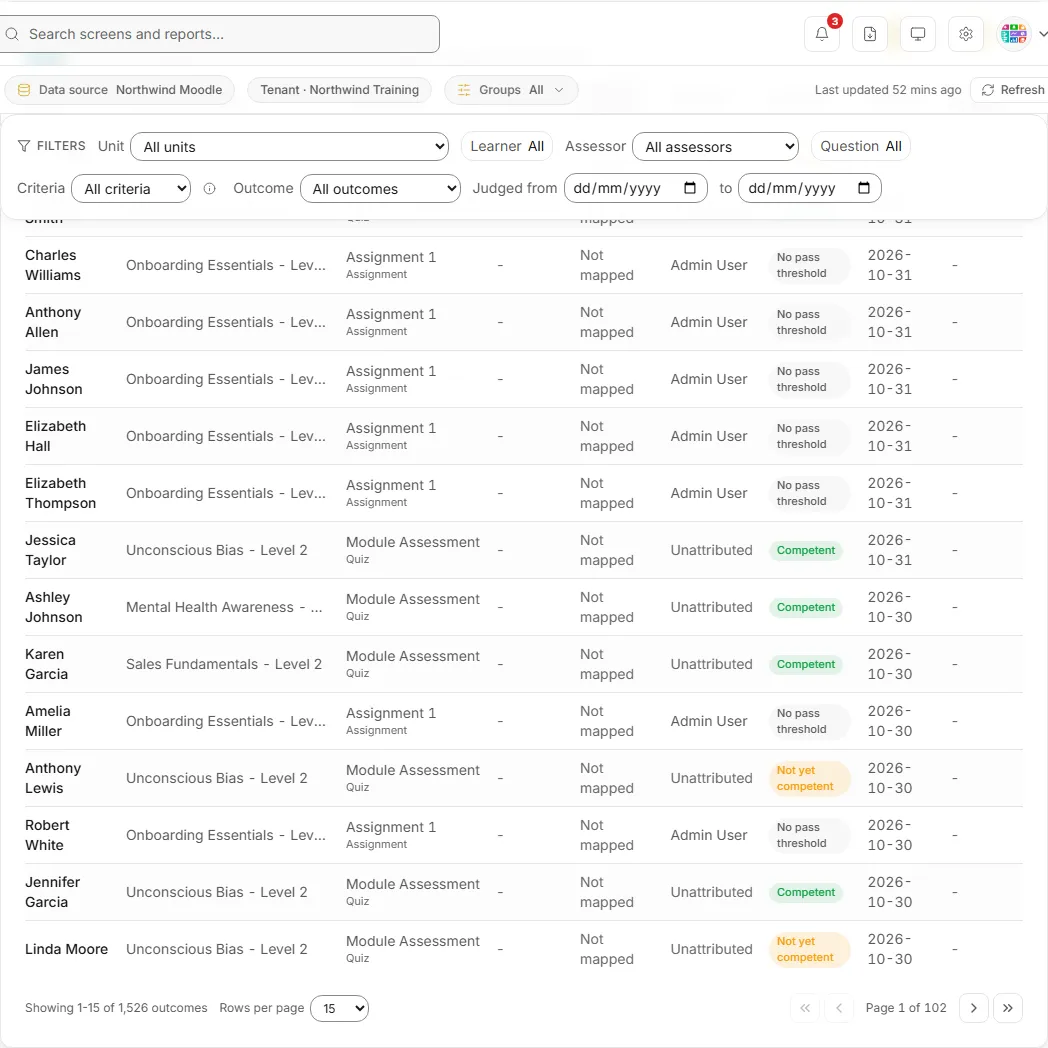
The number of judged outcomes in the current filters.
- How to read it: a count of outcomes, with “N judged against a pass mark” underneath.
- How it is worked out: one outcome per learner per graded assessment activity with a recorded final grade, including those with no pass threshold and those not attributed to an assessor. Only those judged against a pass threshold feed the Competent rate.
- What you can do: pin it, Ask AI about it, or open the info text.
Competent rate
Section titled “Competent rate”
The share of judged outcomes marked Competent.
- How it is worked out: outcomes with a final grade at or above the activity’s pass threshold, over all outcomes judged against a threshold. Outcomes without a pass threshold are excluded.
- What you can do: pin it, Ask AI about it, or open the info text.
Active assessors
Section titled “Active assessors”The number of distinct assessors in scope.
- How to read it: a count of people. The line underneath reads “N outcomes unattributed”, or “every outcome attributed”.
- How it is worked out: the recorded grader on an outcome when that person is not the learner, otherwise the sole unit teacher. Outcomes that cannot be attributed are counted separately as Unattributed.
- What you can do: pin it, Ask AI about it, or open the info text.
Consistency outliers
Section titled “Consistency outliers”The number of assessors whose Competent rate is well away from their peers on the same units.
- How to read it: a count of assessors, with “beyond ±15 pp of the same-unit mean” underneath.
- How it is worked out: assessors whose Competent rate deviates from the same-unit cohort mean by more than 15 percentage points. Assessors with fewer than 20 judgements are not flagged.
- What you can do: pin it, Ask AI about it, or open the info text. Find the flagged dots in the Assessor consistency chart.
Tables, charts and the sample
Section titled “Tables, charts and the sample”Assessment outcomes table
Section titled “Assessment outcomes table”Every judged outcome matching the filters. After you draw a sample, the card’s title changes to Validation sample and its unit line to “The drawn sample, every row below is flagged and exportable as the validation record.”
- Columns: Learner, Unit / qualification, Assessment, Question, Mapping criteria (“Not mapped” where none exists), Assessor, Outcome, Judged (the date) and In sample.
- What you can do: click a sortable header (Learner, Unit / qualification, Assessment, Assessor, Outcome, Judged) to sort; the table opens newest judged first. Click a row, or press Enter on it, to open the outcome’s detail. Page with the first, previous, next and last page buttons and change the page size (15 by default). Click the CSV button to download the current view as
assessor-validation-outcomes.csv, with exactly the rows matching the current filters. While a sample is drawn, the CSV button downloads the sample instead. Pin the table, Ask AI about it, or open the info text. - Empty state: “No assessment outcomes match these filters.”
Outcome detail
Section titled “Outcome detail”A side panel that opens when you click a row.
- What it shows: Outcome, Assessment, Question (at question level), Mapping criteria (“Not mapped” where none exists), Assessor with its attribution basis (Recorded grader, Unit teacher or Unattributed), and Judged. When the row is in a drawn sample, a Validation sample section says “This outcome is part of the drawn sample.”
- What you can do: close it with the close button, by clicking outside it, or with the Escape key.
Outcomes by assessor
Section titled “Outcomes by assessor”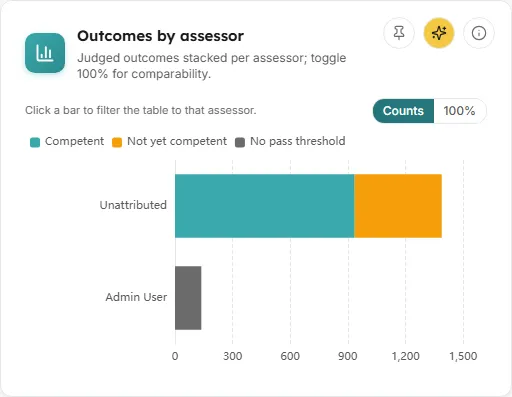
A stacked bar per assessor showing their Competent, Not yet competent and No pass threshold outcomes.
- How to read it: one bar per assessor, with Unattributed collecting the outcomes no assessor could be found for. Hover a bar for each count and the number judged.
- How it is worked out: judged outcomes grouped by the assessor they are attributed to.
- What you can do: use the Counts and 100% buttons to switch between raw counts and shares, so assessors with very different volumes can be compared. Click a bar to filter the table to that assessor. Pin the chart, Ask AI about it, or open the info text.
- Empty state: “No judged outcomes in the current scope.”
Assessor consistency
Section titled “Assessor consistency”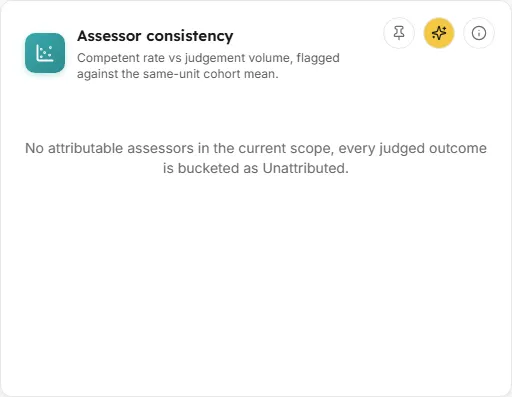
A scatter plot comparing each assessor’s Competent rate with what their peers give on the same units.
- How to read it: each dot is one assessor. Across is the number of judgements, up is the Competent rate, and dot size shows how many distinct units they assessed. Dots more than 15 percentage points from their expected rate are amber. Assessors with fewer than 20 judgements are muted and not flagged.
- How it is worked out: the expected rate is the same-unit cohort mean: each assessor’s rate is compared with the judgement-weighted average of the all-assessor Competent rates of the units they judged.
- What you can do: click a dot to filter the table to that assessor. Pin the chart, Ask AI about it, or open the info text.
Draw a validation sample
Section titled “Draw a validation sample”
The panel that draws a reproducible sample of the filtered outcomes for your validation exercise.
- Controls:
- Stratification basis: Unit / qualification (the default), Assessor, Outcome or Month judged.
- Stratify: on by default.
- Sample size: a number, with Rows (1 to 500, 20 by default) or % (1 to 100).
- Draw sample and, once a sample exists, Clear sample.
- How the draw works: the sample is drawn from the rows matching the current filters, as a fixed count or a percentage, capped at 500 rows. With Stratify on, rows are grouped by the chosen basis and the sample is allocated proportionally, with at least one row per non-empty group where the sample size allows. The draw is seeded and deterministic: the same filters, settings and seed always return the same rows. The seed is recorded in the audit log with the draw settings, so the draw itself is part of your validation evidence.
- What you see after a draw: “Sample drawn: N of N outcomes, stratified by” the basis (or “simple random draw”), the seed, and how many groups are represented. If the sample is smaller than the number of groups, it suggests increasing the sample size to cover every group. The outcomes table switches to the sampled rows, each flagged In sample.
- What you can do: download the sample as
assessor-validation-sample.csvwith the CSV button on this panel or on the table. Ask AI about it, or open the info text. Changing any filter clears the sample, because it no longer describes the view.
- Set the filters to the population you are validating, for example one unit and a Judged from and to window.
- In Draw a validation sample, pick a Stratification basis and a Sample size.
- Click Draw sample.
- Check the table, now titled Validation sample, and open any row for detail.
- Click CSV to download the sample. The file states the filters, the sampling settings, the seed and a checksum, so it can stand on its own as validation evidence.
Filters and buttons
Section titled “Filters and buttons”- Unit / qualification: “All units” or one unit, each shown with its number of outcomes.
- Learner: a searchable list. Type in Search learners… to narrow it.
- Assessor: “All assessors” or one assessor, each with their number of outcomes, including Unattributed.
- Question: a searchable list of questions with their attempt counts. It appears only when question-level data exists. Picking a question switches the table to one row per answer.
- Criteria: “All criteria”, one mapping criterion, or Not mapped. When your workspace has no mapping, an info button explains that mappings are never inferred.
- Outcome: “All outcomes”, Competent, Not yet competent or No pass threshold.
- Judged from and to: the date window.
- Clear all: resets every filter. It appears once any filter is set.
Common questions
Section titled “Common questions”Why does every row say “Not mapped”?
Section titled “Why does every row say “Not mapped”?”Mapping criteria come only from your workspace’s own assessment-to-criterion mapping, and none is entered. LearnBoard never infers mappings. The screen notes that entering mappings is an administration task coming in a later release.
Why is an assessor shown as Unattributed?
Section titled “Why is an assessor shown as Unattributed?”The grade has no recorded grader other than the learner, and the unit has no single teacher to fall back on.
Can I reproduce a sample later?
Section titled “Can I reproduce a sample later?”Yes. The draw is deterministic: the same filters, settings and seed give the same rows, and the seed and settings are kept in the audit log.