

Learner Dashboard
The Learner Dashboard shows one learner’s whole record on a single screen: their headline figures, how far through each course they are, how they compare with their group, their daily activity, every finished quiz attempt, their grades against classmates, SCORM packages and certificates. Administrators, managers, viewers and team leads use it to look at a single person, for example before a support conversation, and can open any of that person’s courses to see exactly what is left for them to finish.
At a glance
Section titled “At a glance”- Route:
/learner-dashboard, in the Learner section of the menu. - Who can open it: the Admin, Manager and Viewer roles by default, and the Team lead role. It needs the Learner Profiles permissions (
view.sidebar.learnersfor the menu entry,view.learnersfor the figures). The Learner role cannot open it; a learner sees their own record on My Learning. - Plan: it belongs to the Learner Profiles screen of the Insight pack, so it is locked wherever Learner Profiles is locked. On the Free plan it is locked: the screen shows “Learner Profiles is locked” with a way to compare plans, and an administrator who manages billing also gets View plans & upgrade.
- Filters: one, the Learner picker at the top. The Groups filter in the bar under the top bar does not appear on this screen.
- Team leads: see only the people in their own Moodle groups. The picker lists only those people, and every figure is read through the team lead’s own groups. The bar under the top bar shows a Your groups only label.
- Learners: have no access. A learner who follows a link to it is sent to their home page with the note “You don’t have access to that screen, so you are on your home page instead.”
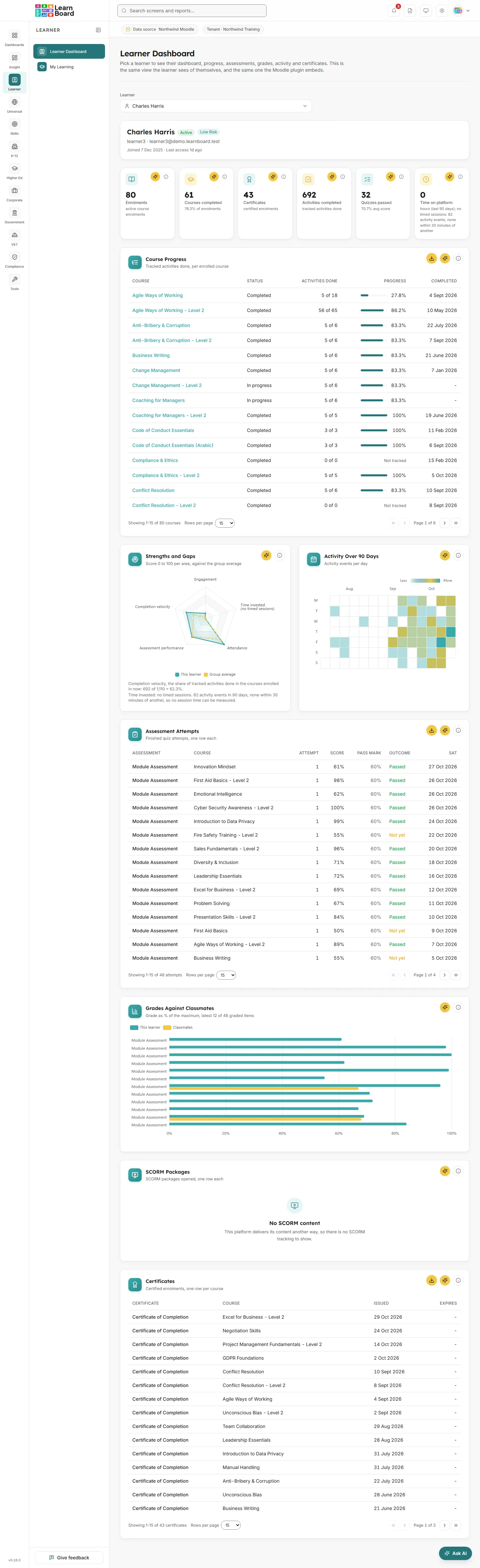
Pick a learner
Section titled “Pick a learner”A searchable dropdown that chooses whose record the screen shows.
- How to read it: each row shows the person’s name and email, and on the right how many courses they are enrolled in and how many actions they logged in the last 90 days. The list opens with the busiest learners first, so the first names you see have data to look at.
- How it is worked out: the list holds up to 200 learners, ordered by activity. When you type, the search box (“Search by name, username or email”) filters that list and also asks the server, which searches every learner, so a quiet, suspended or new learner can still be found. Rows found only by the server search show the person’s status instead of their activity.
- What you can do: open the dropdown, type to search, and choose a person. Choosing a different person closes any course you had open.
- Empty states: before you choose anyone the screen shows “Choose a learner: Pick someone from the dropdown above to see their dashboard, the same view they see of themselves.” If the workspace has nobody to list, the dropdown says “No enrolled learners on this workspace yet.” If the list cannot be read, it says so and offers Try again.
The learner header
Section titled “The learner header”The chosen person’s name, status, risk band, username and email, the date they joined and when they last accessed the site.
- How to read it: the status badge reads Active, Inactive, Suspended or Hidden. Active means activity in the last 30 days (see definitions). The risk badge (Low Risk, Medium Risk or High Risk) appears only when the workspace’s at-risk figures have already been worked out; otherwise no badge is shown.
- How it is worked out: read from the learner’s Moodle account and their activity log.
Headline tiles
Section titled “Headline tiles”Six tiles sit under the header. Each has an info button that explains how it counts, and an Ask AI button. The tiles count only courses the person is enrolled in now as a learner.
Enrolments
Section titled “Enrolments”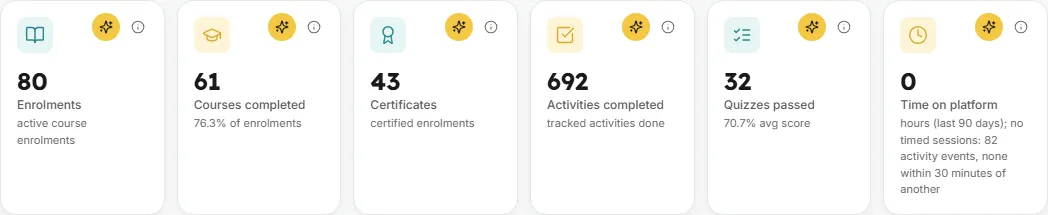
How many courses this person is actively enrolled in as a learner.
- How to read it: each course counts once, however many enrolment methods put them there.
- How it is worked out: courses this learner is actively enrolled in as a learner, each course once. Suspended enrolments, disabled enrolment methods, courses hidden from analytics and courses they teach are left out. Across LearnBoard, enrolments are active learner and course pairs, each person once per course; staff, excluded courses and suspended enrolments are left out.
- What you can do: read the info text, or Ask AI about the tile.
Courses completed
Section titled “Courses completed”How many of those enrolments are complete, and what share of them that is.
- How to read it: the line under the number is the completion rate for this person: completed enrolments divided by enrolments. A person with no enrolments shows “-” instead of a percentage.
- How it is worked out: a course counts as completed with a course completion record, every tracked activity shown in the course done, or a certificate issued in it.
- What you can do: read the info text, or Ask AI about the tile.
Certificates
Section titled “Certificates”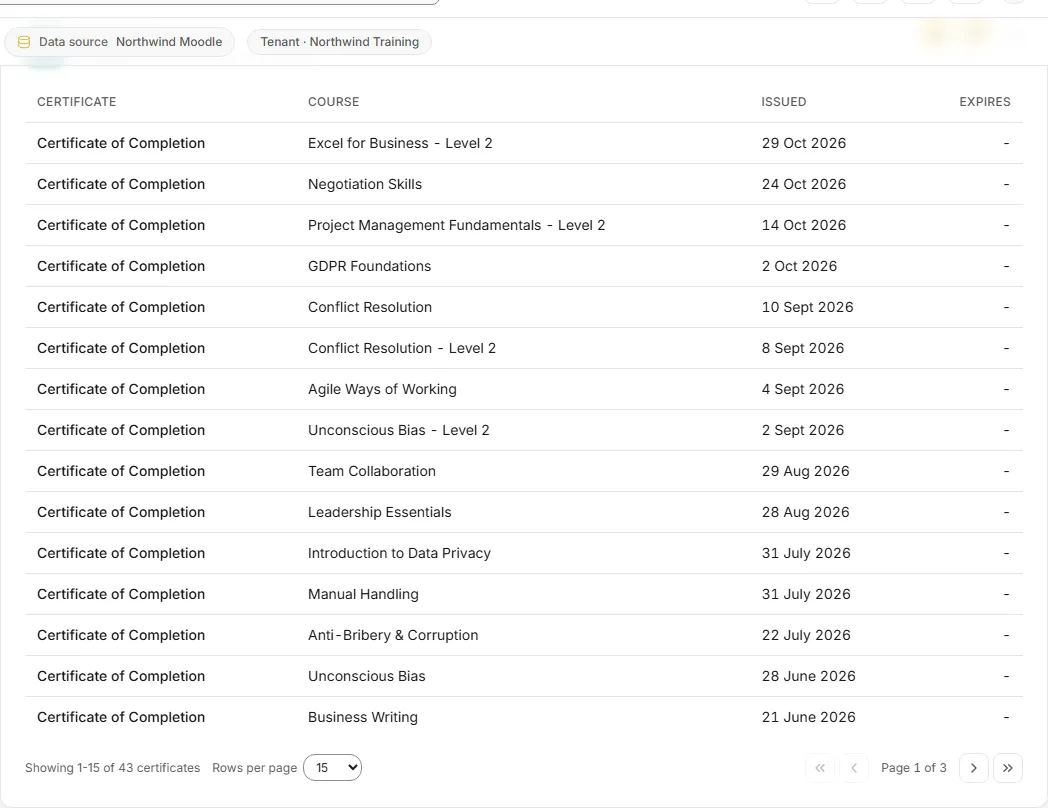
How many of the courses this person is enrolled in now have a certificate issued to them.
- How to read it: this counts certified enrolments, not certificate documents. A re-issued certificate counts once.
- How it is worked out: the courses this learner is enrolled in now with a certificate issued there, from any certificate tool. Certificates from courses they are no longer enrolled in are left out.
- What you can do: read the info text, or Ask AI about the tile. The Certificates table further down lists the same courses.
Activities completed
Section titled “Activities completed”How many completion-tracked activities this person has finished.
- How to read it: only activities set to track completion and shown in the course count; hidden ones do not. A failed attempt is not counted as done.
- How it is worked out: completion-tracked activities that this learner has completed or passed in the courses they are enrolled in, the same count as Course Progress.
- What you can do: read the info text, or Ask AI about the tile.
Quizzes passed
Section titled “Quizzes passed”How many quizzes this person has passed, with their average score.
- How to read it: each quiz counts once however many attempts it took. The line underneath is the average score across their finished attempts, or “no scores yet” when there are none.
- How it is worked out: a pass is an attempt at or above the quiz’s own pass grade. Only quizzes in courses they are enrolled in now count, and teacher previews are left out. A quiz with no pass grade counts no passes.
- What you can do: read the info text, or Ask AI about the tile. Assessment Attempts below lists every attempt behind this figure.
Time on platform
Section titled “Time on platform”Hours this person spent in activity sessions over the last 90 days.
- How to read it: the gaps of 30 minutes or less between their activity events are added up, and a longer gap starts a new session, so idle tabs are not counted.
- How it is worked out: when every event is more than 30 minutes from the next, there is activity on the heatmap but no timed session. The tile then shows 0 and its line reads “hours (last 90 days); no timed sessions: N activity events, none within 30 minutes of another”.
- What you can do: read the info text, or Ask AI about the tile.
Course Progress
Section titled “Course Progress”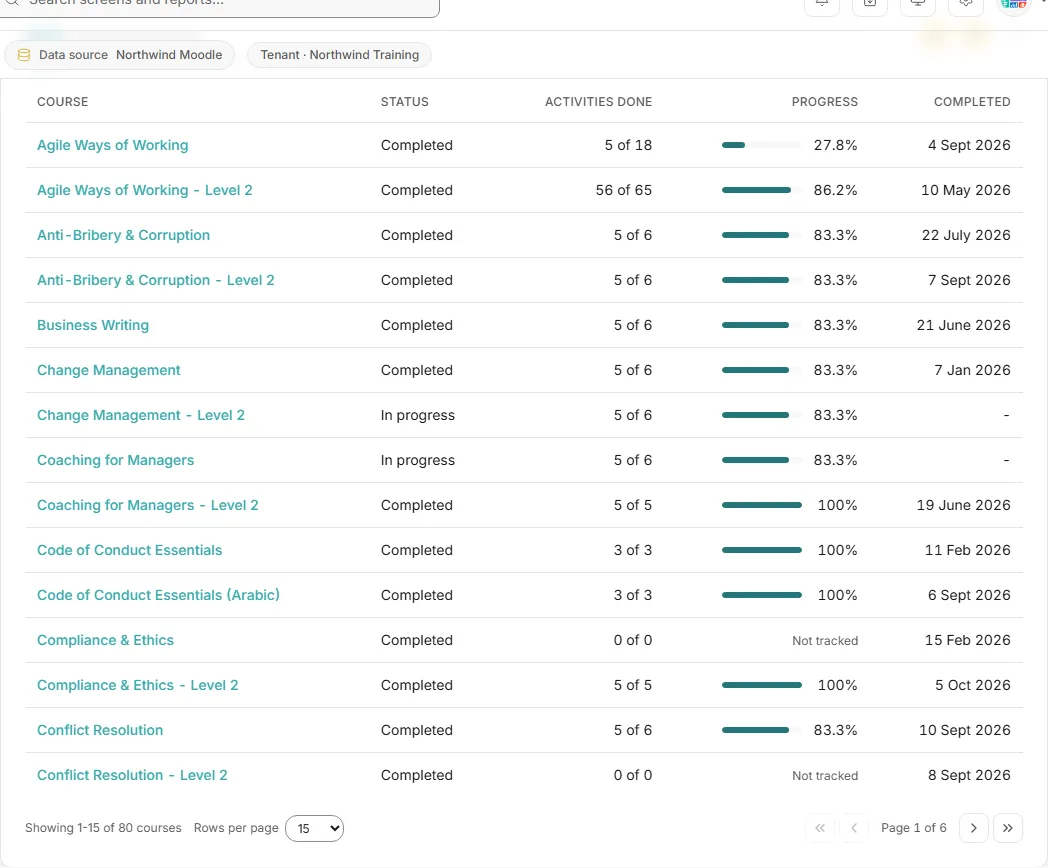
How far through each course this learner is, one row per enrolled course.
- How to read it: the columns are Course, Status, Activities done (“N of N”), Progress (a bar and a percentage) and Completed (the date, or “-”). A course that tracks no activity completion shows “Not tracked” instead of 0%, because 0% would read as no progress.
- How it is worked out: it counts activities, not courses. Each course’s total is the number of its activities set to track completion, and progress is how many of those are finished.
- What you can do: sort by any column heading, page through the rows, and choose a course name to open the course view for this learner (see Open a course). Download CSV saves every row, not only the current page. Ask AI and the info button are in the card corner.
- Empty state: “No enrolments yet: This learner is not enrolled in any course.”
Strengths and Gaps
Section titled “Strengths and Gaps”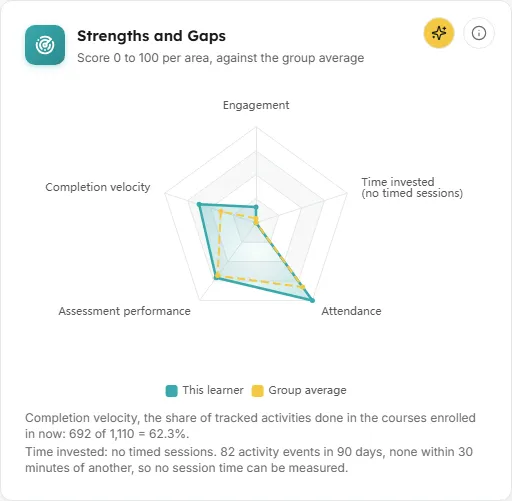
A radar chart comparing this learner with their group across five areas, each scaled 0 to 100.
- How to read it: the filled shape is “This learner”; the dashed line is “Group average”. The five spokes are Engagement, Completion velocity, Assessment performance, Attendance and Time invested. Attendance here means active days in the activity log; Moodle keeps no attendance register. Where the learner has no figure, the spoke says “no quiz attempts” or “no timed sessions” rather than 0. A list under the chart gives the figures behind Completion velocity and Time invested, and says why a group average is missing when it is.
- How it is worked out: Engagement is activity events over 90 days (500 events = 100). Completion velocity is tracked activities done out of every tracked activity shown in the courses enrolled in now, started or not, as a percentage (30 done of 60 reads 50). Assessment performance is the average score of finished quiz attempts in those courses, previews left out. Attendance is active days over 90 days (20 days = 100). Time invested is session hours over 90 days, adding up the gaps of 30 minutes or less between activity events (40 hours = 100). Each group spoke is the average of each member’s own figure. The group is the learner’s first group in a course they take as a learner, counting only its members who are learners there. With no group, or fewer than 3 others in it, no group average is shown.
- What you can do: hover a shape for each spoke’s value, read the info text, or Ask AI about the chart.
Activity Over 90 Days
Section titled “Activity Over 90 Days”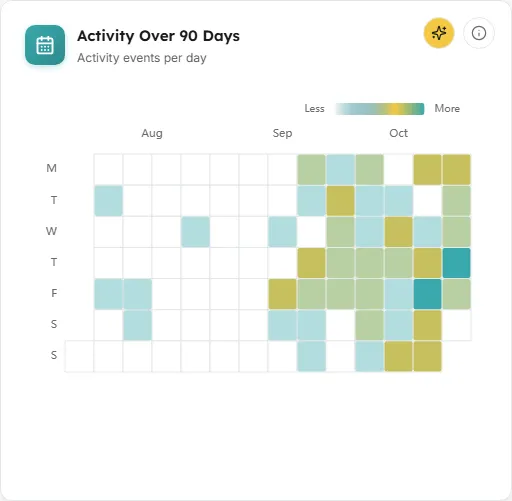
A calendar heatmap of this learner’s daily activity over the last 90 days.
- How to read it: darker cells are busier days; the scale runs from Less to More. Hover a cell for the date and the number of activities. This is activity on the platform, not attendance.
- How it is worked out: each cell is the number of recorded activity events in the Moodle activity log for that calendar day, on the workspace’s clock. When the learner was active on fewer than 7 days in the period, the unit line reads “Activity events per day; limited activity data”.
- What you can do: hover cells, read the info text, or Ask AI about the chart.
Assessment Attempts
Section titled “Assessment Attempts”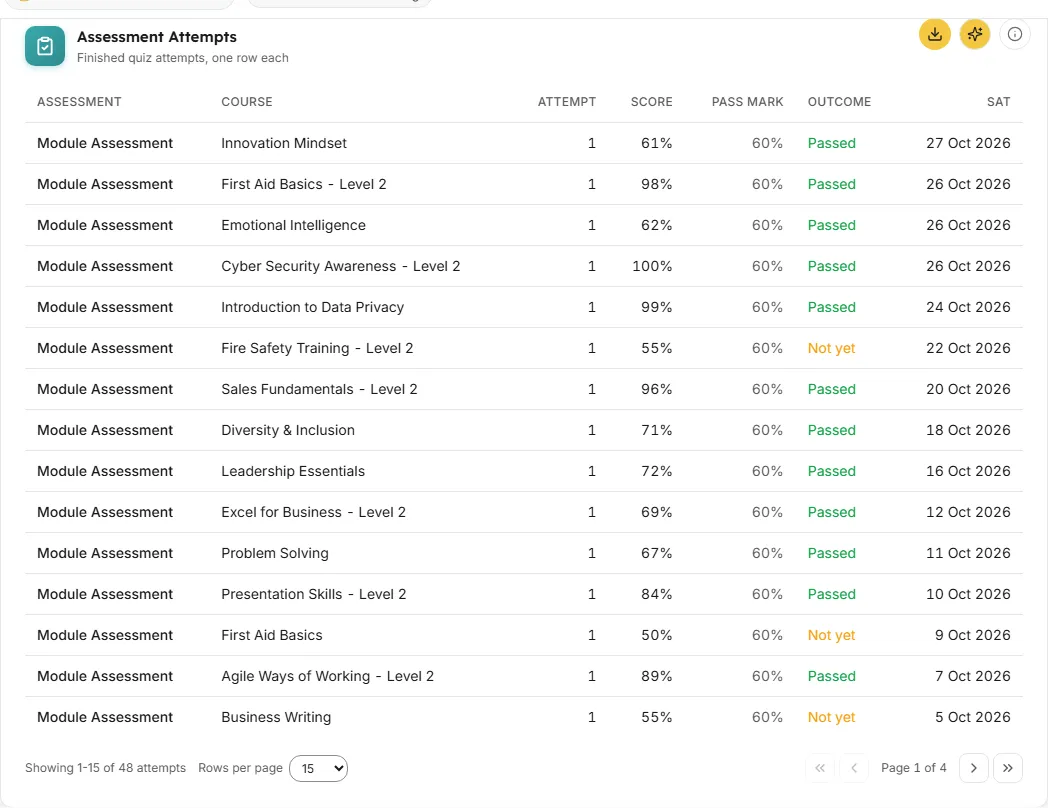
Every finished quiz attempt in the courses this learner is enrolled in now, newest first.
- How to read it: the columns are Assessment, Course, Attempt (the attempt number), Score, Pass mark, Outcome and Sat (the date). Outcome is Passed or Not yet only where the quiz sets a pass mark; where it does not, Pass mark reads “Not set” and Outcome reads “No pass mark set”.
- How it is worked out: it counts attempts, not assessments, so sitting the same quiz three times gives three rows. Only attempts in courses with an active enrolment count, and teacher previews are left out, the same attempts as the Quizzes passed tile.
- What you can do: sort, page, Download CSV, read the info text, or Ask AI.
- Empty state: “No attempts to list yet: This learner has not finished a scored assessment.”
Grades Against Classmates
Section titled “Grades Against Classmates”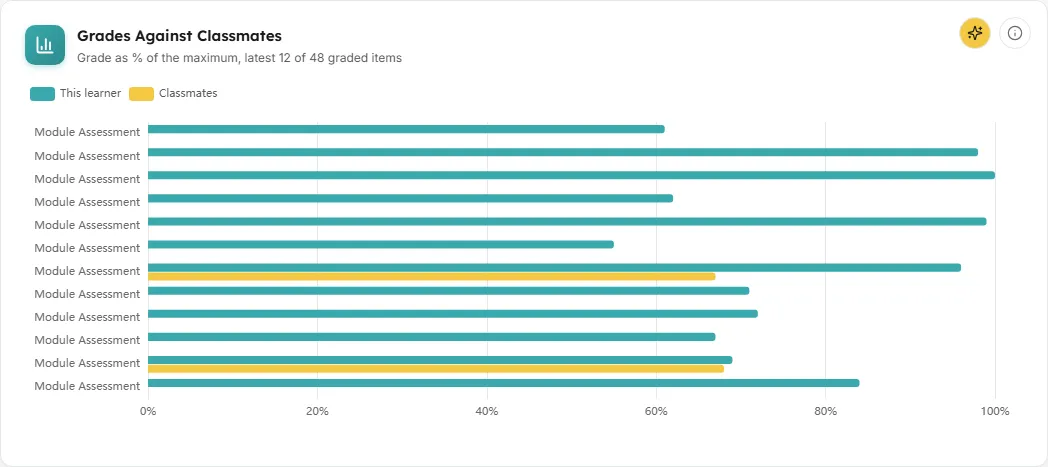
A bar chart of this learner’s grades on their most recently marked items, next to the classmates’ average on the same items.
- How to read it: each item has a “This learner” bar and, where there are enough classmates, a “Classmates” bar. Both are a percentage of the item’s maximum grade. Hover a bar for the item, its course, both figures and how many other learners the average rests on. Before any grades load it reads “Grade as % of the maximum, per graded item”; after that the unit line changes with the count: “latest 12 of N graded items” when there are more than 12, “all N graded items” when there are 12 or fewer, and “1 graded item” for one.
- How it is worked out: the 12 most recently marked graded items in the courses enrolled in now as a learner. Each is shown next to the average of the other learners in that course marked on the same item, this learner not included. Classmates are the course’s learners (active learner enrolments, staff left out); in a course set to separate groups, only learners in the same group. The classmates bar is shown only when at least 3 other learners have a mark.
- What you can do: hover bars, read the info text, or Ask AI.
- Empty states: “No grades recorded” when nothing in Moodle has a grade recorded, and “No grades in current courses: This learner has no grades recorded in the courses they are enrolled in now as a learner.”
SCORM Packages
Section titled “SCORM Packages”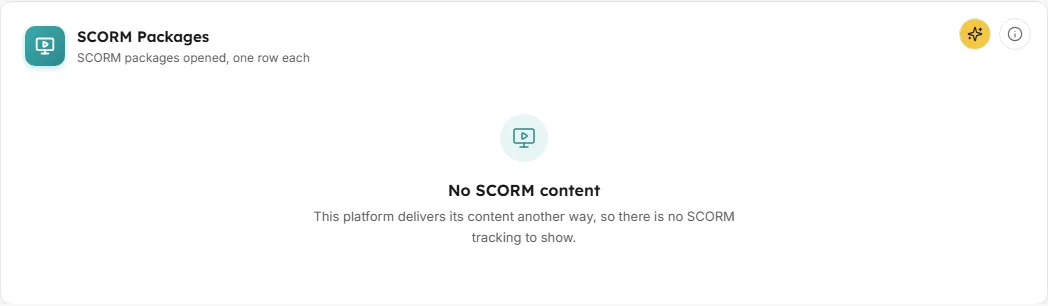
Each SCORM package this learner has opened, and the status the package reported.
- How to read it: the columns are Package, Course, Status and Last opened. “Not reported” means the package never sent a status, which is not the same as not started.
- How it is worked out: one row per package, showing the latest status it wrote back.
- What you can do: sort, page, Download CSV, read the info text, or Ask AI.
- Empty state: “No SCORM content: This platform delivers its content another way, so there is no SCORM tracking to show.”
Certificates
Section titled “Certificates”The courses this learner is enrolled in now where a certificate has been issued, the same count as the Certificates tile.
- How to read it: the columns are Certificate, Course, Issued and Expires (“-” when the certificate does not expire).
- How it is worked out: one row per course enrolled in now with a certificate issued there, from any certificate tool, with the certificate names and the latest issue date. A re-issued certificate does not add a row, and certificates from courses no longer enrolled in are left out.
- What you can do: sort, page, Download CSV, read the info text, or Ask AI.
- Empty state: “No certificates yet: No certificate yet in a course this learner is enrolled in now.”
Open a course
Section titled “Open a course”Choosing a course name in Course Progress replaces the screen body with that learner’s view of that one course. The learner you picked stays chosen, so coming back is one click.
- Pick a learner in the Learner picker.
- In Course Progress, choose a course name.
- Read the course view, then choose Back to the learner to return.
Course header
Section titled “Course header”The course name, the learner’s status in it, when they enrolled, when they completed it and when they last opened it, with four figures underneath.
- How to read it: when the learner completed the course in an earlier enrolment and was then enrolled again, the line says “completed DATE in an earlier enrolment, then enrolled again”. When every tracked activity is finished but Moodle has not marked the course complete, a note explains that this usually means a completion rule the list does not cover: a grade threshold, a date, or a manual sign-off.
Activities finished
Section titled “Activities finished”Tracked activities done in this course, shown as “N of N”, with the percentage underneath, or “Not tracked” when the course tracks no activity completion.
Time in this course
Section titled “Time in this course”Hours this learner has spent in this course, adding up the gaps between their events and leaving out gaps over 30 minutes.
Progress vs the course
Section titled “Progress vs the course”This learner’s progress in the course next to the average of the other learners in it.
- How to read it: the large figure is the learner’s own share of tracked activities done. The line underneath gives the classmates’ average, or “Too few classmates to compare: N other learners (at least 3 needed)”.
- How it is worked out: tracked activities done as a share of the course’s tracked activities (those shown in the course; hidden ones are not counted), for this learner and, as an average, for the other learners in the course (active learner enrolments, staff left out, this learner not included). Every classmate counts, started or not. In a course that keeps its groups apart, only learners sharing a group with this learner count. The info button says which applies to this course.
The learner’s level and points in this course, and their rank among the course’s point holders, where the course awards points through Moodle’s XP block (block_xp).
- Empty state: “-” with “No points awarded in this course”.
What is left for this learner
Section titled “What is left for this learner”The activities in this course that track completion and are not yet marked complete: what stands between the learner and finishing.
- How to read it: each row names the activity and its type, and on the right where it stands: Not started, Started, Failed attempt, “Graded N%, not yet passed”, “Graded N%, no pass mark set”, or “Passed N%, not marked complete”. A graded activity shows the same grade as Passing criteria.
- How it is worked out: every activity the course sets to track completion, minus the ones marked complete for this learner. Activities the course does not track cannot appear here, because Moodle records no completion state for them.
- What you can do: read the info text, or Ask AI.
- Empty states: “This course tracks no activity completion” when nothing in the course records completion, and “Nothing outstanding: This learner has finished every tracked activity in this course.”
Passing criteria
Section titled “Passing criteria”Each graded item in the course, the mark needed to pass it, and where this learner stands.
- How to read it: the columns are Item (with its type), Score, Needed to pass and Result. Result reads Passed, Not yet, or “No pass mark set”. An item passed whose activity is not marked complete reads “Passed: Not marked complete, so still on What is left”. When the course sets no overall pass mark, a note says there is no single pass-or-fail result and the items are judged individually.
- How it is worked out: the pass mark is the item’s own pass grade setting in Moodle, as a percentage of its maximum. Items with no pass mark show none rather than a guessed threshold.
- What you can do: read the info text, or Ask AI.
- Empty state: “Nothing graded in this course: This course has no graded items, so there are no passing criteria to meet.”
Finished activities
Section titled “Finished activities”Everything this learner has already completed in this course, most recent first, with the date Moodle recorded it.
- How it is worked out: activities set to track completion that this learner has completed or passed; a failed attempt is not done.
- What you can do: read the info text, or Ask AI.
- Empty state: “Nothing finished yet: This learner has not completed an activity in this course yet.”
Buttons on every card
Section titled “Buttons on every card”- Download CSV on Course Progress, Assessment Attempts, SCORM Packages and Certificates. The file is built in your browser from every row of the table, and the button is disabled when the table is empty.
- Ask AI on every card and tile. The question is sent with this screen’s subject, “Learner: NAME (USERNAME)”, so the answer is about this one learner, not the workspace. See Ask AI.
- Info (the i button): hover it to read what the card shows, or click it to keep the panel open.
Common questions
Section titled “Common questions”Why do the percentages here differ from Course Performance?
Section titled “Why do the percentages here differ from Course Performance?”Every figure on this screen is about one person and counts only the courses they are enrolled in now as a learner. Courses they teach, suspended enrolments and courses hidden from analytics are left out.
Why does a course show “Not tracked”?
Section titled “Why does a course show “Not tracked”?”The course has no activities set to track completion in Moodle, so there is nothing to measure progress against. Turning on activity completion in the course fixes it.
Why is there no group average on Strengths and Gaps?
Section titled “Why is there no group average on Strengths and Gaps?”The learner is not in a group in any course they take as a learner, or their group has fewer than 3 other learners. The list under the chart says which.
Why is the risk badge missing from the header?
Section titled “Why is the risk badge missing from the header?”The badge appears only when the workspace’s at-risk figures have already been worked out. At risk means the risk-score bands; “at risk” counts High plus Medium (see definitions).
Can a team lead see anyone outside their groups?
Section titled “Can a team lead see anyone outside their groups?”No. Every request a team lead makes is limited to the people in their own Moodle groups, so the picker and every card show only those people.