

Parent / Guardian Portal View
The Parent / Guardian Portal View shows one student’s learning story the way a parent or guardian would read it: read-only, friendly and free of jargon. Staff use it to prepare for a parent conversation, a report-card meeting or a phone call home, with exactly the view a parent would see.
The page header reads Child Progress Summary.
At a glance
Section titled “At a glance”- Route:
/k12/parent-portal. In the sidebar it sits under K-12 as Parent / Guardian Portal View. - Who can open it: the Admin and Manager roles by default. The Viewer role does not get it by default, because the specialist modules are held back from Viewer. Roles are managed for the whole LearnBoard installation, not from your workspace admin screens. The Learner role never sees it.
- Team leads: cannot open this screen. It is left out of the Team lead role on purpose.
- Plan: part of the K-12 pack. On the standard plans, Business includes one sector pack of your choice, and Scale and Enterprise include K-12. Without the pack the screen shows “Part of the K-12 pack, not included in your current plan.”
- Parents do not sign in to it. In this version it is a staff screen. The student picker is the one staff control; everything below it is the parent-facing view.
- Data it needs: the student’s Moodle enrolments, activity completion, completion dates set on activities, the site log and certificates. Guardian names come from guardian links recorded for your workspace.
- Privacy: the view never shows any other student, any cohort comparison, percentile or risk band. Every time someone opens a student’s summary, LearnBoard records which student was viewed in the audit log.
- Freshness: a student’s summary is kept for an hour. The student list is kept for 15 minutes, and a new guardian link shows up straight away.
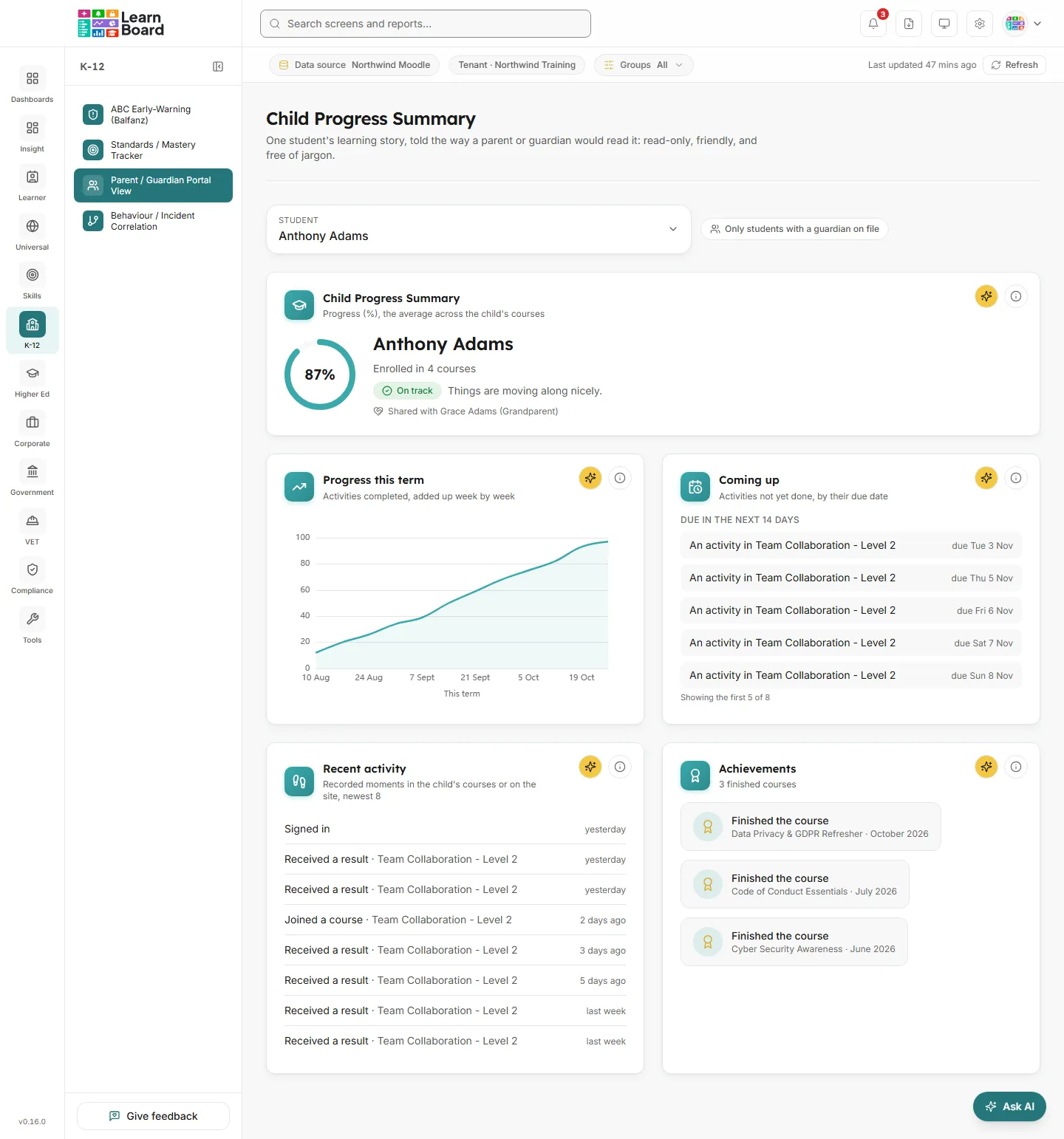
Student picker
Section titled “Student picker”The box at the top labelled Student. Click it to open a searchable list.
- Who is listed: every learner on your Moodle connection (people with an active student enrolment), sorted by surname. Students with a guardian link show a “Guardian on file” tag.
- Search students…: type part of a name to narrow the list.
- Only students with a guardian on file: a toggle beside the box that limits the list to students with a guardian link.
- Kept in the address: the chosen student and the toggle stay in the page address, so a refreshed or shared link lands on the same child.
- Empty states:
- With the guardian toggle on and no links at all: “No guardian links are configured yet. Turn the filter off to browse every student, or add guardian links via the admin tools when they ship.”
- With a search that matches nobody: “No students match” followed by your search.
- With no learners at all: “No students found on this Workspace.”
- Before you pick anyone: the screen shows one card, “Choose a student to begin. Pick a student above to see their progress the way a parent or guardian would, a calm, friendly summary of how things are going.”
The parent view
Section titled “The parent view”Each card below has an info icon with its plain “How we count” text and Ask AI. These cards cannot be pinned to a dashboard.
Child Progress Summary
Section titled “Child Progress Summary”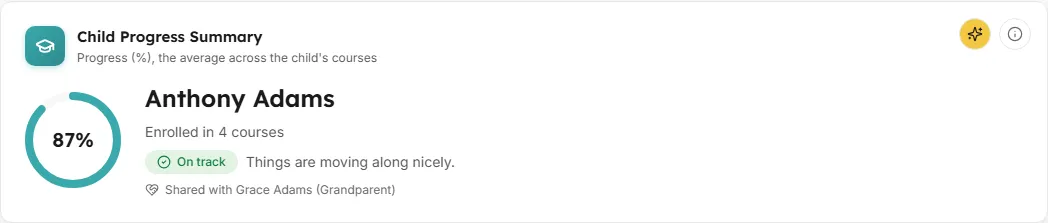
The child’s name, how many courses they are in, one overall progress ring, and a short status line.
- How to read it:
- The ring shows overall progress as a percentage.
- “Enrolled in 3 courses” counts the courses they are actively enrolled in as a learner.
- The status is either On track, “Things are moving along nicely.”, or Needs attention, “A little encouragement could help right now.” Needs attention is shown in calm amber, never red.
- When guardian links exist, a line reads “Shared with” followed by each guardian’s name and relationship.
- How the progress is worked out: each course contributes its own progress. A finished course counts as complete (it has a completion record, every tracked activity shown in the course is done, or a certificate was issued in it). An in-progress course counts by how many of its tracked activities are done. A course that does not track activities and is not finished yet counts as 0. The overall figure is the simple average across all their courses, the same courses as the Enrolled count.
- How the status is worked out:
- At 100% overall progress the child is On track.
- Otherwise, any activity in the A little behind list makes it Needs attention.
- Otherwise, the child is On track if they have done anything in their own courses (or on the site outside any course) in the last 21 days, and Needs attention if not.
Progress this term
Section titled “Progress this term”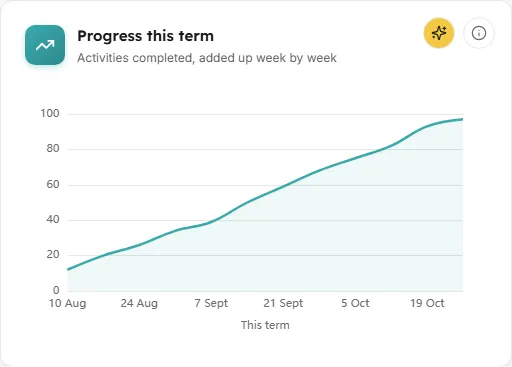
A single line showing a running total of what the child has finished over the last 12 weeks, week by week.
- How to read it: the line only ever moves up. A flat stretch just means a quieter week, not lost progress. The horizontal axis is labelled “This term” and shows each week’s date.
- How it is worked out: every tracked activity the child has finished in the last 12 weeks, in the courses they are enrolled in as a learner. If those courses record no finished activities in that time, the line counts the child’s recorded activity in them instead. Signing in to the site is not counted, only activity inside those courses. When this happens the subtitle changes to your workspace’s activity label (by default “Learning activities, added up week by week”).
- What you can do: hover the line for each week’s total, read the info icon, or Ask AI.
- Empty state: “Nothing to chart just yet. As soon as there’s activity this term, the progress line will appear here.”
Coming up
Section titled “Coming up”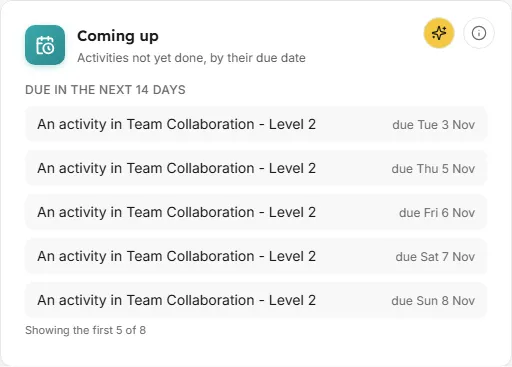
Two short lists of activities the child has not finished yet, gathered by the dates their courses set.
- How to read it:
- Due in the next 14 days: each item reads “An activity in” followed by the course name, with “due” and the date.
- A little behind: activities whose expected date passed in the last 60 days, with “was due” and the date, in calm amber.
- Each list shows its first 5. When there are more, a note reads “Showing the first 5 of N”.
- How it is worked out: items appear when a course sets an expected completion date on an activity the child has not completed. Only activities the course tracks for completion count, and an activity being deleted never shows.
- Empty states: “Nothing due right now” with either “All caught up: there’s nothing waiting with a date on it.” or, when the child’s courses set no dates at all, “These courses don’t set due dates, so there’s nothing to chase.”
Recent activity
Section titled “Recent activity”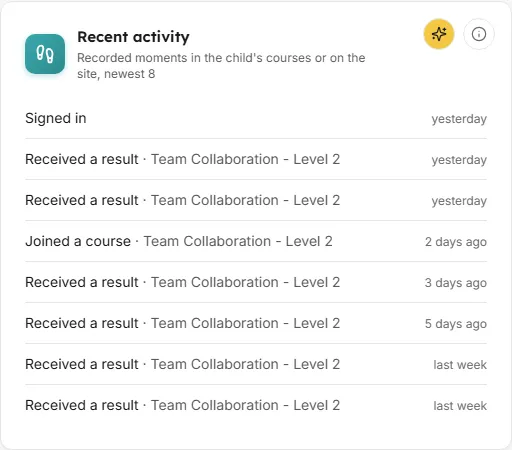
The child’s 8 most recent recorded moments, newest first, in plain words.
- How to read it: each line names the moment, the course where there is one, and when, such as “Completed an activity · Mathematics”, “3 days ago”. Moments are phrased as Submitted work, Completed an activity, Worked on an activity, Received a result, Explored the course, Looked at an activity, Signed in, Started an activity, Uploaded work, Joined a course or Joined the platform. Times read today, yesterday, a number of days or weeks ago, then a date.
- How it is worked out: anything the child did in the courses they are enrolled in as a learner, plus moments on the site outside any course, such as signing in or their account being set up (shown as Joined the platform). It only shows what the site records; time spent reading offline will not appear.
- Empty state: “No recent activity. When the child signs in and works on their courses, their latest moments will show up here.”
Achievements
Section titled “Achievements”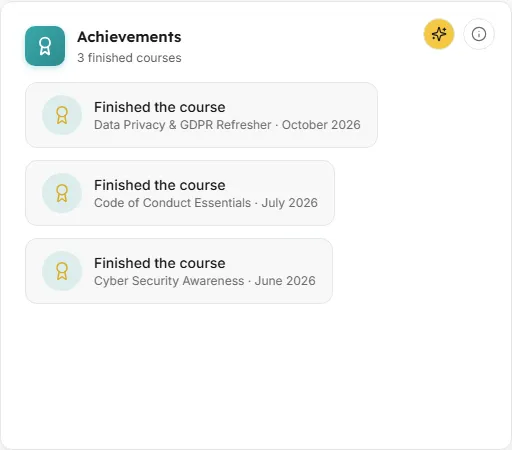
Every certificate the child has earned and every finished course, shown as badges to celebrate.
- How to read it: each badge shows the certificate or course name, the course, and the month and year it was earned. The unit line counts what is listed, for example “2 certificates and 1 finished course”.
- How it is worked out: every certificate the child has been awarded, from any certificate tool, plus each course they are enrolled in and have finished that has no certificate of its own, so a course is never listed twice. A course counts as finished when it has a completion record, every tracked activity shown in the course is done, or a certificate was issued in it. Courses your school has hidden from analytics are left out of both.
- Empty state: “No achievements yet. When the child earns a certificate or finishes a course, it will be celebrated here.”
Common questions
Section titled “Common questions”Can a parent log in and see this? Not in this version. It is a staff screen that shows what a parent view looks like.
Why does the status say Needs attention when the progress looks good? Any activity past its expected date in the last 60 days, or no activity in the last 21 days, sets Needs attention unless the child has reached 100%.
Why is there nothing in Coming up? The child’s courses may not set expected completion dates on activities. That is a Moodle course setting, and without it there is nothing to list.