

ABC Early-Warning (Balfanz)
The ABC Early-Warning screen shows which learners need help this week, using the research-based ABC model (Balfanz): Attendance, Behaviour and Course performance. It is for school leaders, year coordinators, wellbeing staff and teachers who want one ranked list of who is slipping and why.
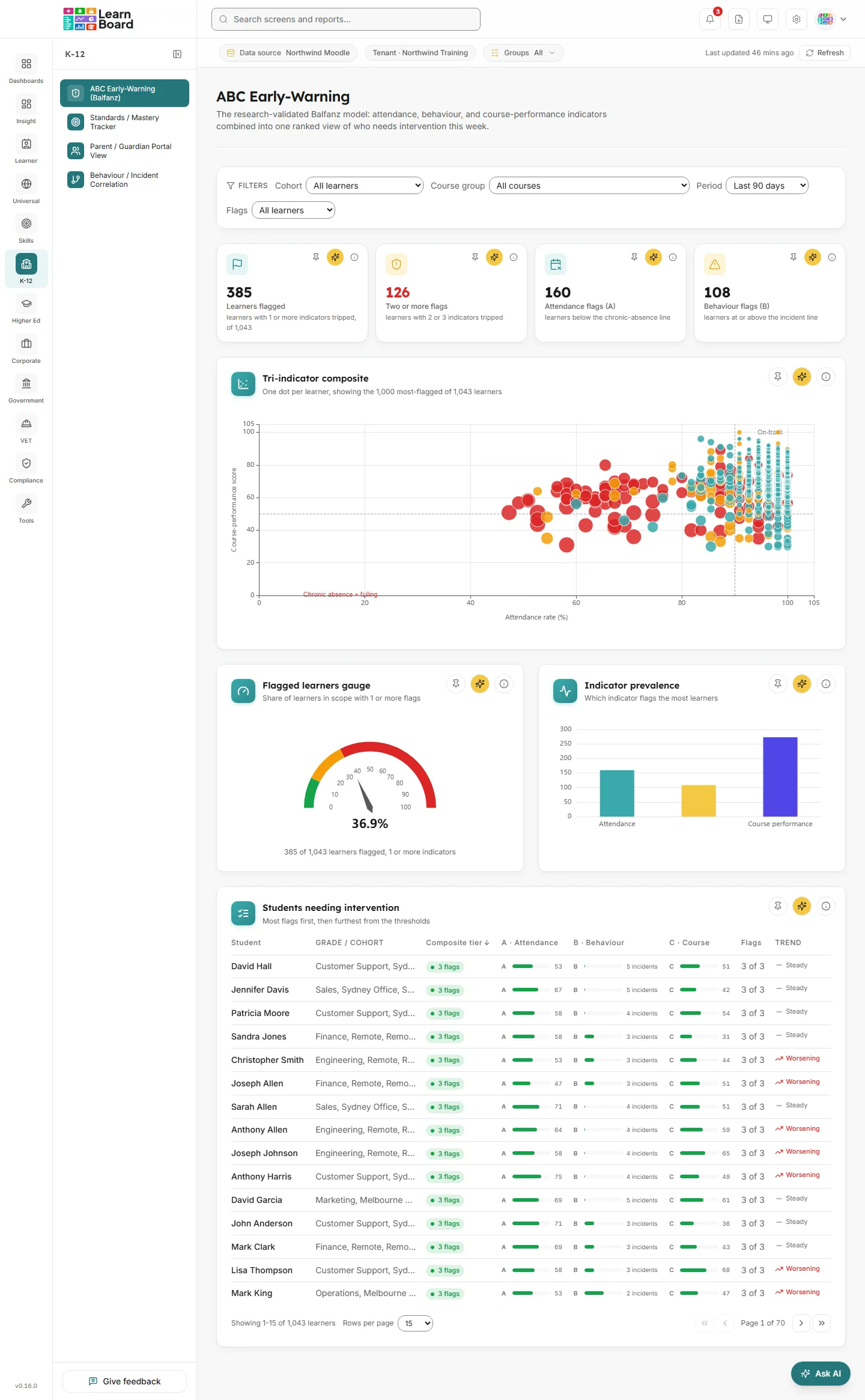
Each learner gets one flag per indicator they trip. Their tier is simply the number of flags: On-track, 1 flag, 2 flags or 3 flags. These are flag counts, not the risk-score bands used on Learners at Risk.
At a glance
Section titled “At a glance”- Route:
/k12/abc-early-warning. In the sidebar it sits under K-12 as ABC Early-Warning (Balfanz). The page header reads ABC Early-Warning. - Who can open it: the Admin and Manager roles by default. The Viewer role does not get it by default, because the specialist modules are held back from Viewer. Roles are managed for the whole LearnBoard installation, not from your workspace admin screens. The Learner role never sees it.
- Team leads: can open it. Every figure, dot and row is limited to the learners in their own Moodle groups, and the attendance and behaviour records are limited to those learners too.
- Plan: part of the K-12 pack. On the standard plans, Business includes one sector pack of your choice, and Scale and Enterprise include K-12. Without the pack the screen shows “Part of the K-12 pack, not included in your current plan.”
- Filters: Cohort, Course group, Period, Flags, and (only while attendance records are missing) Estimate attendance from activity.
- Data it needs: course-total grades from Moodle drive the C indicator, which is always on. The A (attendance) and B (behaviour) indicators need attendance and behaviour records for your workspace; until they exist they show “awaiting data”.
- Who is counted: learners, people with an active student enrolment. Teachers, suspended accounts and suspended enrolments are not scored, and each learner is scored on their own enrolments only.
The three indicators
Section titled “The three indicators”| Indicator | Trips when | Source |
|---|---|---|
| A, Attendance | Attendance rate in the period is below 90% (the chronic-absence threshold) | Attendance records for your workspace |
| B, Behaviour | 2 or more recorded behaviour incidents in the period | Behaviour records for your workspace |
| C, Course performance | Any enrolled course’s overall grade is below its pass mark, or below 50% when the course sets none | Moodle gradebook course totals |
- Attendance rate is attended days (present or late) divided by recorded school days in the period.
- Behaviour severity is shown for context in the learner detail, but it does not change the flag.
- Course performance uses each course’s own course-total grade. For a learner with no grades yet, the C score falls back to the share of their enrolments completed. A course counts as complete when it has a completion record, every tracked activity shown in the course is done, or a certificate was issued in it. The C flag needs a real grade, so an ungraded learner is never flagged on C.
These thresholds (90%, 2 incidents, 50%) are fixed in this version; there is no setting to change them.
Why do A and B say “awaiting data”?
Section titled “Why do A and B say “awaiting data”?”C always works from your Moodle data. A and B only switch on once attendance or behaviour records exist for your workspace. Until then:
- A blue banner above the tiles says which indicators are active, for example “Active indicators: Course performance.” and that the others are awaiting data.
- The Attendance flags (A) and Behaviour flags (B) tiles show a dash and “Awaiting data, connect records to activate”.
- Their bars in Indicator prevalence are muted and labelled “awaiting data”, never a zero.
- The scatter re-plots on the indicators that are active.
- Tiers and composite scores use the active indicators only. A learner’s Flags cell reads “1 of 1” while only C is active.
LearnBoard has no screen where you load attendance or behaviour records yourself. If you have no attendance records, you can turn on Estimate attendance from activity to get an approximate A indicator from Moodle activity (see Filters).
Filters
Section titled “Filters”The bar at the top of the screen stays in view as you scroll. Every choice is kept in the page address, so you can bookmark or share a filtered view.
- Cohort: “All learners” or one cohort. Cohorts are your Moodle groups, each shown with the number of learners in it. Depending on your workspace’s reporting configuration, groups with the same name in different courses are either one cohort or kept separate. A learner belongs to a group’s cohort when they are a learner in that group’s own course.
- Course group: “All courses” or one course. With a course picked, C (and so the flags and tier) is scored on that course alone: a learner failing only another course is not flagged here. A and B are about the learner, not the course, so they stay the same.
- Period: Last 30 days, Last 90 days (the default), Last 180 days or Last 12 months. It sets the window for attendance, behaviour incidents and the trend comparison.
- Flags: All learners, 1 or more flags, or 2 or more flags. This narrows the scatter and the table. It does not change the stat tiles, gauge or prevalence bars, which always describe the whole filtered cohort.
- Estimate attendance from activity: appears only while there are no attendance records. When ticked, a learner’s attendance rate is estimated from the share of school days they were active on the platform (distinct active days, scaled by five school days per seven calendar days). Every estimated figure is marked as estimated. Real attendance records always win when they exist.
- Clear all: resets cohort, course group, period and flags.
Stat tiles
Section titled “Stat tiles”Each tile has an info icon with its “How we count” text, Ask AI, and Pin to dashboard.
Learners flagged
Section titled “Learners flagged”
The number of learners in the current scope with at least one active indicator tripped in the selected period.
- How to read it: the line under the number gives the total learners in scope, so you can see the share at a glance.
- How it is worked out: every learner in scope is checked against A, B and C (only the active ones). Counts cover every learner, even on a very large site where the table lists only the most-flagged.
- What you can do: hover the info icon, Ask AI, or pin the tile.
Two or more flags
Section titled “Two or more flags”Learners with two or three of the A, B, C indicators tripped, the group the research identifies as needing intervention first.
- How to read it: the number turns red when it is above zero. This is a count of flags, not the risk-score bands used elsewhere. The 3 flags tier in the table means all three.
- What you can do: set Flags to “2 or more flags” to list exactly these learners in the table.
Attendance flags (A)
Section titled “Attendance flags (A)”Learners whose attendance rate over the period is below 90%.
- Empty state: a dash and “Awaiting data, connect records to activate” until attendance records exist, or until you tick Estimate attendance from activity.
Behaviour flags (B)
Section titled “Behaviour flags (B)”Learners with 2 or more recorded behaviour incidents in the period.
- Empty state: a dash and “Awaiting data, connect records to activate” until behaviour records exist.
Charts
Section titled “Charts”Tri-indicator composite
Section titled “Tri-indicator composite”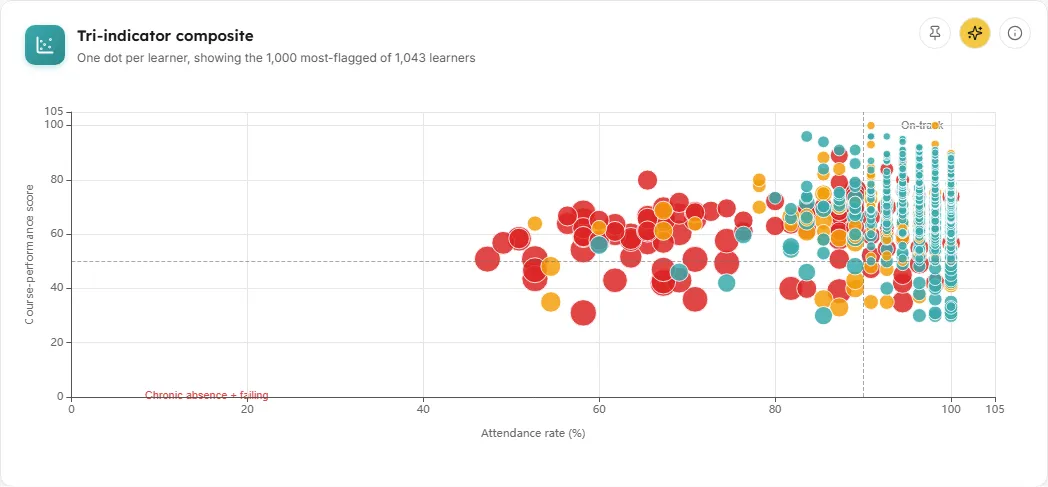
A scatter chart with one dot per learner, showing all three indicators in one view.
- How to read it: with all indicators connected, the horizontal axis is attendance rate (%), the vertical axis is the course-performance score, colour is the behaviour band (no incidents, one, two or more), and a dot grows with the number of flags tripped. Dashed lines mark the attendance threshold and the pass mark. The bottom-left corner is labelled “Chronic absence + failing”, the highest concern; the top-right is labelled “On-track”.
- When an indicator is awaiting data, the chart re-plots on what is active:
- Attendance and course performance: same axes, one colour (no behaviour band).
- Behaviour and course performance: the horizontal axis becomes Behaviour incidents, with a line at the incident threshold.
- Course performance only: the horizontal axis becomes Composite score (distance from the thresholds).
- Estimated attendance: the axis title adds “, estimated” and the tooltip shows “(estimated)”.
- How it is worked out: the composite score is the average of how far each active sub-score sits from “good”: 100 minus attendance rate, the behaviour incidents scaled so that the 2-incident threshold equals 50 (capped at 100), and 100 minus the course score. Learners with no attendance rate are left off the attendance axis rather than drawn at zero.
- Large sites: the subtitle changes to “One dot per learner, showing the N most-flagged of M learners” when the site has more than 2,000 learners.
- What you can do: hover a dot for the learner’s attendance, incidents, course score and flags. Click a dot to highlight that learner (the other dots fade) and open their early-warning detail. Ask AI, pin the chart, or read the info icon.
- Empty state: “No learners in this scope. Adjust the cohort, course, or flag filters to see learners.”
Flagged learners gauge
Section titled “Flagged learners gauge”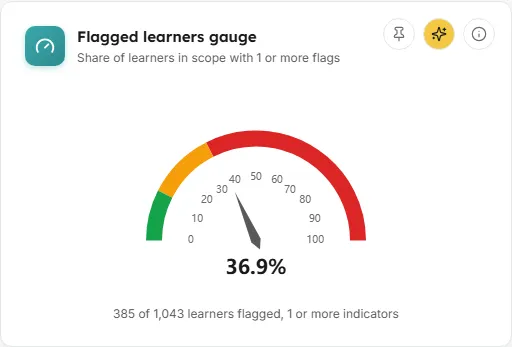
A half-circle gauge showing the percentage of learners in scope with at least one indicator flagged.
- How to read it: the needle points at the percentage, printed underneath. Green (0 to 15%), amber (15 to 35%) and red (above 35%) mark healthy, concerning and critical cohort levels. The line below reads “X of Y learners flagged, 1 or more indicators”.
- How it is worked out: flagged learners divided by all learners in scope. The base is the same learner count used everywhere else in LearnBoard. On a very large site an extra line says “Counts cover every learner; the table and scatter list the 2,000 most-flagged”.
- What you can do: Ask AI, pin the gauge, or read the info icon.
Indicator prevalence
Section titled “Indicator prevalence”
Three bars, Attendance, Behaviour and Course performance, each the number of learners that indicator flags.
- How to read it: the tallest bar is where your cohort’s flags mostly come from. A learner tripping two indicators counts once in each bar, so the bars can add up to more than Learners flagged.
- Empty state: an indicator awaiting data shows a muted bar labelled “awaiting data”; its tooltip says “Awaiting data, connect records to activate”.
- What you can do: hover a bar for “N learners flagged”, Ask AI, pin the chart, or read the info icon.
Students needing intervention
Section titled “Students needing intervention”
The ranked list of learners, most flags first, then by composite score.
- Columns:
- Student: the learner’s name.
- Grade / cohort: the cohorts (Moodle groups) they belong to.
- Composite tier: a badge, On-track, 1 flag, 2 flags or 3 flags.
- A · Attendance: a mini bar of the attendance rate out of 100. A red bar means the flag is tripped; an asterisk means the figure is estimated.
- B · Behaviour: prints the learner’s incidents in the period, for example “4 incidents”, the figure the flag is set on (2 or more trips it). The bar shortens as incidents rise.
- C · Course: a mini bar of the course-performance score out of 100.
- Flags: flags tripped out of active indicators, for example “2 of 3”.
- Trend: Worsening, Improving or Steady compared with the previous period of the same length, or a dash when there is no history.
- How it is worked out: a muted bar with a dash means that indicator is awaiting data. The trend counts flags that switched on or off for attendance and behaviour, and adds a grade movement of more than 2 points between recent and earlier course grades.
- What you can do:
- Sort by Student, Composite tier, A, B, C or Flags (click a header again to reverse).
- Page through with the first, previous, next and last buttons, and choose 15, 50 or 100 rows per page.
- Click a row (or press Enter on it) to open the learner’s early-warning detail and highlight their dot in the scatter.
- Ask AI, pin the table, or read the info icon.
- Large sites: above 2,000 learners the table lists the 2,000 most-flagged, and the footer says “Showing 1-15 of the 2,000 most-flagged of M learners”.
- Empty state: “No learners match the current filters.”
Early-warning detail
Section titled “Early-warning detail”A panel that slides in from the right when you click a dot or a row. It shows the learner’s name, tier badge and cohorts.
- Summary: a sentence such as “Flagged on: Attendance, Course performance.” and a gentle next-step hint, for example “Attendance is the primary driver, consider a wellbeing check-in.” With several indicators flagged it suggests “a coordinated check-in across wellbeing and learning support.” With none flagged it reads “No indicators are currently flagged.”
- A · Attendance: the rate, whether it is below the chronic-absence threshold, the previous period’s rate with “improving” or “declining”, and the number of school days recorded. Shows “Connect attendance records to activate this indicator.” when A is awaiting data.
- B · Behaviour: each incident in the period, newest first (up to 50), with type, date, severity and any note. Shows “No incidents recorded in the selected period.” or the connect message when B is awaiting data.
- C · Course performance: every enrolled course with its grade (or “No grade”) and “Complete” or “In progress”. A failing grade is shown in red.
- Close it with the X, by clicking outside it, or with Escape.
Empty screen
Section titled “Empty screen”When the workspace has no enrolled learners at all (and no cohort or course is picked), the whole screen shows one card: “No enrolled learners yet. Early-warning indicators appear once learners are enrolled on this Workspace.”
Common questions
Section titled “Common questions”Why is a learner flagged on C here but not when I pick a course? With a course picked, C uses that course’s grade only. If the learner is failing a different course, they are not flagged for this one.
Why do the tiles not change when I set Flags to “2 or more flags”? The flag filter narrows the scatter and the table. The tiles, gauge and prevalence bars always describe everyone in the filtered cohort.
How fresh are the figures? Scores are kept for 15 minutes, shorter than most screens, because attendance changes quickly.