

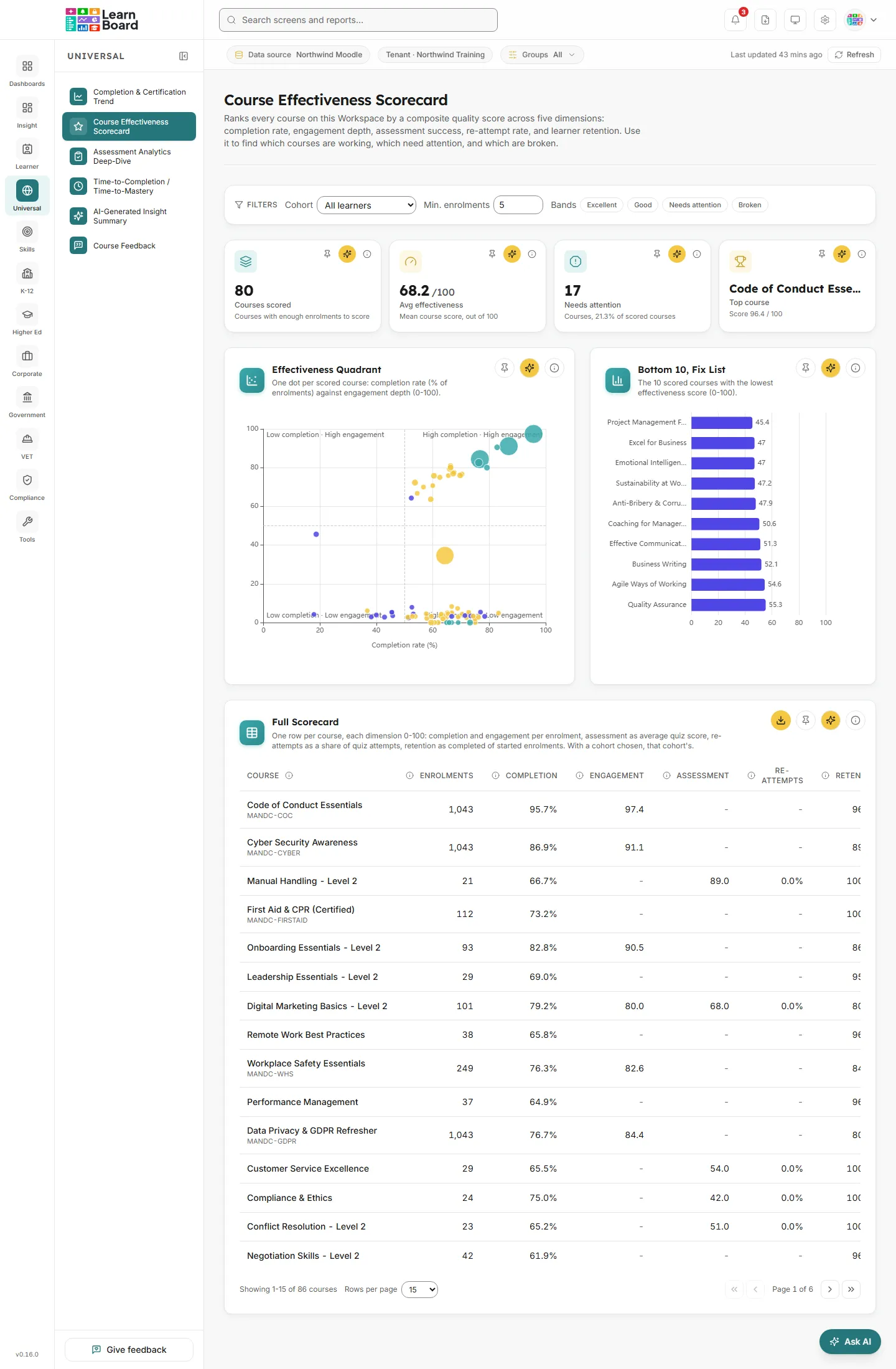
Course Effectiveness Scorecard
The Course Effectiveness Scorecard ranks every course in your workspace by quality rather than by size. Each course gets five scores out of 100 (completion rate, engagement depth, assessment success, re-attempt rate and retention) and one overall effectiveness score. Course owners, managers and team leads use it to find which courses are working, which need attention and which are broken.
At a glance
Section titled “At a glance”- Route:
/insights/course-effectiveness. In the sidebar it sits under Universal as Course Effectiveness Scorecard. - Who can open it: the Admin and Manager roles hold it by default. Viewer does not, because the Universal screens are held back from Viewer until a workspace administrator grants them. Team lead can open it, with every figure limited to the people in their own Moodle groups. Learner cannot.
- Plan: part of the Universal pack, included on the Pro, Business, Scale and Enterprise plans and not on Free. On a plan without it, the screen shows a locked view instead: “Part of the Universal pack, not included in your current plan.”, with Compare plans, Back to Executive Overview, and View plans & upgrade for people who manage billing.
- Filters on the screen: Cohort, Min. enrolments (5 by default) and Bands. The Groups filter in the bar under the top bar narrows every figure too.
- Team leads: a Your groups only pill shows in the bar under the top bar. Every figure counts only the people in your own Moodle groups.
- Refresh: scores are saved for up to an hour. Refresh in the bar under the top bar works them out again.
How the score works
Section titled “How the score works”Every course gets five dimension scores, each from 0 to 100:
- Completion rate: completed enrolments divided by enrolments. Enrolments are active learner and course pairs, each person once per course; staff, excluded courses and suspended enrolments are left out. An enrolment is completed by a course completion, every tracked activity shown in the course done, or a certificate issued in the course, the same rule as the Completion funnel. Higher is better.
- Engagement depth: the average share of the course’s tracked activities each enrolment has done, out of 100. Activities hidden in the course or being deleted are left out. Enrolments that have not started count as 0.
- Assessment success: the average quiz score, out of 100, across finished attempts by the course’s enrolled learners. Staff, suspended accounts, previews and quizzes hidden in the course are left out.
- Re-attempt rate: the share of the course’s quiz attempts that repeat a quiz the learner had already attempted. 0% means every learner sat each quiz once. Lower is better.
- Retention: of the course’s enrolments that started (the Completion funnel’s Started), the share completed (the funnel’s Completed).
The overall Effectiveness Score is the average of the five, each weighted 20%. Re-attempt rate is turned round first (100 minus the rate), so fewer re-attempts score higher. A course missing a dimension, for example one with no quizzes, is averaged over the dimensions it has.
The score sets the band:
- Excellent: 80 or above.
- Good: 60 to 79.
- Needs attention: 40 to 59.
- Broken: below 40.
With a cohort chosen, every dimension counts that cohort’s enrolments and attempts only.
Filters and controls
Section titled “Filters and controls”- Cohort: All learners by default, or one of your Moodle groups. A cohort counts the members who are learners in their group’s own course. When a cohort has more than 5,000 learners, a line under the filter bar says “This cohort has more than 5,000 learners; these figures count its first 5,000 only.”
- Min. enrolments: a number from 0 to 1,000, 5 by default. Courses with fewer enrolments stay in the table, greyed, but are left out of the tiles and both charts.
- Bands: chips for Excellent, Good, Needs attention and Broken. Pick one or more to show only those bands; clear removes the band choice. With no chip picked, every band shows.
Your choices are kept in the page address, along with the table’s page, page size and sort, so a copied link opens the same view. Changing a filter takes the table back to page 1.
Headline tiles
Section titled “Headline tiles”Four tiles sit at the top. Each one has Pin to dashboard, Ask AI and an info button. They count only scored courses: courses at or above the minimum enrolments with at least one dimension LearnBoard can measure, within any bands you picked.
Courses scored
Section titled “Courses scored”
The number of courses in your workspace with at least the minimum number of enrolments and at least one measurable dimension.
- How to read it: raise Min. enrolments to leave out small courses whose scores swing on a handful of learners; lower it to score more of the catalogue.
- How it is worked out: with a cohort chosen, the minimum is checked against that cohort’s enrolments.
- What you can do: pin it, Ask AI, or open the info button.
Avg effectiveness
Section titled “Avg effectiveness”The mean overall effectiveness score across every scored course, shown out of 100.
- How to read it: a single health check for your catalogue. Each course counts once, whatever its size.
- What you can do: pin it, Ask AI, or open the info button.
Needs attention
Section titled “Needs attention”How many scored courses fall into the Needs attention or Broken bands, and what share of the scored courses that is.
- How to read it: the higher the share, the more of the catalogue needs work. When nothing is scored yet, the line under the figure reads “no courses scored yet”.
- What you can do: pin it, Ask AI, or open the info button.
Top course
Section titled “Top course”The scored course with the highest overall effectiveness score, with its score underneath.
- How to read it: a long course name is shortened on the tile; hover it to see the full name. A dash means no course is scored.
- What you can do: pin it, Ask AI, or open the info button.
Charts
Section titled “Charts”Effectiveness Quadrant
Section titled “Effectiveness Quadrant”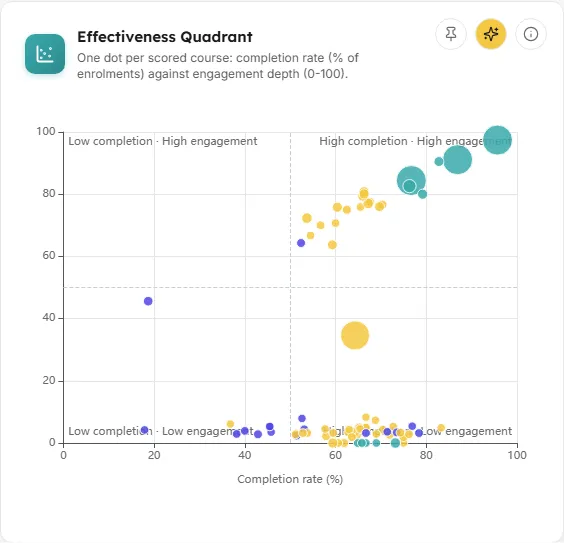
Each scored course plotted by completion rate (across) and engagement depth (up), so the strongest and weakest courses stand out at a glance.
- How to read it: dashed lines at 50 on each axis split the chart into four corners, labelled High completion · High engagement, High completion · Low engagement, Low completion · High engagement and Low completion · Low engagement.
- High completion and high engagement: learners finish and work through the content.
- High completion, low engagement: learners finish but engage shallowly. Worth checking whether the bar to complete is too low.
- Low completion, high engagement: learners engage deeply but rarely finish. Often a sign the course is too long or the completion criteria too strict.
- Low completion and low engagement: the strongest candidates for review or retirement.
- Dots: bigger dots have more enrolments. The colour follows the course’s band.
- Hover a dot to see the course name, its enrolments and score, and all five dimensions: Completion rate, Engagement depth, Assessment success, Re-attempt rate and Retention.
- What you can do: click a dot to scroll to the Full Scorecard and briefly highlight that course’s row (when the row is on the page you are viewing); the other dots fade for a moment. You can also pin the chart, Ask AI, or open the info button.
- Empty state: “No courses match the current filters.”
Bottom 10, Fix List
Section titled “Bottom 10, Fix List”
A bar chart of the 10 lowest-scoring courses, the worst at the top. It is the starting point for a course review.
- How to read it: each bar is one course, labelled with its short name, and its length is the overall effectiveness score out of 100. The bar colour follows the band. Hover a bar for the full course name, its enrolments and “Effectiveness score: (score) / 100”.
- How it is worked out: scored courses only, sorted by score from lowest, first 10 taken.
- What you can do: click a bar to scroll to the Full Scorecard and highlight that course. You can also pin the chart, Ask AI, or open the info button.
- Empty state: “No courses to rank under the current filters.”
Full Scorecard
Section titled “Full Scorecard”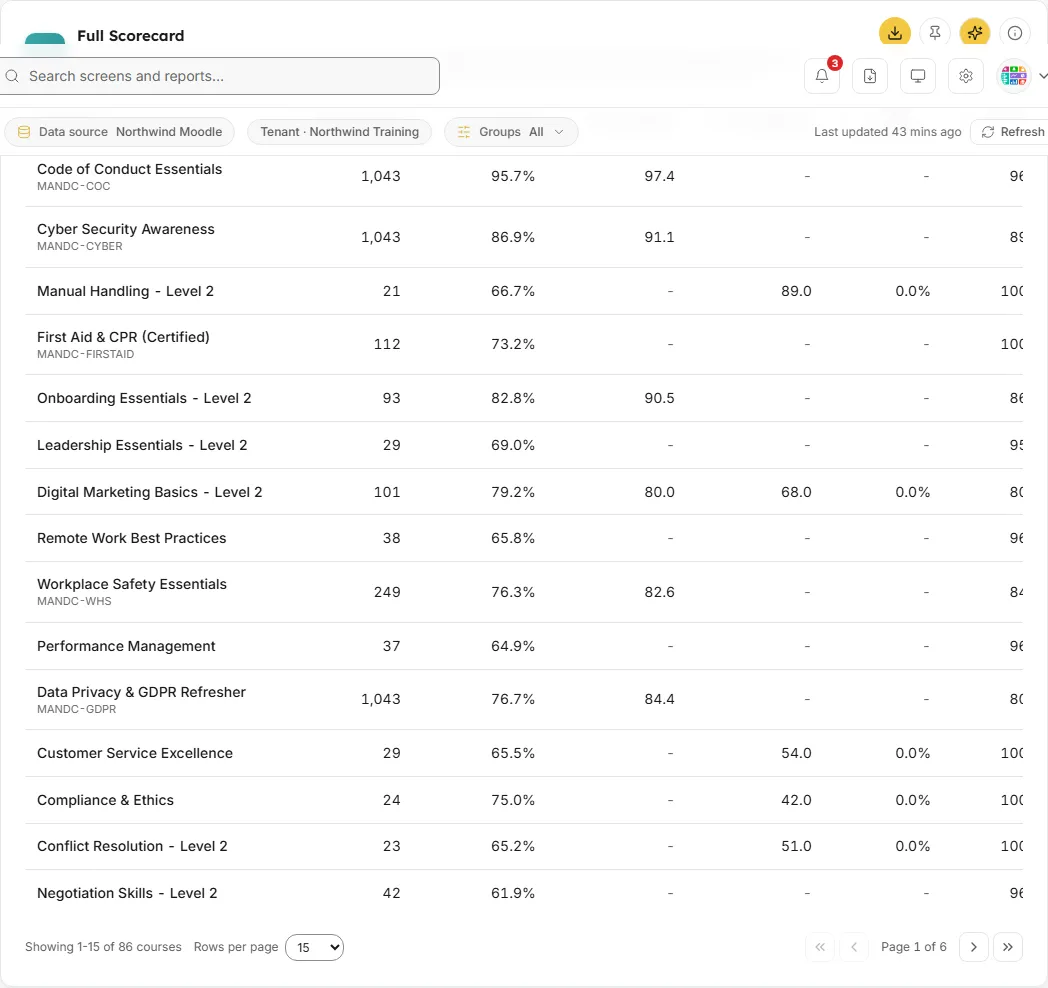
Every course in your workspace with its five dimension scores, overall score and band. The site front page and courses hidden from analytics in Settings are left out; a course hidden in Moodle still appears.
- Columns: Course (with the short name underneath when it differs), Enrolments, Completion, Engagement, Assessment, Re-attempts, Retention, Score and Band. Each column header has its own info button explaining that measure.
- How to read it: Completion, Re-attempts and Retention show as percentages; Engagement, Assessment and Score show out of 100. A dash means the course has nothing to measure for that dimension, such as no quizzes. Band shows Excellent, Good, Needs attention, Broken, or Insufficient data when no score could be worked out.
- Greyed rows: courses below the minimum enrolments, or with no score, are greyed and always sit at the bottom whatever the sort. They are kept so you can see which courses are left out of the tiles and charts.
- Sorting and pages: sorted by Score, highest first, by default. Click any column header to sort by it. 15 rows a page by default, with 50 or 100 available; the footer reads “Showing a-b of N courses” and “Page x of y”, with first, previous, next and last page buttons.
- What you can do: click a row (or press Enter on it) to open the course detail drawer. Download CSV saves the rows on the current page as
course-effectiveness-scorecard.csv, with the columns Course, Short name, Enrolments, Completion %, Engagement, Assessment, Re-attempts %, Retention %, Score and Band. You can also pin the table, Ask AI, or open the info button. - Empty state: “No courses match the current filters.”
Course detail drawer
Section titled “Course detail drawer”A panel that slides in from the right when you click a row in the Full Scorecard.
- What it shows: the course name, its enrolments and short name, the Effectiveness Score with its band, and a Dimensions list with a bar for each of Completion rate, Engagement depth, Assessment success, Re-attempt rate and Retention. Each dimension has an info button with its full rule.
- How to read it: a longer bar is better on every dimension. The Re-attempt rate bar is drawn turned round, so a longer bar means fewer re-attempts, while the figure beside it is the actual rate. When a dimension could not be measured, a note says “Score averaged over (n) of 5 dimensions (missing: …)”.
- What you can do: close it with the close button, by clicking outside it, or with Escape.
Common questions
Section titled “Common questions”Why is a course missing from the charts?
Section titled “Why is a course missing from the charts?”The tiles and both charts count scored courses only. A course with fewer enrolments than Min. enrolments, or with nothing measurable, still appears in the Full Scorecard, greyed at the bottom. Lower Min. enrolments or clear the Bands chips to bring more courses in.
Why does a course with no quizzes still get a score?
Section titled “Why does a course with no quizzes still get a score?”The score is averaged over the dimensions the course has. A course without quizzes has no Assessment success or Re-attempt rate, so its score comes from the other three, and the drawer names what is missing.
Why is the completion rate different from the retention figure?
Section titled “Why is the completion rate different from the retention figure?”Completion rate divides completed enrolments by all enrolments. Retention divides completed enrolments by the enrolments that started, so learners who never began are left out of retention.
Does the CSV include every course?
Section titled “Does the CSV include every course?”No. Download CSV on the Full Scorecard saves the rows on the page you are viewing. Set the page size to 100 or move through the pages to save more.