

Onboarding Ramp / Time-to-Productivity
Onboarding Ramp / Time-to-Productivity shows how fast new hires get through their onboarding courses: the cumulative share of each intake fully onboarded by days since start, how intake cohorts compare, who is on track or lagging against a target window, and, where a performance signal exists, whether finishing onboarding faster goes with stronger early outcomes. L&D managers, HR and team leads use it to spot slow intakes and chase the new starters who are falling behind.
At a glance
Section titled “At a glance”- Route:
/corp/onboarding-ramp, in the sidebar under Corporate & Enterprise as Onboarding Ramp / Time-to-Productivity. - Who can open it: the Admin and Manager roles by default. The Viewer role does not include it by default. A Learner never sees it: opening the link sends them to their home page with the notice “You don’t have access to that screen, so you are on your home page instead.” See roles and permissions.
- Team leads: a Team lead can open this screen. Every figure on it, including the new-hire table, is limited to the people in their own Moodle groups.
- Plan: part of the Corporate & Enterprise sector pack. If your plan does not include it, the page shows “Onboarding Ramp is locked” with an upgrade prompt instead of the cards.
- Filters: Intake cohort and Target window. Both are kept in the page address, so a refresh or a shared link opens the same view.
- Data it needs: nothing to set up. The screen reads learner enrolments, activity completion, course completion, certificates and grades from your connected Moodle site. See Data sources.
Who counts as a new hire
Section titled “Who counts as a new hire”A new hire is a learner whose first learner enrolment on the workspace starts in the current month or one of the 12 calendar months before it. Months follow your workspace’s time zone, so the oldest intake can be just over a year old.
Enrolments follow the shared rule: staff in the course, suspended enrolments and accounts, disabled enrolment methods and courses hidden from analytics are left out. A suspended person is never a new hire.
Each new hire belongs to one intake cohort: the calendar month of their first enrolment, shown as, for example, “March 2026 intake”.
What is the onboarding set?
Section titled “What is the onboarding set?”The onboarding set is the list of courses a new hire has to finish to count as onboarded. LearnBoard takes it as every course the hire started within 30 days of their first enrolment. The Ramp completion rate tile names the courses it counted and how many new hires have each one.
Your workspace can also hold a fixed list of onboarding courses. When it does, each hire’s set is the courses on that list they are enrolled in, and the tile says “configured courses”. There is no screen in LearnBoard for editing that list at present.
When is a course complete?
Section titled “When is a course complete?”A course in the onboarding set is complete under the same rule as the Completion Funnel: a course completion, every tracked activity shown in the course done (complete or passed, a failed activity does not count), or a certificate issued in the course. A course with no tracked activities counts as done only once it has a course completion or a certificate, so an open course of that kind keeps the hire in ramp.
How is ramp time measured?
Section titled “How is ramp time measured?”Ramp time runs from the hire’s first enrolment start to the moment their last onboarding course was completed. Each course counts from its first completion at or after that enrolment’s start, so a completion from an earlier enrolment never shortens the time.
A hire who finished a course only in an earlier enrolment counts as complete but has no measurable ramp time. They are left out of the median and off the curves, and the screen says how many.
No new hires in the window
Section titled “No new hires in the window”When nobody had their first enrolment in the 13-month window, or the intake filter excludes everyone, the stat tiles are replaced by a card titled Onboarding Ramp that reads “No new hires in the window”, and the charts and table are hidden. Change the filters, or check your data source if you expected recent starters.
Filters
Section titled “Filters”The filter bar stays at the top of the page as you scroll.
- Intake cohort: “All intakes” by default, or one intake month. Each option shows the intake label and its number of new hires, for example “March 2026 intake (14)”. It narrows the stat tiles, the cohort ramp curve, the correlation chart, the new-hire table and the drawer. Ramp by cohort always shows the recent intakes side by side and ignores this filter.
- Target window: the number of days a new hire is expected to need. “Default” uses your workspace’s target when one is set; otherwise LearnBoard picks the smallest of 30, 60 or 90 days that covers the workspace’s median ramp time (60 days when there is no median yet). The default option shows its value, for example “Default (60 days)”. You can also choose 30, 60 or 90 days. The window drives the dashed target line on the ramp curve and every On track or Lagging status. The (i) next to it explains the rule.
- Clear all: appears once you have changed a filter and puts both back to their defaults.
Changing a filter takes the new-hire table back to page 1.
Stat tiles
Section titled “Stat tiles”Each tile has Pin to dashboard, Ask AI about this and an info (i) button that explains how the figure is counted. See Pin to dashboard and Ask AI. A figure that cannot be worked out shows a dash, never a made-up zero.
Median time-to-productivity
Section titled “Median time-to-productivity”
The middle number of days new hires took to finish their whole onboarding set.
- How to read it: half of the completed hires finished faster than this and half slower. The line under the figure says how many completed hires it covers, for example “over 42 completed hires”, and, when some are left out, “3 left out (finished in an earlier enrolment)”.
- How it is worked out: for every new hire in scope who completed the set with a measurable ramp time, the days from their start to their last onboarding course completion; the tile shows the median. Hires who finished a course only in an earlier enrolment are complete but have no time, so they are left out and counted on the line.
- What you can do: pin it, ask AI about it, or read the info text.
On-track new hires
Section titled “On-track new hires”The share of one intake’s new hires, still in ramp, whose pace projects them to finish inside the target window.
- How to read it: a high figure means most of the people still onboarding are keeping up. The line names the intake it reads, for example “of the March 2026 intake still in ramp”.
- How it is worked out: with no intake chosen it reads the most recent intake; with an intake chosen it reads that one. Only hires who have not yet finished count. A hire is on track when the share of the onboarding set they have finished is at least the share of the target window already used. Hires in their first 7 days are always on track (a short grace period). A hire past the window without finishing is always lagging.
- What you can do: change the Target window filter to see how the share moves; pin it, ask AI about it, or read the info text.
Ramp completion rate
Section titled “Ramp completion rate”The share of new hires who have completed every course in their onboarding set.
- How to read it: the line under the figure gives the number of new hires and where the courses came from, for example “of 120 new hires · courses started in a hire’s first 30 days”.
- How it is worked out: completed new hires divided by all new hires in scope. Completion uses the shared course completion rule described above. The info text lists the courses counted, up to eight by name, with how many new hires have each.
- What you can do: pin it, ask AI about it, or read the info text for the course list.
New hires in ramp
Section titled “New hires in ramp”The number of new hires (people) who have started but not yet completed every course in their onboarding set.
- How to read it: this is your current onboarding workload. Use the new-hire table, sorted by Status, to see who they are.
- How it is worked out: new hires in scope minus those who have completed the set.
- What you can do: pin it, ask AI about it, or read the info text.
Charts
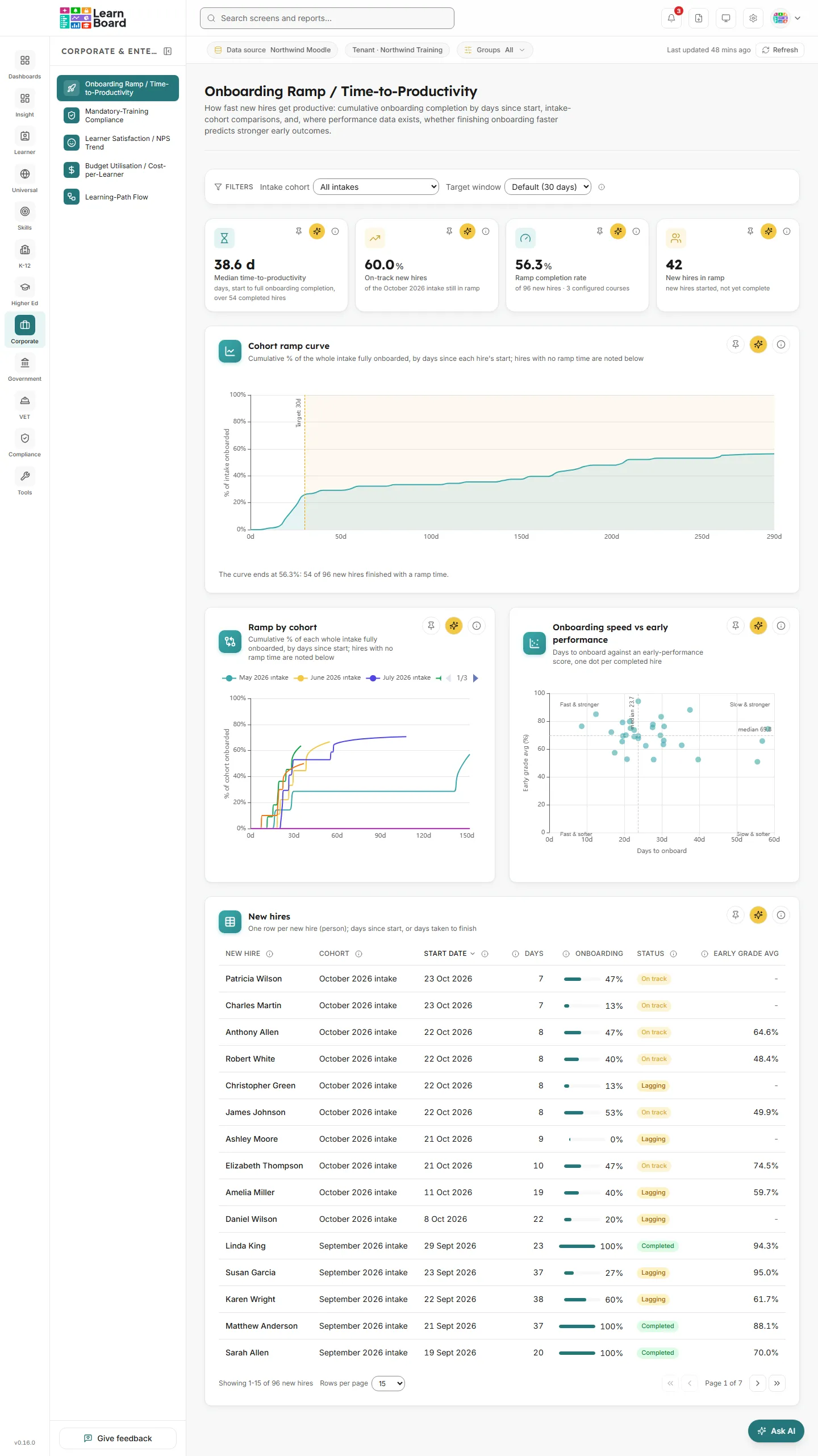
Section titled “Charts”Cohort ramp curve
Section titled “Cohort ramp curve”
A line that climbs as new hires finish onboarding, plotted against days since each hire’s own start.
- How to read it: the horizontal axis is days since start (5d, 10d and so on), the vertical axis is “% of intake onboarded”. A steep early climb means people finish quickly. The dashed line labelled “Target: 60d” (or your chosen window) marks the target, and the lightly shaded area beyond it is behind target. Hover the line for “Day N” and the share of the intake fully onboarded by then.
- How it is worked out: for each day, the share of everyone in the intake (or every intake, with no filter) who had fully completed onboarding by that day. The denominator is everyone who started, not just finishers, so the curve flattens below 100% while people are still in ramp.
- The note under the chart: says where the curve ends, for example “The curve ends at 62.0%: 75 of 121 new hires finished with a ramp time.” When some completed hires have no ramp time, it adds how many and gives the full completion count and rate, which match the Ramp completion rate tile.
- Empty state: “No completed onboarding journeys yet under the current filters, the curve will draw as new hires finish.” If completed hires exist but none has a ramp time, the message says so and gives their number.
- What you can do: change the Intake cohort and Target window filters; pin it, ask AI about it, or read the info text.
Ramp by cohort
Section titled “Ramp by cohort”
One ramp line per recent intake, on the same days-since-start axis, so you can see whether newer intakes ramp faster or slower than older ones.
- How to read it: each line is one intake, named in the legend at the top (scroll the legend if there are many). A line further left and higher means that intake onboarded faster. Hover to compare the share each intake had fully onboarded on the same day.
- How it is worked out: the six most recent intakes with at least five new hires each. Each line is the cumulative share of that whole intake fully onboarded, measured in days since each hire’s own start. Completed hires with no ramp time are not on the line; the note under the chart lists them per intake, for example “March 2026 intake 2 of 9 completed”.
- Filters: this card always shows the recent intakes side by side and does not follow the Intake cohort filter.
- Empty state: “No intake cohort is large enough to compare yet, cohorts appear here once they have at least five new hires.”
- What you can do: pin it, ask AI about it, or read the info text.
Onboarding speed vs early performance
Section titled “Onboarding speed vs early performance”
A scatter of completed new hires: how many days onboarding took against an early-performance score.
-
How to read it: across is “Days to onboard”, up is the performance score as a percentage. Dashed lines at the median of each axis split the chart into four labelled corners: “Fast & stronger”, “Slow & stronger”, “Fast & softer” and “Slow & softer”. Hover a dot for the person’s name, their days to onboard and their score.
-
How it is worked out: LearnBoard uses the first signal it can measure for at least five completed hires:
- Early grade avg: the average assessment grade, as a percentage of the maximum, in the first 60 days after the hire’s start.
- Follow-on completion: of the courses the hire picked up in the 90 days after finishing onboarding, the share they went on to complete.
The info text states which one is in use. Hires with no ramp time, or with no grades or follow-on courses, are not plotted.
-
Not set up yet: when neither signal can be measured, the card reads “Add performance data to correlate onboarding speed with early outcomes” with the reason, for example “No early-performance signal is measurable yet, too few completed new hires have assessment grades or follow-on course activity.”
-
What you can do: click a dot to scroll to the new-hire table and briefly highlight that person’s row; pin it, ask AI about it, or read the info text.
New hires
Section titled “New hires”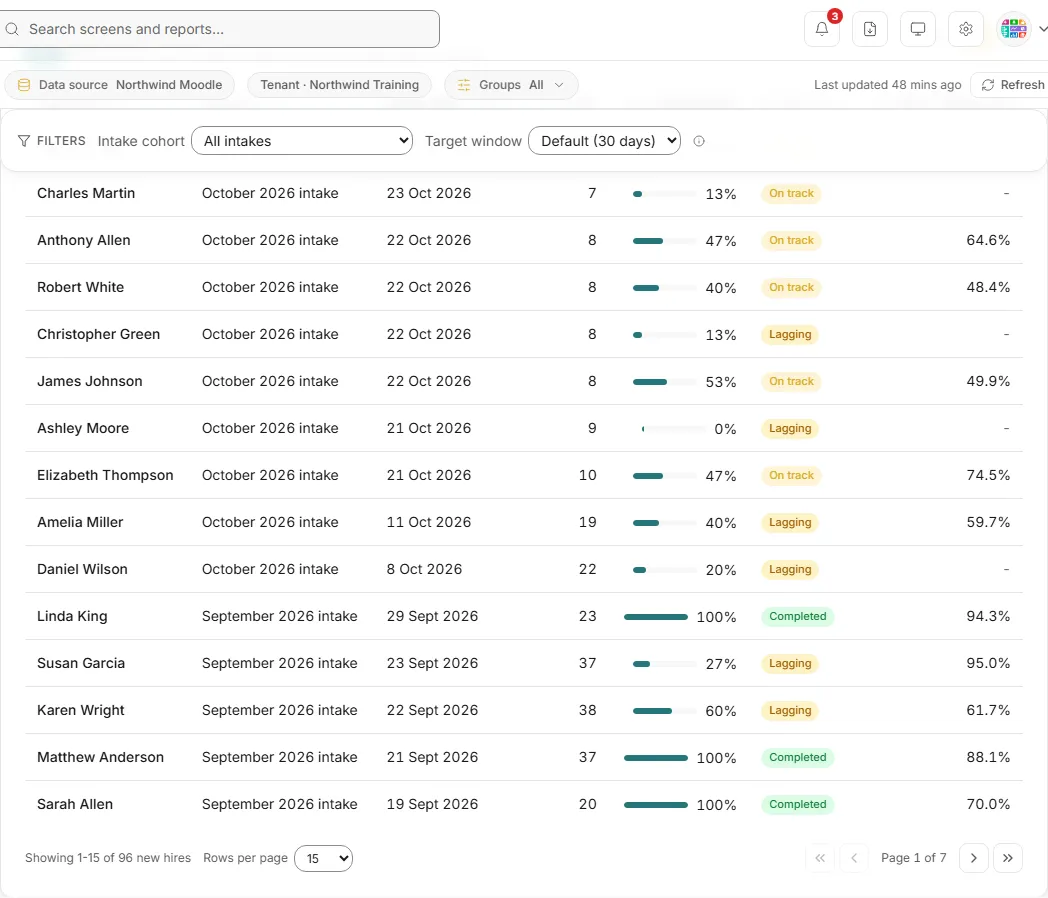
Every new hire in scope with their intake, progress and pace status.
- Columns: each heading has its own (i) explaining it.
- New hire: the person’s name.
- Cohort: their intake month.
- Start date: the date of their first enrolment, on your workspace’s clock.
- Days: days since start for hires still in ramp, or the days taken to finish for completed hires. A dash means the hire finished a course only in an earlier enrolment, so there is no measurable time.
- Onboarding: a progress bar and percentage: tracked activities complete or passed across every course in the set, with a completed course counting in full.
- Status: Completed (the whole set is finished), On track (current pace projects completion inside the target window, with the 7-day grace period for new starters) or Lagging (the projection overshoots the window, or the window has passed).
- Early grade avg or Follow-on completion: the early-performance score used by the correlation chart, named after the signal in use (Early performance when none is measurable). A dash means no measurable signal for that person.
- Sorting: click any column heading to sort; click again to reverse. The default is Start date, newest first.
- Paging: 15 rows per page by default; choose 15, 50 or 100 rows per page and move between pages under the table. Sort, page and page size are kept in the page address.
- Empty state: “No new hires match the current filters.”
- What you can do: click a row (or press Enter on it) to open the new-hire drawer; pin the table, ask AI about it, or read the info text. There is no CSV download on this screen.
New hire detail drawer
Section titled “New hire detail drawer”The panel that slides in from the right when you click a row in New hires.
- Header: the person’s name, their intake and start date, and an (i) explaining the drawer.
- Headline figures: Status, with “current pace projects N days to finish” for a hire still in ramp; Days to onboard (completed) or Days elapsed (in ramp); Onboarding complete as a percentage; and the early-performance score, or “no measurable signal yet”.
- Personal ramp: a step chart of the share of this person’s onboarding set finished by each day since their start. It shows once there is more than one point.
- Onboarding set: one panel per course with its progress percentage and “N of M required activities”, or “completion recorded” or “completion pending” for a course with no tracked activities.
- Closing it: the close (X) button, a click outside the panel, or the Escape key.
Common questions
Section titled “Common questions”Why is the median based on fewer people than the completion rate?
Section titled “Why is the median based on fewer people than the completion rate?”The median only uses completed hires with a measurable ramp time. A hire who finished a course only in an earlier enrolment is complete but has no ramp time. The tile’s line says how many are left out, and the note under the ramp curve shows the same number.
Why does the ramp curve end below 100%?
Section titled “Why does the ramp curve end below 100%?”The curve divides by everyone who started, not only those who finished. People still in ramp, and completed hires with no ramp time, keep it below 100%.
Why is someone marked Lagging when they have only just started?
Section titled “Why is someone marked Lagging when they have only just started?”New starters get a 7-day grace period and are always on track during it. After that, a hire is lagging when the share of their onboarding set finished is lower than the share of the target window already used. Try a longer Target window if your onboarding is meant to take longer.
Why does the correlation chart say “Add performance data”?
Section titled “Why does the correlation chart say “Add performance data”?”It needs at least five completed hires with either assessment grades in their first 60 days or follow-on courses in the 90 days after onboarding. Until then there is nothing honest to plot.
Why is an intake missing from Ramp by cohort?
Section titled “Why is an intake missing from Ramp by cohort?”Only the six most recent intakes with at least five new hires appear.