

The Info button
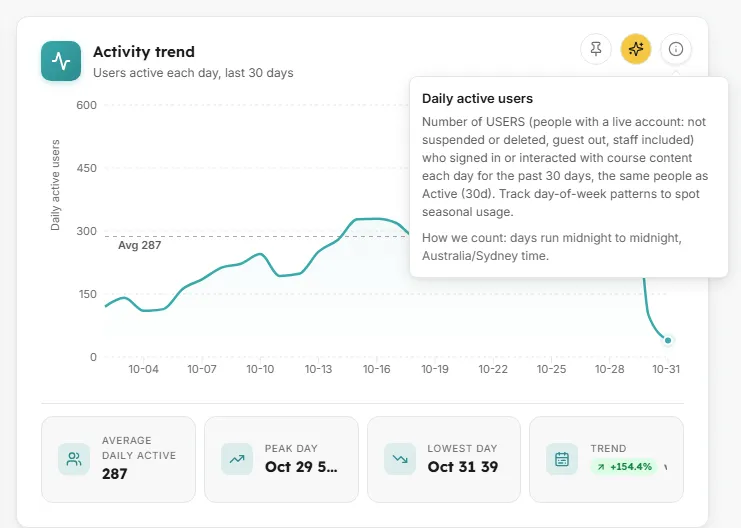
The Info button is the round i in the top-right corner of a card. It explains, in plain words, what the card shows and how to read it. It is for anyone who wants to be sure what a number means before acting on it.
At a glance
- Hover or focus the i for a quick look.
- Click it to keep the explanation open while you read.
- On cards that count by day, week or month, it also says which time zone a day starts in.
How do I read a card’s explanation?
Section titled “How do I read a card’s explanation?”- Find the i at the far right of the card’s top-right buttons.
- Hover over it, or move to it with the Tab key. After a short pause the explanation appears below it.
- To keep it open, click it, tap it, or press Enter or Space. It stays open until you click anywhere else, click the i again, or press Escape.
Clicking is the way to open it on a phone or tablet, where there is no hover.
What does the explanation say?
Section titled “What does the explanation say?”- The heading matches the card’s title.
- The description says what the card shows and how to read it, in one to three sentences. It names what is counted, such as learners or enrolments, so you can compare cards with confidence.
- The time zone line, on cards that count per day, hour, week or month, says which zone’s midnight a day starts at, in the form How we count: days run midnight to midnight, Europe/London time. with your workspace’s own time zone. The same figures can fall on different days in different zones, so this tells you whose day it is.
Related
Section titled “Related”Anatomy of a cardAll the parts of a card.
Ask AI on a cardGo further than the explanation.
DefinitionsThe shared meaning of learners, enrolments and the rest.
Insight dashboardsEvery card on every Insight screen.