

Per-role rules
What each role sees gives each role its own view in one LearnBoard block. Put a single block on the Dashboard, and students see their own progress, teachers see their groups, and managers see a dashboard. This page is for whoever sets up blocks.
At a glance
Section titled “At a glance”- Each Rule pairs People with the role with what they see: My team, My learning, Nothing (hide the block), or Dashboard: name.
- Rules are checked from the top. The first rule whose role the viewer holds anywhere on the site applies.
- A matching rule decides what the viewer sees, whatever Dashboard source and Show to say.
- Anyone matching no rule sees the block as set in Block settings.
- Any role on the site can be used, custom roles such as a company manager role included.
How a viewer’s view is decided
Section titled “How a viewer’s view is decided”- The plugin goes down the rules in order and stops at the first one whose role the viewer holds in any context: the site, a category or any course.
- If that rule says Nothing (hide the block), the block is not shown to them at all.
- Otherwise the rule’s view is shown: My team, My learning or the chosen dashboard.
- If no rule matches, the block’s own Dashboard source applies, and Show to decides whether they see it.
My team and My learning need per-user sign-in. Without it, people matched to those views see nothing, and people editing the page see a notice.
Add rules
Section titled “Add rules”-
Turn Edit mode on and open the block’s Configure LearnBoard block.
-
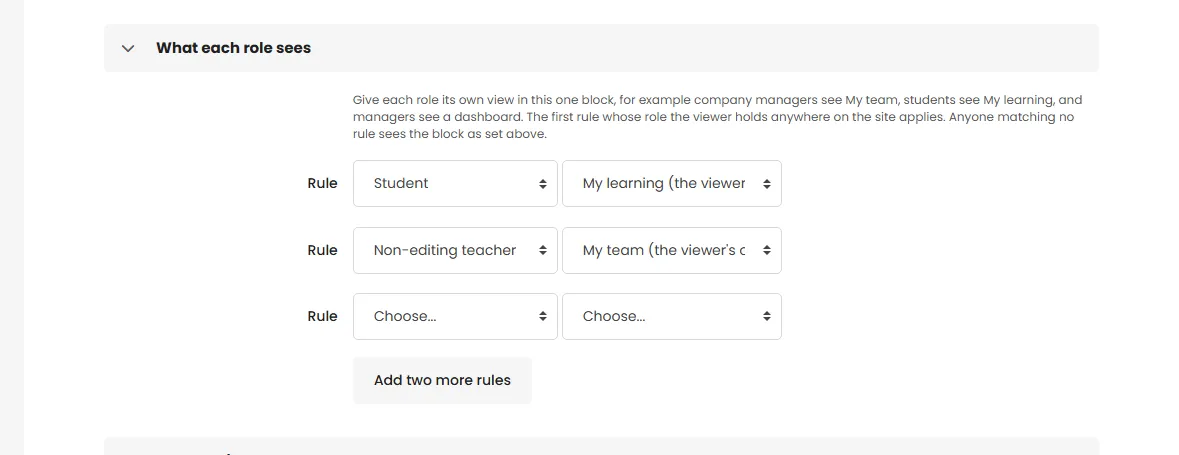
Expand What each role sees.
-
In the first Rule, pick a role in People with the role and a view in see.
-
Fill in more rules. Need more than three? Click Add two more rules.
-
Click Save changes.
A rule with Choose… in either box is ignored. To remove a rule, set both boxes back to Choose….
Worked examples
Section titled “Worked examples”One Dashboard block for everyone
Section titled “One Dashboard block for everyone”You want one block on everyone’s Dashboard: managers see the LMS Overview, teachers their groups, students their own progress.
Add the block to the default Dashboard (Site administration > Appearance > Default Dashboard page), then set:
| Field | Value |
|---|---|
| Dashboard source | Linked to a LearnBoard dashboard |
| LearnBoard dashboard | LMS Overview |
| Show to | Manager |
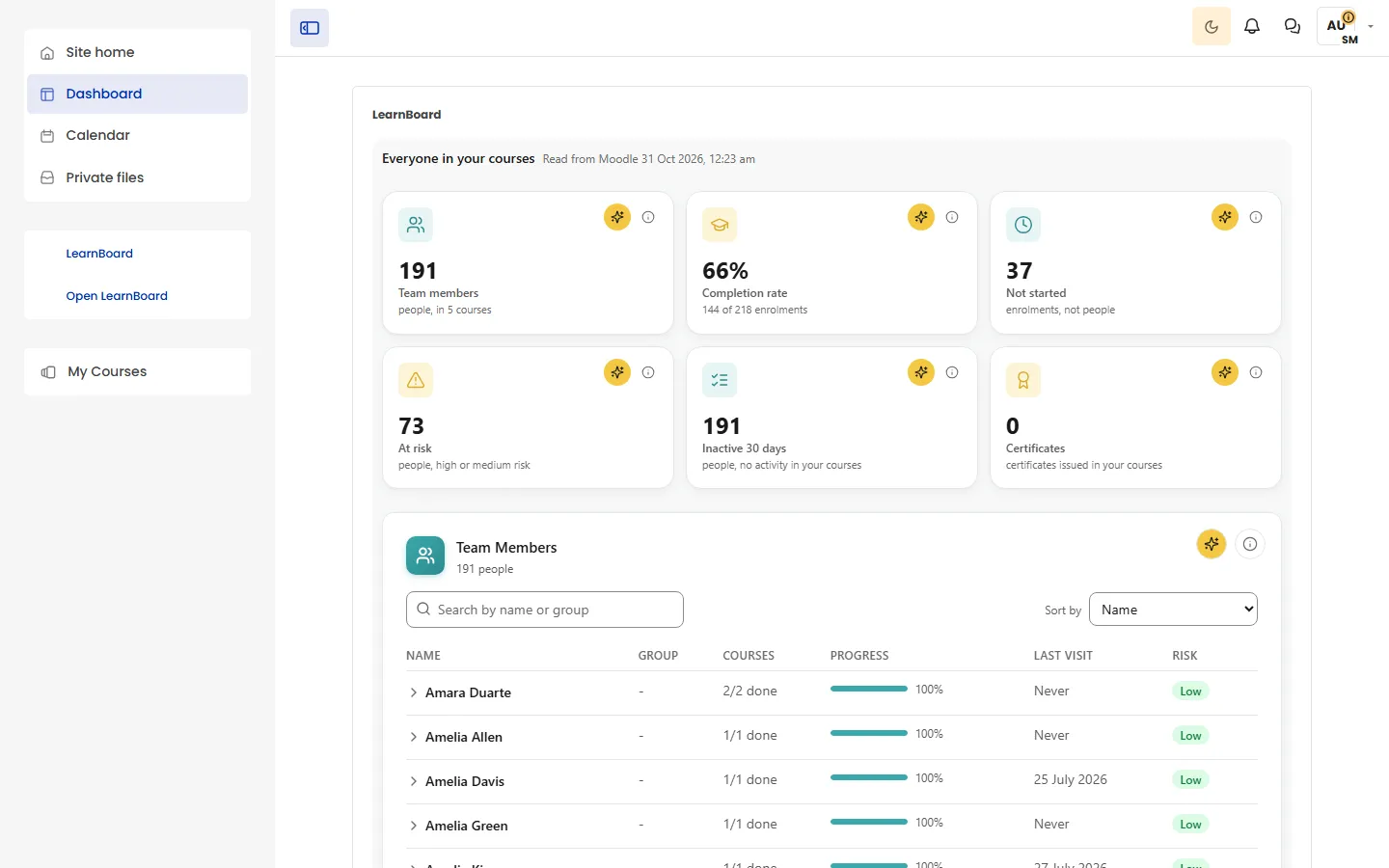
| Rule 1 | Teacher see My team (the viewer’s own groups) |
| Rule 2 | Non-editing teacher see My team (the viewer’s own groups) |
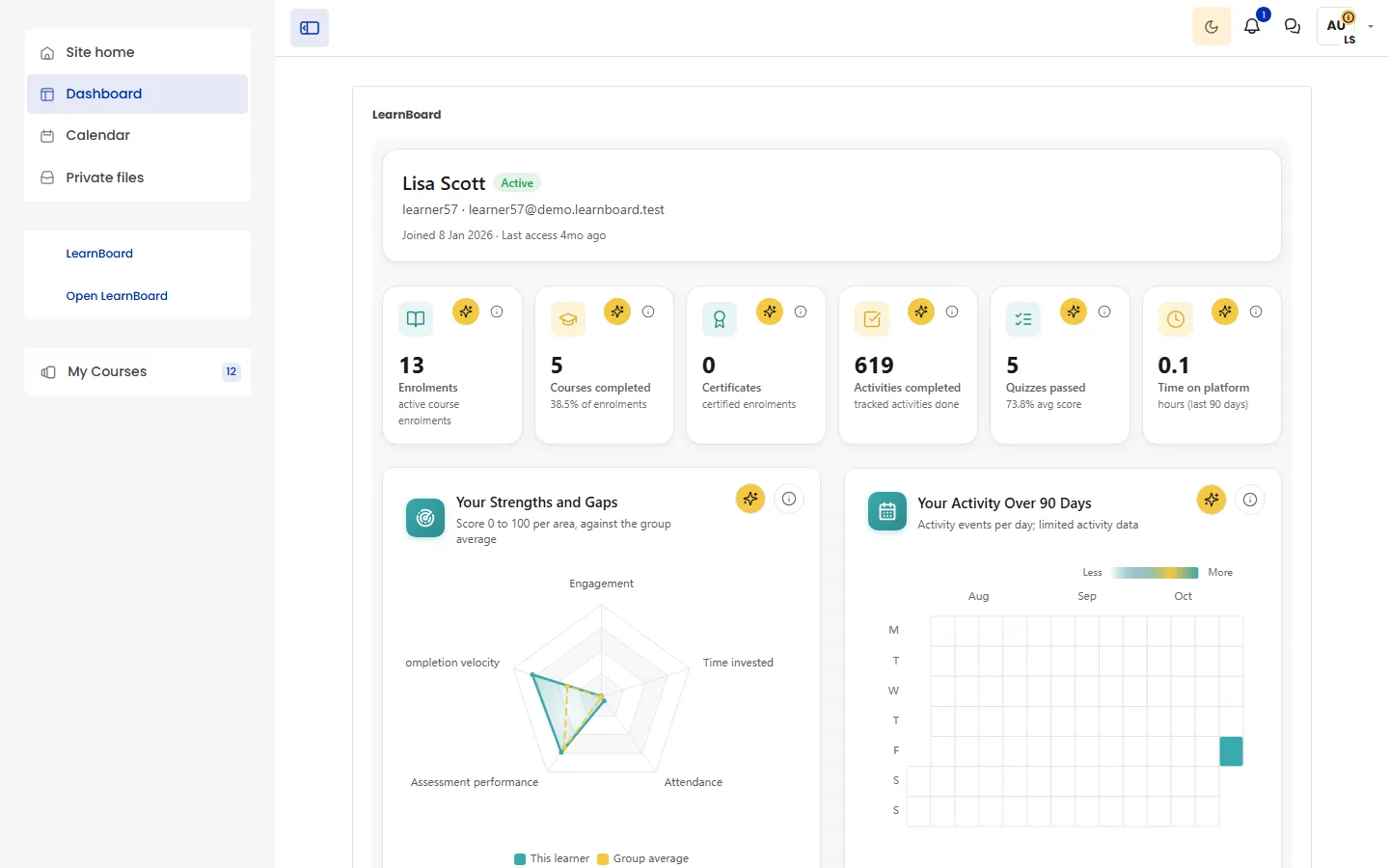
| Rule 3 | Student see My learning (the viewer’s own progress) |
Result:
- A teacher matches rule 1 and sees My team.
- A student matches rule 3 and sees My learning.
- A manager matches no rule, holds Manager, and sees the LMS Overview.
- Anyone else matches no rule and does not hold Manager, so the block is hidden from them.
If some managers are also enrolled as students, they would match rule 3. Add a first rule, Manager see Dashboard: LMS Overview, so they keep the dashboard.
Company managers see My team
Section titled “Company managers see My team”On a site with a custom company manager role, for example in a multi-company Moodle, managers of each company should see only their own people.
| Field | Value |
|---|---|
| Rule 1 | Company manager (your custom role) see My team (the viewer’s own groups) |
| Rule 2 | Student see My learning (the viewer’s own progress) |
LearnBoard treats a role whose short name contains manager, supervisor or lead as leading the courses it is held in, so a company manager sees the people in their own groups there.
Managers see a dashboard, students see nothing
Section titled “Managers see a dashboard, students see nothing”| Field | Value |
|---|---|
| Rule 1 | Manager see Dashboard: Completions and risk |
| Rule 2 | Student see Nothing (hide the block) |
Managers get the linked dashboard. Students do not see the block at all. Everyone else sees the block as set in Block settings.
Order matters
Section titled “Order matters”People often hold several roles: a teacher in one course can be a student in another. The first matching rule wins, so put the rule you want to win first. In the first example, the teacher rules come before the student rule, so a teacher who is also enrolled as a student somewhere still sees My team.
Rules or Show to?
Section titled “Rules or Show to?”- Use Show to to hide a block from everyone except some roles, with everyone allowed seeing the same thing.
- Use rules when different roles should see different things in the same block.
You can use both: rules first, then Show to for everyone the rules did not catch. See Show to.