

Show to
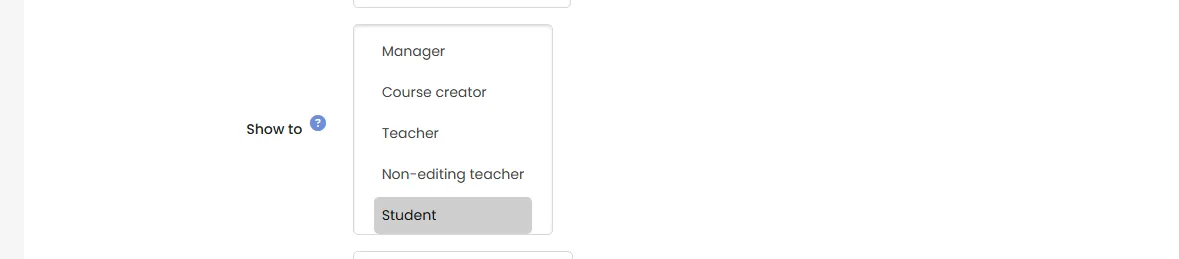
Show to limits a LearnBoard block to people who hold one of the roles you choose. Everyone else does not see the block at all. It is for whoever places blocks on shared pages such as the front page or the default Dashboard.
At a glance
Section titled “At a glance”- Field: Show to in the block settings, a list of every role on the site, custom roles included.
- Choose none to show the block to everyone.
- A role counts if the viewer holds it anywhere on the site.
- Site administrators, and anyone editing the page with the right to add blocks, always see the block.
- Per-role rules are checked first. A matching rule ignores Show to.
Choose who sees a block
Section titled “Choose who sees a block”- Turn Edit mode on and open the block’s Configure LearnBoard block.
- In Show to, select one or more roles. Hold Ctrl (Cmd on a Mac) to select several, or to clear a selection.
- Click Save changes.
The list holds every role a person can hold on your site. Moodle’s guest, authenticated user and front page roles are not listed.
How a role is matched
Section titled “How a role is matched”The plugin looks at every role the viewer holds, in any context: the site, a category or a course. So a block on the Dashboard or the front page, where nobody holds a course role, still reaches a student or a teacher, because they hold that role in their courses.
| Viewer | Show to: Student | Show to: Manager | Show to: none |
|---|---|---|---|
| Student in any course | Sees the block | Hidden | Sees the block |
| Manager | Hidden, unless also a student somewhere | Sees the block | Sees the block |
| Site administrator | Sees the block | Sees the block | Sees the block |
| Someone editing the page | Sees the block | Sees the block | Sees the block |
What Show to does not do
Section titled “What Show to does not do”- It does not change the figures. What a person sees in the charts depends on per-user sign-in and their role mapping.
- It does not give access. Someone who passes Show to but may not see LearnBoard still sees nothing, or a notice if they are editing.
- It does not give different roles different views. Use per-role rules for that.
Example: a front page block for managers only
Section titled “Example: a front page block for managers only”You put a block linked to the LMS Overview on Site home and want only managers to see it. Set Show to to Manager. Teachers and students never see the block; a site administrator still does.