

Role mapping
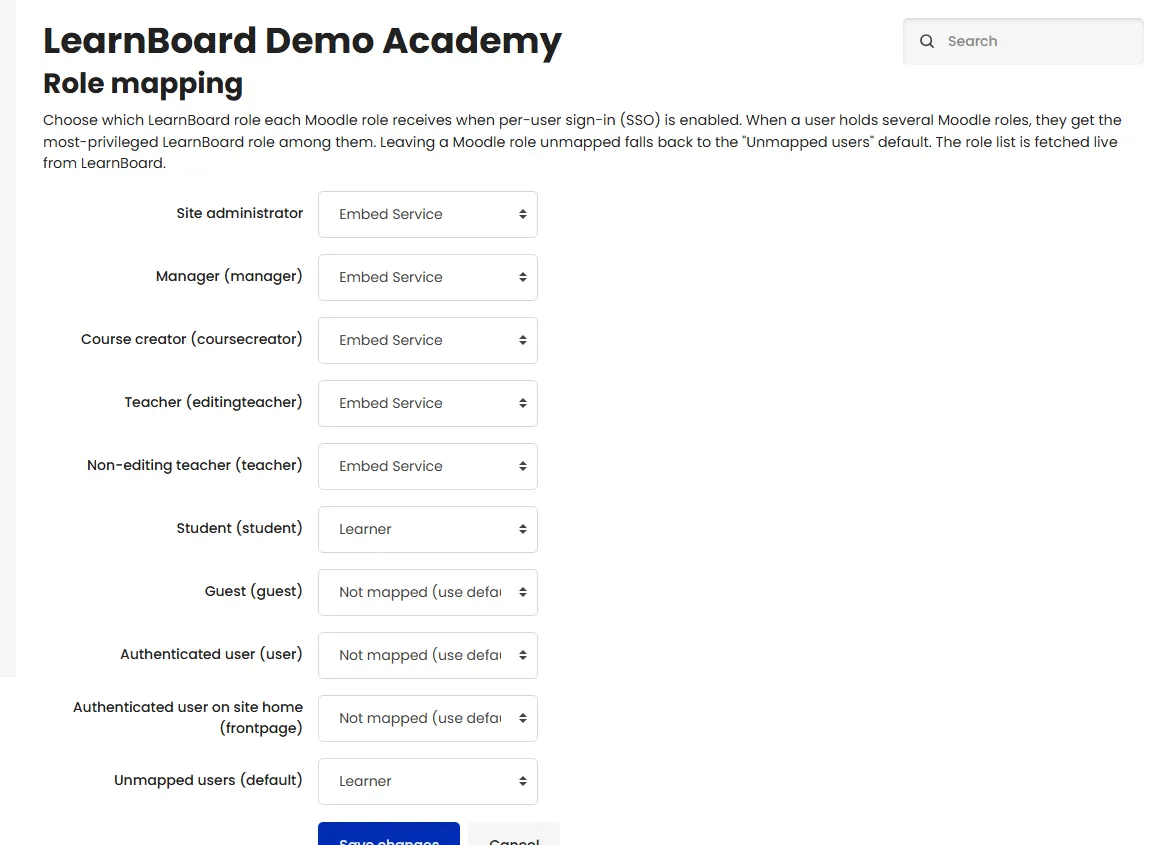
Role mapping chooses which LearnBoard role each Moodle role receives when per-user sign-in is on. It is for the Moodle administrator, and it decides what each person can see and do in LearnBoard when they arrive from Moodle.
At a glance
Section titled “At a glance”- Page: Site administration > Plugins > Blocks > Role mapping (
/blocks/learnboard/rolemap.php). - One dropdown per Moodle role, plus Site administrator and Unmapped users (default).
- The list of LearnBoard roles is fetched live from LearnBoard.
- A person with several Moodle roles gets the most-privileged LearnBoard role among them.
- Applies only with Enable per-user sign-in (SSO) on.
The rows
Section titled “The rows”| Row | What it covers |
|---|---|
| Site administrator | Anyone who is a Moodle site administrator. |
| One row per Moodle role, such as Manager (manager) or Student (student) | Anyone holding that role anywhere on the site, custom roles included. The short name is in brackets. |
| Unmapped users (default) | Anyone whose roles are all set to Not mapped (use default). |
Each dropdown offers Not mapped (use default) and every LearnBoard role that can be mapped, such as Admin, Manager, Viewer, Learner, Embed Service and your workspace’s custom roles. LearnBoard’s platform-wide Super Admin role is never offered.
The defaults
Section titled “The defaults”Until you save this page, the plugin uses a safe default that matches how it always behaved:
| Moodle role | LearnBoard role |
|---|---|
| Site administrator | Embed Service |
| Manager | Embed Service |
| Course creator | Embed Service |
| Teacher | Embed Service |
| Non-editing teacher | Embed Service |
| Student | Learner |
| Unmapped users (default) | Learner |
Embed Service is LearnBoard’s read-only role for Moodle. LearnBoard then narrows it from what Moodle says about the person: a site administrator or site-level Manager keeps the whole workspace, someone who leads courses becomes a Team lead who sees only their own groups. See Per-user sign-in.
Change the mapping
Section titled “Change the mapping”-
Go to Site administration > Plugins > Blocks > Role mapping.
-
For each Moodle role, pick a LearnBoard role, or Not mapped (use default).
-
Set Unmapped users (default) for everyone else.
-
Click Save changes. Moodle shows “Role mapping saved.”
The new mapping applies the next time each person opens a page with LearnBoard charts.
The write warning
Section titled “The write warning”A LearnBoard role that can change things in LearnBoard (one with any manage permission) is labelled ⚠ grants write access in the dropdown. Choose it only for people who should be able to edit your LearnBoard workspace, for example a Moodle administrator who also runs LearnBoard.
When LearnBoard cannot be reached
Section titled “When LearnBoard cannot be reached”If LearnBoard does not answer when the page loads, it shows: “Could not reach LearnBoard to load its current roles. Showing the last known list (which may be empty or out of date). Check the connection settings, then reload this page.” The plugin keeps the last list it fetched for this case.
How several roles combine
Section titled “How several roles combine”Moodle roles are looked up wherever the person holds them: site, category or course. A teacher in one course and a student in another holds both. Each role is looked up in the map, and LearnBoard applies the most-privileged LearnBoard role that results. If none of their roles is mapped, they get Unmapped users (default), and if that is empty, Learner.