

Moodle plugin
The quickest way. Install the plugin, paste one code, and LearnBoard reads Moodle through your own Moodle address. No database port is opened. Connect with the plugin.
This section is the end-to-end guide for a LearnBoard workspace administrator: the person who creates the workspace, connects it to Moodle, brings in colleagues and sets it up for their organisation. Everything here happens in the Admin console, which only a workspace administrator (the Admin role) can open.
At a glance
Create the workspace
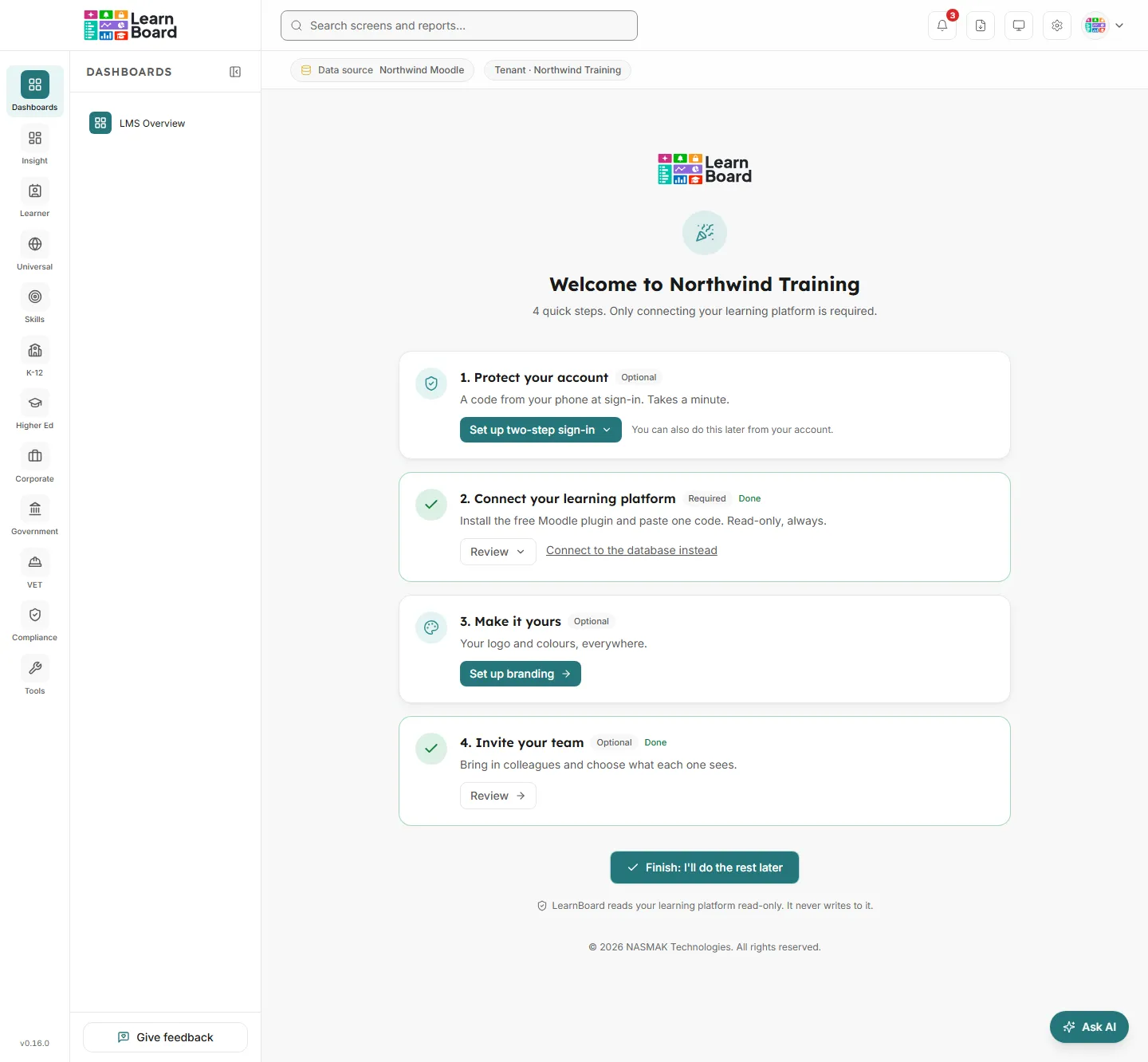
Sign up with your organisation’s details, confirm your email with the six-digit code, and the setup walkthrough opens. See Create a workspace.
Connect Moodle
Install the free LearnBoard plugin in Moodle and paste one connection code, or connect LearnBoard to the Moodle database with a read-only account. See Ways to connect Moodle.
Invite your team
Invite colleagues by email and choose each person’s role, which decides what they see. See Users and invitations.
Configure the workspace
Add your logo and colours, define programmes and campuses, list mandatory training, set certificate validity, enter training costs and schedule email reports.
Moodle plugin
The quickest way. Install the plugin, paste one code, and LearnBoard reads Moodle through your own Moodle address. No database port is opened. Connect with the plugin.
Database account
Point LearnBoard at the Moodle database with an account that can only read. Connect to the database.
Database copy
No direct access? Upload an SQL export of up to 2 GB. Upload a database copy.
Read-only, always
Every query is checked before it runs, and the database session itself refuses to write. How LearnBoard stays read-only.