

Training ROI Dashboard
The Training ROI Dashboard weighs what your training costs against what it produces: cost per completion, cost per certification, where the money goes and how spend tracks against completions month by month. It is for L&D leads, finance partners and executives who need to justify the training budget or find the courses that cost the most for the least output.
LearnBoard cannot know what your training costs. You supply the cost inputs (course development costs, a learner hourly rate and, for the ROI ratio, a benefit per completion), and LearnBoard combines them with completions and certifications from Moodle.
At a glance
Section titled “At a glance”- Route:
/skills/training-roi. In the sidebar it sits under Skills & Capability as Training ROI Dashboard. - Who can open it: the Admin and Manager roles by default. The Viewer role does not get it by default, because the specialist modules are held back from Viewer. Roles are managed for the whole LearnBoard installation, not from your workspace admin screens. The Learner role never sees it.
- Team leads: cannot open it. Costs are left out of the Team lead role on purpose.
- Plan: part of the Skills & Capability pack. On the standard plans that is Business, Scale and Enterprise. Without the pack the screen shows “Part of the Skills & Capability pack, not included in your current plan.”
- Filters: Period (with From and To dates for Custom), Cohort and a display-only Currency. Every choice, the scorecard sort and page, and an open course drawer are kept in the page address.
- Data it needs: a connected Moodle data source plus cost inputs in Training Cost Setup. Without cost inputs the whole screen is replaced by a setup prompt.
- Who is counted: completions are completed enrolments (active learner and course pairs) in costed courses; certifications are certified enrolments. Staff, excluded courses and suspended enrolments are left out.

Before you start: cost inputs
Section titled “Before you start: cost inputs”The screen switches on as soon as any one of these is set: a per-course development cost, a default course development cost, or a learner hourly rate. The ROI ratio also needs a benefit per completion.
- Open Training Cost Setup (or press Configure training costs on this screen).
- Set your currency and the learner hourly rate.
- Enter development or licensing costs for your courses, or a default development cost that applies to any course without its own.
- To see the ROI ratio, set a benefit per completion: the value you put on one completion.
- Come back to this screen. The tiles and charts fill in for the selected period.
A costed course is one with a development cost or, when a learner hourly rate is set, every course.
How spend is worked out
Section titled “How spend is worked out”- Total spend = development spend + learner-time spend, summed across costed courses.
- Development spend: each course’s development or licensing cost, spread evenly across its enrolments and counted in the period those enrolments start.
- Learner-time spend: for each completed enrolment, the calendar time from the enrolment start to its first completion at or after that start, in hours, multiplied by your learner hourly rate. It is calendar time, not time spent in the course.
- Instructor time is always zero in this version, because Moodle data carries no instructor-hours signal.
- Periods follow your workspace’s clock. A period still running (This month, This quarter, This year) counts up to the end of today; an enrolment starting or a completion dated after today is not counted.
- An enrolment completed only before its start date (an earlier enrolment, then re-enrolled) counts as a completion but has no duration, so it is left out of learner-time spend and average hours. The scorecard says how many.
Filters
Section titled “Filters”The bar at the top of the screen sets the scope for every card.
- Period: This month, Last month, This quarter (the default), Last quarter, This year, Last year or Custom. Custom adds From date and To date pickers.
- Cohort: “All learners” or one cohort. Cohorts are your Moodle groups.
- Currency: AUD, USD, GBP, EUR, SAR, NZD or CAD, with your workspace currency marked “(tenant)”. This is display only: it relabels amounts and applies no exchange-rate conversion. Your figures are always stored and worked out in the workspace currency.
Stat tiles
Section titled “Stat tiles”Four tiles sit under the filters. Each has an info tooltip, Ask AI about this and Pin to dashboard.
Total training spend
Section titled “Total training spend”
Everything your costed courses cost in the period.
- How it is worked out: development spend plus learner-time spend across costed courses, as in How spend is worked out.
- How to read it: compare periods with the Period filter, or see the month-by-month shape in Spend trend.
Cost per completion
Section titled “Cost per completion”Total spend divided by completions in the period.
- How it is worked out: completions are completed enrolments (a course completion, every tracked activity shown in the course done, or a certificate, on an active learner enrolment) in costed courses, dated when first completed.
- How to read it: a course with the same spend but more completions has a lower cost per completion. That is the efficiency signal. A dash means there were no completions.
- Completions Moodle dates after today are in no period yet. The Completion funnel’s Completed count includes them.
Cost per certification
Section titled “Cost per certification”Total spend divided by certified enrolments in the period.
- How it is worked out: certified enrolments are active learner enrolments in costed courses holding a certificate from that course, each learner once per course, dated by their first certificate. This matches Certified on the enrolment funnel.
- How to read it: shows “-” when there are no certified enrolments, or when your site has no certificate activity.
ROI ratio
Section titled “ROI ratio”The value of completions divided by what they cost.
- How it is worked out: (completions × benefit per completion) ÷ total spend, to two decimal places, shown as a multiple such as 2.4×.
- How to read it: the ratio is only as sound as the benefit per completion you supply. LearnBoard never invents that value.
- Not set up: “Benefit not configured” with “Set benefit per completion to enable” when no benefit per completion is set, rather than a misleading 0.0. “No spend yet” when the period has no spend.
Charts and tables
Section titled “Charts and tables”Cost breakdown
Section titled “Cost breakdown”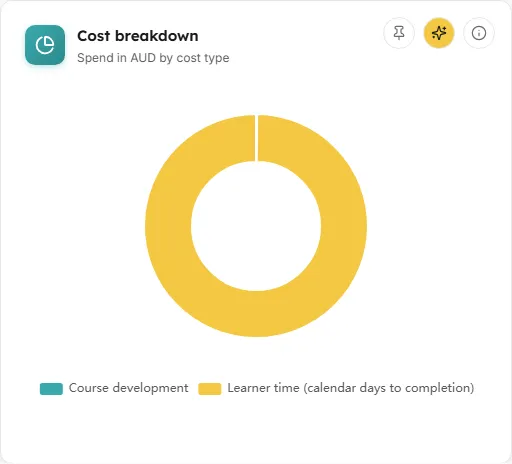
A doughnut of total spend split by cost type.
- How to read it: the slices are Course development and Learner time (calendar days to completion). Instructor time and Other are zero in this version, and slices with no spend are not drawn. Hover a slice for its amount and share.
- What you can do: info tooltip, Ask AI about this, Pin to dashboard.
- Empty state: “No spend recorded in this period.”
Spend trend
Section titled “Spend trend”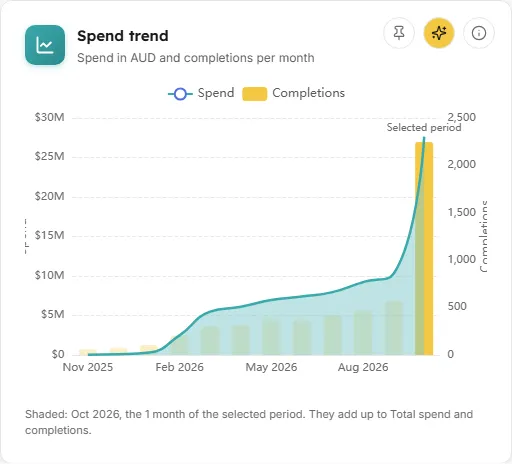
Monthly spend as a line, with completions as bars on the right-hand axis, so you can see whether rising spend is matched by rising output.
- Which months: the 12 months ending with the selected period’s last month. That is the current month for a period still running, or the period’s own last month for a past one (Last quarter ends with its third month, Last year with December). A longer custom period draws more months.
- Shading: the months of the selected period are shaded and labelled “Selected period”; the others are dimmed. The line under the chart names the shaded months and confirms they add up to the tiles’ Total spend and completions. A custom period that starts after the first of a month splits that month into two bars at its start day.
- How it is worked out: development spend is counted by enrolments starting in the month; learner-time spend by completions in the month. The same costed courses and enrolment rules as the tiles apply.
- What you can do: hover a month for spend and completions. Info tooltip, Ask AI about this, Pin to dashboard.
Top-cost courses
Section titled “Top-cost courses”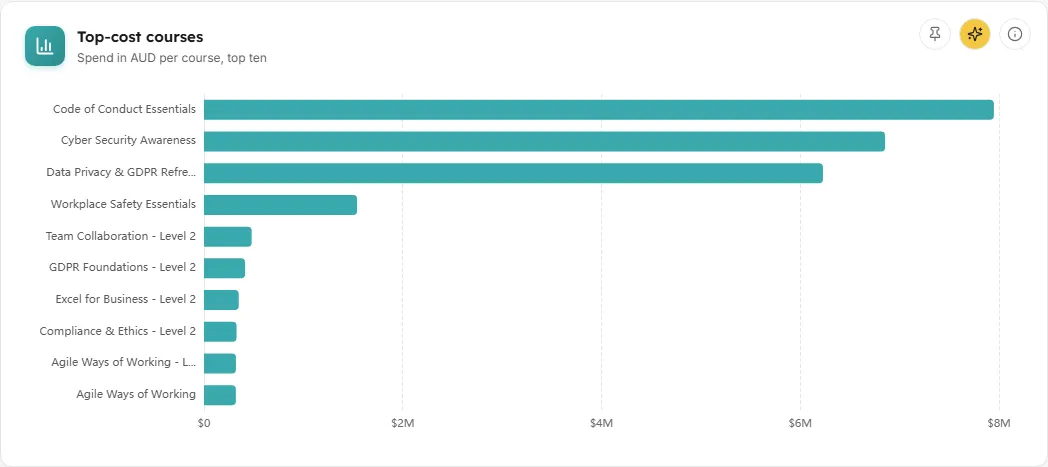
The ten courses with the highest total spend in the period, costliest at the top. It answers “where is our training money going?”.
- How it is worked out: each course’s development spend plus learner-time spend.
- What you can do: hover a bar for the course’s spend and completions. Info tooltip, Ask AI about this, Pin to dashboard.
- Empty state: “No courses with a cost basis in this period.”
Cost-effectiveness scorecard
Section titled “Cost-effectiveness scorecard”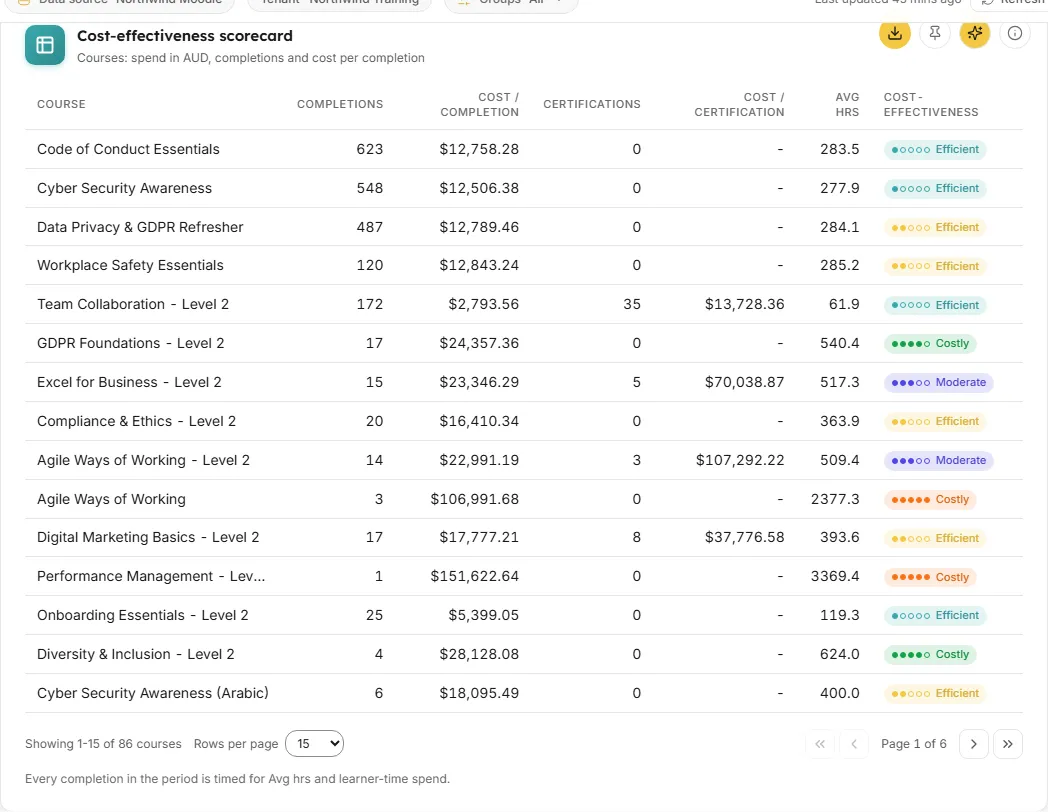
Every costed course with its output, cost ratios and a 1 to 5 cost-effectiveness rank.
- Columns: Course, Completions, Cost / completion, Certifications, Cost / certification, Avg hrs (average calendar hours to complete, with “N left out” where some completions have no time) and Cost-effectiveness.
- Cost-effectiveness rank: courses are ranked 1 to 5 by cost per completion against the others (1 is the lowest cost per completion). Ranks 1 and 2 read Efficient, 3 Moderate, 4 and 5 Costly. A course with no completions in the period is Unranked.
- Sorting: click any column heading; click again to reverse. The default order is highest total spend first.
- Under the table: a note saying either that every completion in the period is timed, or how many completions Avg hrs and learner-time spend leave out.
- What you can do:
- Click a row to open Course cost detail.
- Download CSV (file
training-roi-scorecard.csv) with Course, Completions, Cost / completion, Certifications, Cost / certification, Avg hrs, Completions left out of Avg hrs and Cost-effectiveness rank, for the rows on the current page. - Info tooltip, Ask AI about this, Pin to dashboard.
- Empty state: “No courses have a cost basis in this period yet.”
Impact correlation
Section titled “Impact correlation”
Where training lines up with measured business results (Kirkpatrick Level 4).
- How to read it: Level 4 needs outcome data such as incident rates, performance scores, retention or revenue, which a Moodle connection does not carry. LearnBoard never infers business impact from learning data alone. In this version the card shows a summary explaining that, and that the screen reports cost and completion outcomes (Levels 1 to 3) instead.
- What you can do: info tooltip, Ask AI about this, Pin to dashboard.
Course cost detail
Section titled “Course cost detail”The drawer that opens when you click a scorecard row.
- It shows Total spend, Course development, Learner time (calendar), Instructor time, Completions, Cost per completion, Certifications, Cost per certification, Avg time to complete, and Completions left out of the time.
- A short summary follows, for example that the course cost a given amount per completion across a number of completions, whether that makes it among the most cost-effective, mid-range or among the least cost-effective, and how much of its spend is learner time. With no completions it says a cost per completion cannot be worked out and gives the spend to date.
- Empty state: “No cost detail is available for this course in the selected period.”
- Close it with the close button, by clicking outside it, or with Escape.
Common questions
Section titled “Common questions”Why does changing the currency not change the numbers?
Section titled “Why does changing the currency not change the numbers?”The currency picker is display only. It relabels amounts and does no conversion. To work in another currency, change the currency in Training Cost Setup.
Why does learner time cost so much?
Section titled “Why does learner time cost so much?”Learner time uses calendar time from enrolment start to first completion, not time logged in the course. A learner who enrols and finishes three weeks later counts three weeks of hours at your learner hourly rate.