

Apprenticeship and On-Job Training
The Apprenticeship and On-Job Training screen answers: is every apprentice on track? It follows each apprentice’s on-the-job training (OJT) hours against their nominal-hours target, their workplace evidence, and what is still waiting on a supervisor sign-off. It is for apprenticeship coordinators, RTO training managers and workplace trainers who manage apprentices across employers and supervisors.
The screen is titled Apprenticeship & On-Job Training in the app.
At a glance
Section titled “At a glance”- Route:
/vet/apprenticeship. In the sidebar: VET & RTO, then Apprenticeship / On-Job Training. - Who can open it: the Admin and Manager roles by default, and the Team lead role. The Viewer role does not include the specialist sector screens by default, and the Learner role cannot open it.
- Plan: part of the VET & RTO pack. Without the pack the screen is greyed out with a lock in the sidebar and opens to a locked page.
- What it needs: a connected Moodle data source, plus apprenticeship records for that connection: each apprentice’s training arrangement, the on-the-job hours logged, and their workplace evidence. Moodle does not hold these, so LearnBoard keeps them in its own workspace records. Until they exist, the whole screen shows “No apprenticeship records yet”.
- Filters: Commencement cohort, Apprentice status, Employer or host, Supervisor and Sign-off state. Filters, sort and page are kept in the page address.
- Team leads: apprentices are limited to the people in the Team lead’s own Moodle groups.
- Exports: no CSV export on this screen.
Stat tiles
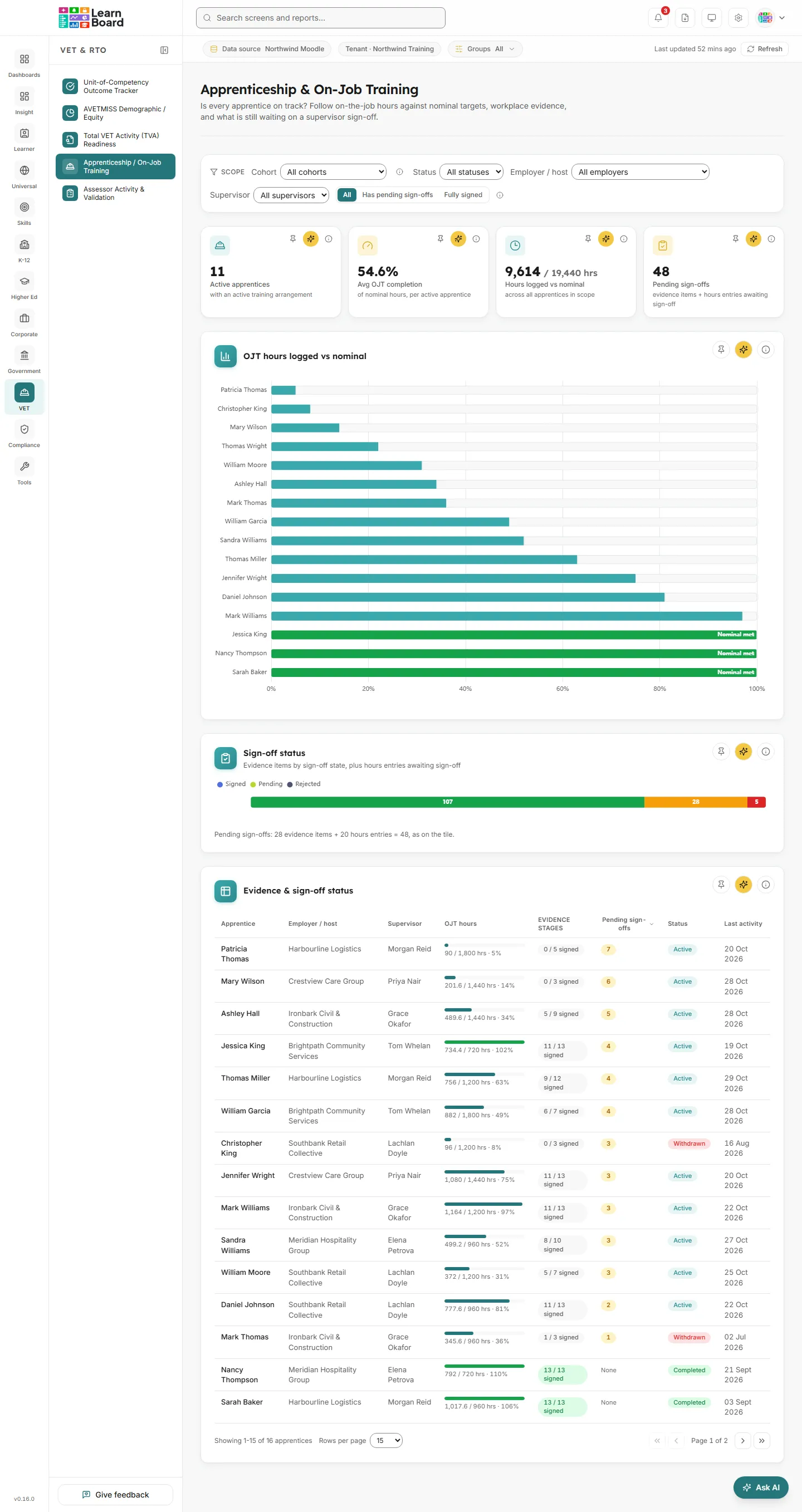
Section titled “Stat tiles”Four tiles sit across the top. Each has Pin to dashboard, Ask AI and an info button.
Active apprentices
Section titled “Active apprentices”
The number of apprentices currently in training.
- How it is worked out: distinct apprentice records with an Active status in the current scope. Completed, suspended and withdrawn apprentices are excluded.
- What you can do: pin it, Ask AI about it, or open the info text.
Avg OJT completion
Section titled “Avg OJT completion”How far, on average, active apprentices are through their on-the-job hours.
- How to read it: a percentage. Every active apprentice weighs the same.
- How it is worked out: each active apprentice’s on-the-job hours logged divided by their own nominal-hours target, capped at 100%, then averaged.
- What you can do: pin it, Ask AI about it, or open the info text. This differs from Hours logged vs nominal, which adds up hours across every apprentice in scope.
Hours logged vs nominal
Section titled “Hours logged vs nominal”The total on-the-job hours logged against the total nominal hours required.
- How to read it: two figures, for example “4,120 / 9,600 hrs”.
- How it is worked out: the sum of all on-the-job hours logged by every apprentice in scope, active or not, against the sum of their nominal-hours targets. Apprentices with more hours weigh more, and nothing is capped. The nominal target is the total workplace hours each apprentice’s training arrangement requires.
- What you can do: pin it, Ask AI about it, or open the info text.
Pending sign-offs
Section titled “Pending sign-offs”Everything waiting on a workplace supervisor.
- How it is worked out: evidence items and hours entries that have been submitted but not yet signed off by a workplace supervisor. Rejected evidence is not counted as pending.
- What you can do: pin it, Ask AI about it, or open the info text. Set the Sign-off state filter to Has pending sign-offs to list the apprentices concerned.
Charts and tables
Section titled “Charts and tables”OJT hours logged vs nominal
Section titled “OJT hours logged vs nominal”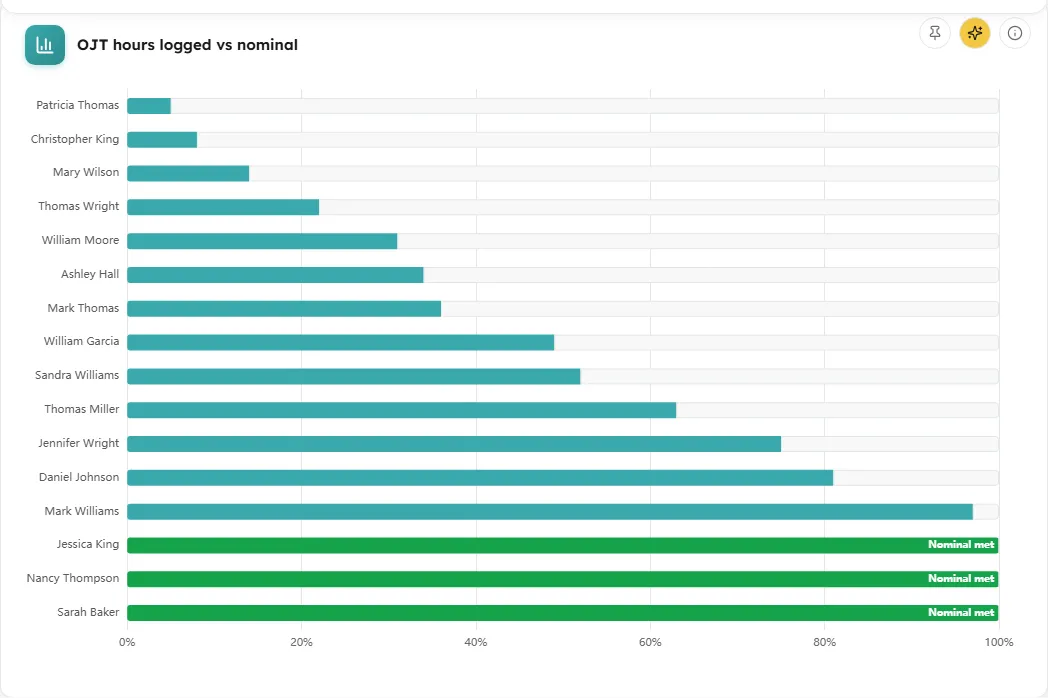
A bar for each apprentice showing on-the-job hours as a share of their nominal target, least-progressed first.
- How to read it: the filled segment is the hours logged; the muted segment is what remains to reach the target. A bar for an apprentice who has met the target is shown in full, labelled Nominal met. Hover a bar for “N hrs of N nominal hours (N%)”, the employer or host and the supervisor. Where logged hours exceed the target, the bar stops at the target and the tooltip shows the extra hours.
- How it is worked out: hours from the apprentice’s logged on-the-job entries, against the nominal-hours target on their training arrangement.
- What you can do: click a bar to open the apprentice’s detail and highlight their row in the table. Pin the chart, Ask AI about it, or open the info text.
- Empty state: “No apprentices match the current filters.”
Sign-off status
Section titled “Sign-off status”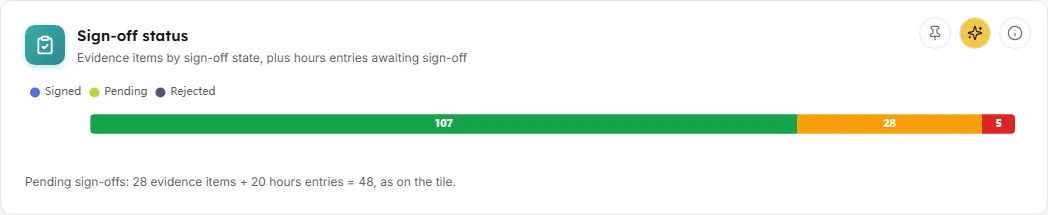
A single stacked bar of every workplace evidence item in scope by sign-off state.
- How to read it: three segments, Signed (a supervisor has attested), Pending (submitted, not yet signed) and Rejected (sent back by the supervisor). Hover a segment for its count and share. A line underneath adds it up, for example “Pending sign-offs: 14 evidence items + 6 hours entries = 20, as on the tile.”
- How it is worked out: every workplace evidence item in scope, grouped by its sign-off state.
- What you can do: pin the chart, Ask AI about it, or open the info text.
- Empty state: “No evidence items recorded for the current filters.”
Evidence and sign-off status
Section titled “Evidence and sign-off status”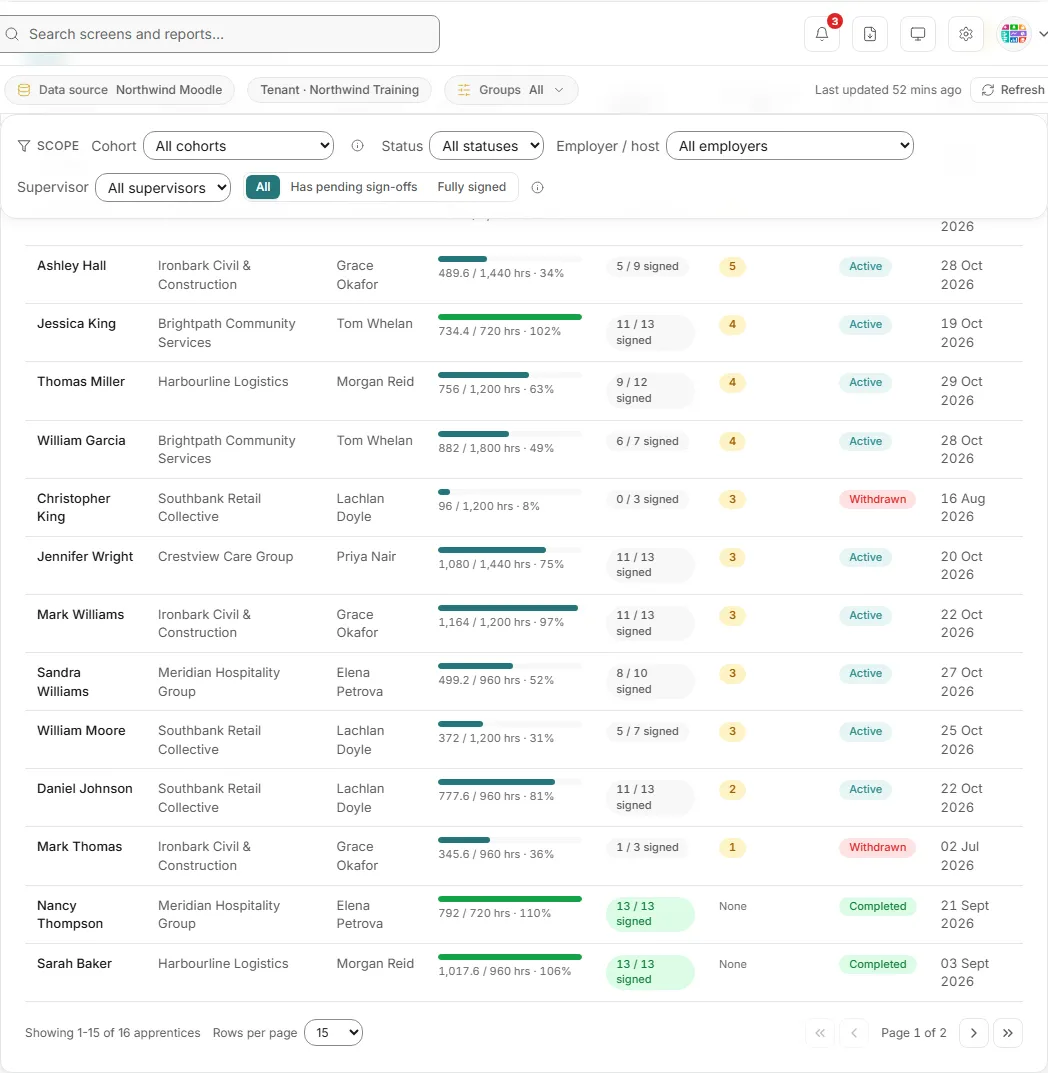
One row per apprentice: hours progress, evidence stages signed, and what is still waiting on a supervisor.
- Columns: Apprentice, Employer / host, Supervisor, OJT hours (a progress bar of logged against nominal), Evidence stages (“N / N signed”), Pending sign-offs (“None” when nothing is waiting), Status (Active, Completed, Suspended or Withdrawn) and Last activity.
- How it is worked out: OJT hours compares logged hours to the nominal target. Evidence stages counts signed items across all stages. Pending sign-offs adds unsigned hours entries to unsigned evidence items. Last activity is the most recent hours entry or evidence update.
- What you can do: click a column header to sort; the table opens sorted by pending sign-offs, most first. Click a row, or press Enter on it, to open the apprentice’s detail. Page through apprentices, 15 at a time by default, and change the page size. Pin the table, Ask AI about it, or open the info text.
- Empty state: “No apprentices match the current filters.”
Apprentice detail
Section titled “Apprentice detail”A side panel that opens when you click a bar or a table row.
- What it shows:
- A ring showing hours progress, with “N / N hrs” and either “Nominal target met” or “of the nominal on-the-job target”, and the number of pending sign-offs.
- Commenced and Expected completion dates.
- Evidence stages: a stepper across the ordered stages, then each stage’s items with their sign-off state, for example “Signed by” a supervisor on a date.
- Hours log: each entry’s date and hours, marked Signed when a supervisor has signed it.
- How evidence stages are worked out: a stage is Completed when every item in it is signed off, In Progress when some items are signed, and Not Started when none are. Rejected items count as not signed until they are resubmitted and signed.
- What you can do: click a stage in the stepper to highlight it. Close the panel with the close button, by clicking outside it, or with the Escape key.
- Empty states: “No workplace evidence recorded yet.” and “No on-the-job hours logged yet.”
When the screen is not set up yet
Section titled “When the screen is not set up yet”Apprenticeship tracking
Section titled “Apprenticeship tracking”The panel that replaces every card when no apprenticeship records exist for the connection. This is expected, not an error.
- What it says: “No apprenticeship records yet. No apprenticeship records are connected for this scope yet. Once apprentice training arrangements, on-the-job hours, and workplace evidence are recorded, workplace progress, supervisor sign-offs, and hours-versus-target tracking appear here automatically.”
Filters and buttons
Section titled “Filters and buttons”- Commencement cohort: “All cohorts” or one commencement year, shown as for example “2025 commencements”. It groups apprentices by the calendar year their training arrangement commenced.
- Apprentice status: “All statuses”, Active, Completed, Suspended or Withdrawn.
- Employer or host: “All employers” or one employer.
- Supervisor: “All supervisors” or one supervisor.
- Sign-off state: All, Has pending sign-offs or Fully signed.
- Changing a filter sends the table back to its first page.
Common questions
Section titled “Common questions”Why do Avg OJT completion and Hours logged vs nominal disagree?
Section titled “Why do Avg OJT completion and Hours logged vs nominal disagree?”They answer different questions. Avg OJT completion averages active apprentices one by one, each capped at 100%. Hours logged vs nominal adds up raw hours across every apprentice in scope, active or not, with no cap.
Is rejected evidence counted as pending?
Section titled “Is rejected evidence counted as pending?”No. Rejected evidence is not pending. It counts as not signed until it is resubmitted and signed.
Where do the hours and evidence come from?
Section titled “Where do the hours and evidence come from?”From the apprenticeship records held for your workspace: training arrangements, on-the-job hours entries and workplace evidence items. Moodle does not hold them, and nothing is inferred.