

Data sources
Connect a live read-only learning-platform database, connect through the Moodle plugin, or upload an SQL dump. Data sources
The Admin console is where a workspace administrator configures their LearnBoard workspace: data sources, users, branding, reporting rules and billing. It is a page of tiles, one per administration area, at /admin.
At a glance
view.sidebar.admin).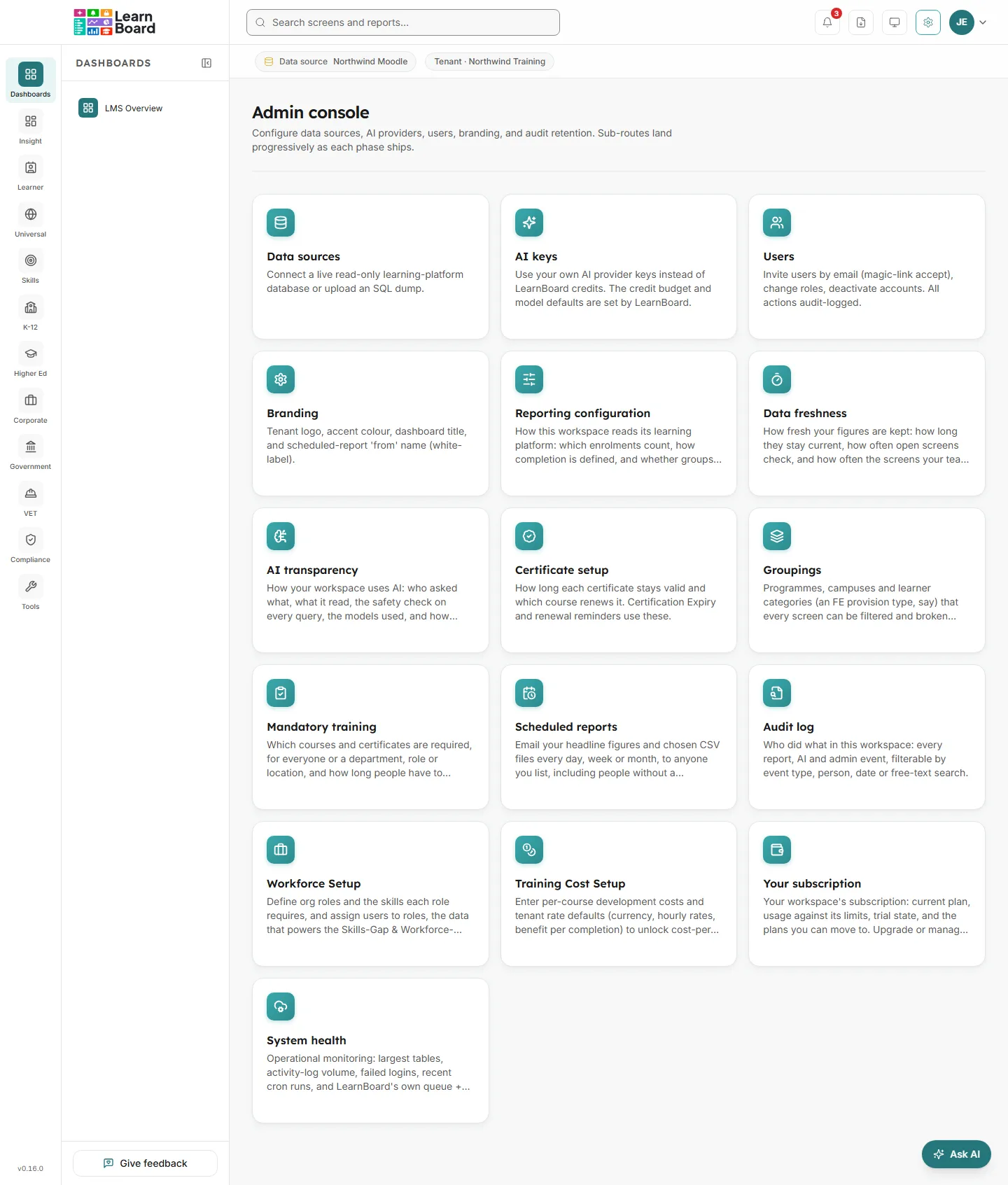
These are the tiles a workspace administrator sees, in the order they appear.
Data sources
Connect a live read-only learning-platform database, connect through the Moodle plugin, or upload an SQL dump. Data sources
AI keys
Use your own AI provider keys instead of LearnBoard credits, on plans that include it. The credit budget and model defaults are set by LearnBoard.
Users
Invite users by email, change roles, deactivate accounts. All actions are audit-logged. Users and invitations
Branding
Logo, menu and chart colours, dashboard title and the scheduled-report sender name. Branding
Reporting configuration
The activity label, activity tags, excluded courses, cohort matching and time zone. Reporting configuration
Data freshness
How long figures stay current and how often they are worked out again. Data freshness
AI transparency
Who asked the AI what, what it read, the safety check, models and ratings. AI transparency
Certificate setup
How long each certificate stays valid and which course renews it. Certificate setup
Groupings
Programmes, campuses, learner categories, partner access and placement tags. Groupings
Mandatory training
Required courses and certificates, who they apply to, and the deadline. Mandatory training
Scheduled reports
Email headline figures and CSV files on a schedule. Scheduled reports
Audit log
Every report, AI and admin event in this workspace. Audit log
Workforce Setup
Org roles, the skills each role requires, and who holds them. Workforce setup
Training Cost Setup
Course costs and rate defaults for Training ROI. Training cost setup
Your subscription
Your plan, usage against its limits, trial state and the plans you can move to. Your subscription
System health
Operational monitoring of your learning platform’s largest tables, activity-log volume, failed logins and recent cron runs.
Three areas are sold rather than included on every plan: Scheduled reports, Audit log and AI keys. When your plan does not include one, its tile stays on the page, greyed and not clickable, with a lock label naming the cheapest plan that includes it, for example “On Business and up”, or “Not in your plan” when no plan offers it. Change plan from Your subscription.
Only the Admin role has the Admin console in its menu. Managers, Viewers and Learners do not. Several areas are also guarded by their own permission, listed on each page in this section; see Roles and permissions.