LearnBoard works out every figure from your Moodle data under one set of rules, so a word like “Enrolments” means the same on every screen. This page explains how figures are saved and kept fresh, which time zone dates are read in, what is left out, and why a LearnBoard number can differ from a Moodle report. It is for anyone checking a figure, and for administrators setting freshness and time zone.
Working a figure out means asking your Moodle site, and on a large site that takes time. So LearnBoard saves each figure once it is worked out and serves the saved figure to the next person, while a newer one is worked out in the background.
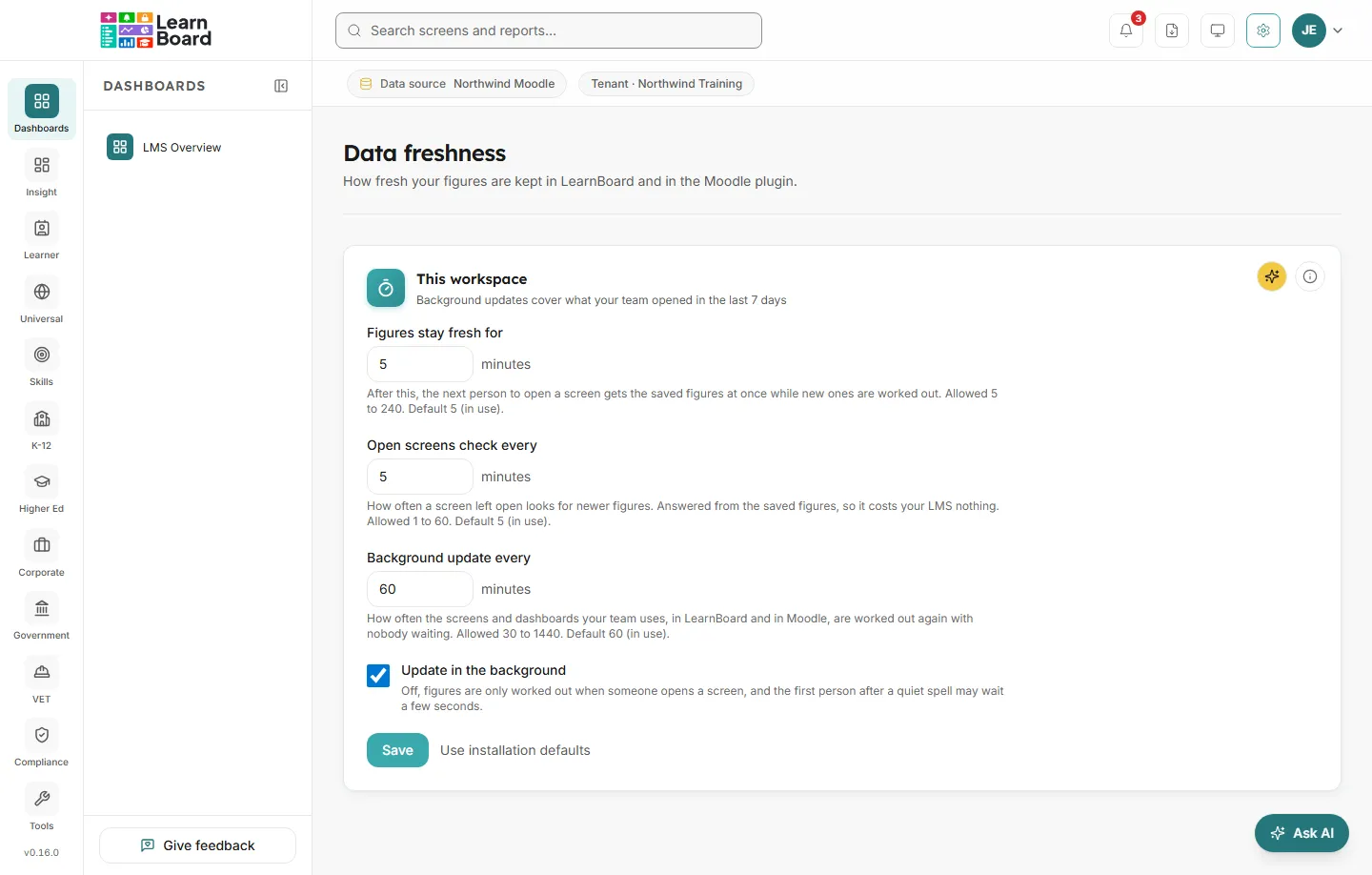
A workspace Admin sets three timings under Admin console, Data freshness. LearnBoard and the Moodle plugin both follow them.
Setting
What it does
Figures stay fresh for
After this, the next person to open a screen gets the saved figures at once while new ones are worked out.
Open screens check every
How often a screen left open looks for newer figures. Answered from the saved figures, so it costs your LMS nothing.
Background update every
How often the screens and dashboards your team uses, in LearnBoard and in Moodle, are worked out again with nobody waiting.
Data freshness: how long figures stay fresh, how often open screens check, and how often figures are updated in the background.
Shorter times mean newer figures and more questions to your Moodle site. The heavy counting happens on your Moodle site, so a large site may prefer longer times. A workspace can only choose within the range LearnBoard allows.
The bar under the top bar shows Last updated on every data screen, with a Refresh button.
The age shown is the oldest figure the screen is using, so it never claims more freshness than the screen has.
Refresh drops your workspace’s saved figures and reloads every chart on the screen, each of which works its figure out again. It can be used about once a minute per workspace.
Some screens need a lot of work the first time. They show Preparing this view with “We’re building this from your latest data, it’ll appear here automatically.” The screen fills in by itself when the figures are ready. See slow first load.
Every day-based figure (a day’s total, a month on a trend, “Last 90 days”) is read on your workspace clock. Days run from midnight to midnight in that time zone.
LearnBoard picks the time zone in this order:
Your workspace’s own choice. A workspace Admin sets Time zone under Reporting configuration in the Admin console.
The Moodle site’s time zone, when Same as the Moodle site is chosen and LearnBoard can read it. It can read it from a direct database connection or an uploaded copy. Through the Moodle plugin it cannot, because the plugin rightly refuses the table where Moodle keeps its settings.
The LearnBoard default, when neither is available. The setting then says “The Moodle site’s own time zone could not be read, so the LearnBoard default is used.”
The setting also shows which zone is in use, for example “Days currently run midnight to midnight, Europe/London time.” Every day-based chart says which zone it uses.
“Last 90 days” is today and the 89 days before it, from midnight on the workspace clock to the end of today. The same is true for every “Last N days” window, so the words cover the same days on every card. An enrolment or completion that Moodle dates after today (for example in imported or test data) belongs to no window yet, and cards that would place it say so.
LearnBoard does not hide figures for small groups. A group of two shows as two. The people who can open these screens are already allowed to see the individuals behind them, so hiding small figures would only hide them from the people entitled to them.
A LearnBoard figure and a Moodle report can both be right and still disagree, because they count different things. The most common reasons:
Reason
What happens
Staff are left out
Moodle’s participant lists include teachers. LearnBoard’s enrolment and learner figures do not.
Completion is broader
Moodle’s course completion report counts course completions. LearnBoard also counts an enrolment as completed when every tracked activity is done, or a certificate was issued in the course.
Hidden activities and quizzes
Moodle reports may include them. LearnBoard leaves them out.
Suspended enrolments
Moodle may list them. LearnBoard leaves them out.
One enrolment per learner per course
A learner enrolled two ways appears twice in some Moodle views. LearnBoard counts them once.
Courses hidden from analytics
Your workspace’s excluded courses are left out of every LearnBoard figure, but Moodle still reports on them.
Time zones
Moodle shows dates in each person’s own time zone. LearnBoard splits days on the workspace clock, so an event near midnight can fall on a different day.
Saved figures
A LearnBoard figure may be up to the freshness time old. Press Refresh to work it out again.
Active means any activity
LearnBoard’s Active counts any logged activity in the last 30 days, a sign-in included. A Moodle report based on last access, or on a different period, can give another number.
Learners against user accounts
Learner figures count people with an active student enrolment. User account figures count every account.
The plan’s learner accounts are a different number
Your subscription shows Learner accounts: every learner account on your connected Moodle sites, the figure your plan’s learner limit counts. It is not the Learners figure on the dashboards, which counts people with an active student enrolment.