

Connect with the Moodle plugin
The LearnBoard Moodle plugin is the quickest way to connect Moodle. You install one free plugin in Moodle, make a connection code in LearnBoard, and paste the code into the plugin. LearnBoard then reads Moodle through your own Moodle address, so the database is never opened to the outside and no database password leaves your server.
At a glance
- Who can do this in LearnBoard: the Admin role, with Manage tenant data sources (
manage.data-sources). - Who can do this in Moodle: a Moodle site administrator.
- Your Moodle must be served over https, on a public address.
- One plugin does everything: the data connection, LearnBoard charts on Moodle pages, and sign-in from Moodle.
- Tested on Moodle 4.0 to 5.3.
Where do I start?
Section titled “Where do I start?”The four steps appear in two places, and both are the same guide:
- In the setup walkthrough, under Connect your learning platform, press Connect with the Moodle plugin.
- In Admin console, Data sources, with the Moodle plugin tab chosen (it is chosen by default), under Connect with the Moodle plugin.
Each step opens only once the one before it is done. A locked step says “Finish step 1 first” (or the step before it).
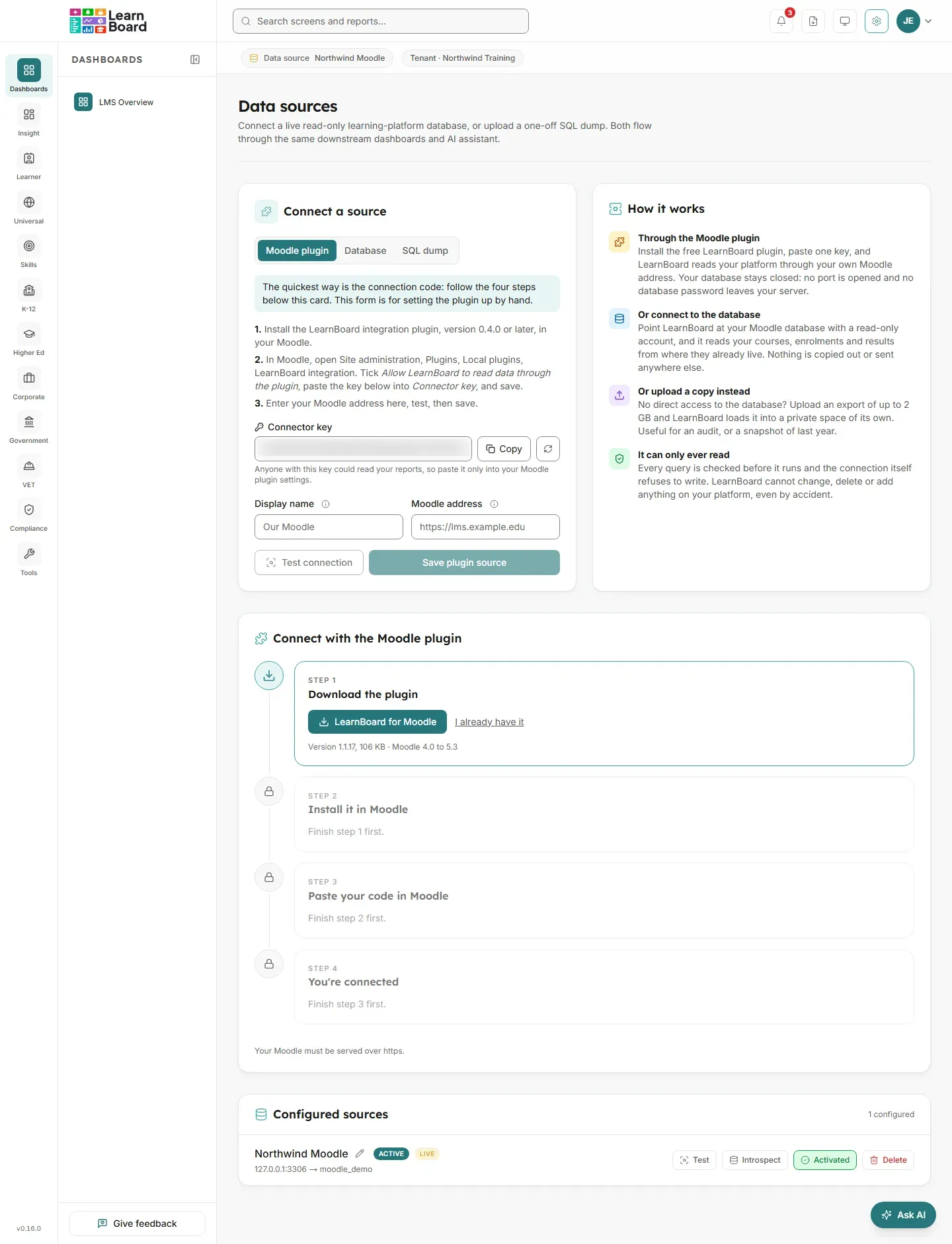
Connect, step by step
Section titled “Connect, step by step”-
Download the plugin
Press LearnBoard for Moodle to download the plugin ZIP. The line under the button gives the version, its size and the Moodle versions it is tested on. If you already have the ZIP, press I already have it.
-
Install it in Moodle
In Moodle, go to Site administration, Plugins, Install plugins. Drop in the ZIP, press Install, then Upgrade. Back in LearnBoard, press It’s installed.
LearnBoard remembers steps 1 and 2 for this workspace in your browser, because they happen outside LearnBoard.
-
Paste your code in Moodle
Press Make a connection code. The code appears once, in a box with a Copy button. Copy it.
In Moodle, go to Site administration, Plugins, Blocks, Connect to LearnBoard. Paste the code into Connection code and press Save changes.
-
You’re connected
This step turns green on its own once the code is saved in Moodle, so there is nothing to refresh. While it waits it says “Waiting for your Moodle. This turns green on its own once the code is saved there.”
When the connection is made it reads “Connected to” your Moodle address, followed by either “Your dashboards are reading it now” or “Switch it on in Data sources to start reading it.”
What happens when the code is saved?
Section titled “What happens when the code is saved?”Saving the code makes your Moodle introduce itself to LearnBoard. LearnBoard then proves the address really is that site by reading from it with the workspace’s own key, and only a site holding the same code can answer. On success:
- A data source of type Moodle plugin appears on Data sources, named after your Moodle’s address. You do not type anything in LearnBoard.
- The source is switched on straight away if the workspace reads nothing yet. If the workspace already reads another source, it keeps that one until you choose; press Activate on the new source when you are ready.
- LearnBoard learns the Moodle database name and table prefix from the plugin.
- Your workspace has a ready-made LMS Overview dashboard, which Moodle shows first.
How do I check it worked?
Section titled “How do I check it worked?”-
In LearnBoard, open Data sources. Under Configured sources, the new row shows the Moodle plugin badge, Active, and a status of
okwith when it was last checked. -
Press Test on that row. It turns to Connected when LearnBoard reaches Moodle through the plugin.
-
In Moodle, the Connect to LearnBoard page says “Connected on” a date, followed by “LearnBoard is reading this site.” If it says “Switch this site on in LearnBoard, Admin, Data sources, to start reading it,” press Activate on the source in LearnBoard.
-
Open a dashboard in LearnBoard. Figures from your Moodle appear.
For the Moodle side in more detail, including the plugin’s other settings, see Connect the plugin.
Making a new code
Section titled “Making a new code”Once a code exists, the panel says when it was made and offers Make a new code. Making a new one stops the current code at once, so LearnBoard asks first: “The current code stops working at once. Every Moodle using it loses its charts until the new code is saved there.” Choose Keep current code or Make a new code, then paste the new code into Moodle the same way. Pasting a new code into a connected Moodle connects it again.
Setting the plugin up field by field
Section titled “Setting the plugin up field by field”Below a freshly made code, Setting the plugin up field by field instead shows the four values the code contains, for a Moodle administrator who prefers to fill in the plugin’s connection fields one by one:
| Value | What it is |
|---|---|
| API base URL | The address of the LearnBoard API the plugin talks to. |
| Tenant slug | Your workspace’s short name. |
| Embed API key | The workspace key for charts and sign-in from Moodle. |
| Connector key | The key LearnBoard signs its data requests with. |
The Moodle plugin tab on Data sources also has a form for adding a plugin source entirely by hand: it shows a Connector key (with Copy and a button to make a new key), a Display name and the Moodle address. Paste the key into the plugin’s Connector key setting in Moodle, tick Allow LearnBoard to read data through the plugin, save, then press Test connection and Save plugin source in LearnBoard. Saving needs a successful test first. The new source then needs Activate.
Common problems
Section titled “Common problems”When a test or connection fails, LearnBoard shows a plain reason and what to change. These are the reasons that come from the plugin route.
| Message | What to do |
|---|---|
| The Moodle address must start with https://. | Use the https address of your site. LearnBoard only reads Moodle over an encrypted connection. |
| That Moodle address cannot be used. | Use the public address people type to open your Moodle. Private and internal network addresses are refused. |
| The Moodle site could not be reached. | Check the address. It must be the one people use to open the site, and reachable from the internet. |
| The LearnBoard plugin was not found on that Moodle site. | Check the address, and that the plugin is installed. |
| The Moodle plugin did not accept this connector key. | Copy the connector key into the plugin settings in Moodle exactly as shown (Copy key on the source copies it). With a connection code, check that Moodle has the newest code. |
| The data connector is switched off in the Moodle plugin. | In the plugin settings in Moodle, tick Allow LearnBoard to read data through the plugin. |
| The Moodle plugin only answers over https. | Use the https address. If the site sits behind a proxy that handles https, the Moodle administrator must set sslproxy in Moodle’s config.php. |
| The Moodle plugin does not accept requests from this LearnBoard server. | In the plugin settings, add the LearnBoard server’s address to LearnBoard server addresses, or leave that setting empty. |
| That Moodle runs on a database LearnBoard cannot read yet. | LearnBoard reads Moodle sites on MySQL or MariaDB. |
| The plugin could not reach the Moodle database. | If a read-only database user is set in the plugin settings, check its name and password. |
| The Moodle database could not be put into read-only mode, so the plugin refused to run any query. | Set a read-only database user in the plugin settings, or ask the database administrator why session settings are refused. |
| The Moodle site is busy and asked us to come back shortly. | LearnBoard waits and tries again on its own. If it keeps happening, raise Requests to answer at once in the plugin settings, or read at a quieter time. |
| The Moodle server clock is too far from the correct time. | Ask whoever runs the Moodle server to turn on automatic time synchronisation. |
| The Moodle plugin could not record this request to stop it being replayed. | The Moodle data directory must be writable by the web server. Check the permissions of its temp folder. |