

Reporting configuration
Reporting configuration holds the rules LearnBoard uses when it reads your learning platform: what the activity metric is called, which modules count as activities, which courses are left out of analytics, whether a cohort name repeated across courses is one group of people, and which time zone a day runs in.
At a glance
- Who can open it: any role with Edit per-tenant reporting configuration (
manage.reporting-config), which the Admin role has. Other roles are sent back to the dashboard. - Where: Admin console, Reporting configuration. The address includes your workspace’s number, for example
/admin/tenants/12/reporting-config. You can only open your own workspace’s. - A new workspace starts with: activity label Learning activities, no excluded courses, no activity tags (count all), and each course’s cohorts kept separate.
- Saving takes effect on the next screen you open. Every save is written to the audit log.
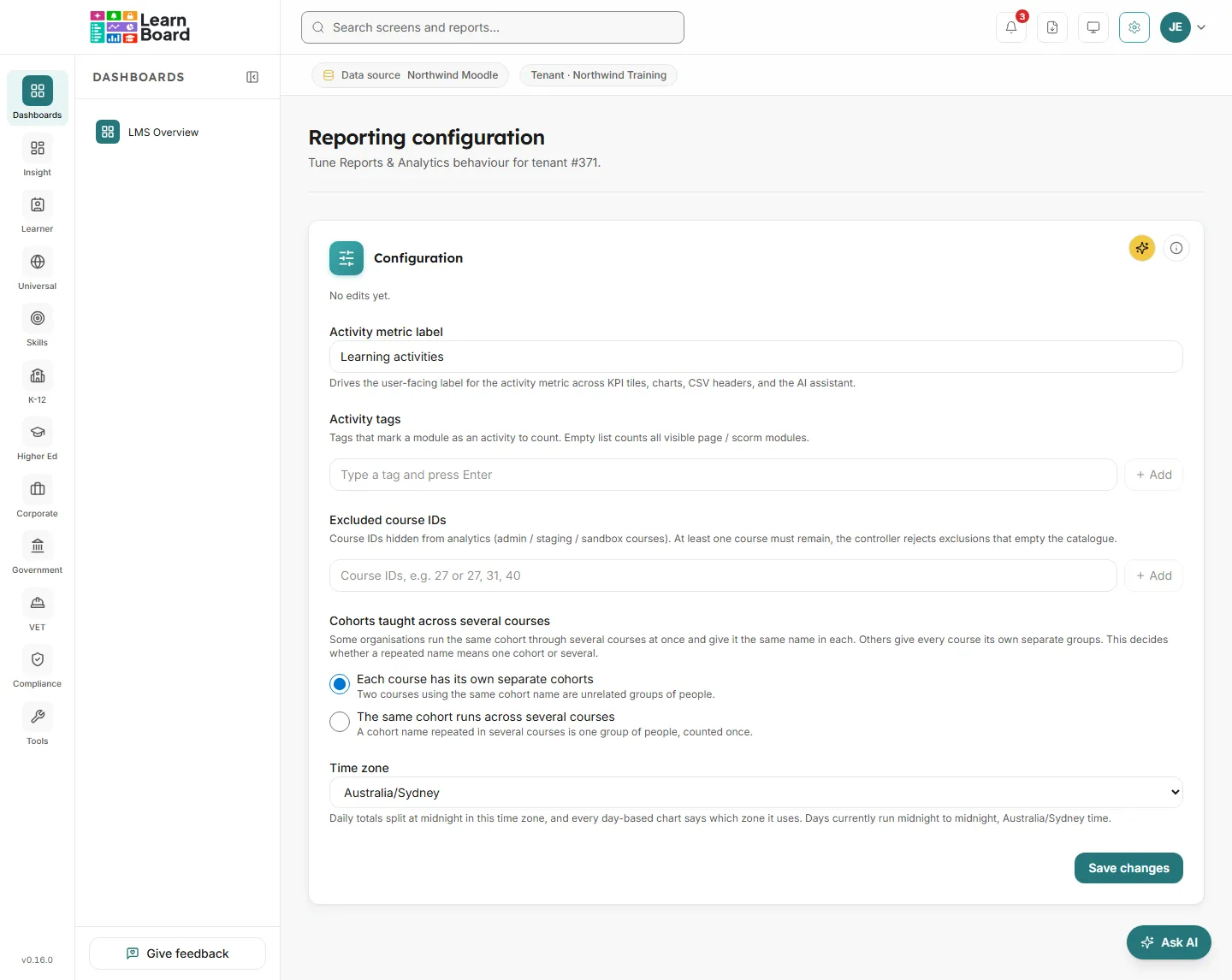
The settings
Section titled “The settings”| Setting | What it does |
|---|---|
| Activity metric label | The name people see for the activity metric across KPI tiles, charts, CSV headers and the AI assistant. Required, up to 64 characters. |
| Activity tags | Tags that mark a module as an activity to count. With an empty list, all visible page and SCORM modules count. Type a tag and press Enter, or press Add. Remove one with its cross. |
| Excluded course IDs | Moodle course IDs hidden from analytics, such as admin, staging or sandbox courses. Enter one ID, or several separated by commas or spaces, and press Add. At least one course must remain, so you cannot exclude every course. |
| Cohorts taught across several courses | Decides whether a cohort name repeated in several courses is one group of people or several. See below. |
| Time zone | Where daily totals split at midnight. Every day-based chart says which zone it uses. Same as the Moodle site follows Moodle’s own time zone. |
Press Save changes. LearnBoard says “Reporting configuration saved.” The top of the form says who last edited it and when, or “No edits yet.”
Cohorts taught across several courses
Section titled “Cohorts taught across several courses”Some organisations run the same cohort through several courses at once and give it the same name in each. Others give every course its own separate groups. Choose the one that matches yours:
- Each course has its own separate cohorts: two courses using the same cohort name are unrelated groups of people.
- The same cohort runs across several courses: a cohort name repeated in several courses is one group of people, counted once.
When a data source is activated, LearnBoard reads your platform and preselects the answer, marked “Chosen for you from your data.” with its reason. Choosing differently is kept: LearnBoard checks again every night, but never overrides a choice you made yourself. Getting this right is what stops the same cohort appearing several times in a filter.
Time zone
Section titled “Time zone”When Moodle’s own time zone can be read, the first option shows it in brackets after Same as the Moodle site. The note under the field says which zone days currently run in. If Moodle’s time zone could not be read, the note says LearnBoard’s default is being used.
Change a setting
Section titled “Change a setting”- Open Admin console, Reporting configuration.
- Change the fields you need.
- Press Save changes.
- Open a dashboard. The new label, exclusions or time zone apply straight away.