

Ask AI on a card
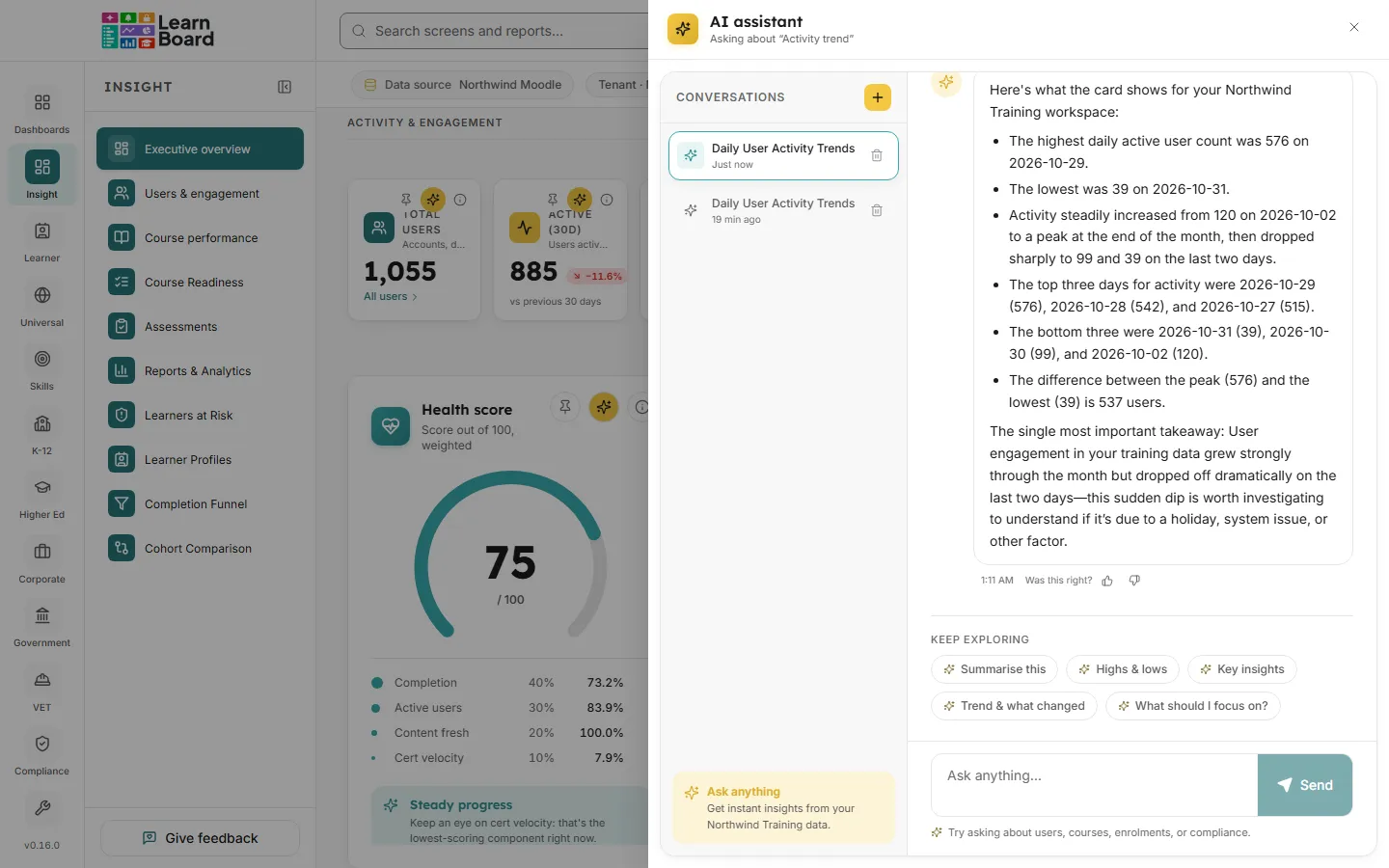
The Ask AI button is the sparkle in the top-right corner of a card. It opens the AI assistant already looking at that card, so you can ask what it shows without describing it first. It is for anyone whose role includes the AI assistant.
At a glance
- One click opens a panel with five ready-made questions about the card.
- The assistant gets the card’s title, its unit line, its explanation and the figures it is showing.
- Every Ask AI starts a fresh conversation about that card.
- It only reads, and only what your role is allowed to see.
How do I ask about a card?
Section titled “How do I ask about a card?”- Press the sparkle button on the card (Ask AI about this).
- A panel slides in from the side, headed AI assistant and Asking about the card’s title.
- Pick one of the starter questions, or type your own into Ask anything… and press Send or Enter.
- Read the answer. Under it, Keep exploring offers the same five questions again.
- Press Close or Escape to go back to the screen.
The five starter questions
Section titled “The five starter questions”- Summarise this: what the card shows in plain English, with the key figures and the single most important takeaway.
- Highs & lows: the highest and lowest values, with the actual figures and when they occurred.
- Key insights: the key numbers, notable patterns and what they mean for decisions.
- Trend & what changed: the overall trend over the period shown, how it changed, and what might be driving it.
- What should I focus on?: what to pay attention to or act on next, and the biggest opportunities or risks.
What does the assistant see?
Section titled “What does the assistant see?”When you press the button, the card hands over:
- its title, unit line and explanation;
- the figures it is drawing. A chart passes its plotted figures. A table passes its rows as they are on screen at that moment, with the page, sort and filters you have chosen. Any other card passes the text it is showing.
- on a screen about one person or one course, who or what the screen is about, so “Strengths and Gaps” is read as that person’s.
Because the figures come from the screen, the Groups filter and any filters on the screen are already applied to what the assistant reads.
What can I do with the answer?
Section titled “What can I do with the answer?”- Change the picture. When an answer has a set of figures, it shows them as a chart, with buttons for a bar chart, a line chart or a table, and a pie chart where the figures suit one. Figures that do not suit a chart are shown as a table.
- Download CSV of the answer’s figures.
- Pin the result to one of your dashboards, as a card saved from the AI assistant.
- Was this right? Press thumbs up or thumbs down. Your workspace administrator can see how often answers were rated right.
Related
Section titled “Related”AI assistantThe full-screen assistant and its conversation history.
The Info buttonThe card's own explanation, without AI.
Pin to dashboardKeep a card, or an AI answer, on a dashboard.
Roles and what each person seesWho can use the assistant and what it can read.