

Assessment Analytics Deep-Dive
The Assessment Analytics Deep-Dive diagnoses one quiz at a time, question by question. It shows which questions are too hard, too easy, unfairly worded, or have wrong answers that catch too many learners. Teachers, assessment designers, managers and team leads use it to review and improve their quizzes.
At a glance
Section titled “At a glance”- Route:
/insights/assessment-analytics. In the sidebar it sits under Universal as Assessment Analytics Deep-Dive. The chosen quiz is kept in the address as?quizId=, so a copied link opens the same quiz. - Who can open it: the Admin and Manager roles hold it by default. Viewer does not, because the Universal screens are held back from Viewer until a workspace administrator grants them. Team lead can open it, with every figure limited to the people in their own Moodle groups. Learner cannot.
- Plan: part of the Universal pack, included on the Business, Scale and Enterprise plans. The Pro plan includes the Universal pack but withholds this screen, and Free does not include the pack. On a plan without it, the screen shows a locked view: “This dashboard is not included in your current plan.” on Pro, or “Part of the Universal pack, not included in your current plan.” on Free, with Compare plans, Back to Executive Overview, and View plans & upgrade for people who manage billing.
- Filters on the screen: the Quiz picker. The Groups filter in the bar under the top bar narrows every figure too.
- Team leads: a Your groups only pill shows in the bar under the top bar. Every figure counts only the people in your own Moodle groups.
- Refresh: figures for each quiz are saved for up to an hour. Refresh in the bar under the top bar works them out again.
Which attempts are counted
Section titled “Which attempts are counted”Every card on this screen counts the same attempts: finished attempts by learners enrolled in the quiz’s course. Teacher previews, staff, suspended people, and abandoned and in-progress attempts are left out. Attempts are counted as attempts, never as learners, so one learner who sits a quiz three times adds three.
Choose a quiz
Section titled “Choose a quiz”- Open Assessment Analytics Deep-Dive from the Universal section of the sidebar.
- Click the Quiz box, which reads “Select a quiz to begin” until you choose one.
- Type part of the quiz name in “Search quizzes by name…”, or scroll the list.
- Click a quiz. The tiles, charts and table appear below.
Until you choose a quiz the screen shows “Pick a quiz to start the deep-dive” and “We’ll surface attempt KPIs, per-question performance, and distractor analysis.”
Quiz picker
Section titled “Quiz picker”A searchable list of the quizzes in your workspace.
- What each row shows: the quiz name, then its course, its topic, the number of finished learner attempts, the average score, and the date of the last attempt (“Never” when nobody has finished it). The same line shows under the quiz name once it is chosen.
- Order: quizzes with the most attempts come first, then by name. Quizzes nobody has attempted are listed too, so you can spot quizzes that exist but are not being used.
- Which quizzes are listed: the same quizzes as the Assessments screen. A quiz hidden in its course, or in a course hidden from analytics in Settings, is not listed.
- Average score: learners’ finished attempts as a percentage of the quiz’s maximum marks. It shows a dash when nobody has finished the quiz.
- Messages: “Loading quizzes…”, “No quizzes match.” when your search finds nothing, and “Couldn’t load the quiz list.” if the list fails to load.
Headline tiles
Section titled “Headline tiles”Four tiles sit at the top once a quiz is chosen. Each one has Pin to dashboard, Ask AI and an info button.
Total attempts
Section titled “Total attempts”
The number of finished attempts at this quiz by learners enrolled in its course.
- How to read it: this counts attempts, not people. Previews, staff, suspended people, and abandoned and in-progress attempts are left out.
- What you can do: pin it, Ask AI, or open the info button.
Pass rate
Section titled “Pass rate”The share of finished attempts that reached the quiz’s pass grade.
- How to read it: a dash means the quiz has no pass grade set in Moodle, so there is no pass mark to count against.
- How it is worked out: finished attempts at or above the pass grade, divided by all finished attempts. Each attempt’s marks are scaled to the quiz’s grade before they are compared with the pass grade, so the comparison matches the grade Moodle shows.
- What you can do: pin it, Ask AI, or open the info button.
Avg attempt time
Section titled “Avg attempt time”How long a finished attempt took on average, from starting it to submitting it, shown in minutes and seconds.
- How to read it: this is how long an attempt took, not how long the course took. A dash means no finished attempt has a recorded start and finish.
- How it is worked out: the average over the finished attempts with a recorded start and finish; attempts with no gap between the two are left out rather than counted as zero.
- What you can do: pin it, Ask AI, or open the info button.
Difficulty rating
Section titled “Difficulty rating”A one-word rating of the quiz from its average score: Easy, Medium, Hard or Very Hard.
- How to read it: the line underneath gives the average score as a percentage of the maximum. With no finished attempts the tile reads “No attempts yet”.
- How it is worked out: the average score across finished attempts as a percentage of the quiz’s maximum marks. 80% or more is Easy, 60% to 80% is Medium, 40% to 60% is Hard, and below 40% is Very Hard.
- What you can do: pin it, Ask AI, or open the info button.
Charts
Section titled “Charts”Clicking any question in the three charts opens the question detail drawer.
Per-question performance
Section titled “Per-question performance”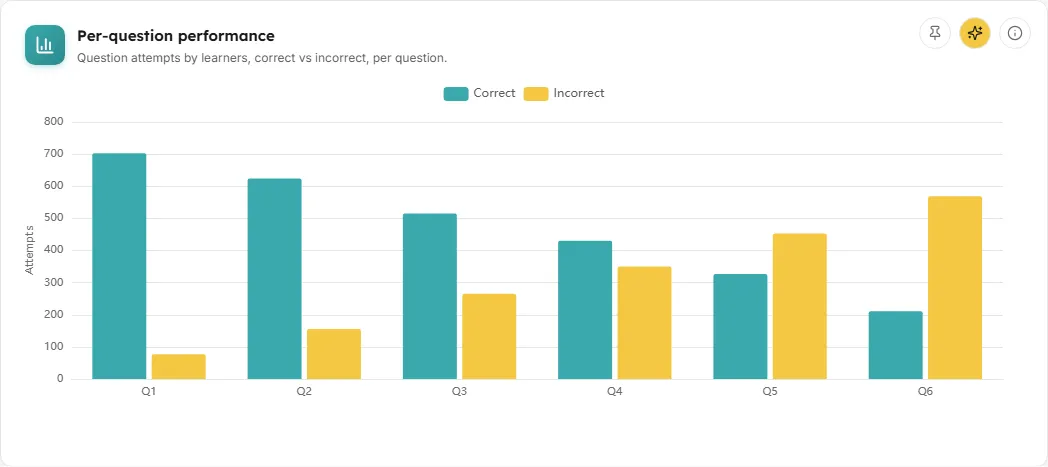
Two bars for each question in the quiz, labelled Q1, Q2 and so on by its place in the quiz: Correct and Incorrect.
- How to read it: a tall Incorrect bar beside a short Correct bar marks a question most learners get wrong. Hover a question to see its name, the start of the question text, both counts, and “Correct (share)% · (n) attempts”.
- How it is worked out: each learner’s finished attempt is split into correct or incorrect on the final graded step of the question. Partly correct answers count as incorrect on this chart.
- What you can do: click a bar to open the question detail drawer. You can also pin the chart, Ask AI, or open the info button.
- Empty state: “No per-question data available. This quiz has no finished attempts yet, or the underlying question-attempt records aren’t accessible.”
Question difficulty map
Section titled “Question difficulty map”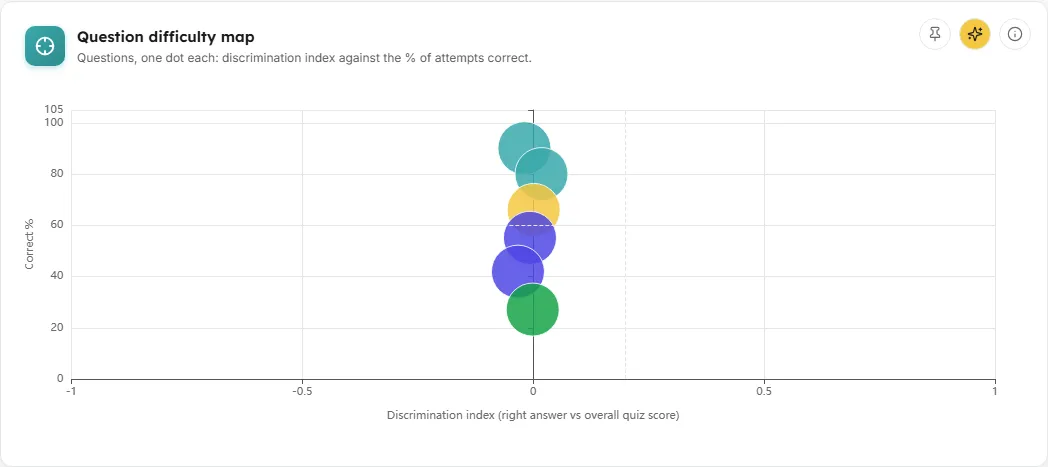
One dot per question, placed by how often it is answered correctly (up) and how well it separates strong learners from weak ones (across).
- The two axes:
- Correct % (up): the share of attempts at the question that ended correct.
- Discrimination index (right answer vs overall quiz score) (across): how closely getting this question right goes with the attempt’s overall score on the quiz, from -1 to 1. Above 0 means learners who score well overall tend to get it right.
- How to read it: dashed lines at 60% correct and an index of 0.2 split the map into four. Hover a dot to see which one it is in:
- “Most attempts correct (60% or more) and separates strong from weak learners: working well”
- “Under 60% of attempts correct, but learners who score well overall get it right: a fair stretch”
- “Most attempts correct (60% or more), but separates strong from weak learners little”
- “Under 60% of attempts correct and does not separate strong from weak learners: review the wording”
- Dots: bigger dots have more attempts. The colour follows the question’s difficulty: 80% correct or more is easy, 60% to 80% medium, 40% to 60% hard, below 40% very hard.
- Questions not plotted: a line under the map names any questions it leaves off, for example questions “with no attempts yet”, or “with no discrimination index (every attempt scored the same on the question or on the quiz)”.
- What you can do: click a dot to open the question detail drawer. You can also pin the chart, Ask AI, or open the info button.
- Empty state: the same “No per-question data available” message as Per-question performance.
Time on question
Section titled “Time on question”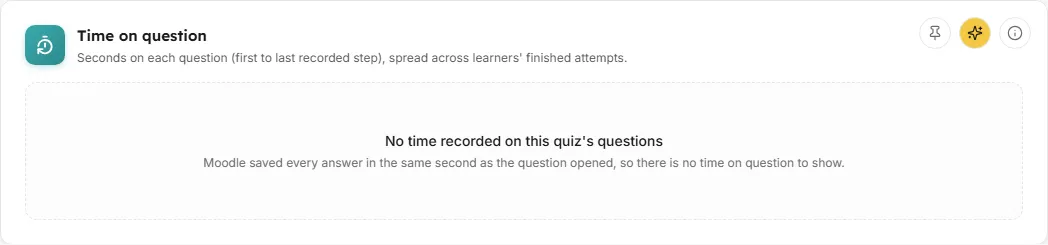
A box for each question showing how much the time spent on it varies between learners.
- How to read it: each box runs from the 25th to the 75th percentile with the median marked. The whiskers run from the fastest time to the 95th percentile. A wide box flags a question worth a closer look. Hover a box for Min, P25, Median, P75 and P95, and the number of timed attempts.
- How it is worked out: time on a question is the gap between the first and last step Moodle recorded on it. Times above the 95th percentile are not drawn, because the slowest are usually learners who left the question open. A question attempt with only one step, or with every step saved in the same second, records no time and is left out.
- Questions with no time: a line under the chart says, for example, “1 question records no time and is not shown.” When no question on the quiz records a time, the card reads “No time recorded on this quiz’s questions” and “Moodle saved every answer in the same second as the question opened, so there is no time on question to show.”
- What you can do: click a box to open the question detail drawer. You can also pin the chart, Ask AI, or open the info button.
Distractor analysis
Section titled “Distractor analysis”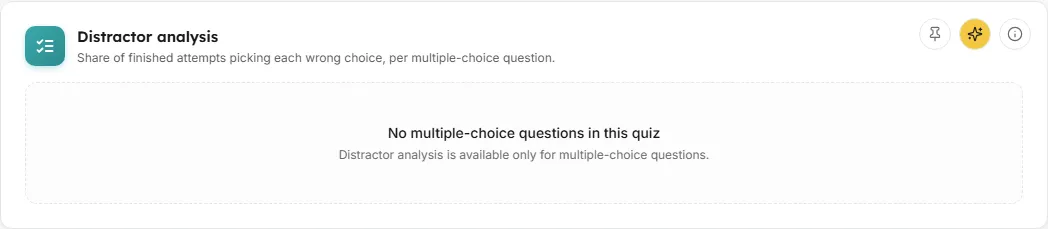
For each multiple-choice question, the wrong answers (distractors) learners picked most often.
- Columns: Q, Question, Correct answer, Distractor 1 (% picked), Distractor 2, Distractor 3, Attempts and Flag.
- How to read it: each distractor shows its text and the share of finished attempts that picked it, the most picked first. A distractor picked by 40% or more is highlighted, and the question is flagged Most-confused; hover the flag to see which answer it is. A distractor that catches that many learners often means the question or the answer is unclear.
- Sorting and pages: sorted by question order by default. Click Q, Question, Attempts or Flag to sort; a third click goes back to question order. 10 questions a page.
- What you can do: click a row (or press Enter on it) to open the question detail drawer. Download CSV saves every row as
distractor-analysis.csv, with the columns Q, Question, Correct answer, Distractor 1 (% picked), Distractor 2, Distractor 3, Attempts and Flag. You can also pin the table, Ask AI, or open the info button. - Empty state: “No multiple-choice questions in this quiz. Distractor analysis is available only for multiple-choice questions.”
Question detail
Section titled “Question detail”Question detail drawer
Section titled “Question detail drawer”A panel that slides in from the right when you click a question in any chart or in the distractor table. Its heading is the question’s place and name, such as “Q3: (question name)”.
- What it shows:
- The question text and the Correct answer.
- Attempts, Correct (count and share), Incorrect (wrong plus partly correct answers) and Avg time. Avg time averages only the attempts with a recorded time; when some have none it adds “(n of m timed)”, and when none do it reads “No time recorded”.
- Discrimination index, to two decimal places, with a reading: “Strong, high scorers tend to get this right.” at 0.3 or more; “Acceptable, modest signal between strong and weak performers.” from 0.1; “Low, barely separates strong from weak performers.” from 0; and “Negative, high scorers get this wrong more often than low scorers. Review wording.” below 0. A dash with “Not enough variation to compute (everyone scored the same on this question).” when it cannot be worked out.
- Recommendation, one of: “Consider removing, answer too predictable in either direction” (more than 95% or fewer than 10% correct), “Review wording, high scorers get it wrong more than low scorers” (negative index), “Review wording, most learners miss this” (under 30% correct), or “Well-calibrated, discriminates between strong and weak performers”. With no attempts it reads “No attempts yet, so there is nothing to judge this question on”.
- Answer choice breakdown for multiple-choice questions: every choice, marked right or wrong, with how many attempts picked it and the share.
- How the discrimination index is worked out: the correlation between getting this question right (1 for correct, 0.5 for partly correct, 0 for wrong) and the attempt’s overall score on the quiz.
- What you can do: close it with the close button, by clicking outside it, or with Escape.
- Error state: “Couldn’t load this question. It may have been deleted.”
Common questions
Section titled “Common questions”Why is a quiz missing from the picker?
Section titled “Why is a quiz missing from the picker?”The picker lists the same quizzes as the Assessments screen. A quiz hidden in its course, or in a course hidden from analytics in Settings, is left out.
Why does Pass rate show a dash?
Section titled “Why does Pass rate show a dash?”The quiz has no pass grade set in Moodle, so there is no pass mark to count against. Once the quiz has a grade to pass in Moodle, the tile fills in.
Why are some questions missing from the difficulty map?
Section titled “Why are some questions missing from the difficulty map?”A question with no attempts has no correct share, and a question where every attempt scored the same (on the question or on the whole quiz) has no discrimination index. The line under the map counts them.
Why does Time on question say no time was recorded?
Section titled “Why does Time on question say no time was recorded?”Moodle records time on a question as the gap between its first and last step. When every answer is saved in the same second the question opened, there is no gap to measure.