Download and install
This page is for the Moodle administrator. It takes you from downloading the plugin to the point where it is installed and waiting for its connection code.
At a glance
Section titled “At a glance”- The file is
block_learnboard-2026103103.zip, version 1.1.21, about 122 KB. - Install it from Site administration > Plugins > Install plugins, or copy the folder to
blocks/learnboard. - Finish the install on Site administration > Notifications.
- No setting needs filling in during the install. You connect it afterwards with one code.
Where to download it
Section titled “Where to download it”In LearnBoard, open Admin, Data sources. Under Connect with the Moodle plugin, step 1 Download the plugin has a LearnBoard for Moodle button. Click it to download the ZIP. If you already have it, click I already have it.
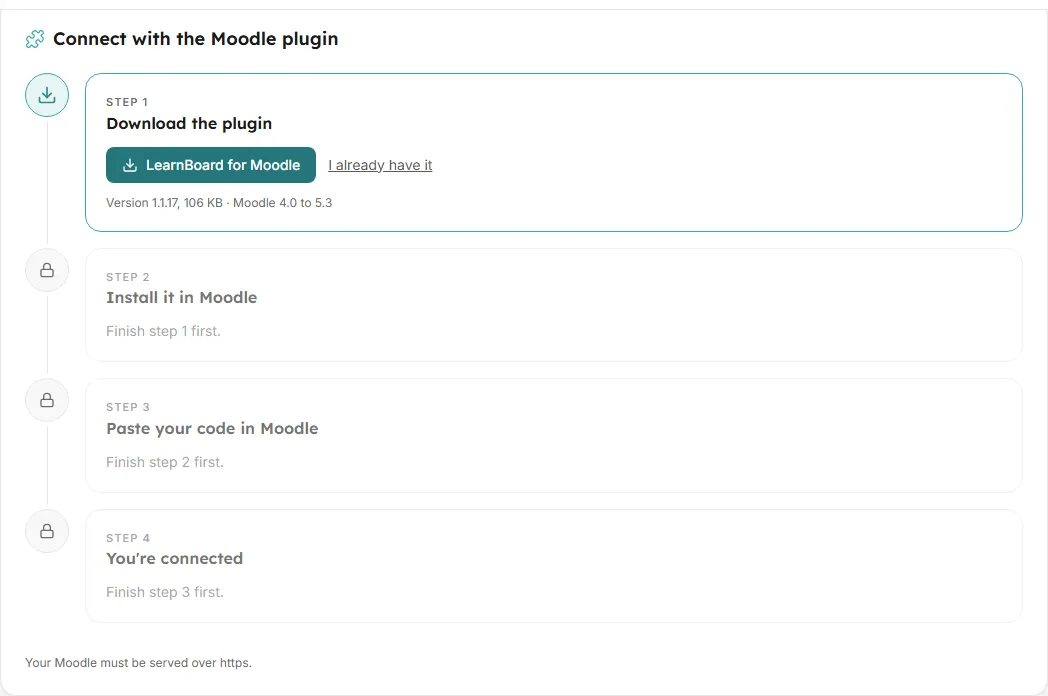
The source is public at github.com/NASMAK-Technologies/moodle-block_learnboard. Download a release ZIP, or the repository as a ZIP, and install it the same way.
Install by uploading the ZIP
Section titled “Install by uploading the ZIP”-
Sign in to Moodle as a site administrator.
-
Go to Site administration > Plugins > Install plugins.
-
Under Install plugin from ZIP file, drop the ZIP on ZIP package or click Choose a file… and pick it.
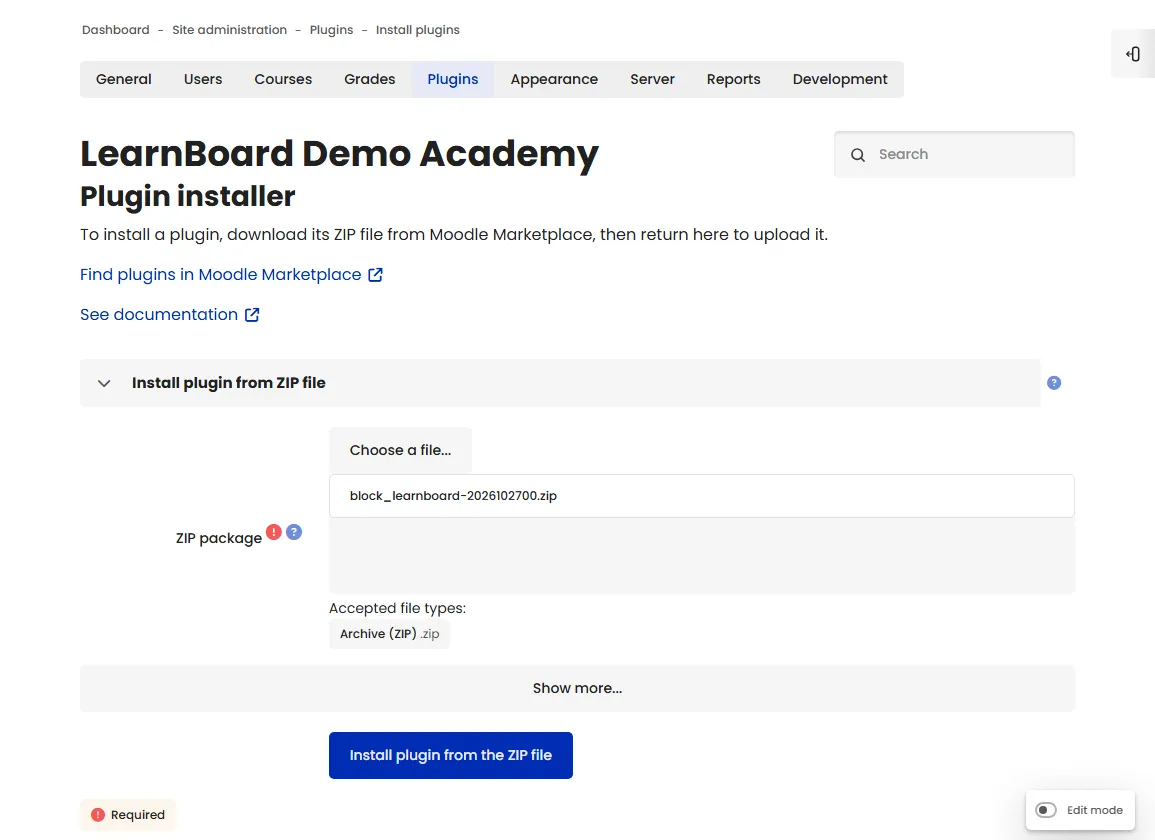
Site administration > Plugins > Install plugins, with the LearnBoard ZIP chosen. -
Click Install plugin from the ZIP file. Moodle checks the package and shows Validation successful, installation can continue. Click Continue.
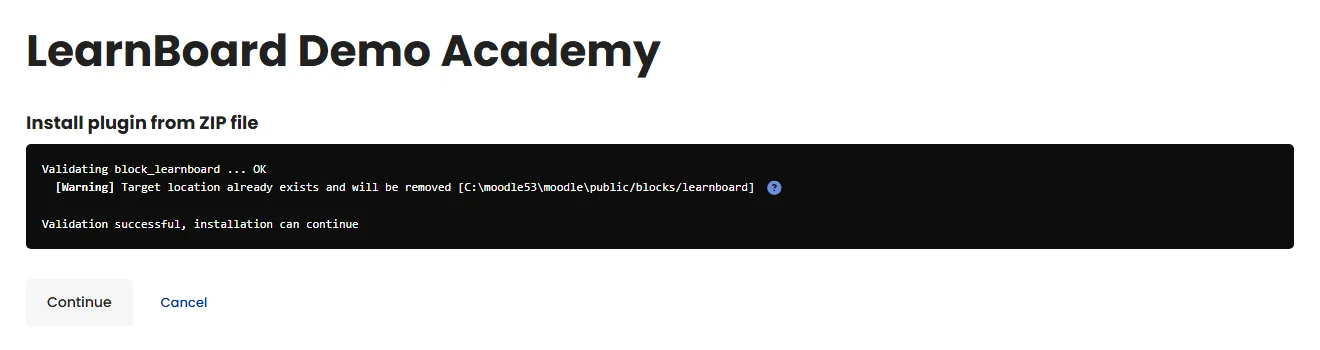
Moodle validates the package. On an upgrade it warns that the old folder will be replaced. -
Moodle opens Plugins check with LearnBoard under Blocks. Click Upgrade Moodle database now.
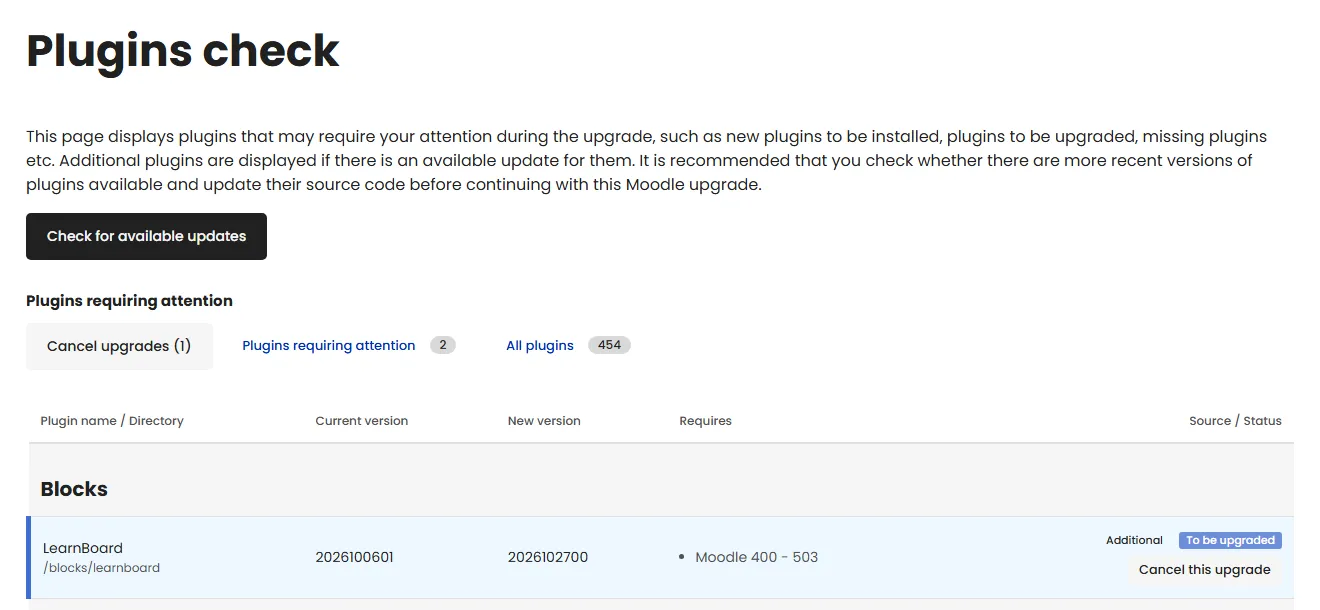
Plugins check lists LearnBoard under Blocks. -
When you see Success, click Continue.
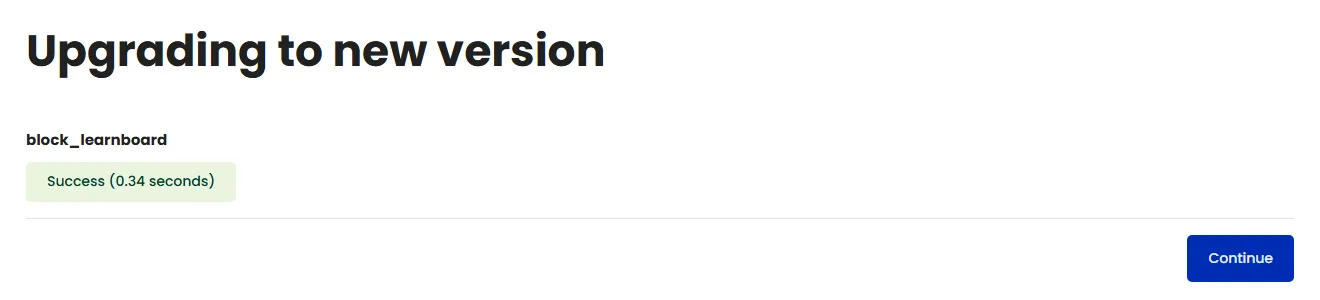
The install stores every setting’s default for you, so Moodle does not stop on a long page of optional settings. The next thing to do is paste the connection code.
Install by copying the folder
Section titled “Install by copying the folder”If your Moodle does not allow installing plugins from the browser, copy the files yourself.
-
Unzip the file. It holds one folder,
learnboard. -
Copy that folder into your Moodle’s
blocksfolder, so the plugin sits atblocks/learnboard(on Moodle 5.1 and later,public/blocks/learnboard). -
Sign in as a site administrator and go to Site administration > Notifications. Moodle lists LearnBoard on Plugins check.
-
Click Upgrade Moodle database now, then Continue.
Check it is installed
Section titled “Check it is installed”Open Site administration > Plugins > Plugins overview. LearnBoard is listed under Blocks as block_learnboard, with its version number and a Settings link.
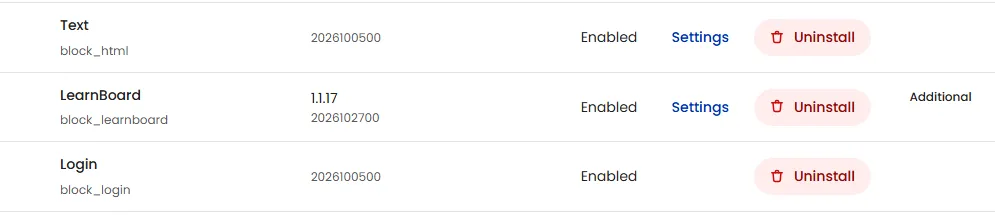
Under Site administration > Plugins > Blocks you now have three pages:
- LearnBoard: the plugin’s settings. See Plugin settings.
- Connect to LearnBoard (listed first): where you paste the connection code. See Connect to LearnBoard.
- LearnBoard advanced settings: technical fields. Change them only if support asks.
- Role mapping: which LearnBoard role each Moodle role receives. See Role mapping.