

Workforce setup
Workforce Setup is where you describe the jobs in your organisation: the roles people hold, the skills each role requires, and which people hold each role. The Skills-Gap and Workforce-Readiness analysis compares what each role requires with what the people in it actually hold. These are your organisation’s job roles, not LearnBoard sign-in roles.
At a glance
- Who can open it: the Admin role, with Manage workforce roles & skill requirements (
manage.workforce-setup). Anyone else sees “You do not have permission to manage workforce setup.” - Where: Admin console, Workforce Setup, at
/admin/workforce-setup. - Roles can sit under a parent role, to build a hierarchy.
- The roles you create here are also offered on Mandatory training as A role.
Create a role
Section titled “Create a role”-
Press New role. The Create a role card opens.
-
Fill in the form.
Field What to enter Role name Required, up to 120 characters, for example “Registered Nurse”. Description Optional: what this role does. Parent role No parent (top-level), or the role this one sits under. -
Press Create role.
Org roles
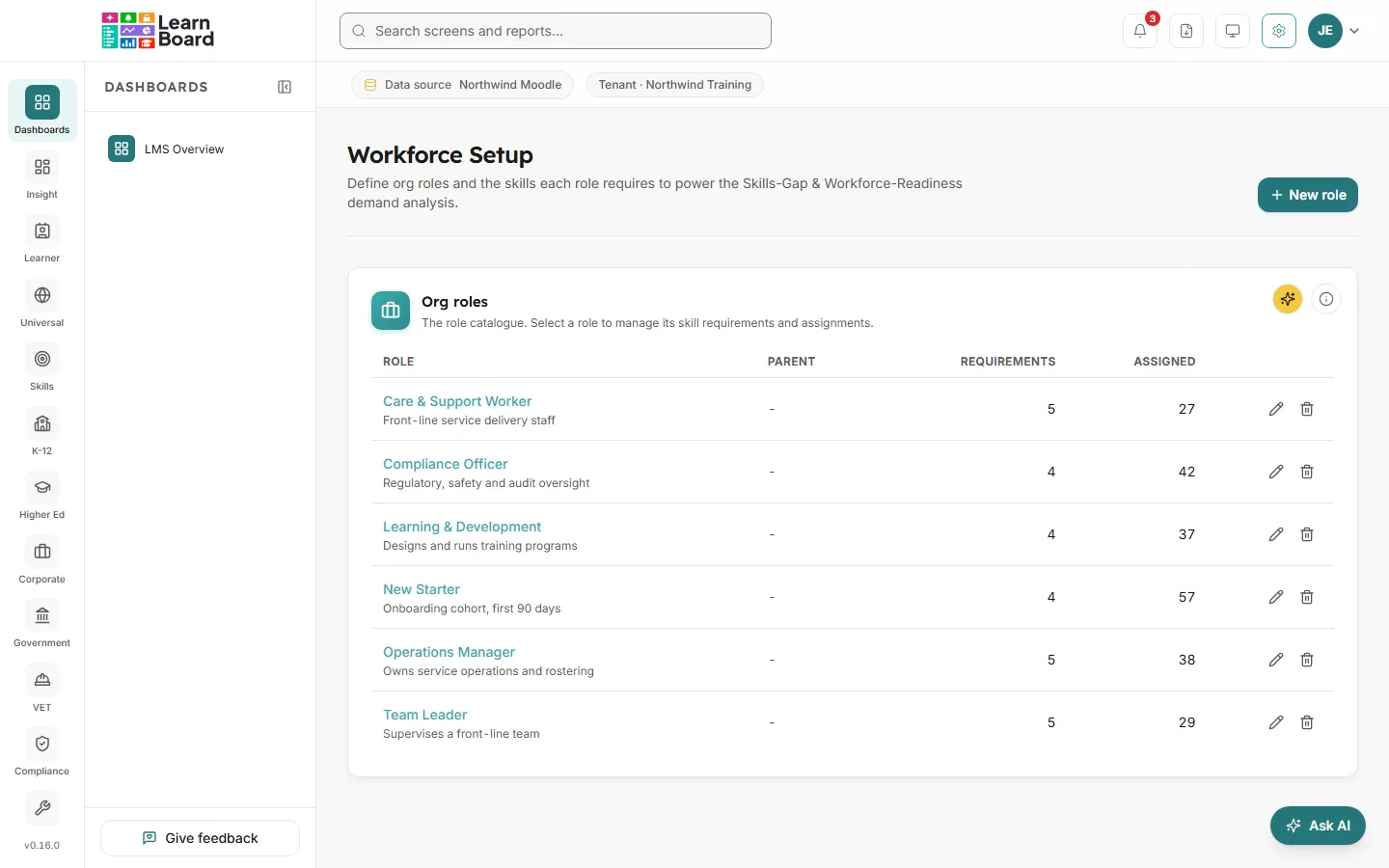
Section titled “Org roles”The role catalogue. Each row shows the Role, its Parent, the number of skill Requirements and the number of people Assigned. Select a role to manage its skill requirements and assignments. Edit a role with the pencil; delete it with the bin, which removes its requirements and assignments too.
Skill requirements
Section titled “Skill requirements”For the selected role, the card Skill requirements lists the skills it needs.
| Field | What it means |
|---|---|
| Skill / competency | The skill the role needs, for example “CPR Certification”. It is matched against a competency name on the Competency Matrix: a certificate, course or tag name. |
| Importance | Mandatory, Desirable or Nice to have. |
| Min proficiency | Emerging, Proficient or Advanced. |
Importance and minimum proficiency weight the gap the analysis reports. Add a requirement with Add requirement; edit or remove one from its row.
Assigned users
Section titled “Assigned users”The card Assigned users lists the people in your workspace who hold the selected role, with their email. Choose someone under Assign a user and press Assign to add them. Removing an assignment does not delete the person.