

AVETMISS Demographic and Equity
The AVETMISS Demographic and Equity screen shows completion outcomes across demographic groups and flags where a group falls behind the overall completion rate. It is for RTO compliance managers, equity and access officers and senior managers in vocational education and training who need to see whether every group of learners completes at a similar rate, using the demographic dimensions that AVETMISS records describe.
The screen is titled AVETMISS Equity Dashboard in the app, with the description “Completion outcomes across demographic groups”. It maps your AVETMISS demographic records onto real Moodle completion data. It does not submit anything to a regulator.
At a glance
Section titled “At a glance”- Route:
/vet/avetmiss-equity. In the sidebar: VET & RTO, then AVETMISS Demographic / Equity. - Who can open it: the Admin and Manager roles by default. The Team lead role does not include this screen. The Viewer role does not include the specialist sector screens by default, and the Learner role cannot open it.
- Plan: part of the VET & RTO pack. Without the pack the screen is greyed out with a lock in the sidebar and opens to a locked page.
- What it needs: a connected Moodle data source for enrolments and completions, plus AVETMISS demographic records for your learners on that connection. Until records are imported, the overall completion tile shows real figures and the breakdowns show “No demographic records have been imported for this connection yet”. The same demographic records feed the TVA Readiness screen.
- Filters: Cohort, Course or program (multi-select), Dimension, and a Cross with choice on the intersectional card. Filters are kept in the page address.
- Exports: none, by design. Demographic attributes are protected personal data, so there is no CSV button on this screen.
- Privacy: everything shown is an aggregate; no individual learner’s attributes are ever shown. Every view is recorded in the audit log. The info text on each card states the minimum group size in force. By default none is set, so every group is shown at its real size, including a group of one.

The demographic dimensions
Section titled “The demographic dimensions”The Dimension filter and the Cross with list offer eight dimensions:
- Gender
- Age band
- Prior education
- Language at home
- Location
- Labour force status
- Disability
- Indigenous status
Learners whose attribute is not recorded fall into a Not specified group. Not specified rows show data coverage; they are not counted as equity gaps.
How completion is counted
Section titled “How completion is counted”Enrolments are active learner enrolments, each person once per course: staff in that course, suspended enrolments and accounts, disabled enrolment methods and courses hidden from analytics are left out. An enrolment counts as completed when the course records a completion, every tracked activity shown in it is done, or a certificate was issued in it: the same rule as the dashboard.
Rates are completed enrolments divided by enrolments. See the definitions page for Enrolments and Completion rate.
Stat tiles
Section titled “Stat tiles”Four tiles sit across the top. Each has Pin to dashboard, Ask AI and an info button.
Overall completion
Section titled “Overall completion”
The completion rate for every learner in scope. This is the reference line every group is compared against.
- How to read it: a percentage to one decimal place, with “N of N enrolments completed” underneath.
- How it is worked out: completed enrolments over all enrolments in the current scope. It covers every in-scope learner, whether or not their demographic record has been imported.
- What you can do: pin it, Ask AI about it, or open the info text.
Widest equity gap
Section titled “Widest equity gap”The widest spread in completion rate between groups of any one dimension.
- How to read it: a figure in percentage points, with “across” and the dimension name underneath. A dash with “no comparable groups yet” means there is nothing to compare.
- How it is worked out: for each dimension, the completion-rate spread between its highest and lowest reportable groups. The widest spread across all dimensions is shown. Hidden groups and learners whose attribute is not recorded are left out.
- What you can do: pin it, Ask AI about it, or open the info text.
Demographics on file
Section titled “Demographics on file”How many in-scope learners have an imported AVETMISS demographic record.
- How to read it: a percentage, with “N of N learners” underneath. If this figure is low, read the group comparisons with caution, because the breakdowns only reflect learners whose records have been imported.
- How it is worked out: the share of in-scope learners (people with an active learner enrolment) with an imported demographic record.
- What you can do: pin it, Ask AI about it, or open the info text.
Flagged dimensions
Section titled “Flagged dimensions”The number of dimensions with at least one group well below the overall rate.
- How it is worked out: dimensions where at least one reportable group sits 5 percentage points or more below the overall completion rate. Groups between 2 and 5 points below are a Watch, not a Gap.
- What you can do: pin it, Ask AI about it, or open the info text. Use the Equity gaps by group table to see which groups.
When no demographic records are imported
Section titled “When no demographic records are imported”No demographic records imported
Section titled “No demographic records imported”The panel shown in place of the charts and table until AVETMISS demographic data exists for the connection. This is expected for a new workspace.
- What it says: overall completion above reflects every in-scope learner. The equity breakdowns, group comparisons, the intersectional view and the gap table populate once AVETMISS demographic data is imported for this connection.
- What you can do: the four tiles stay live. Nothing below them is made up to fill the space.
Charts and tables
Section titled “Charts and tables”Completion by group
Section titled “Completion by group”
A bar chart of the completion rate for each group in the dimension you picked. The title follows the Dimension filter, for example Completion by gender or Completion by age band.
- How to read it: one bar per group. The dashed vertical reference line is the overall completion rate; bars left of it, tinted amber, are below the scope-wide rate.
- How it is worked out: completed enrolments over enrolments for the learners in each group.
- What you can do: change the Dimension filter to switch dimension. Pin the chart, Ask AI about it, or open the info text.
- Empty state: “No learners with a recorded” dimension “fall inside the current filters.”
Intersectional equity
Section titled “Intersectional equity”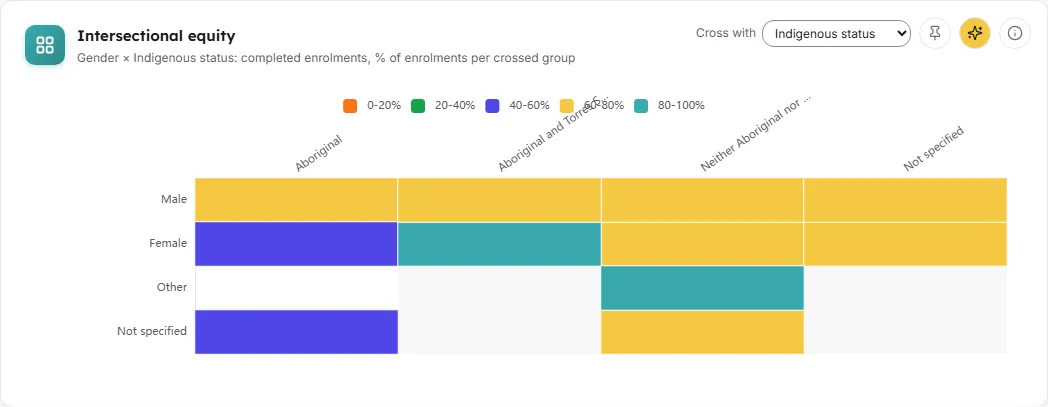
A heatmap crossing two dimensions, so you can see how learners who belong to two groups at once are doing. The unit line names both dimensions, for example “Gender × Indigenous status: completed enrolments, % of enrolments per crossed group”.
- How to read it: rows are groups of the focused dimension and columns are groups of the second. Each cell is coloured by a completion-rate band: 0-20%, 20-40%, 40-60%, 60-80% and 80-100%. Hover a cell for its completion rate and its learners and enrolments.
- How it is worked out: for each cell, completed enrolments over enrolments for learners in both groups.
- What you can do: use Cross with in the card’s corner to pick the second dimension (Indigenous status by default). Click a cell to open the crossed-group summary. Pin the chart, Ask AI about it, or open the info text.
Crossed-group summary
Section titled “Crossed-group summary”A summary that opens under the heatmap when you click a cell.
- What it shows: Learners, Enrolments, Completion rate and Gap vs overall for the learners who belong to both groups.
- How it is worked out: only aggregate figures are shown, never individual learners. Hidden cells cannot be opened.
- What you can do: close it with its close button. Changing a filter also closes it.
Equity gaps by group
Section titled “Equity gaps by group”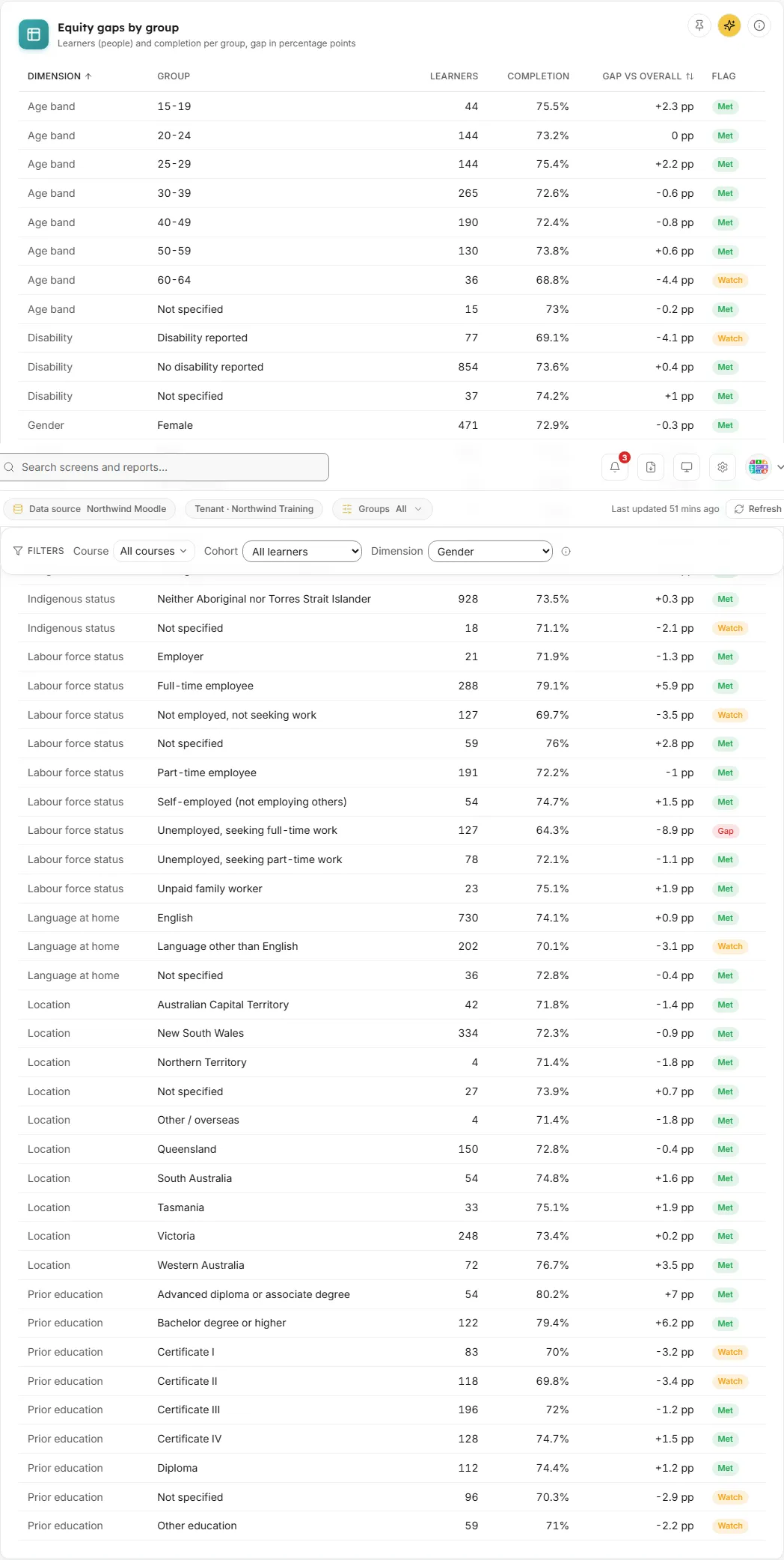
One row per demographic group across every dimension, with its gap against the overall rate.
- Columns: Dimension, Group, Learners, Completion, Gap vs overall (in pp) and Flag.
- How it is worked out: learners are people with an active learner enrolment; completion is completed enrolments over enrolments. Gap is the group’s completion rate minus the overall rate. A group 5 or more points below overall is flagged Gap, between 2 and 5 points below Watch, otherwise Met.
- What you can do: sort by Dimension or by Gap vs overall to bring the widest shortfalls to the top. Pin the table, Ask AI about it, or open the info text.
- Empty state: “No demographic groups to report for the current filters.”
Filters and buttons
Section titled “Filters and buttons”- Cohort: “All learners” or one cohort.
- Course or program: “All courses” or one or more courses.
- Dimension: the dimension in focus for the Completion by group chart and the heatmap rows. Gender by default.
- Cross with: on the Intersectional equity card, the second dimension. It never offers the dimension already in focus.
- Clear all: resets the filters once any is set.
Common questions
Section titled “Common questions”Is this an official AVETMISS report?
Section titled “Is this an official AVETMISS report?”No. This screen reads your AVETMISS demographic records and maps them onto your Moodle completion data so you can see equity gaps. It does not produce or submit an AVETMISS file. Use TVA Readiness to check your records before your own submission.
Why is the overall completion rate shown when nothing else is?
Section titled “Why is the overall completion rate shown when nothing else is?”Overall completion does not need demographic records. The group breakdowns do, so they wait for the records to be imported.
Why does “Not specified” not count as a gap?
Section titled “Why does “Not specified” not count as a gap?”Not specified means the attribute was not recorded. It tells you about data coverage, not about how a group is doing.