

Pick the plugin when
You run Moodle over https, a Moodle administrator can install a plugin, and you would rather not open the database to anyone. This is the method the setup walkthrough offers first. Connect with the Moodle plugin
LearnBoard reports on a Moodle site, so the first job in a new workspace is to connect one. There are three ways to do it, all from Admin console, Data sources: through the LearnBoard Moodle plugin, with a read-only account on the Moodle database, or by uploading a copy of the database. Whichever you choose, LearnBoard only ever reads.
At a glance
manage.data-sources).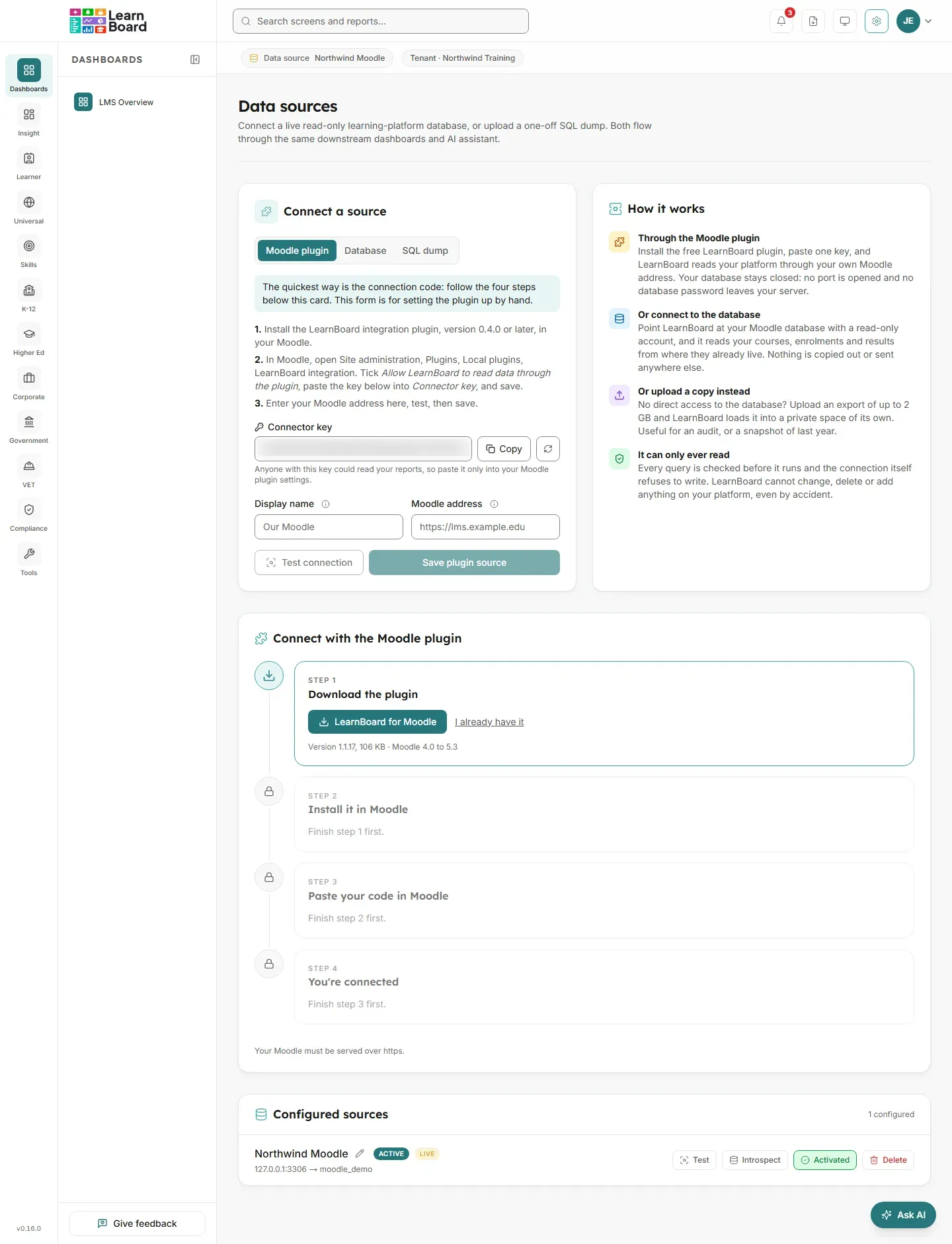
| Moodle plugin | Database account | Database copy (SQL dump) | |
|---|---|---|---|
| Tab on Data sources | Moodle plugin | Database | SQL dump |
| What you need | A Moodle administrator to install the free plugin | A database account that can only read, and network access from LearnBoard to the database | An SQL export of the Moodle database, up to 2 GB |
| What LearnBoard connects to | Your Moodle site’s own https address | The Moodle database server, usually on port 3306 | A private database of its own, loaded from your file |
| Database port opened to LearnBoard | No | Yes | No |
| Database password leaves your server | No | Yes, encrypted when stored | No |
| Figures stay current | Yes | Yes | No, it is a snapshot |
| Also puts LearnBoard charts in Moodle | Yes, the same plugin | No | No |
Pick the plugin when
You run Moodle over https, a Moodle administrator can install a plugin, and you would rather not open the database to anyone. This is the method the setup walkthrough offers first. Connect with the Moodle plugin
Pick a database account when
Your IT team or host can create a read-only database account and let LearnBoard’s server through the firewall, or a plugin cannot be installed. Connect with a database account
Pick a database copy when
There is no live access at all, or you want to look at a fixed point in time. Upload a database copy
mdl_, which is filled in for you. With the plugin, LearnBoard learns the prefix from Moodle.Yes. A workspace can hold several data sources, for example the live Moodle and a copy of last year’s, and reads whichever one is Active. Only one is active at a time: activating a source switches the others off. Your plan sets how many sources a workspace can hold, counting every configured source, active or not. Deleting a source frees its place. See Data sources.
LearnBoard cannot change, delete or add anything on your learning platform, even by accident. Several separate layers make sure of it.
Every query is checked
Before any query runs, LearnBoard checks it. Only reading statements are allowed. Anything that could write, lock tables, reach the file system or change a setting is refused, and anything ambiguous is refused too.
The session itself is read-only
Every database session LearnBoard opens is set to read-only on the database server, reconnections included. A write that somehow got past the check would still be refused by the database.
The plugin checks again in Moodle
With the plugin, every query is signed by LearnBoard and checked again inside Moodle before it runs. The plugin locks its database session to read-only, refuses tables that hold site secrets, and can run on a separate read-only database user.
Your own account limits
With a database account, create one granted SELECT only. LearnBoard only ever reads, so SELECT is enough, and it then could not write even if every other layer failed.