

Groupings
Groupings defines the ways your organisation is divided up, so every screen can be filtered and broken down by them: programmes, campuses and learner categories. It also holds partner access rules, which limit partner staff to the learners in chosen cohorts, and the tags that mark placement modules.
At a glance
- Who can open it: the Admin role, with Edit per-tenant reporting configuration (
manage.reporting-config). Anyone else sees “You do not have permission to change groupings.” - Where: Admin console, Groupings, at
/admin/groupings. It needs a connected data source, because the choices come from your Moodle. - Departments need no setting up: every screen can already be filtered by your Moodle course categories. Moodle cohorts are offered as they are.
- What you define here appears in the Groups filter at the top of every screen.
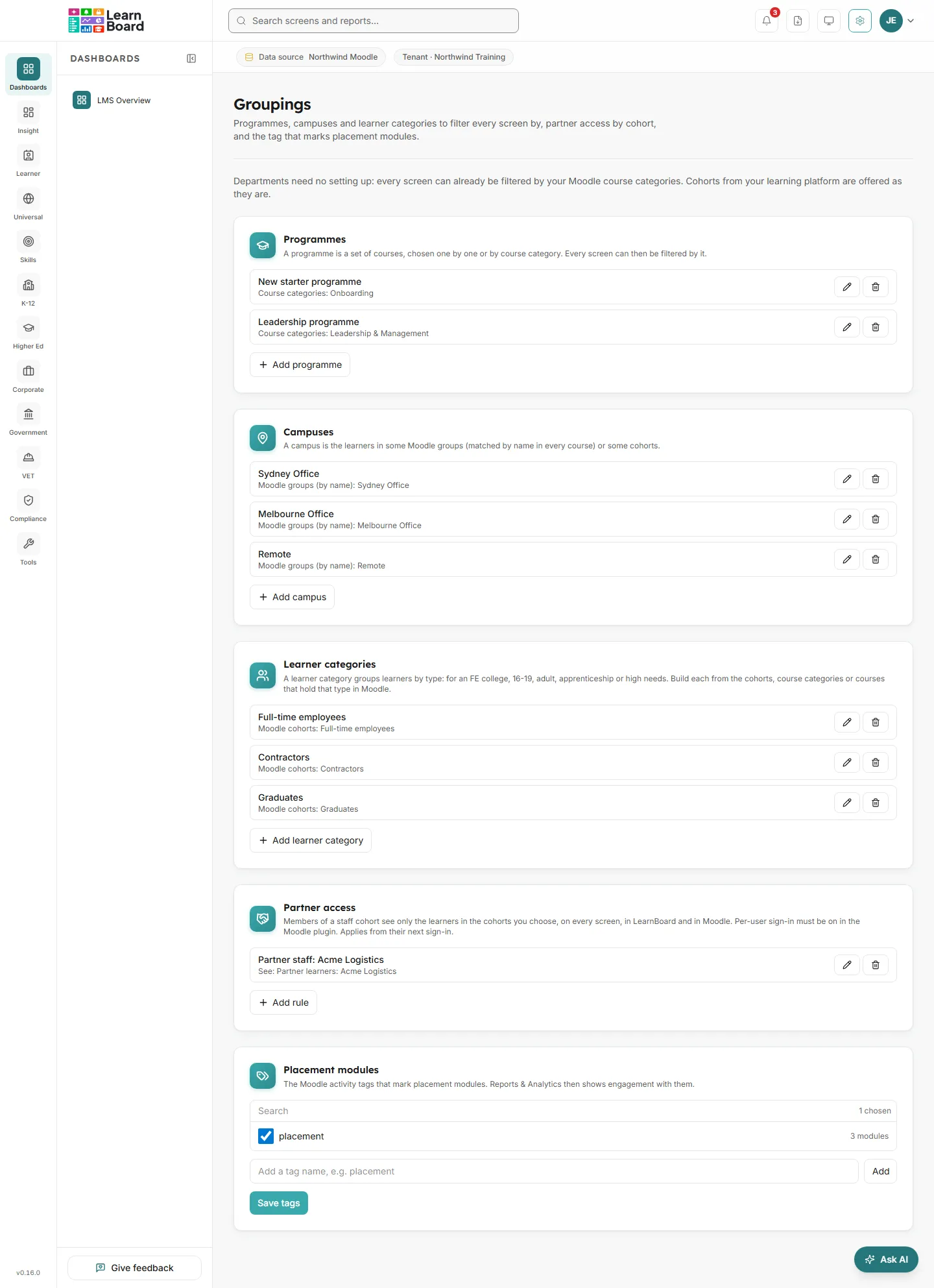
How groupings drive the Groups filter
Section titled “How groupings drive the Groups filter”The Groups pill sits in the bar under the top bar on every data screen. It narrows every card, table and CSV on every screen by programme, department, campus, learner category or cohort, until you clear it. The pill says “All” or how many are chosen; the panel lists each choice so you can remove it.
| Filter | Where its options come from |
|---|---|
| Programme | The programmes you define on Groupings. |
| Department | Your Moodle course categories. Nothing to set up. |
| Campus | The campuses you define on Groupings. |
| Learner category | The learner categories you define on Groupings. |
| Cohort | Your Moodle cohorts, as they are. |
Programmes
Section titled “Programmes”A programme is a set of courses, chosen one by one or by course category. Every screen can then be filtered by it.
- Made of: Courses or Course categories.
Campuses
Section titled “Campuses”A campus is the learners in some Moodle groups (matched by name in every course) or some cohorts.
- Made of: Moodle groups (by name) or Moodle cohorts.
Learner categories
Section titled “Learner categories”A learner category groups learners by type, for example for a further education college: 16-19, adult, apprenticeship or high needs. Build each from the cohorts, course categories or courses that hold that type in Moodle.
- Made of: Moodle cohorts, Course categories or Courses.
Add a programme, campus or learner category
Section titled “Add a programme, campus or learner category”- In the card, press Add programme (or Add campus, Add learner category).
- Enter a Name, up to 120 characters.
- Choose what it is Made of.
- Tick the members in the list. Use Search to find them; the list shows how many are chosen, and groups and cohorts show how many courses or members each has.
- Press Add programme (or the matching button) to save. Use the pencil to edit later, or the bin to delete.
Partner access
Section titled “Partner access”Members of a staff cohort see only the learners in the cohorts you choose, on every screen, in LearnBoard and in Moodle. This applies from their next sign-in, and needs per-user sign-in switched on in the Moodle plugin.
- How to read it: each rule shows the staff cohort and, under it, “See:” with the learner cohorts.
- What you can do: Add rule, edit with the pencil, delete with the bin.
- Press Add rule.
- Choose the Staff cohort (partner staff).
- Under They see the learners in, tick one or more learner cohorts. The staff cohort cannot also be one of them.
- Press Add rule.
You need at least two cohorts in Moodle for this, one for the staff and one for their learners. With fewer, Add rule is disabled and the card says so.
Placement modules
Section titled “Placement modules”The Moodle activity tags that mark placement modules. Reports & Analytics then shows engagement with them.
- What you can do: tick tags already used in your Moodle (each shows how many modules carry it), or type a new tag name such as
placementand press Add, then press Save tags. A tag you add that no activity carries yet shows “not used yet”. Then tag the placement activities in Moodle.
How groupings relate to team scoping
Section titled “How groupings relate to team scoping”The Groups filter is a choice each person makes on screen. Team scoping is not: a Team lead is always limited to their own Moodle groups, and partner staff to the cohorts in their rule. Both use the same limit, so a filtered view for a Team lead is always within their own groups. See People who sign in from Moodle.