

Learner Satisfaction / NPS Trend
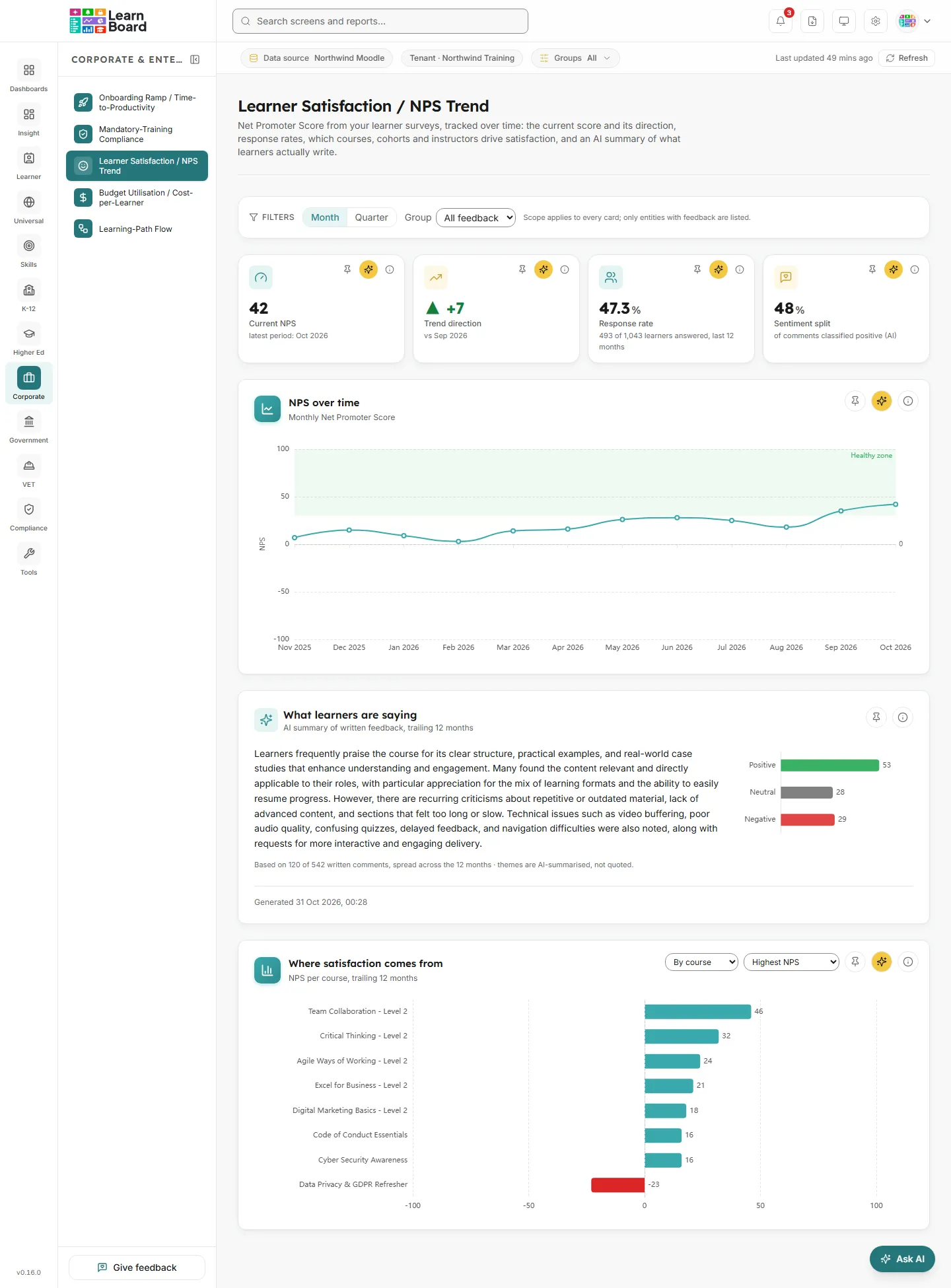
Learner Satisfaction / NPS Trend tracks the Net Promoter Score from your learner surveys over time: the current score and its direction, how many learners answer, which courses, cohorts and instructors drive satisfaction up or down, and an AI summary of what learners actually write. L&D leads, programme owners and team leads use it to see whether satisfaction is improving and where to look when it is not.
At a glance
Section titled “At a glance”- Route:
/corp/nps-trend, in the sidebar under Corporate & Enterprise as Learner Satisfaction / NPS Trend. - Who can open it: the Admin and Manager roles by default. The Viewer role does not include it by default. A Learner never sees it: opening the link sends them to their home page with the notice “You don’t have access to that screen, so you are on your home page instead.” See roles and permissions.
- Team leads: a Team lead can open this screen, with its figures limited to their own Moodle groups.
- Plan: part of the Corporate & Enterprise sector pack. If your plan does not include it, the page shows “NPS Trend is locked” with an upgrade prompt instead of the cards.
- Filters: Month or Quarter, and an optional Group scope (Course, Cohort or Instructor). Both are kept in the page address.
- Data it needs: survey responses held by LearnBoard for your workspace. Moodle’s own feedback and questionnaire activities are not read by this screen. Response rates use learner enrolments and groups from your connected Moodle site.
No survey responses yet
Section titled “No survey responses yet”Satisfaction ratings come from your organisation’s surveys, stored by LearnBoard against your workspace. On a workspace with none recorded, the screen shows a single card titled Learner Satisfaction / NPS Trend with the message “No survey responses yet” and nothing else, so no score is ever made up. The message notes that an admin entry screen for survey data is planned for an upcoming release; there is no screen in LearnBoard for adding responses at present.
Once responses exist, the score, the trend and the AI sentiment summary appear on their own.
How the score works
Section titled “How the score works”Each response is attached to one course, one cohort (a Moodle group) or one instructor, and may be anonymous. Two rating scales are supported and combine on one score:
- 0 to 10 recommend scale: 9 or 10 is a promoter, 7 or 8 a passive, 0 to 6 a detractor.
- 1 to 5 stars: 5 stars is a promoter, 4 a passive, 1 to 3 a detractor.
The two scales are never averaged together; each rating is placed in a band first. Net Promoter Score is the percentage of promoters minus the percentage of detractors, so it runs from -100 to +100. A score of 30 or above is treated as the healthy zone; 0 is where promoters and detractors balance.
Filters
Section titled “Filters”The filter bar stays at the top of the page as you scroll.
- Month, Quarter: the trend granularity. Month is the default and shows the last 12 calendar months; Quarter shows the last 8 calendar quarters. It also sets the period that Current NPS and Trend direction compare.
- Group: “All feedback” by default, or Course, Cohort or Instructor. Instructor is greyed out with “(unavailable)” when LearnBoard cannot work out who teaches what on your Moodle site, and the bar then explains why.
- Course, Cohort or Instructor scope: appears once you pick a group. “All with feedback” by default, or one entity. Only entities that have feedback are listed.
- Hint: next to the controls the bar reads “Scope applies to every card; only entities with feedback are listed.” In practice the scope narrows the stat tiles, NPS over time and What learners are saying; Where satisfaction comes from has its own controls.
- Clear all: appears once you have changed a filter and puts everything back to Month and all feedback.
Stat tiles
Section titled “Stat tiles”Each tile has Pin to dashboard, Ask AI about this and an info (i) button. See Pin to dashboard and Ask AI. A figure that cannot be worked out shows a dash.
Current NPS
Section titled “Current NPS”
The Net Promoter Score for the most recent period that has responses.
- How to read it: a score from -100 to +100. The line under it names the period, for example “latest period: Oct 2026”, or reads “no responses yet”.
- How it is worked out: promoters minus detractors as a share of all ratings in that month or quarter, in the current scope.
- What you can do: switch Month and Quarter, change the scope; pin it, ask AI about it, or read the info text.
Trend direction
Section titled “Trend direction”The change in NPS from the previous period to the latest one.
- How to read it: an up arrow in green for a rise, a down arrow in red for a fall. The line names the period compared against, for example “vs Sep 2026”, or reads “needs two periods with responses”.
- How it is worked out: latest NPS minus the previous period’s NPS at the chosen granularity. It is shown only when both periods have responses.
- What you can do: pin it, ask AI about it, or read the info text.
Response rate
Section titled “Response rate”The share of eligible learners who gave at least one rating in the last 12 months.
- How to read it: the line gives the counts, for example “84 of 310 learners answered, last 12 months”, or “eligible learners unavailable”.
- How it is worked out: distinct people who rated anything in the trailing 12 months, divided by the current learners in scope (active learner enrolments, staff out). Each person counts once however many ratings they gave. Anonymous ratings count towards NPS but not here. The denominator is today’s learners, not the learners at the time of each survey.
- What you can do: pin it, ask AI about it, or read the info text.
Sentiment split
Section titled “Sentiment split”The share of written comments that the AI classed as positive.
- How to read it: the line says which basis is shown:
- “of comments classified positive (AI)”: the AI split of written comments from the last 12 months.
- “promoter share: no written feedback”: there are no comments, so the tile shows the promoter share of ratings instead.
- “promoter share: AI comment summary unavailable”: comments exist but the AI pass could not run, so the tile falls back to the promoter share.
- “no data yet”.
- How it is worked out: positive comments divided by all classified comments (positive, neutral and negative). Sentiment is generated by AI from free-text comments.
- What you can do: pin it, ask AI about it, or read the info text.
Charts
Section titled “Charts”NPS over time
Section titled “NPS over time”
A line of the Net Promoter Score for each period. The unit line reads “Quarterly Net Promoter Score” when you choose Quarter.
- How to read it: the vertical axis runs from -100 to +100. The shaded band labelled “Healthy zone” covers 30 and above, and the dashed line marks 0. Periods with no responses show as a gap; scores are never filled in between. Hover a point for the period’s NPS, promoters, passives, detractors and number of responses, or “No responses in this period”.
- How it is worked out: for each month (last 12) or quarter (last 8), the NPS of the ratings submitted in that period, in the current scope.
- Empty state: “No responses inside the trend window for this selection.”
- What you can do: switch granularity and scope; pin it, ask AI about it, or read the info text.
What learners are saying
Section titled “What learners are saying”An AI-written summary of the main themes in learners’ written feedback, with a positive, neutral and negative split.
- How to read it: the paragraph summarises the dominant themes; wording is summarised, not quoted. Under it, a note reads “Based on N written comments”, or “Based on N of M written comments, spread across the 12 months” when there are more than the AI reads. A bar chart shows how many comments were classed Negative, Neutral and Positive; hover a bar for its count. The footer shows when the summary was generated, or “Sentiment is AI-generated from learner comments”.
- How it is worked out: written comments from the last 12 months in the current scope are classified by an AI pass, which also summarises the themes. It reads up to 120 comments. The output is checked by a content filter before it is shown, and nothing is generated when there are no comments.
- Badges and states:
- “AI sentiment temporarily unavailable”: comments exist and will be summarised when the AI service is reachable again.
- “No written feedback”: the card reads “No written feedback to summarise for this selection yet.”
- “Narrative withheld by the content filter”: the summary could not be shown safely; the split still reflects the classified comments.
- What you can do: Pin to dashboard (the pinned card keeps the current scope) and the info (i) button. This card has no Ask AI button.
Where satisfaction comes from
Section titled “Where satisfaction comes from”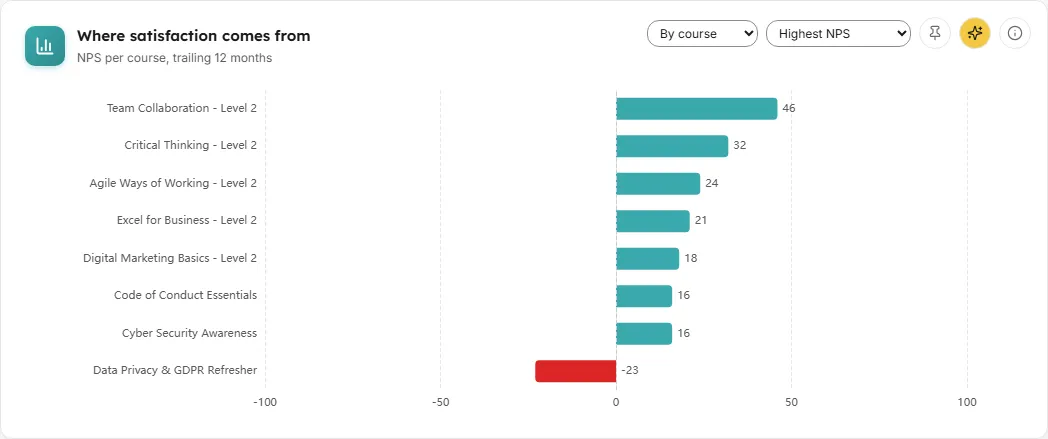
One horizontal bar per course, cohort or instructor, showing its NPS over the last 12 months.
-
How to read it: bars to the right of zero are positive scores; negative scores extend left in red. Hover a bar for its NPS, number of responses, promoters, passives and detractors, response rate and number of comments. Up to 20 bars are shown; the unit line adds “, top 20 shown” when there are more, and changes to “NPS per cohort” or “NPS per instructor” with the grouping.
-
How it is worked out: each entity’s NPS from the ratings attached to it in the trailing 12 months, with its own response count and response rate. Grouping by instructor works only when LearnBoard can work out who teaches each course.
-
Controls in the card header:
- By course, By cohort or By instructor (shown as “By instructor (unavailable)” when it cannot be used).
- Sort: Highest NPS (default), Lowest NPS, Most responses, Best response rate or Name A-Z.
These are kept in the page address. The card does not follow the Group scope in the filter bar.
-
Empty state: “No course-level responses in the last 12 months.” (or cohort, instructor). When instructor grouping cannot be used: “Instructor identity could not be resolved on this Workspace, so satisfaction cannot be grouped by instructor. Course and cohort views remain available.”
-
What you can do: click a bar to open the satisfaction detail drawer; pin it, ask AI about it, or read the info text.
Satisfaction detail drawer
Section titled “Satisfaction detail drawer”The panel that slides in when you click a bar in Where satisfaction comes from.
- Header: the entity type (Course, Cohort or Instructor), its name and an (i) explaining the drawer.
- Headline figures: NPS (12 months), Response rate, Promoters / detractors (with the number of passives underneath) and Written comments.
- NPS trend: this entity’s own NPS line at the granularity chosen in the filter bar, with the same healthy zone, or “No responses inside the current trend window.”
- Sentiment of written feedback: Positive, Neutral and Negative counts, with “Classified by AI from N comments”, or “No written feedback for this selection yet.”
- Closing it: the close button, a click outside the panel, or the Escape key.
Common questions
Section titled “Common questions”Does this screen read Moodle feedback or questionnaire activities?
Section titled “Does this screen read Moodle feedback or questionnaire activities?”No. Survey ratings are held by LearnBoard for your workspace. Moodle’s feedback and questionnaire activities are not read here.
Why is Instructor greyed out?
Section titled “Why is Instructor greyed out?”LearnBoard could not work out who teaches each course on your Moodle site, so ratings cannot be grouped by instructor. Course and cohort views still work.
Why is there a gap in the trend line?
Section titled “Why is there a gap in the trend line?”That period had no responses. LearnBoard leaves a gap rather than inventing a score.
Why does the response rate look low when lots of people rated?
Section titled “Why does the response rate look low when lots of people rated?”The rate counts people, not ratings, and only named respondents. Anonymous ratings count towards NPS but not the response rate. The denominator is today’s learners in scope.
Can stars and 0 to 10 ratings be mixed?
Section titled “Can stars and 0 to 10 ratings be mixed?”Yes. Each rating is placed in the promoter, passive or detractor band for its own scale first, so both combine on one score without being averaged together.