

Unit-of-Competency Outcome Tracker
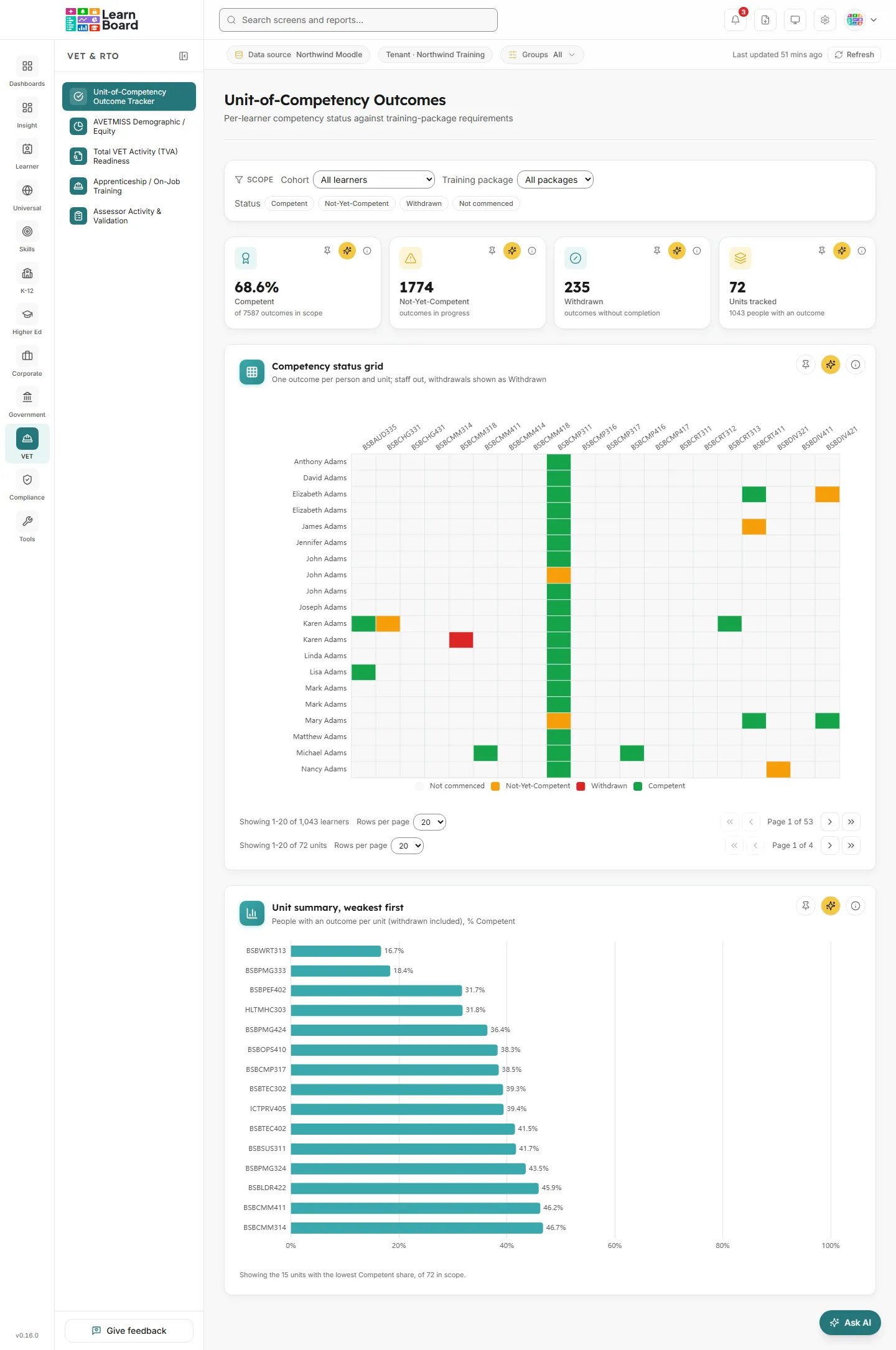
The Unit-of-Competency Outcome Tracker shows the competency status of every learner against every unit of competency they are enrolled in: Competent, Not-Yet-Competent, Withdrawn or Not commenced. It is for RTO compliance managers, training managers, trainers and assessors who need competency-based outcome evidence per learner and per unit, and a quick way to find the units where learners are struggling.
The screen is titled Unit-of-Competency Outcomes in the app, with the description “Per-learner competency status against training-package requirements”.
At a glance
Section titled “At a glance”- Route:
/vet/competency-outcomes. In the sidebar: VET & RTO, then Unit-of-Competency Outcome Tracker. - Who can open it: the Admin and Manager roles by default, and the Team lead role. The Viewer role does not include the specialist sector screens by default, and the Learner role cannot open it.
- Plan: part of the VET & RTO pack. Without the pack the screen is greyed out with a lock in the sidebar and opens to a locked page.
- What it needs: a connected Moodle data source with learner enrolments. If your units of competency are registered and mapped to courses, the tracker uses them. If not, each course stands in as one unit, so the screen always shows real enrolment data.
- Filters: Cohort, Training package (when packages are registered) and Status. Filters and pages are kept in the page address.
- Team leads: every figure is limited to the people in the Team lead’s own Moodle groups.
- Exports: no CSV export on this screen.
Who is counted
Section titled “Who is counted”From the screen’s counting notes:
Learners are people with a student enrolment: staff in that course, deleted accounts and courses hidden from analytics are left out. A suspended enrolment, a disabled enrolment method, an ended enrolment or a suspended account is a Withdrawn outcome, so withdrawals stay on the tracker; every other outcome is an active enrolment, the same enrolments as the dashboard.
An outcome is one learner on one unit. See the definitions page for the shared words Learners and Enrolments.
The four outcome states
Section titled “The four outcome states”- Competent: completion is satisfied on the dashboard’s rule (the course records a completion, every tracked activity shown in the course is done, or a certificate was issued in the course), and, where the unit’s course sets a pass mark, the final grade is at or above it. When no pass mark is defined, completion alone is Competent.
- Not-Yet-Competent: the enrolment is active and the learner has attempted the unit (started an activity, attempted an assessment or received a grade) but completion is not yet satisfied, or the grade sits below the pass mark.
- Withdrawn: every enrolment behind the unit is suspended, on a disabled enrolment method, ended, or held by a suspended account, without a Competent outcome. A learner who reached Competent before withdrawing keeps the Competent outcome.
- Not commenced: the learner is enrolled and active but has no attempts recorded yet. An untouched enrolment is never coloured as a fail.
Units and courses
Section titled “Units and courses”When your registered units of competency are mapped to courses, each unit is one column, and a unit mapped to several courses is Competent only when every mapped course reaches a Competent outcome. Until a mapping is registered, each course stands in as one unit, and the grid shows the note: “No unit-of-competency mapping is registered yet, so each course stands in as one unit. Once units are mapped to courses, this grid tracks your registered units directly.”
Stat tiles
Section titled “Stat tiles”Four tiles sit across the top. Each has Pin to dashboard, Ask AI and an info button.
Competent
Section titled “Competent”
The share of outcomes currently at Competent.
- How to read it: a percentage, with “of N outcomes in scope” underneath.
- How it is worked out: across every learner and unit outcome in the selected scope, withdrawn outcomes included, the share at Competent.
- What you can do: pin it, Ask AI about it, or open the info text.
Not-Yet-Competent
Section titled “Not-Yet-Competent”The number of outcomes currently at Not-Yet-Competent.
- How to read it: a count of outcomes, not learners. One learner can have several.
- How it is worked out: learner and unit outcomes with an active enrolment and an attempt, but completion not yet satisfied or a grade below the pass mark.
- What you can do: pin it, Ask AI about it, or open the info text.
Withdrawn
Section titled “Withdrawn”The number of outcomes currently at Withdrawn.
- How it is worked out: outcomes where every enrolment behind the unit is suspended, on a disabled method, ended, or held by a suspended account, without a Competent outcome.
- What you can do: pin it, Ask AI about it, or open the info text.
Units tracked
Section titled “Units tracked”The number of distinct units of competency in scope.
- How to read it: a count of units, with “N people with an outcome” underneath, withdrawn learners included.
- How it is worked out: your registered units when a mapping exists, otherwise one unit per course.
- What you can do: pin it, Ask AI about it, or open the info text.
Charts
Section titled “Charts”Competency status grid
Section titled “Competency status grid”
A grid with one row per learner and one column per unit of competency, coloured by outcome state.
- How to read it: each state has its own colour, shown in the legend under the grid: Competent in the success colour, Not-Yet-Competent in the warning colour, Withdrawn in the danger colour, and Not commenced in a pale neutral tone. Hover a cell for the learner, the unit code and title, the status, the basis it was derived from, and the grade where one exists. A cell with no enrolment says “No enrolment recorded for this unit”.
- How it is worked out: from completion records, required-activity progress, grades against the pass mark, and enrolment status. Attempt signals cover any activity started, any assessment attempt and any recorded grade.
- What you can do: click any cell to open that learner’s full outcome record. Both axes are paginated for large cohorts: one bar under the grid pages through learners and another through units, each showing “Showing N-N of N” with first, previous, next and last buttons and a page size choice (20 by default). Pin the grid, Ask AI about it, or open the info text.
Unit summary, weakest first
Section titled “Unit summary, weakest first”
A bar chart ranking units by the share of people who are Competent, weakest first.
- How to read it: one bar per unit, with the units needing attention at the top. Hover a bar for “Competent: N% (N of N people, withdrawn included)” and the Not-Yet-Competent, Withdrawn and Not commenced counts.
- How it is worked out: for each unit in scope, the share of the people with an outcome on it (withdrawn learners included) at Competent.
- What you can do: pin the chart, Ask AI about it, or open the info text. This chart follows the Cohort and Training package filters, not the Status filter.
Learner outcome record
Section titled “Learner outcome record”A side panel that opens when you click a cell in the grid.
- What it shows: the learner’s name, “N units of competency in scope”, a chip for each state with its count, and one entry per unit with its code and title, its status, the basis the status was derived from, and the grade, completion date and training package where they exist.
- How it is worked out: every unit of competency this learner is enrolled against, with the outcome state, the basis it was derived from, and the final grade where a graded assessment exists.
- What you can do: close it with the close button or the Escape key.
- Empty state: “This learner has no enrolments against any unit of competency in scope.”
Filters and buttons
Section titled “Filters and buttons”- Cohort: “All learners” or one cohort, shown with its member count.
- Training package: “All packages” or one package. It appears only when training packages are registered for your units.
- Status: toggle buttons for Competent, Not-Yet-Competent, Withdrawn and Not commenced. Pick one or more to narrow the grid; clear removes the selection.
- Changing a filter sends both grid axes back to their first page.
Common questions
Section titled “Common questions”Why are my courses showing as units?
Section titled “Why are my courses showing as units?”No unit-of-competency mapping is registered for your workspace, so each course stands in as one unit. The figures are still real enrolment data.
Why is a learner Competent when they have withdrawn?
Section titled “Why is a learner Competent when they have withdrawn?”A learner who reached Competent before withdrawing keeps the Competent outcome. Withdrawn applies only when there is no Competent outcome.
Why does the screen say “No enrolments in scope”?
Section titled “Why does the screen say “No enrolments in scope”?”The workspace has no learner enrolments to derive competency outcomes from yet. Outcomes appear as soon as learners are enrolled in courses.