

Completion & Certification Trend
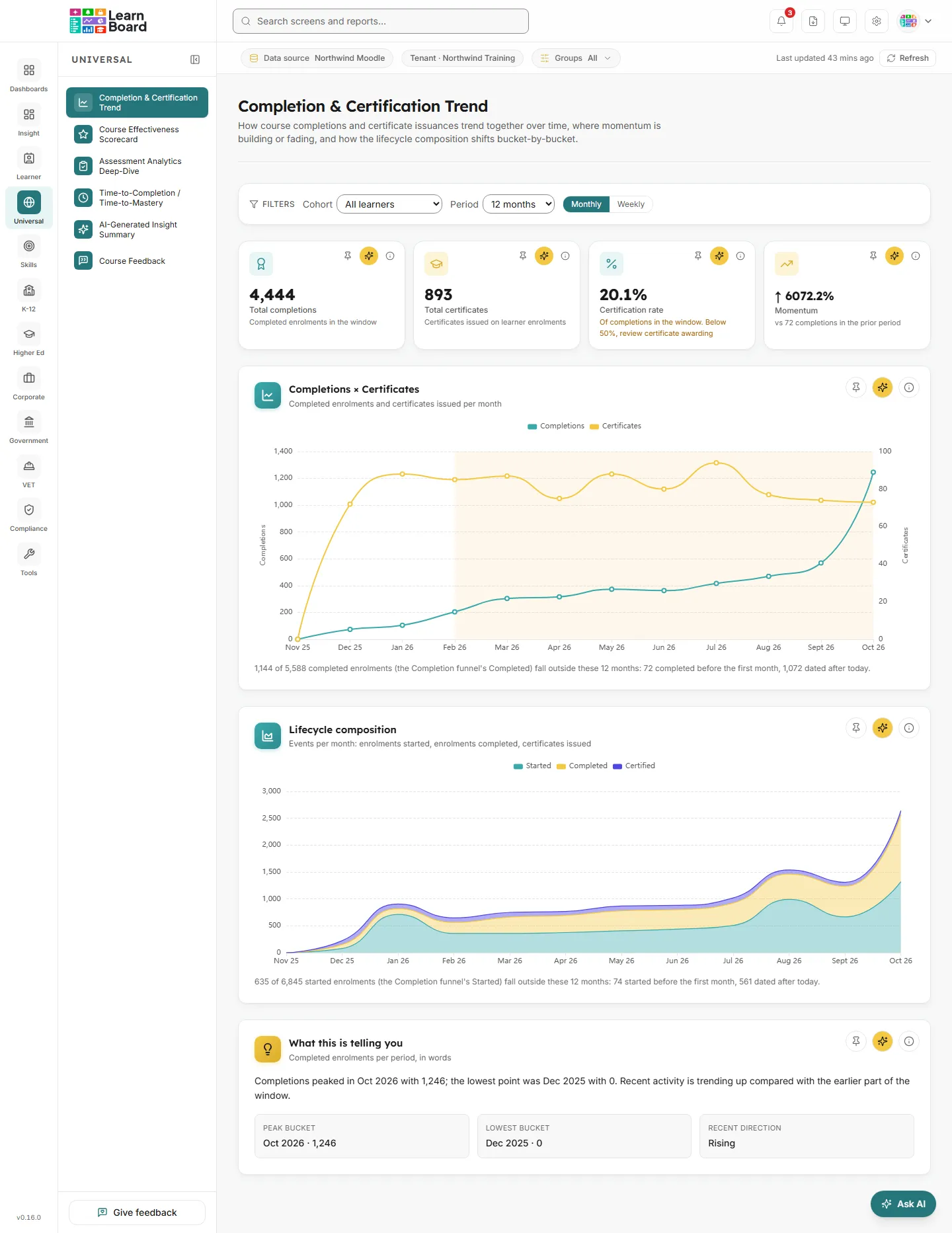
Completion & Certification Trend shows how course completions and certificates issued move together over the last 6 to 36 months, month by month or week by week. Managers, workspace administrators and team leads use it to see whether completions are rising or falling, whether certificates keep pace with completions, and when in the year activity peaks.
At a glance
Section titled “At a glance”- Route:
/insights/completion-cert-trend. In the sidebar it sits under Universal as Completion & Certification Trend. - Who can open it: the Admin and Manager roles hold it by default. Viewer does not, because the Universal screens are held back from Viewer until a workspace administrator grants them. Team lead can open it, with every figure limited to the people in their own Moodle groups. Learner cannot.
- Plan: part of the Universal pack, included on the Pro, Business, Scale and Enterprise plans and not on Free. On a plan without it, the screen shows a locked view instead: “Part of the Universal pack, not included in your current plan.”, with Compare plans, Back to Executive Overview, and View plans & upgrade for people who manage billing.
- Filters on the screen: Cohort, Period (6, 12, 24 or 36 months) and Monthly or Weekly. The Groups filter in the bar under the top bar narrows every figure too.
- Team leads: a Your groups only pill shows in the bar under the top bar. Every figure counts only the people in your own Moodle groups.
- Refresh: figures are saved for up to an hour. Refresh in the bar under the top bar works them out again.
Filters and controls
Section titled “Filters and controls”The filter bar at the top of the screen sets what every card below it counts. Your choices are kept in the page address, so a copied link opens the same view.
- Cohort: All learners by default, or one of your Moodle groups. Groups are listed by name, with the same name across courses treated as one cohort or each course group kept separate, depending on how your workspace matches groups. A cohort counts the members who are learners in their group’s own course.
- Period: 6 months, 12 months (the default), 24 months or 36 months. The window ends with the current month or week.
- Monthly / Weekly: how the window is split. Weekly is available for windows up to 12 months; on 24 or 36 months it is greyed out with the note “Weekly view is available for windows up to 12 months.” Weeks start on Monday. Months and weeks follow your workspace’s time zone.
When a cohort has more than 5,000 learners, a line under the filter bar says “This cohort has more than 5,000 learners; these figures count its first 5,000 only.”
Headline tiles
Section titled “Headline tiles”Four tiles sit at the top. Each one has Pin to dashboard, Ask AI and an info button. All four count the same window and cohort as the charts, so the tiles add up to the lines below them.
Total completions
Section titled “Total completions”
The number of enrolments completed in the selected window.
- How to read it: one learner in one course counts once, however many ways they completed it. Completions are counted as completions, never as learners.
- How it is worked out: an enrolment is completed by a course completion record, every tracked activity shown in the course done, or a certificate issued in the course, dated by whichever came first. Only active learner enrolments count: staff and suspended enrolments are left out, and a course hidden in Moodle still counts. The tile is the sum of the completions line in the chart below.
- What you can do: pin it to a dashboard, Ask AI about it, or open the info button.
Total certificates
Section titled “Total certificates”Every certificate issued in the window, by any certificate tool LearnBoard detects in your Moodle site.
- How to read it: this counts certificate issues. A learner given two certificates in one course adds two. It is the same figure as New certificates on the AI-Generated Insight Summary for the same dates.
- How it is worked out: certificates issued in the window in a course where the recipient is an active learner enrolment. Staff and suspended enrolments are left out.
- What you can do: pin it, Ask AI, or open the info button.
Certification rate
Section titled “Certification rate”Of the enrolments completed in the window, the share that also have a certificate in that course.
- How to read it: it is a share of the completions beside it, so it cannot pass 100%. When the rate is above 0% and below 50%, the line under the figure changes to “Of completions in the window. Below 50%, review certificate awarding”.
- How it is worked out: certified completions divided by total completions, rounded to one decimal place. It shows 0% when there are no completions in the window.
- What you can do: pin it, Ask AI, or open the info button.
Momentum
Section titled “Momentum”Whether completions are building or fading, compared with the period just before the window.
- How to read it: an up arrow, a down arrow or a flat arrow, then the percentage change in total completions against the previous period of the same length. The line underneath gives the number of completions in that prior period, so you can judge the base: a prior period with only a handful of completions makes any change look large. A dash means there is no prior figure to compare with.
- How it is worked out: the percentage is (completions in this window minus completions in the prior period) divided by completions in the prior period. In the weekly view the prior period is the same number of weeks. The arrow comes from the slope of a straight line fitted through the completions in each month or week of this window, with a small tolerance so tiny movements read as flat.
- What you can do: pin it, Ask AI, or open the info button.
Charts
Section titled “Charts”Completions × Certificates
Section titled “Completions × Certificates”
Two lines over the window: completed enrolments on the left axis and certificates issued on the right axis. In the weekly view the line under the title reads “Completed enrolments and certificates issued per week”.
- How to read it: where the two lines move together, certificates are keeping pace with completions. Shaded bands mark the months or weeks where certificates fell below half of completions. Hover a point to see both counts, the change from the previous month or week (an up or down marker with the difference), and, in a shaded period, “Certificates below half of completions”.
- With a cohort chosen: two dashed lines are added, Completions (tenant-wide) and Certificates (tenant-wide), so you can compare the cohort with everyone.
- The line under the chart: says how many completed enrolments fall outside the window, in the form “N of M completed enrolments (the Completion funnel’s Completed) fall outside these 12 months:” followed by how many completed before the first month, how many are dated after today and how many have no completion date. When none do, it reads “All M completed enrolments (the Completion funnel’s Completed) fall in these 12 months.” In the weekly view it says “these weeks” and “the first week”. The months plus that line equal the Completion funnel’s Completed for the same people.
- How it is worked out: completions use the same rule as the Total completions tile, dated when the enrolment was first complete, up to today. Certificates are certificates issued on active learner enrolments in each month or week. Both count active learner enrolments only.
- What you can do: hover for figures, pin it to a dashboard, Ask AI about it, or open the info button. The info panel also notes which time zone a day is counted in.
- Empty state: “Insufficient data for trend analysis. Once at least three buckets in this window have activity recorded, the trend will appear here.” You see it when the window holds no completions or certificates at all.
Lifecycle composition
Section titled “Lifecycle composition”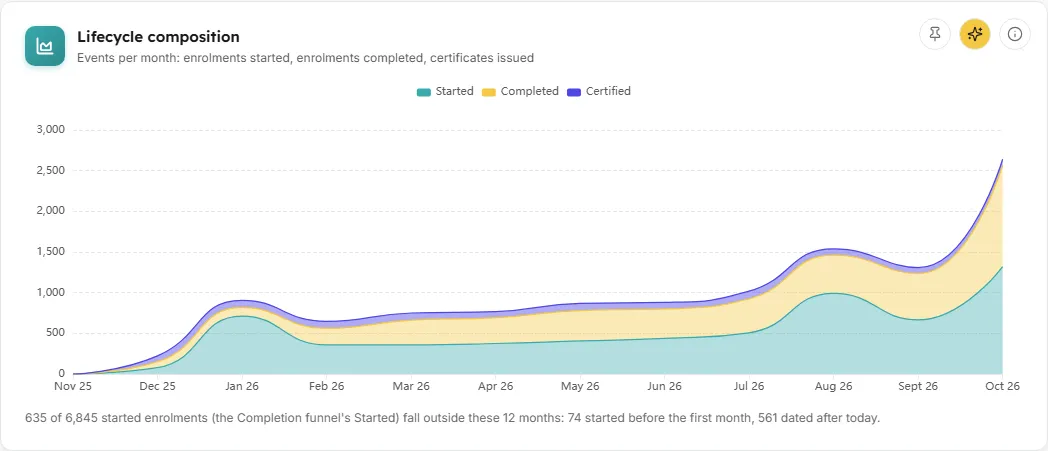
A stacked area chart with three layers per month or week: Started, Completed and Certified. In the weekly view the line under the title reads “Events per week: …”.
- How to read it: these are three event counts stacked on top of each other, not one group of learners split three ways. The same learner can appear in all three layers. Hover a period to see the count of enrolments started, enrolments completed and certificates issued in it, with the reminder “Events, not one group of learners”.
- How it is worked out:
- Started: enrolments whose first sign of starting is dated in the period, under the same Started rule as the Completion funnel: a started course completion record, the first activity completion record of any state (an activity opened or viewed counts, not only one finished), or the enrolment’s completion, whichever came first.
- Completed: enrolments completed in the period, by the same rule as the Total completions tile.
- Certified: certificates issued in the period.
- All three count active learner enrolments only. Staff and suspended enrolments are left out; a course hidden in Moodle still counts.
- The line under the chart: says how many started enrolments sit in no period, because their first sign is dated before the first month or week, after today, or has no date. It reads “N of M started enrolments (the Completion funnel’s Started) fall outside these 12 months:” followed by the reasons, or “All M started enrolments (the Completion funnel’s Started) fall in these 12 months.” when none do. The periods’ Started plus that line equal the Completion funnel’s Started for the same people.
- What you can do: hover for figures, pin it, Ask AI, or open the info button.
- Empty state: “Insufficient data for trend analysis. Once at least three buckets in this window have activity recorded, the composition view will appear here.”
Summary
Section titled “Summary”What this is telling you
Section titled “What this is telling you”
A short plain-English summary of the completions line, with three highlight boxes: Peak bucket, Lowest bucket and Recent direction.
- How to read it: the summary names the month with the most completions and the month with the fewest, then says whether recent activity is trending up, has slowed, or is steady compared with the earlier part of the window. On a 24 or 36 month window it adds a year-over-year line, “Year-over-year completions are up” or “down” by a percentage.
- How it is worked out: LearnBoard writes this text itself from the figures, with no AI involved. Recent direction compares the average of the last three months with the average of the months before them: more than 10% higher reads as Rising, more than 10% lower as Falling, anything else as Flat. Year over year compares the last 12 months with the 12 before them. The summary always reads the monthly series, even when the charts are set to Weekly. The info button on this card is titled Seasonality insights.
- What you can do: pin it to a dashboard, Ask AI, or open the info button.
- Empty state: with too little data the card reads “Insufficient data for trend analysis. Select a longer period or check back once more activity is recorded.”
Common questions
Section titled “Common questions”Why do the tiles not match the Reports & Analytics totals?
Section titled “Why do the tiles not match the Reports & Analytics totals?”The tiles count only the selected window, cohort and Groups filter. They use the same completion rule and the same active learner enrolments as the other screens, so for the same people and dates the figures agree. The line under each chart names the completions or starts that fall outside the window.
Why is the certification rate low when certificates look high?
Section titled “Why is the certification rate low when certificates look high?”Total certificates counts every certificate issued, including second certificates in the same course. Certification rate counts enrolments, each learner once per course, so the two can tell different stories. A rate below 50% is flagged so you can check how certificates are being awarded.
Why can I not choose Weekly?
Section titled “Why can I not choose Weekly?”Weekly is available for windows up to 12 months. Choose 6 or 12 months first.
Why does a team lead see smaller numbers than a manager?
Section titled “Why does a team lead see smaller numbers than a manager?”A Team lead sees every figure through their own Moodle groups, shown by the Your groups only pill. Managers and administrators see the whole workspace unless they set a filter.