

Course pages
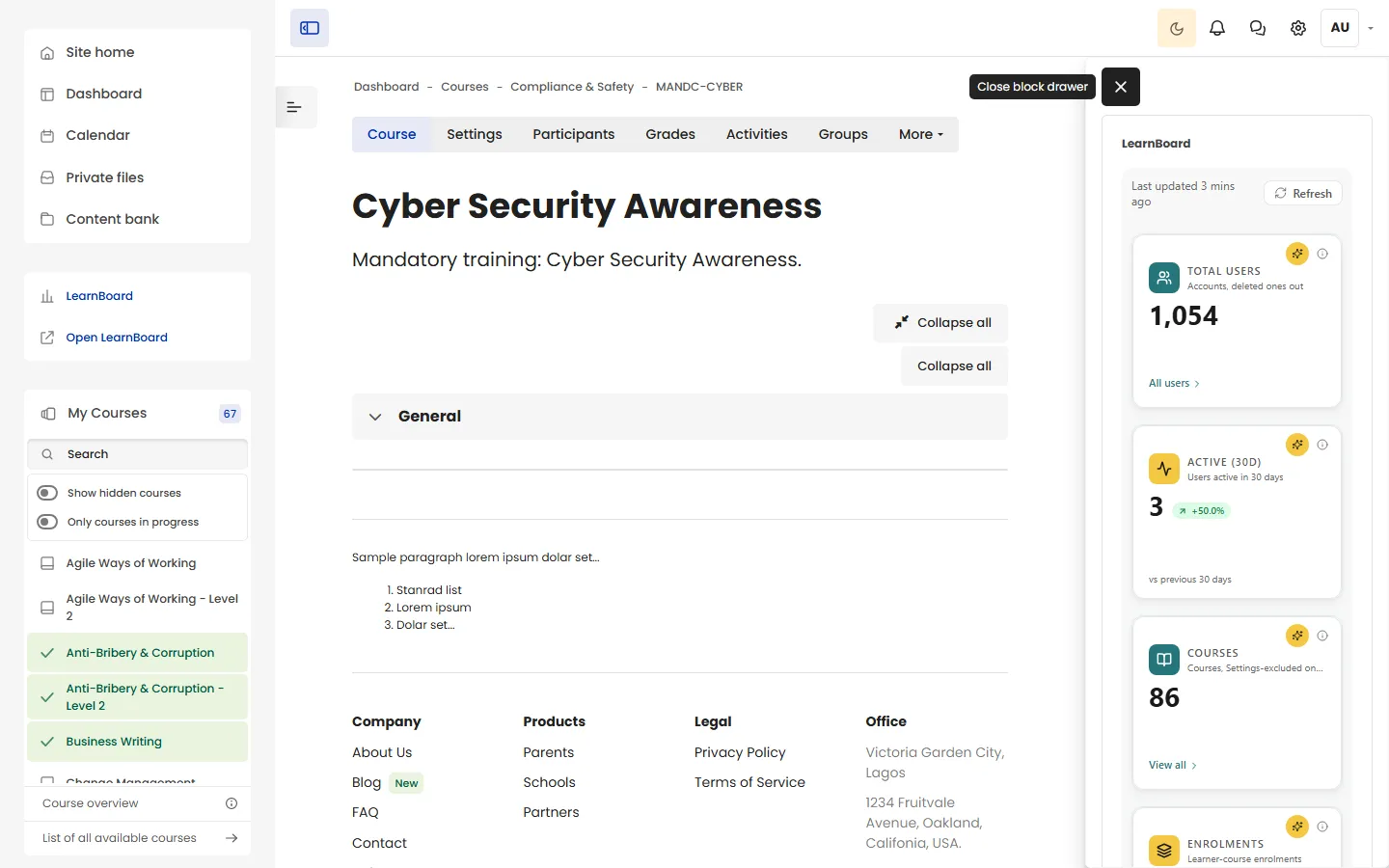
You can add the LearnBoard block to any course. This page explains how a block behaves inside a course, for teachers with editing rights and course managers.
At a glance
Section titled “At a glance”- On a course page, Moodle puts blocks in the block drawer at the side.
- Teachers (editing) and Managers can add the block by default.
- On a course page, the block passes the course’s id to each chart in a custom layout.
- What a person sees still depends on their role: with per-user sign-in, a teacher sees the people in the courses they lead.
- For one course’s people, the clearest view is My team for teachers and My learning for students.
Add a block to a course
Section titled “Add a block to a course”-
Open the course and turn Edit mode on.
-
Open the block drawer and click Add a block.
-
Pick LearnBoard.
-
Open the block’s menu, Configure LearnBoard block, to choose what it shows.
The block drawer is narrow, so stat tiles sit two to a row, or stack one per row in a thin drawer, and charts take the full width.
What the course id does
Section titled “What the course id does”On a real course page (not the site front page), the block adds the course’s id to every chart in a custom layout, for charts that can be narrowed to one course. Charts that do not take a course ignore it.
Linked blocks, My team and My learning are not changed by the course id.
What teachers and students see
Section titled “What teachers and students see”| Viewer | With per-user sign-in | Without per-user sign-in |
|---|---|---|
| Teacher or non-editing teacher | Charts limited to the people in their own groups, in the courses they lead. My team shows those people. | Nothing, unless they may see LearnBoard at site level. Editing teachers see “LearnBoard analytics are not available for your account here. Ask a site administrator if you need access.” |
| Student | My learning, if a rule gives it to them. Staff charts are refused. See Giving learners access. | Nothing. |
| Site administrator or site-level Manager | The whole workspace, read-only. | The whole workspace, read-only. |
A good course block
Section titled “A good course block”For a block that suits everyone in a course:
| Field | Value |
|---|---|
| Dashboard source | My team (the viewer’s own groups) |
| Rule 1 | Student see My learning (the viewer’s own progress) |
Teachers see their groups; students see their own progress.
Show to on a course page
Section titled “Show to on a course page”Show to matches a role held anywhere on the site. A block set up before plugin version 1.1.13, with a single audience such as Students, keeps matching the course’s own roles on a course page. See Show to.