

My Team
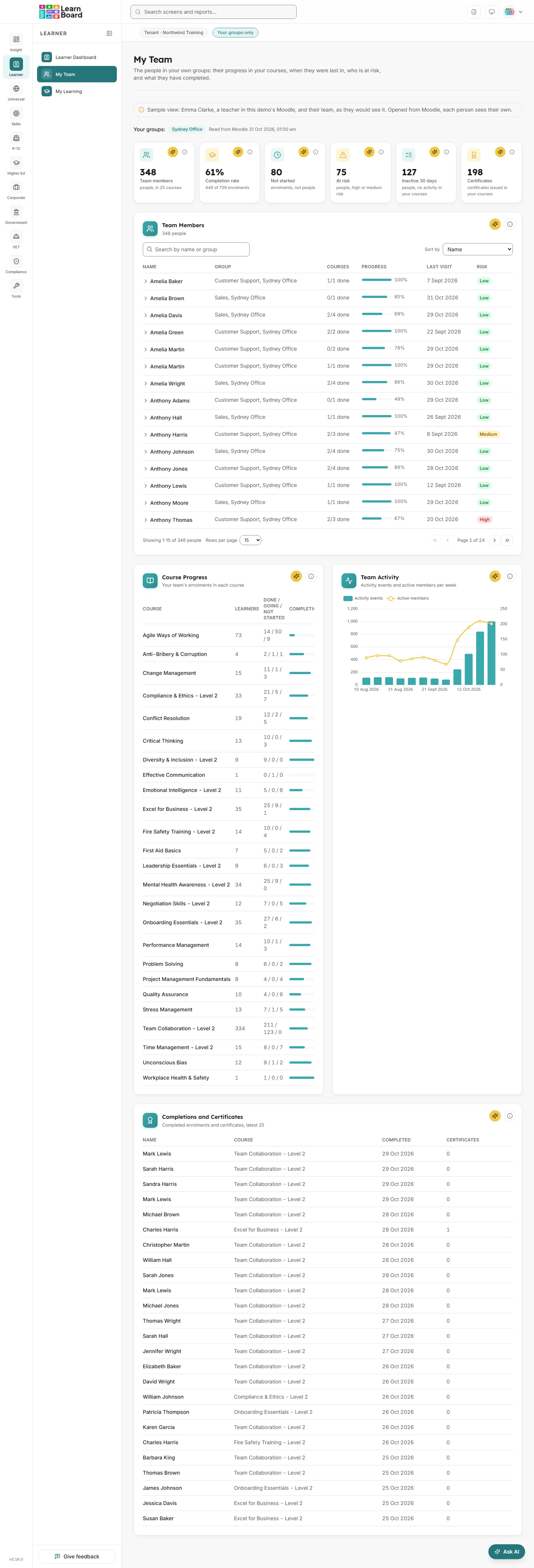
My Team shows a team lead the people in their own Moodle groups, in the courses they lead, and nobody else: how far through each course they are, when they were last in, who is at risk, how active the team has been week by week, and what they have completed. It is for non-editing teachers, course-level managers and company managers who sign in to LearnBoard from Moodle. LearnBoard reads who belongs to the team from Moodle itself, so the screen can only show people that Moodle already shows the team lead.
At a glance
Section titled “At a glance”- Route:
/team, in the Learner section of the menu. - Who can open it: the Team lead role. It needs the
view.teampermission, which no other built-in role holds by default. A team lead’s account is made when they open LearnBoard from Moodle; see How someone becomes a team lead. - Plan: not tied to a plan pack, so it is never locked by the plan.
- Filters: none. The Groups filter in the bar under the top bar does not appear on this screen. The Team Members table has its own search and sort.
- Team leads: see only their own groups. The bar under the top bar shows a Your groups only label, and its tooltip reads “Every figure here counts only the people in your own Moodle groups.”
- Learners: cannot open it. Their own record is on My Learning.
- In Moodle: the same screen can be shown inside a LearnBoard block on a Moodle page, set to “My team (the viewer’s own groups)”. That needs per-user sign-in switched on in the plugin.
How someone becomes a team lead
Section titled “How someone becomes a team lead”Team leads are not invited by email. LearnBoard makes their account the first time they open LearnBoard from Moodle, through the LearnBoard Moodle plugin with per-user sign-in switched on, and decides their role from what Moodle says about them:
- A Moodle site administrator, or someone with a manager role at site level, keeps the read-only view of the whole workspace.
- Anyone who leads a course becomes a Team lead: a non-editing or editing teacher, a course-level manager, a category-level manager or course creator, or a custom role whose name contains manager, supervisor or lead (for example
company_manager). - Anyone else is a Learner.
The plugin’s Role mapping page in Moodle decides first: an administrator can map a Moodle role straight to Team lead there. LearnBoard then narrows the read-only workspace view and the Learner fallback as described above.
Who is in the team
Section titled “Who is in the team”- In a course set to separate groups, the team is the members of the team lead’s own groups, unless one of their roles may see all groups.
- In a course that does not keep groups apart, or in a category the person manages, the team is everyone actively enrolled in the course.
- A workspace can also give members of a lead cohort the learners of other cohorts. Those learners join the team in every course where they are actively enrolled.
- Staff in the course (teachers, editing teachers, managers, course creators), suspended or deleted Moodle accounts, and the team lead themselves are never counted. A course counts for a member only as an active learner enrolment.
The team is read from Moodle each time the team lead signs in from Moodle, and again every night, so someone moved to another group is updated without signing in again.
The reach line
Section titled “The reach line”A line at the top of the screen that says whose people you are looking at.
- How to read it: “Your groups:” followed by one chip per group name when you are limited to particular groups, or “Everyone in your courses” when you see every group. “Read from Moodle DATE TIME” says when the team was last read from Moodle.
Headline tiles
Section titled “Headline tiles”Six tiles count your team in the courses you lead. Each has an info button and an Ask AI button.
Team members
Section titled “Team members”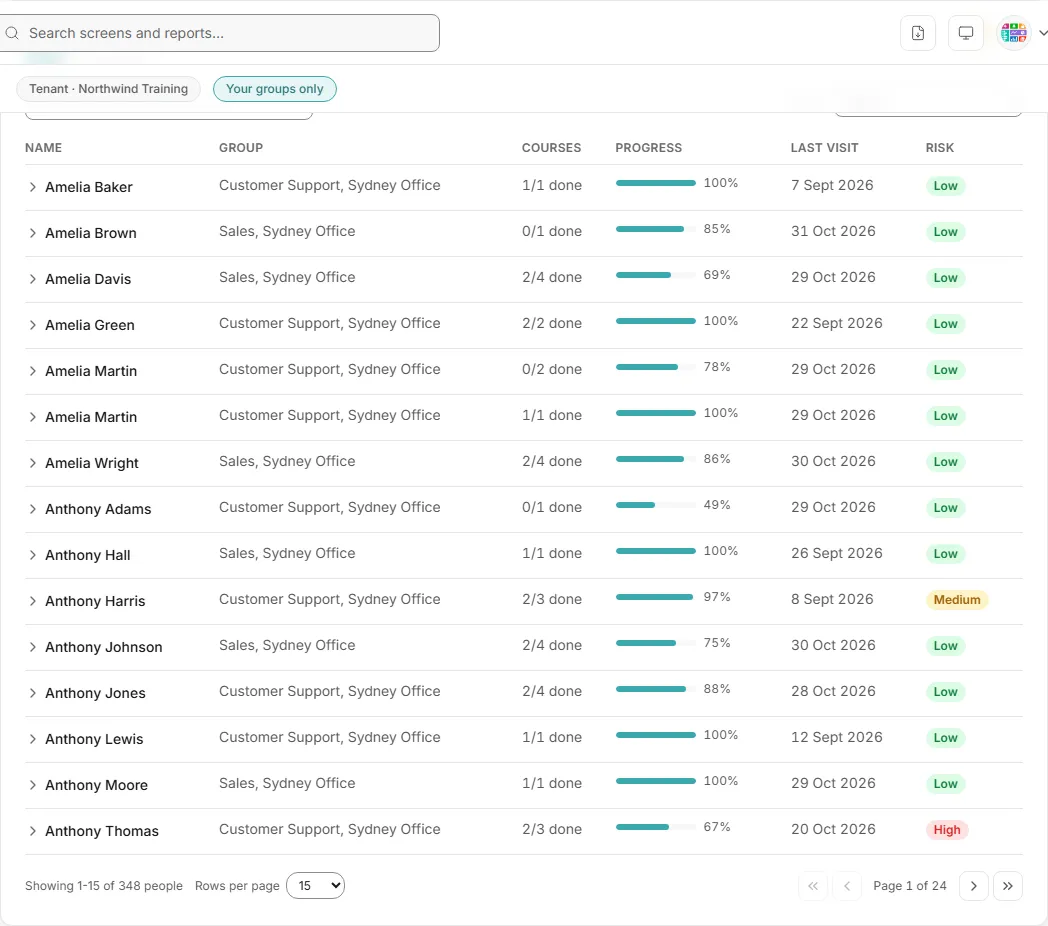
How many people are in your team, and in how many of your courses.
- How it is worked out: the people in your own groups, in the courses you lead. Teachers and you are not counted.
- What you can do: read the info text, or Ask AI.
Completion rate
Section titled “Completion rate”
The share of your team’s course enrolments that are complete.
- How to read it: a percentage, with the count of completed enrolments out of all enrolments underneath. Completion rate is completed enrolments divided by enrolments.
- How it is worked out: course enrolments your team has completed, as a share of all their enrolments in your courses. An enrolment is complete with a course completion record, every tracked activity shown in the course done, or a certificate in the course.
- What you can do: read the info text, or Ask AI.
Not started
Section titled “Not started”How many of your team’s enrolments have not been started.
- How to read it: this counts enrolments (one person in one course), so a team member on three untouched courses counts three times, and the figure can be larger than Team members.
- How it is worked out: enrolments with no completed activity and no recorded visit to the course yet, the same record as Last visit.
- What you can do: read the info text, or Ask AI.
At risk
Section titled “At risk”How many of your team are at risk.
- How to read it: at risk means the risk-score bands; “at risk” counts High plus Medium.
- How it is worked out: team members whose risk band is high or medium. The band is the same one the Learners at Risk score gives them, worked out on your team’s own people and courses, so a learner behind only in somebody else’s course does not show at risk here. If the scores cannot be worked out, the screen still shows the team, without bands.
- What you can do: read the info text, or Ask AI.
Inactive 30 days
Section titled “Inactive 30 days”How many of your team have done nothing in your courses for 30 days.
- How to read it: the opposite of active, which means activity in the last 30 days.
- How it is worked out: team members with no recorded activity (activity log events) in any of your courses in the last 30 days, on the workspace clock. These are the same events Team Activity counts, so a member counted active there in the last 30 days is not counted here.
- What you can do: read the info text, or Ask AI.
Certificates
Section titled “Certificates”How many certificates your team has been issued in the courses you lead.
- How it is worked out: certificates issued to your team in the courses you lead. This counts certificates, not people.
- What you can do: read the info text, or Ask AI.
Team Members
Section titled “Team Members”Each person in your groups, their progress across your courses, when they were last in, and their risk band.
- How to read it: the columns are Name, Group, Courses (“N/N done”), Progress (a bar and a percentage), Last visit and Risk (High, Medium or Low, or “-” when no band is available). Open a row (the arrow beside the name) to see each of that person’s courses with its own progress bar and a status of Completed, In progress or Not started.
- How it is worked out: progress is completed activities as a share of the activities with completion tracking shown in the course, 100% once the course is complete, averaged across their courses. Last visit is their latest activity in your courses: an activity log event in the last 30 days, and older than that Moodle’s own last course access record, which can be earlier than their last logged event. “Never” means none recorded.
- What you can do: search with Search by name or group, change Sort by (Name, Lowest progress, Longest since last visit, Highest risk), page through the rows and choose how many to show per page, open a row, read the info text, or Ask AI.
- Empty states: “Nobody else is in your groups yet.” when the team is empty, and “No one matches that search.” when the search finds nobody.
Course Progress
Section titled “Course Progress”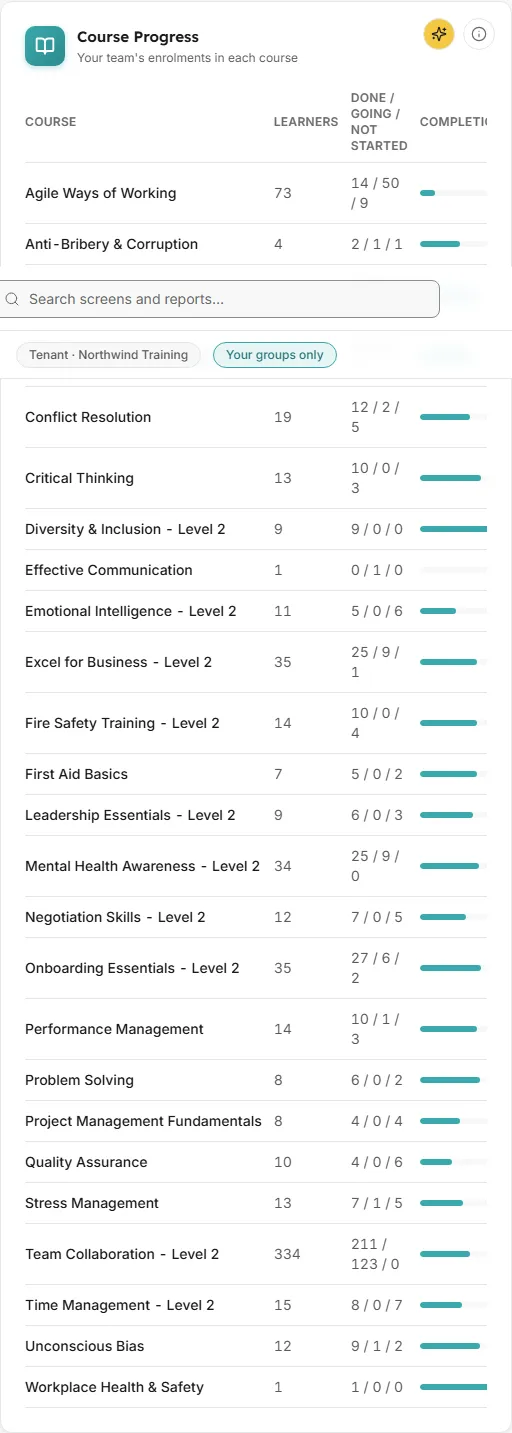
For each of your courses, how many of your team have completed it, are working through it, or have not started.
- How to read it: the columns are Course, Learners, Done / Going / Not started, and Completion (a bar and the completion rate).
- How it is worked out: enrolments of your team members in each course you lead. Completion rate is completed enrolments as a share of all of them. An enrolment is In progress when at least one tracked activity is done or the person has visited the course.
- What you can do: read the info text, or Ask AI.
- Empty state: “No one from your groups is enrolled in your courses yet.”
Team Activity
Section titled “Team Activity”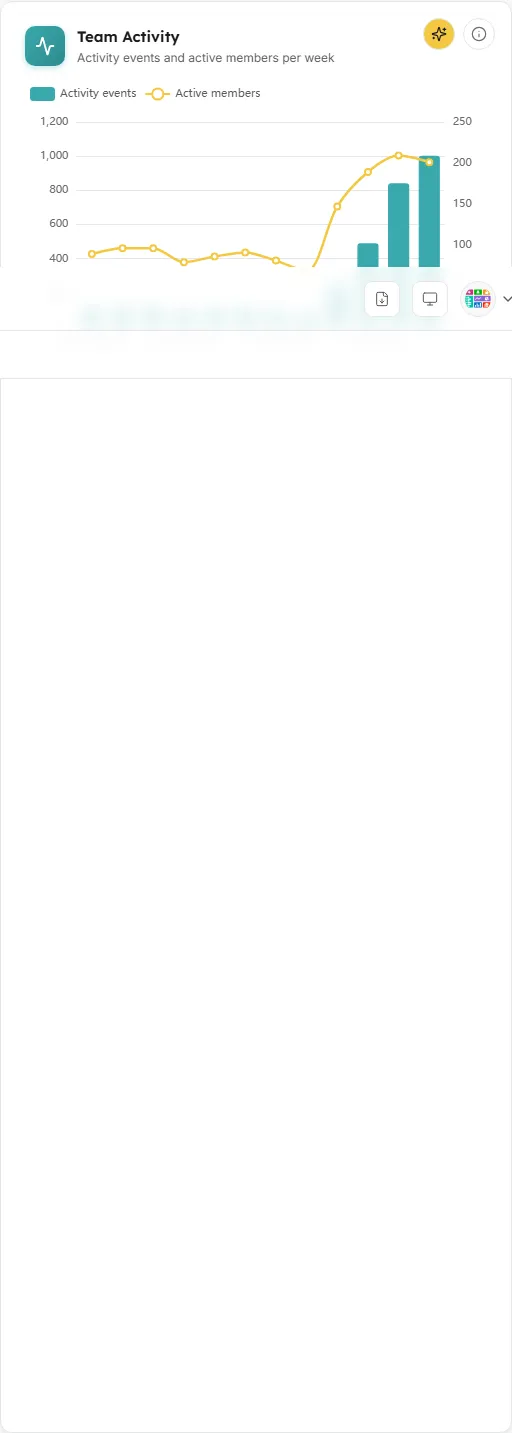
How much your team did in your courses each week over the last 12 weeks, and how many of them were active.
- How to read it: the bars are “Activity events” (left axis); the line is “Active members” (right axis). Hover a week for both figures.
- How it is worked out: the bars are recorded activity events by your team members in the courses you lead; the line is team members with at least one event that week. Weeks run Monday to Sunday on the workspace’s clock.
- What you can do: hover the chart, read the info text, or Ask AI.
Completions and Certificates
Section titled “Completions and Certificates”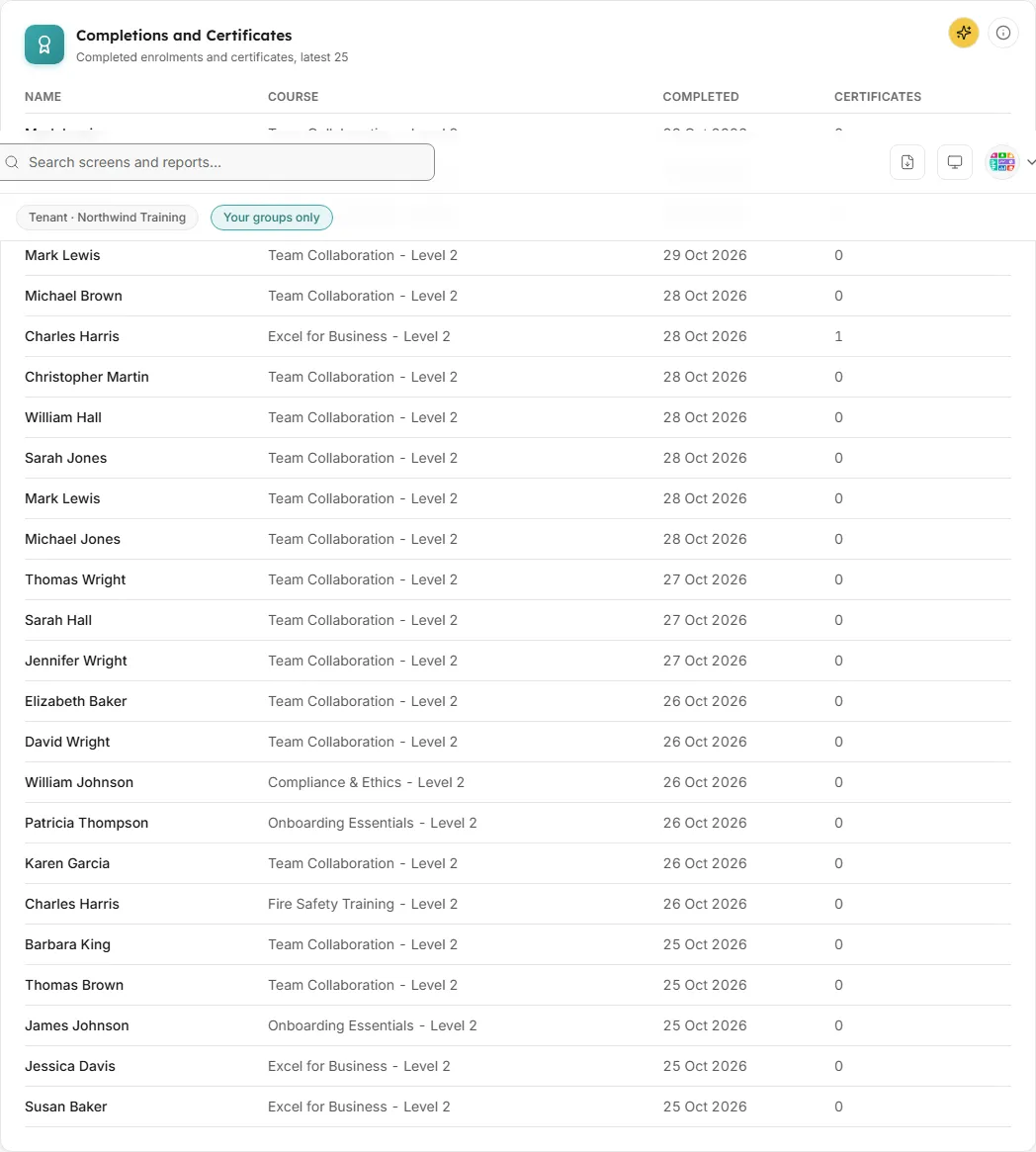
Who in your team finished which course and when, and the certificates issued in your courses.
- How to read it: the columns are Name, Course, Completed (the date, or “Not yet”) and Certificates. It shows the latest 25 rows, newest first.
- How it is worked out: one row per enrolment of a team member in your courses that is completed or has a certificate. Completed means a course completion record, every tracked activity shown in the course done, or a certificate in the course, dated when it was first complete. Certificates counts the certificates issued in that course.
- What you can do: read the info text, or Ask AI.
- Empty state: “No completions or certificates in your team yet.”
Buttons
Section titled “Buttons”- Ask AI on every tile and card. The question is answered through the same limit as the screen: only the people in your own groups. See Ask AI.
- Info (the i button): hover to read what the card counts, or click to keep the panel open.
- There is no CSV download and no pin button on this screen.
What a team lead can open beyond My Team
Section titled “What a team lead can open beyond My Team”The Team lead role also opens a set of other screens, every one of them read through the team lead’s own groups: the Executive Overview, Users & Engagement, Course Performance, Assessments, Reports & Analytics, Learners at Risk, Learner Profiles and the Learner Dashboard, the Completion Funnel, Compliance, and these Universal screens: Completion and Certification Trend, Course Effectiveness Scorecard, Assessment Analytics Deep-Dive, Time-to-Completion and Course Feedback, plus some sector screens. Left out on purpose are the AI-Generated Insight Summary, Cohort Comparison, Course Readiness, Alerts, admin and every CSV export. Team leads also have their own My Learning and the AI assistant.
Common questions
Section titled “Common questions”Why does My Team say “No team to show yet”?
Section titled “Why does My Team say “No team to show yet”?”The screen shows “No team to show yet: My team shows the people in your own Moodle groups. Open LearnBoard from Moodle to see them.” It appears when your account has no team read from Moodle: you signed in with a password rather than from Moodle, or your role is not Team lead. Open LearnBoard from Moodle to fix it.
Someone moved group in Moodle. When does My Team catch up?
Section titled “Someone moved group in Moodle. When does My Team catch up?”At your next sign-in from Moodle, or overnight when LearnBoard reads every team lead’s groups again, whichever comes first. The reach line shows when it last read them.
Why is a learner’s Last visit older than their last action in Moodle?
Section titled “Why is a learner’s Last visit older than their last action in Moodle?”Inside the last 30 days, Last visit comes from the activity log. Before that, it comes from Moodle’s own record of the last course visit, which can be earlier than the last logged event.
Why is Not started bigger than Team members?
Section titled “Why is Not started bigger than Team members?”Not started counts enrolments, not people. One person on three untouched courses counts three times.
Why do I see “Everyone in your courses”?
Section titled “Why do I see “Everyone in your courses”?”Your courses do not keep groups apart, or one of your roles may see all groups, so Moodle shows you everyone enrolled.
What is the “Sample view” note?
Section titled “What is the “Sample view” note?”On a demo workspace there is no Moodle sign-in, so My Team shows the team of a sample teacher from the demo’s Moodle, worked out the same way as a real sign-in, and a note names them. Opened from Moodle, each person sees their own.