

Graduation / Progression Forecasting
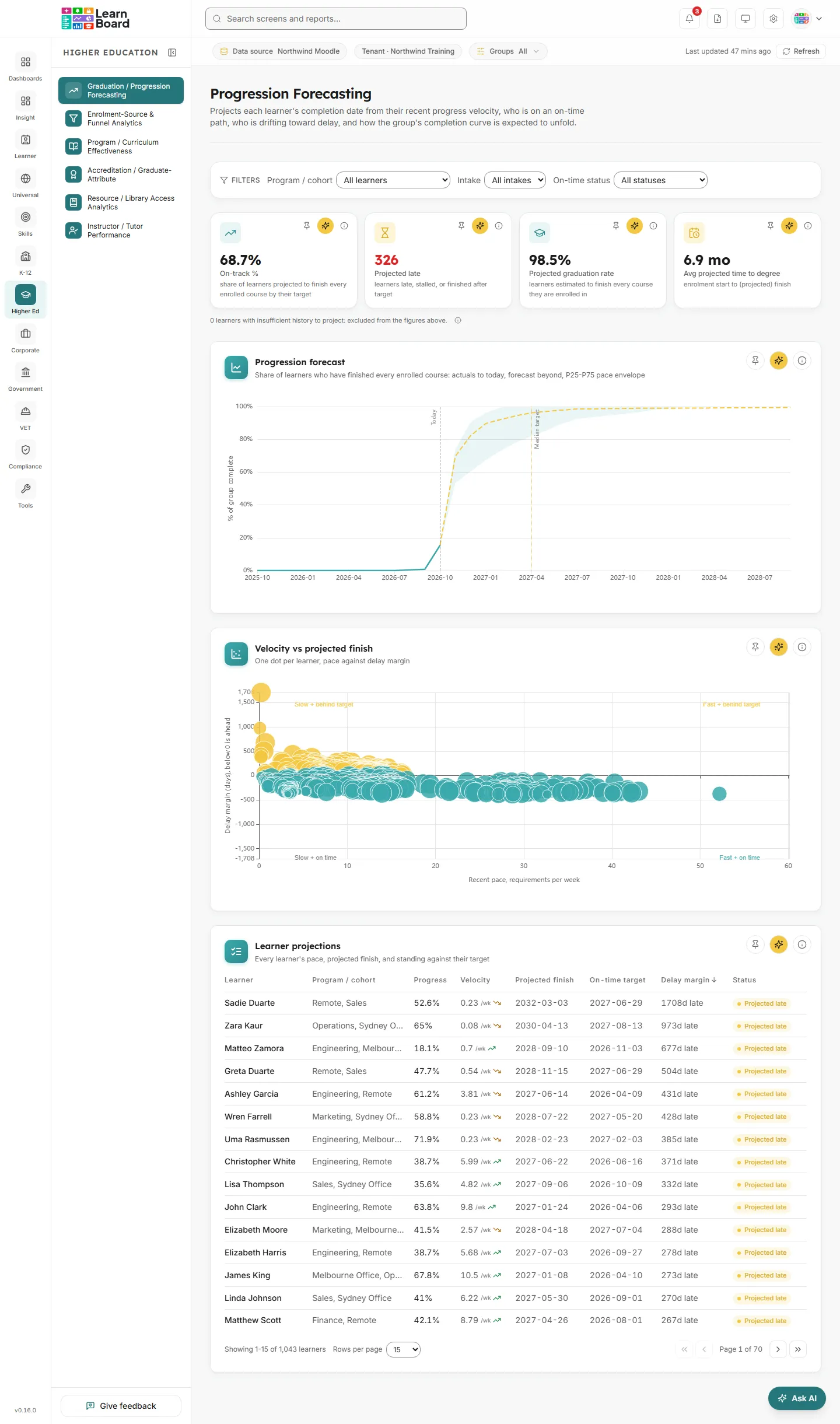
The Progression Forecasting screen projects when each learner will finish every course they are enrolled in, based on how fast they have been progressing over the last 90 days. Programme leaders, student success teams and managers use it to see who is on an on-time path, who is drifting towards a late finish, who has stalled, and how the whole group’s completion curve is expected to unfold.
The screen header reads: “Projects each learner’s completion date from their recent progress velocity, who is on an on-time path, who is drifting toward delay, and how the group’s completion curve is expected to unfold.”
At a glance
Section titled “At a glance”- Route:
/he/progression-forecasting. In the sidebar it sits under Higher Ed as Graduation / Progression Forecasting. - Who can open it: the Admin and Manager roles by default. The Viewer role does not get it by default. A Learner never sees it: opening the link sends them to their home page with the notice “You don’t have access to that screen, so you are on your home page instead.” See roles and permissions.
- Team leads: a Team lead can open this screen. Every figure on it is limited to the learners in their own Moodle groups.
- Plan: part of the Higher Education sector pack. If your plan does not include the pack, the page shows “Progression Forecasting is locked” with an upgrade prompt instead of the cards.
- Filters: Program / cohort, Intake and On-time status, plus the Groups control in the bar under the top bar, which narrows every data screen.
- Data it needs: nothing to set up. It reads your connected Moodle site: active learner enrolments, activity completion tracking, course completions, certificates, enrolment end dates and course end dates. See data sources.
- Shared words: learners here are people with an active student enrolment. “Projected late” on this screen is its own rule and is not the risk-score bands that “at risk” means on other screens.
How the projection works
Section titled “How the projection works”Every card on the screen reads from the same calculation, so the tiles, chart, scatter and table always agree.
- Requirements. A learner’s requirements are the completion-tracked activities across all of their enrolled courses. A course with no tracked activities counts as one requirement.
- Finished courses. A course counts as finished with a course completion, every tracked activity shown in the course done, or a certificate. A failed attempt is not done. When a course is finished, all of its requirements count as done.
- Recent pace (velocity). Requirements completed in the last 90 days, shown as requirements per week. The direction arrow compares the last 90 days with the 90 days before: more than 15% higher reads “speeding up”, more than 15% lower reads “slowing down”, otherwise “steady”.
- Projected finish. Today plus the remaining requirements divided by the recent pace. It assumes the learner keeps their recent pace.
- On-time target. In order of preference: the learner’s set enrolment end date; otherwise the latest end date of their enrolled courses; otherwise a target implied from typical completion times (enrolment start plus the median time similar learners took to complete those courses). If none of these exists, the learner has no target.
- Status bands.
- On track: projected to finish on or before their target, or already finished on time. A learner with a projection but no target also counts as on track.
- Projected late: projected to finish after their target; or stalled (earlier progress, but nothing completed in the last 90 days, so never given a finish date); or already finished, but after their target.
- Insufficient history: no completed activities or courses yet. There is nothing to measure a pace from, so no projection is ever made for them, and they are left out of the on-track and projected-late figures.
- Forecast horizon. Projections more than 24 months out never count as completing.
- Clock. Every day boundary uses your workspace’s own time zone.
Filters
Section titled “Filters”The filter bar sticks to the top of the page as you scroll. Every choice is saved in the page address, so a refresh or a shared link opens the same view.
- Program / cohort: “All learners” or one cohort. Cohorts are your Moodle course groups, listed with their member count in brackets.
- Intake: “All intakes” or one half-year intake, for example “2026 S1” (January to June) or “2026 S2” (July to December). A learner’s intake is the half-year of their first enrolment start.
- On-time status: “All statuses”, “On track”, “Projected late” or “Insufficient history”. This narrows the Learner projections table and the scatter; the tiles and the forecast chart always show the whole filtered group.
- Clear all: appears once any filter is set and resets all three.
Stat tiles
Section titled “Stat tiles”Four tiles sit across the top. Each tile has a Pin to dashboard button, an Ask AI about this button and an info (i) button that explains the count. See Ask AI and pinning.
Under the tiles a small line reads “N learners with insufficient history to project: excluded from the figures above.”, with its own info button. That count is always shown, so you can see how many learners the figures leave out.
If the filters leave nobody in scope, a single card reads “No learners in this scope” with the hint “Adjust the program/cohort or intake filters to see learners with active enrolments.”
On-track %
Section titled “On-track %”
The share of learners projected to complete all of their enrolled requirements on or before their on-time target.
- How to read it: higher is better. A dash means there is nobody with enough history to measure.
- How it is worked out: learners in the On track band divided by all learners with enough history (On track plus Projected late), as a percentage to one decimal place. Learners with insufficient history are left out. It assumes each learner keeps their recent 90-day pace.
- What you can do: pin it, Ask AI, open the info text.
Projected late
Section titled “Projected late”The number of learners in the Projected late band.
- How to read it: the figure turns red when it is above zero. It is a count of learners, not a percentage.
- How it is worked out: counts learners whose projected finish lands after their target, learners who are stalled (no requirement completed in the last 90 days, so no finish date), and learners who already finished but after their target. This is not the risk-score bands used on Learners at Risk.
- What you can do: pin it, Ask AI, open the info text. To see who they are, set On-time status to “Projected late” and read the table.
Projected graduation rate
Section titled “Projected graduation rate”The estimated share of learners who will finish all of their enrolled requirements at all, whether on time or late.
- How to read it: compare it with On-track %. The gap between them is learners expected to finish, but late.
- How it is worked out: learners already complete, plus learners projected to finish within the 24-month horizon and before their enrolment end date (where one is set, since an enrolment that ends first lapses), divided by all learners with enough history. Stalled learners count as not finishing.
- What you can do: pin it, Ask AI, open the info text.
Avg projected time to degree
Section titled “Avg projected time to degree”The average time from a learner’s first enrolment to their actual or projected completion.
- How to read it: shown in days under 90 days, in months (“mo”) from 90 days, and in years (“yrs”) from about 18 months.
- How it is worked out: for every learner with a finish date (actual or projected), the days from their earliest enrolment start to that date, averaged. Stalled learners have no projected finish and are left out, as are learners with insufficient history.
- What you can do: pin it, Ask AI, open the info text.
Charts
Section titled “Charts”Progression forecast
Section titled “Progression forecast”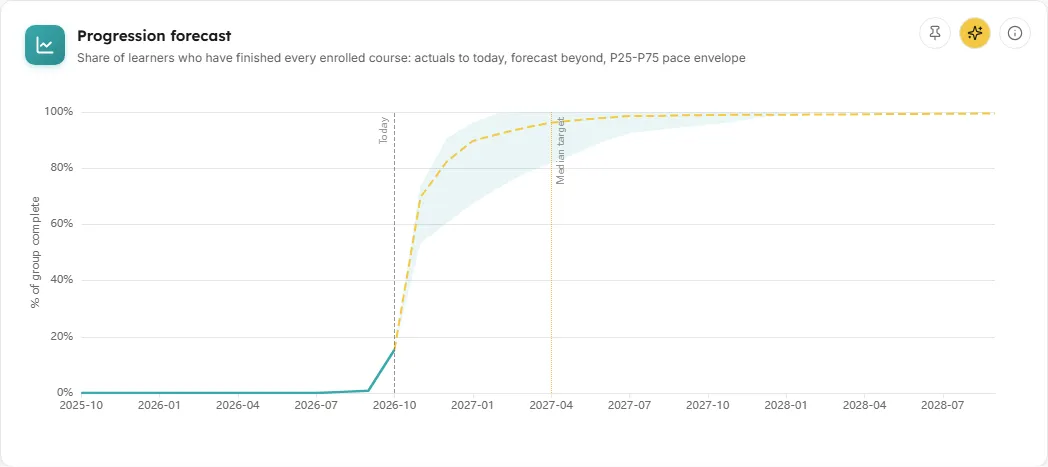
A line chart of the share of the group that has finished every enrolled course, month by month: what has happened so far, and what is projected to happen next.
- How to read it:
- The solid line, Completed to date, is actual completions up to today.
- The dashed line, Forecast, is the projection beyond today.
- The shaded band is the P25-P75 range: a what-if envelope, not a probability. Its upper edge re-projects every in-progress learner at the group’s 75th-percentile recent pace, its lower edge at the 25th percentile.
- A vertical line marks Today. A dotted line marks the Median target when the group’s median on-time target falls inside the chart.
- The vertical axis is “% of group complete”, from 0 to 100.
- The curve can level off below 100%. Stalled learners never complete in any scenario, so they stay in the base but never add to the line.
- How it is worked out: the base is every learner in scope with enough history (On track plus Projected late). The months run from at least a year back (or back to the first actual completion, up to 24 months) to the furthest projection within the horizon, at least six months ahead. The info text also says where the group’s targets came from, for example how many came from a set enrolment end date, a course end date, or typical completion times, and how many have no target.
- What you can do: hover a month for the completed, forecast and P25-P75 values; pin it; Ask AI; open the info text.
- Empty state: “Nothing to forecast yet” appears when no learner in scope has completion history to project from. The forecast appears once learners complete their first requirements.
Velocity vs projected finish
Section titled “Velocity vs projected finish”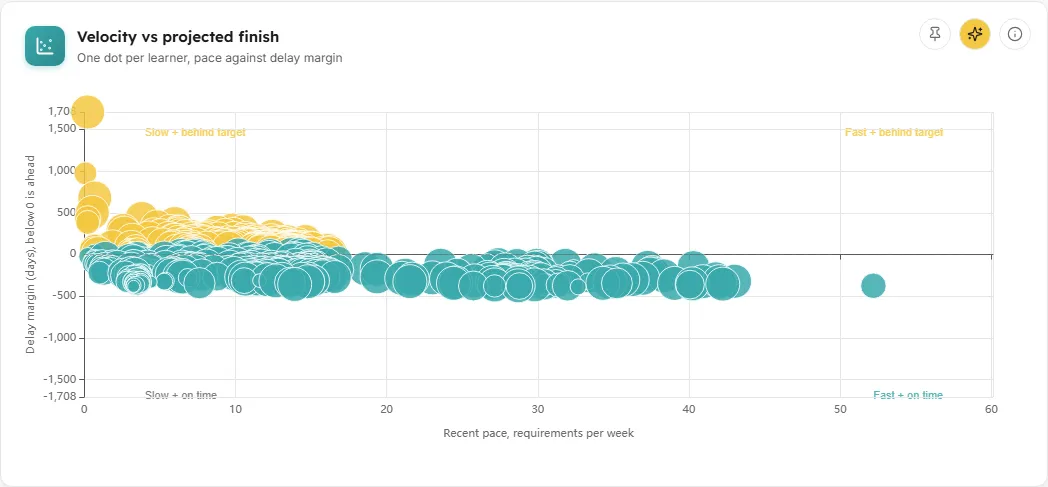
A scatter chart with one dot per in-progress learner who has a projected finish, placing their pace against how far ahead of or behind target they are.
- How to read it:
- Across: “Recent pace, requirements per week” over the last 90 days.
- Up and down: “Delay margin (days), below 0 is ahead”, that is projected finish minus on-time target. A dashed line marks zero, exactly on target.
- Corner labels name the four areas: “Slow + behind target”, “Fast + behind target”, “Slow + on time” and “Fast + on time”.
- Dot colour is the status band. Dot size grows with the work the learner still has to do.
- Where a learner has no target, their dot shows days from today to their projected finish instead, and the tooltip says “No target, showing days from today”.
- How it is worked out: from the same projection as the table. Stalled learners, learners with insufficient history and learners who have already finished carry no projection and do not appear.
- What you can do: hover a dot for the learner’s name, pace, progress, projected finish, delay margin and status. Click a dot to highlight that learner (the other dots fade) and open their projection detail. Pin it, Ask AI, open the info text.
- Empty state: “No projectable learners in this scope” with the note that learners appear once they have recent progress to project from; stalled and brand-new learners carry no projection.
Learner projections
Section titled “Learner projections”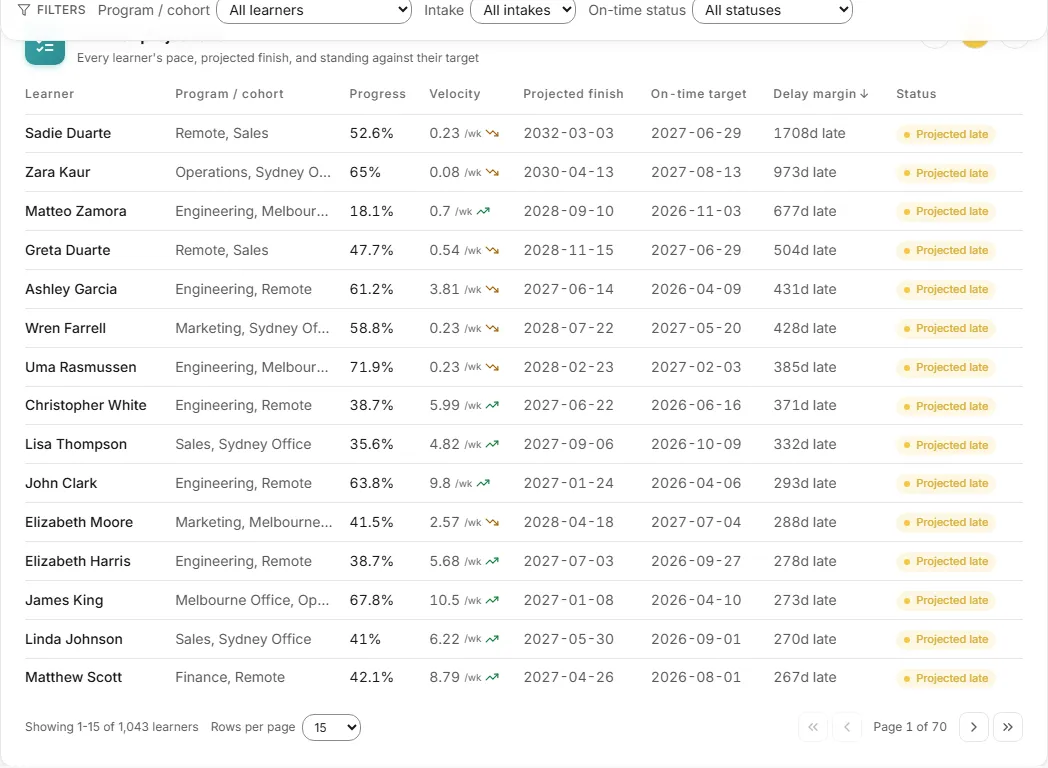
One row per learner with an active learner enrolment in scope, with their progress, pace, projected finish and standing against target.
- Columns:
- Learner: their name.
- Program / cohort: the cohorts they belong to, or a dash.
- Progress: requirements done as a share of all enrolled requirements.
- Velocity: requirements per week over the last 90 days, with an arrow for speeding up, steady or slowing down.
- Projected finish: the projected date; a learner who has already finished shows their actual completion date marked “done”. Stalled learners show “Not projected”; learners with insufficient history show a dash.
- On-time target: the target date, or a dash.
- Delay margin: for example “12d late”, “30d ahead” or “On target”. Stalled learners read “Not projected, no recent progress”; learners with no target read “No target”.
- Status: On track, Projected late or Insufficient history. A stalled learner’s badge adds “stalled”.
- How to read it: by default the table sorts by Delay margin, latest first, so the learners furthest behind target come to the top. Click any column heading to sort by it; click again to reverse.
- How it is worked out: see How the projection works. The info text for the card also explains how projected finish is calculated.
- What you can do: sort by any column; page through with First, Previous, Next and Last; choose 15, 50 or 100 rows per page; click a row (or press Enter on it) to open the learner’s projection detail. Pin it, Ask AI, open the info text. There is no CSV download on this card.
- Empty state: “No learners match the current filters.”
Projection detail panel
Section titled “Projection detail panel”Clicking a learner in the table or a dot in the scatter opens a side panel for that learner. It shows their name, status badge and cohorts, then:
- Projection: for an in-progress learner, their projected finish date, the range of dates they would finish at the group’s P75 to P25 pace, and their target and where it came from (enrolment end date, course end date or typical completion time), with the delay margin. If their own pace is faster than three quarters of the group, a note explains why the projection is earlier than the range; if slower, why it is later. A learner who has finished shows when they completed and how that compares with their target. A stalled learner reads that no finish date is projected and how many requirements remain.
- Progress trajectory: a small line of their Progress % at the end of each month. A finished course counts in full from the month it was finished. The last point matches the row’s Progress %. If there is no monthly history yet it reads “No monthly history to chart yet.”
- What drives this projection: their recent pace with the number of requirements done in the last 90 days compared with the 90 days before, and their progress with the number of requirements remaining.
- Remaining by course: each unfinished course and how many requirements are left in it.
For a learner with insufficient history the panel reads: “This learner has no completed activities or courses yet, so there is no pace to project from. A projection will appear once they complete their first requirements.”
Close the panel with the close button, by clicking outside it, or with Escape.
Common questions
Section titled “Common questions”Why is a learner marked Projected late when they have finished?
Section titled “Why is a learner marked Projected late when they have finished?”They finished after their on-time target. The Projected late band covers learners projected to finish late, stalled learners, and learners who already finished late.
Why does the forecast line stop short of 100%?
Section titled “Why does the forecast line stop short of 100%?”Stalled learners, who have made earlier progress but completed nothing in the last 90 days, are never projected to finish. They stay in the group the percentage is taken from, so the curve can level off below 100%.
Why do some learners have no target?
Section titled “Why do some learners have no target?”None of the three sources exists for them: no enrolment end date, no course end date, and no typical completion time for their courses. They can still be projected and count as On track when they have a pace. Setting an enrolment end date or a course end date in Moodle gives them a target.
Why is someone missing from the scatter but in the table?
Section titled “Why is someone missing from the scatter but in the table?”The scatter only shows learners who are still in progress and have a projected finish. Stalled learners, learners with insufficient history and learners who have already finished are in the table but not on the scatter.
Is “Projected late” the same as “at risk”?
Section titled “Is “Projected late” the same as “at risk”?”No. “At risk” on other LearnBoard screens means the High and Medium risk-score bands. “Projected late” is worked out from pace and target dates on this screen only. See definitions.
How fresh are the figures?
Section titled “How fresh are the figures?”The projection is calculated once and kept for up to an hour, then calculated again from your Moodle data.