

Your account
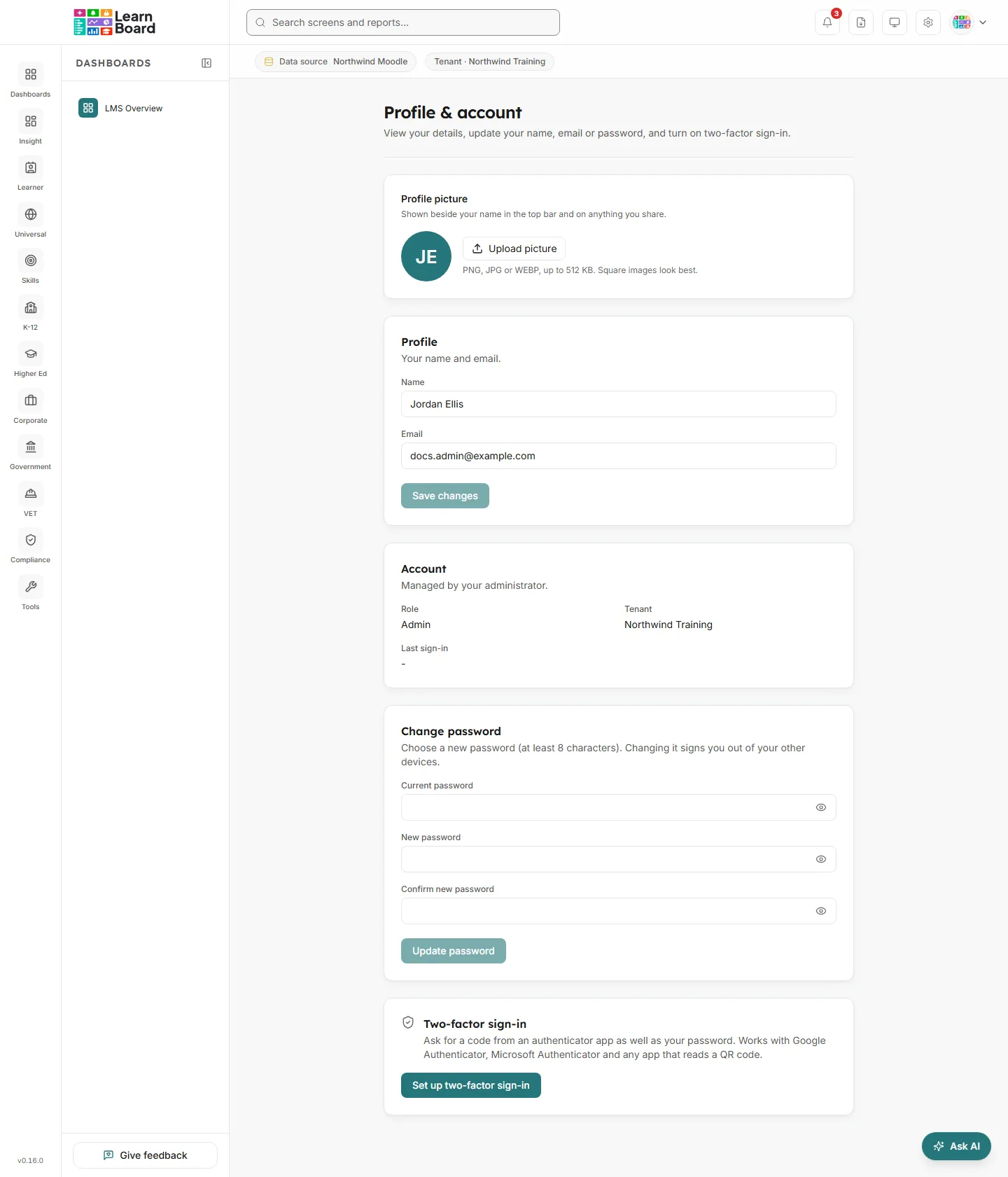
Profile & account is where you look after your own LearnBoard account: your picture, your name and email, your password and two-factor sign-in. Every role has it. Open it from your picture or initials at the top right, then Profile & account.
At a glance
- Profile picture: shown beside your name in the top bar and on anything you share.
- Profile: your name and email.
- Account: your role, your workspace and when you last signed in, managed by your administrator.
- Change password: changing it signs you out of your other devices.
- Two-factor sign-in: a code from an authenticator app as well as your password.
Profile picture
Section titled “Profile picture”Press Upload picture (or Change picture if you already have one) and choose a PNG, JPG or WEBP file up to 512 KB. Square images look best. You can also remove your picture; your initials are shown instead.
Profile
Section titled “Profile”Change your Name or Email and press Save changes. The screen says Saved. when it is done. If you try to leave with changes you have not saved, LearnBoard warns you first.
If your email address still needs confirming, a notice at the top says Confirm your email address. with the address the link was sent to, and lets you send it again.
Account
Section titled “Account”This part is read-only, because your administrator manages it:
- Role: what you can see and do. See Roles and what each person sees.
- Tenant: your workspace.
- Last sign-in: when you last signed in.
How do I change my password?
Section titled “How do I change my password?”- Under Change password, type your Current password.
- Type a New password, and the same again in Confirm new password.
- Press Update password.
The screen says Password updated. Other devices were signed out. A new password must be at least 12 characters, with upper and lower case letters, a number and a symbol, and must not be one known from public data breaches.
If you have forgotten your current password, sign out and use Forgot your password? on the sign-in screen. See Signing in.
How do I turn on two-factor sign-in?
Section titled “How do I turn on two-factor sign-in?”You need an authenticator app on your phone, such as Google Authenticator or Microsoft Authenticator. Any app that reads a QR code works.
- Under Two-factor sign-in, press Set up two-factor sign-in.
- Scan the QR code with your authenticator app. No camera? Type the key shown under it into the app instead.
- Type the Six-digit code the app shows, and press Turn it on.
- LearnBoard shows your recovery codes: Save these recovery codes now. Each one signs you in once if you lose your phone, and this is the only time they can be shown. Press Copy all and keep them somewhere safe.
- Press I have saved them.
From now on, signing in asks for a code from your app as well as your password. The section shows On, and how many recovery codes you have left.
Making new recovery codes
Section titled “Making new recovery codes”Type Your password and press New recovery codes. The old codes stop working and the new ones are shown once, as before.
Turning two-factor sign-in off
Section titled “Turning two-factor sign-in off”Press Turn off, type your password under Confirm your password to turn it off, and press Turn off again. Press Keep it on to change your mind.
Signing out
Section titled “Signing out”Press your picture or initials at the top right, then Sign out. To sign out of your other devices, change your password: that signs out everywhere else.