

Assessments
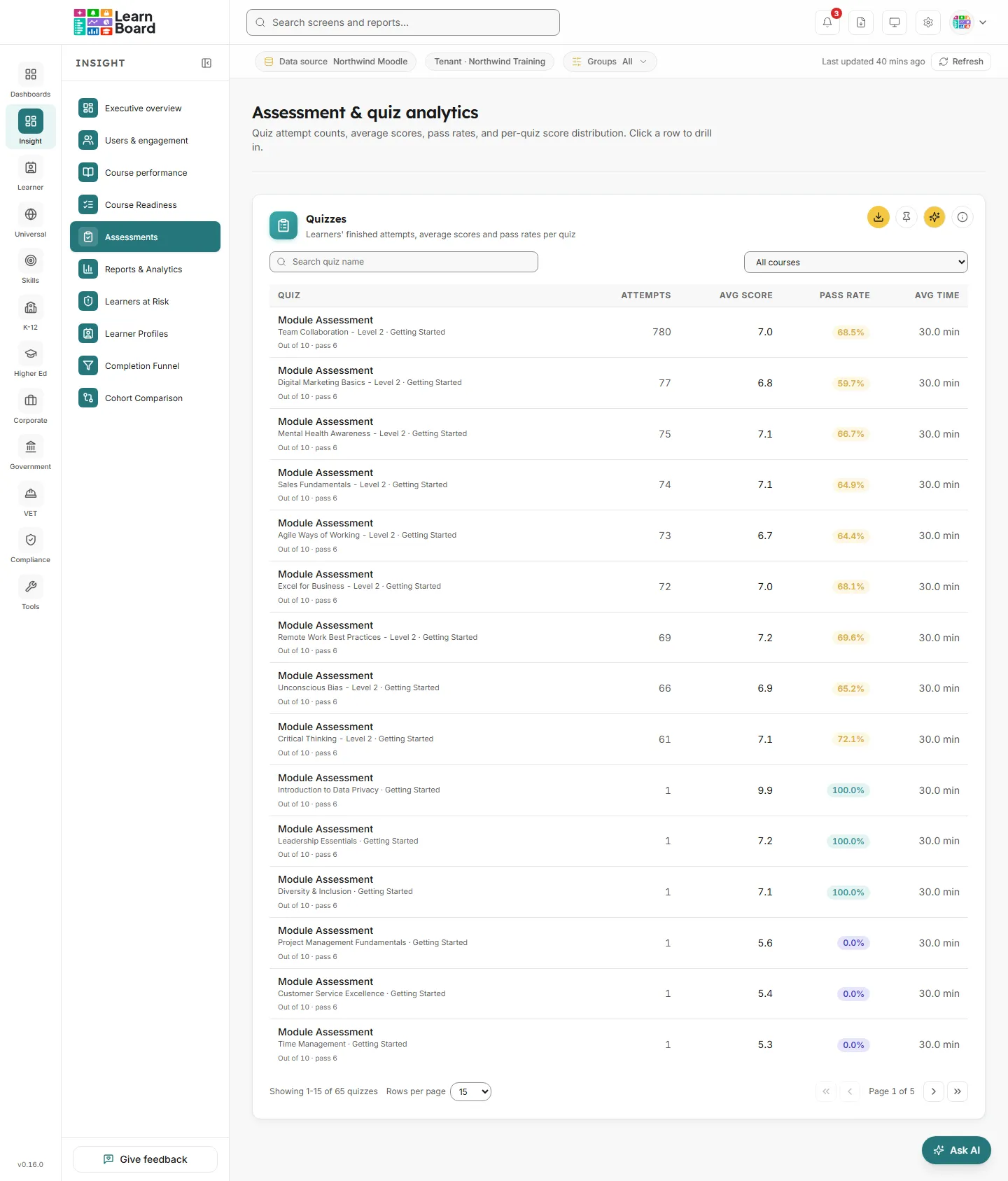
The Assessments screen lists every quiz on your Moodle site with how many finished attempts learners have made, the average score, the pass rate and the average time taken, and lets you open any quiz to see how its scores are spread and how many learners passed first time. It is for teachers, assessment leads and managers checking whether a quiz is working: too hard, too easy, being rushed, or not being taken at all. The screen heading reads Assessment & quiz analytics; the menu calls it Assessments.
At a glance
Section titled “At a glance”- Route:
/assessments, in the Insight section of the menu. - Who can open it: roles with the
view.assessmentspermission: Admin, Manager and Viewer by default, and the Team lead role. - Plan: part of the Insight pack and included on every plan, Free included.
- Team leads: see the screen through their own Moodle groups. A Your groups only badge sits in the bar under the top bar, and every attempt counted belongs to someone in their groups.
- Learners: cannot open it. A learner who follows a link here is sent to their own home page with the notice “You don’t have access to that screen, so you are on your home page instead.”
- Filters: Search quiz name and the course menu on the Quizzes table, plus the Groups filter in the bar under the top bar.
- No data source: if the workspace has no Moodle connection yet, the screen shows a card asking you to connect a data source instead of the table.
Who is counted?
Section titled “Who is counted?”Every figure on this screen counts learners’ finished attempts only. Left out:
- teacher previews;
- staff, suspended enrolments and suspended accounts (only people with an active learner enrolment in the quiz’s course count; see definitions);
- courses hidden from analytics in Settings;
- a quiz hidden in its course: it is not listed and its attempts are not counted;
- attempts that are still in progress or were abandoned.
Attempts are counted as attempts, never as learners, except on the two tiles in the quiz detail that say “Learners”.
Cards on this screen
Section titled “Cards on this screen”Quizzes
Section titled “Quizzes”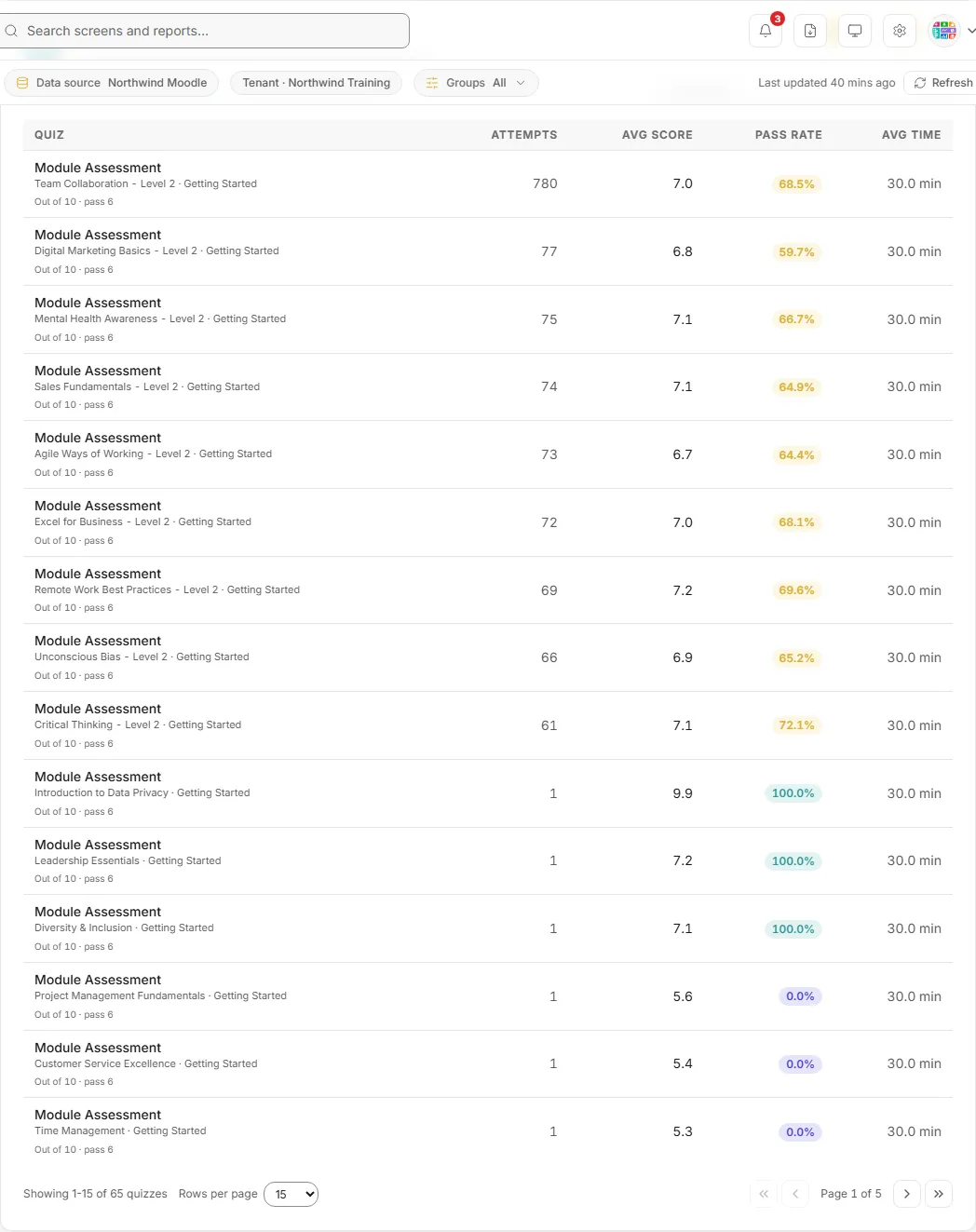
Every quiz with its attempt count, average score, pass rate and average time. Select a row to drill into its score distribution.
-
How to read it: each row is one quiz. Under the quiz name you see its course and topic (the course section it sits in, or “Topic N” when the section has no name), and its scale, for example “Out of 100 · pass 50” or “Out of 10 · no pass mark”. The columns are:
- Attempts: learners’ finished attempts.
- Avg score: the average mark of those attempts, on the quiz’s own scale (out of its maximum grade). A dash means no finished attempts.
- Pass rate: the share of attempts that reached the quiz’s pass mark, coloured by band: 80% or more, 50% to under 80%, and under 50%. A dash means the quiz has no pass mark, or no learner has finished it; it never shows 0% for “no pass mark”.
- Avg time: the average time from starting to finishing an attempt, in seconds, minutes or hours.
Quizzes are listed with the most attempts first, then by name. A quiz nobody has taken still appears, with 0 attempts, so you can see quizzes that exist but are not being used.
-
How it is worked out: attempts are finished attempts by learners enrolled in the quiz’s course. Teacher previews, staff, suspended people and courses hidden from analytics are left out, and so is a quiz hidden in its course. Each attempt’s raw marks are scaled to the quiz’s maximum grade before averaging, so a quiz marked out of 10 and graded out of 100 reads as, for example, 75 out of 100. The pass mark is the one set on the quiz’s grade item in the Moodle gradebook. Average time only uses attempts whose finish time is after their start time. The list is kept for five minutes and then read again.
-
What you can do:
- Select a row, or press Enter or Space on it, to open the quiz detail on the right. The open row is highlighted.
- Search quiz name: narrows the list to quiz names containing what you type (not case sensitive).
- All courses menu: narrows the table to one course. Its choices are the courses of the quizzes loaded, so two quizzes with the same name in different courses can be told apart.
- Page through the list with the page buttons and Rows per page (15, 50 or 100). The footer reads “Showing 1-15 of N quizzes”.
- Download CSV saves
quizzes.csvwith Quiz, Course, Topic, Attempts, Avg score, Pass rate % and Avg time for every row that matches your search and course choice. It is built in your browser. - Pin the table to a dashboard (your search travels with it), Ask AI about it, or open Info.
-
Empty states: “No quizzes configured.” when the site has no quizzes LearnBoard can list, and “No quizzes match the current filters.” when your search or course choice excludes everything.
-
Large sites: the screen loads the first 100 matching quizzes. When there are more, a line under the table reads “The server returned 100 of N quizzes. Search to narrow the list.”
Score distribution
Section titled “Score distribution”How one quiz’s finished attempts are spread across score bands, how many passed, failed or are awaiting grading, and how many learners passed first time or eventually. It opens in a panel that slides in from the right, titled with the quiz name and its course.
- How to read it: the panel has four parts.
- Rapid-fire badge: when any attempt finished in under 30 seconds, a warning badge under the quiz name reads, for example, “3 rapid-fire attempts (under 30s)”. These are often learners clicking through rather than answering.
- Score distribution (attempts by % of max grade): a bar chart of attempts in five bands of the quiz’s maximum grade: 0-19, 20-39, 40-59, 60-79 and 80-100. Hover a bar for its count. When some attempts are awaiting grading, a note under the chart says how many are not in the bars.
- Pass / fail (attempts): described below.
- Learners passing first time and Learners passing eventually: described below.
- How it is worked out: only learners’ finished attempts are included; teacher previews, staff attempts, and abandoned and in-progress attempts are ignored. Grades are put into five equal bands across the quiz’s own maximum, so a quiz marked out of 10 and one marked out of 100 read the same way. An attempt with a question still waiting for manual grading has no mark yet, so it is left out of the bands and counted as awaiting grading instead.
- What you can do: hover the bars and the donut; Pin this quiz’s detail to a dashboard; Ask AI about it; open Info. Close the panel to return to the list.
- Empty state: “Detail unavailable.” if the quiz could not be read.
Pass / fail (attempts)
Section titled “Pass / fail (attempts)”A donut of the quiz’s finished attempts split into Passed, Failed and, when there are any, Awaiting grading.
- How to read it: the figure in the middle is the share of attempts passed, labelled Attempts passed. A line underneath gives the counts, for example “12 passed, 5 failed, 2 awaiting grading of 19 finished attempts”. The slices add up to the quiz’s finished attempts.
- How it is worked out: pass is the quiz’s own pass mark, not a fixed percentage. The donut counts attempts, so someone who fails twice and then passes adds two fails and a pass.
- What you can do: hover a slice for its count.
- Empty states: “No pass mark set on this quiz.” when the quiz has no pass mark, and “No graded attempts yet.” when nobody has finished it.
Learners passing first time
Section titled “Learners passing first time”The share of learners whose earliest finished attempt already met the pass mark.
- How to read it: compare it with Learners passing eventually. A large gap means many learners need more than one try.
- How it is worked out: learners whose first finished attempt reached the pass mark, divided by all learners with a finished attempt on this quiz. A dash means the quiz has no pass mark or no learner has finished it.
Learners passing eventually
Section titled “Learners passing eventually”The share of learners who met the pass mark on any of their finished attempts.
- How to read it: this is how many learners got there in the end. It is never lower than the first-time figure.
- How it is worked out: learners with at least one finished attempt at or above the pass mark, divided by all learners with a finished attempt. A dash means the quiz has no pass mark or no learner has finished it.
Common questions
Section titled “Common questions”Why does the attempt count differ from Moodle’s quiz report?
Section titled “Why does the attempt count differ from Moodle’s quiz report?”Moodle’s own quiz reports can be set to include attempts in other states and from other people. LearnBoard counts only finished attempts by people with an active learner enrolment in the quiz’s course, and leaves out teacher previews, staff, suspended people, hidden quizzes and courses hidden from analytics. If the figures differ, check whether the Moodle report includes any of those.
Why is the pass rate a dash?
Section titled “Why is the pass rate a dash?”The quiz has no pass mark on its grade item in the Moodle gradebook, or no learner has finished it yet. LearnBoard shows a dash rather than 0%, because 0% would read as everyone failing.
Why does the average score look out of a different total?
Section titled “Why does the average score look out of a different total?”Average score is on the quiz’s own maximum grade, the “Out of” figure under the quiz name. A quiz out of 10 averages out of 10.
Why are the bars and the donut different totals?
Section titled “Why are the bars and the donut different totals?”They should add up to the same finished attempts. Attempts awaiting manual grading are not in the bars but are a slice of the donut, and the note under the bar chart says how many.
Filters and controls
Section titled “Filters and controls”- Search quiz name: narrows the Quizzes table by quiz name.
- All courses: narrows the Quizzes table to one course.
- Rows per page and page buttons: page through the quizzes.
- Download CSV: saves the filtered quiz list.
- Groups: the filter in the bar under the top bar (Programme, Department, Campus, Learner category, Cohort). It narrows every card on every screen until you clear it.
- Last updated and Refresh: in the bar under the top bar. Refresh works this screen’s figures out again (at most once a minute per workspace) and reloads the table.