

Pathway / Qualification Progress
The Pathway / Qualification Progress screen tracks learners through qualifications made of several courses, such as VET training plans, higher education programmes or role-based learning paths: what each learner has completed, what is in progress and what is still outstanding at every stage, with an estimate of when they will finish. It is for trainers, programme coordinators, L&D managers and team leads.
It has two views. Learner view follows one learner through one pathway. Pathway view shows a whole pathway’s cohort at once.
At a glance
Section titled “At a glance”- Route:
/skills/pathway-progress. In the sidebar it sits under Skills & Capability as Pathway / Qualification Progress. The page header reads Pathway / Qualification Progress Tracker. - Who can open it: the Admin and Manager roles by default. The Viewer role does not get it by default, because the specialist modules are held back from Viewer. Roles are managed for the whole LearnBoard installation, not from your workspace admin screens. The Learner role never sees it.
- Team leads: can open it. Every figure and row is limited to the learners in their own Moodle groups.
- Plan: part of the Skills & Capability pack. On the standard plans that is Business, Scale and Enterprise. Without the pack the screen shows “Part of the Skills & Capability pack, not included in your current plan.”
- Views and filters: Learner view (learner search and pathway picker) and Pathway view (pathway picker, Cohort, status buttons and Show only inactive 30+ days). The chosen view, learner, pathway, stage, filters, sort and page are kept in the page address.
- Data it needs: pathway definitions (the stages, their required and elective courses, and who is signed up) plus course completions from Moodle.
- Who is counted: learners signed up to the pathway who hold an active learner enrolment in at least one of its courses. Staff, suspended enrolments and suspended accounts are left out.
Where do pathways come from?
Section titled “Where do pathways come from?”A pathway is a sequence of stages. Each stage has required courses and can have elective groups, where a learner must complete a set number of courses from a list (“Choose N of M”). A stage can depend on an earlier one.
How progress is worked out
Section titled “How progress is worked out”- Course complete: on an active learner enrolment, the learner has a course completion record, has finished every completion-tracked activity shown in the course, or holds a certificate issued in it.
- Stage status:
- Completed: every required course is finished and each elective group has met its quota.
- Blocked: its prerequisite stage is not complete yet.
- In Progress: some course in it has started.
- Not Started: otherwise.
- Percent complete: (completed required courses + electives counted up to each group’s quota) ÷ (all required courses + all electives required), across every stage.
- Estimated time to completion: the sum of the workspace-wide median completion time for each remaining required course, plus the average median of the remaining electives in each group. It assumes the learner works through courses one after another, so it is a planning guide, not a guarantee.
Learner view
Section titled “Learner view”Learner and pathway pickers
Section titled “Learner and pathway pickers”The controls at the top of the Learner view.
- Learner: “Search for a learner…”. Type at least 2 characters of a name, email or username, then pick from the list. “No learners match” when nothing is found.
- Pathway: “Select an enrolled pathway…”, listing only the pathways the chosen learner is signed up to.
- Empty states, in order: “Pick a learner” before you search; “Not enrolled in any pathway” when the learner has no pathway sign-ups; “Choose a pathway” until you pick one.
Pathway progress
Section titled “Pathway progress”
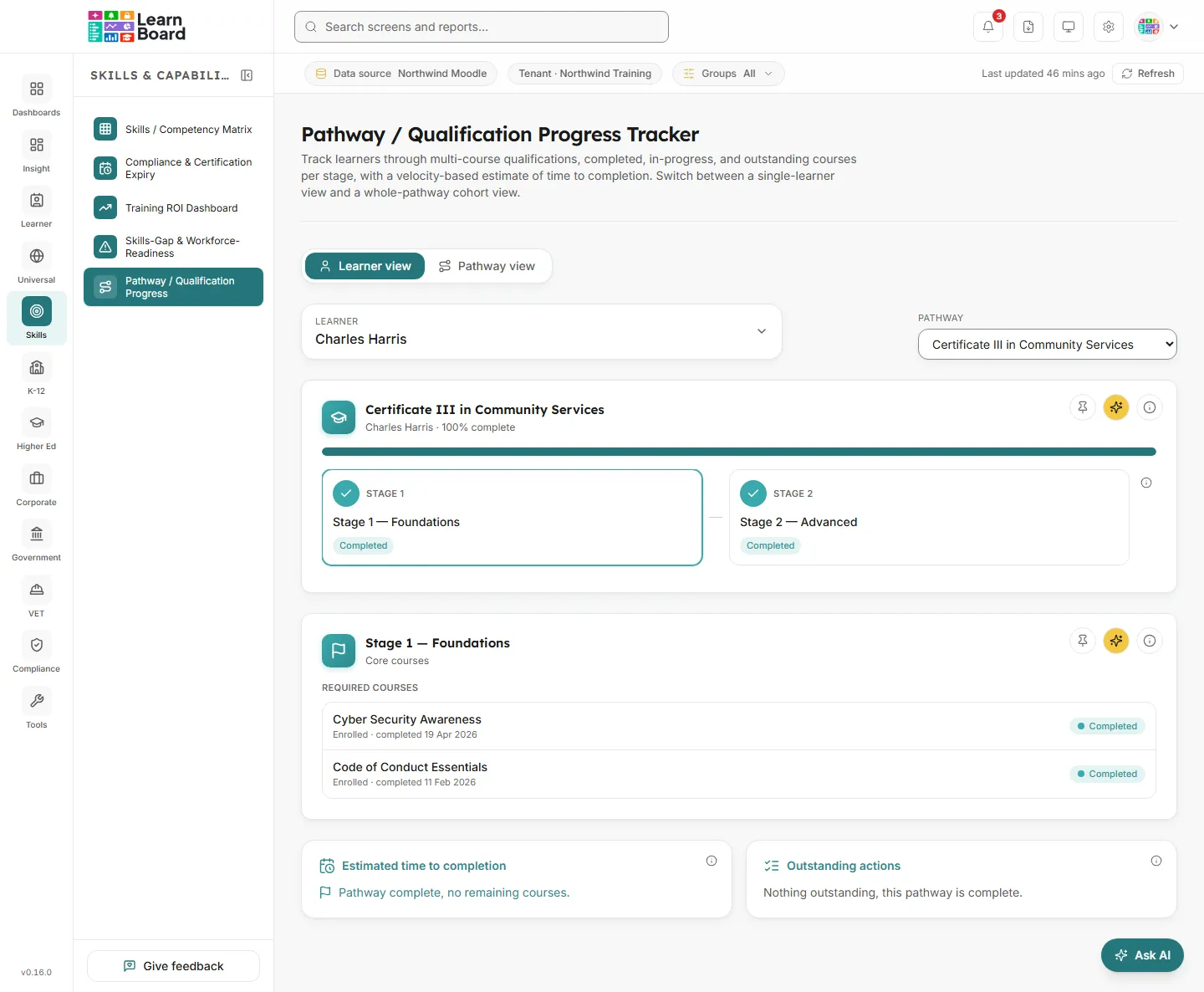
The card is titled with the pathway’s name. It shows a progress bar and a stepper with one step per stage.
- How to read it: each step shows “Stage N”, the stage name and its status (Completed, In Progress, Not Started or Blocked) with a matching icon. The info icon beside the stepper explains the stage states.
- What you can do: click a step to show that stage in Stage detail below. By default the first stage that is not complete is selected. Info tooltip, Ask AI about this, Pin to dashboard.
Stage detail
Section titled “Stage detail”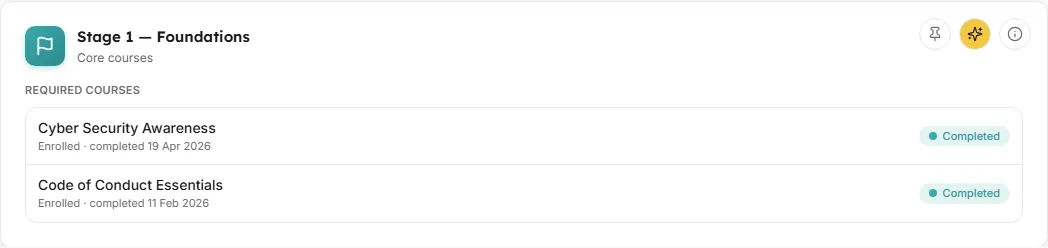
The card is titled with the selected stage’s name; its unit line is the stage’s description when it has one. It lists every course in the stage.
- Required courses: each with “Enrolled” or “Not enrolled”, the completion date and grade where there are any, and a status (Completed, In Progress or Not Started).
- Electives: each group with a counter such as “Choose 2 of 5 · 1/2 done”, highlighted once the quota is met, and its courses listed the same way.
- What you can do: info tooltip, Ask AI about this, Pin to dashboard.
- Empty state: “No courses are mapped to this stage yet.”
Estimated time to completion
Section titled “Estimated time to completion”How long the learner still needs, and when they should finish.
- How to read it: the days remaining (estimated) and the projected finish date. “Pathway complete, no remaining courses.” once they are done.
- How it is worked out: see How progress is worked out.
- Empty state: “Not enough completion history yet to estimate a finish date for the remaining courses.”
- The card has an info tooltip only.
Outstanding actions
Section titled “Outstanding actions”A plain-English list of what the learner should do next.
- How to read it: lines such as “To finish (stage): complete (course)” for each remaining required course in their first incomplete stage, “(stage): choose N more elective(s)”, and a pathway-wide tally such as “To finish pathway: N course(s) remaining (N required, N elective)”.
- Empty state: “Nothing outstanding, this pathway is complete.”
- The card has an info tooltip only.
Pathway view
Section titled “Pathway view”Filters
Section titled “Filters”The controls at the top of the Pathway view.
- Pathway: “Select a pathway…”, listing every pathway in your workspace. “Choose a pathway” shows until you pick one.
- Cohort: “All cohorts” or one cohort. Cohorts are your Moodle groups. It narrows the tiles, the stage chart and the table.
- Status buttons: Completed, In Progress, Not Started and Blocked. Pick one or more to show only learners with that overall status in the table.
- Show only inactive 30+ days: limits the table to learners counted in the Inactive 30+ days tile.
A note reading “Pathway recently launched, limited progress data so far.” appears when learners are signed up but none has made any progress yet.
Learners enrolled
Section titled “Learners enrolled”How many learners are signed up to this pathway.
- How it is worked out: people with an active, on-hold or completed sign-up to the pathway who hold an active learner enrolment in at least one of its courses. A sign-up with no such enrolment, such as an account with no Moodle enrolment or a teacher, is not counted.
- How to read it: when sign-ups are left out, the unit line adds “N sign-ups left out (not learners in its courses)”.
- Has an info tooltip, Ask AI about this and Pin to dashboard, like every tile here.
Completed pathway
Section titled “Completed pathway”Learners who have finished the whole pathway.
- How it is worked out: learners who have completed every required course and met every elective quota across all stages, as a share of Learners enrolled.
Inactive 30+ days
Section titled “Inactive 30+ days”Learners who have stalled.
- How it is worked out: learners who have not finished the pathway and have had no activity in its courses for more than 30 days, including those who never started.
- How to read it: this is inactivity, not the risk-score bands used for at-risk learners elsewhere. In the table these learners have a warning icon beside their last activity.
Avg completion time
Section titled “Avg completion time”How long finishers took.
- How it is worked out: for the learners counted in Completed pathway, the average number of days from the start of their first enrolment in one of the pathway’s courses to their last course completion. A learner with a course completed only before its enrolment start has no duration; the unit line then adds “N left out (completed before their enrolment start)”.
- How to read it: “-” when nobody has finished yet.
Cohort progress by stage
Section titled “Cohort progress by stage”One horizontal stacked bar per stage, split by how many learners are Completed, In Progress, Not Started or Blocked on it.
- How to read it: each bar adds up to Learners enrolled, because every learner is counted once on every stage. A tall Not Started or Blocked segment shows where the cohort is held up. Hover a bar for its counts.
- What you can do: info tooltip, Ask AI about this, Pin to dashboard.
- Empty state: “No enrolled learners” when nobody is signed up yet.
Enrolled learners
Section titled “Enrolled learners”Everybody signed up to the pathway, with the stage they are on and when they are expected to finish.
- Columns: Learner (name and email), Current stage (the first stage that is not complete), % complete, Last activity (for example “Today”, “Yesterday”, “12 days ago” or “No activity recorded”), Estimated finish and Status.
- Sorting: click any column heading; click again to reverse. The default is % complete, highest first.
- Pages: 15 rows per page by default, with page controls.
- What you can do:
- Click a row to open the Pathway learner drawer.
- Download CSV (file
pathway-learner-progress.csv) with Learner, Email, Current stage, % complete, Last activity, Estimated finish and Status, for the rows on the current page. - Info tooltip, Ask AI about this, Pin to dashboard.
- Empty state: “No learners match the current filters.”
Pathway learner
Section titled “Pathway learner”The drawer that opens when you click a row in Enrolled learners.
- It shows the learner’s name and the pathway, their overall status and percent complete, Current stage, Last activity, Estimated finish, Enrolment (their sign-up status), Stage progress with every stage’s status, and a Suggested next action (the first of their outstanding actions, or “Pathway complete, no outstanding actions.”).
- Close it with the close button, by clicking outside it, or with Escape.