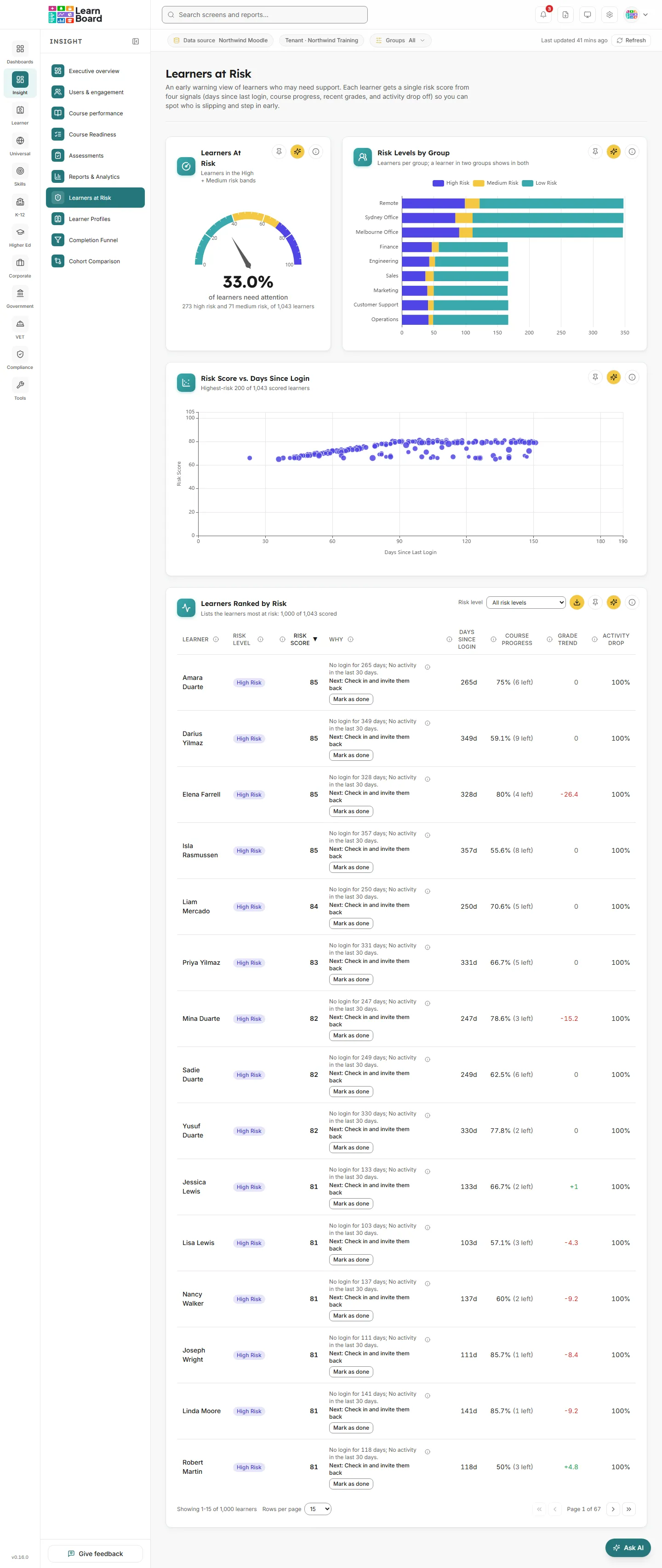
Learners at Risk is LearnBoard’s early warning screen. It gives every learner one risk score from 0 to 100, built from four warning signs (days since last login, course progress, recent grades and drop in activity), so teachers, managers and team leads can see who is slipping and step in before they drop out.
Where: Insight, then Learners at Risk. The address is /learners-at-risk.
Who can open it: anyone whose role holds the Learners at Risk permission. By default that is Admin, Manager, Viewer and Team lead.
Plan: part of the Insight pack. The Free plan leaves this screen out, and Pro and above include it. On a plan without it you see “Learners at Risk is locked” and a way to compare plans.
Team leads: see only the people in their own Moodle groups, and the bar under the top bar shows Your groups only. A learner is scored on the team’s courses only, so someone behind only in another teacher’s course is not at risk on this team.
Learners: cannot open this screen. A learner who follows a link here is taken to their own home page with the note “You don’t have access to that screen, so you are on your home page instead.”
Filters: the Groups filter in the bar under the top bar, the Risk level menu on the ranked table, and a click on a group in the group chart to highlight its learners.
What it never does: LearnBoard sends nothing to the learner and changes nothing in Moodle. The score and the suggested step are a prompt for a person, who decides what to do.
Learners at Risk: the gauge and group chart at the top, the scatter in the middle, the ranked list at the bottom.
Every person with an active student enrolment is scored. These are the learners every LearnBoard figure counts: staff, suspended accounts and suspended enrolments are left out, and so is the guest account. Each of the four signals becomes a risk value from 0 (no concern) to 100 (worst), and the score is the average of the four, each weighted 25 per cent.
Signal
What it measures
How it becomes 0 to 100
Recency
Days since the learner last signed in to Moodle
0 days is 0, 90 days or more is 100, in a straight line between. A learner who has never signed in counts as 100.
Completion
Tracked activities done out of every tracked activity in the courses they are enrolled in as a learner
100 minus the share done. Completed or passed counts as done; a failed attempt does not.
Assessment
Their recent grade average, from grades marked in the last 30 days, each as a share of the item’s maximum
100 minus the recent average. With no recent grade the signal sits at a neutral 50.
Engagement
Activity log events in their learner courses in the last 30 days against the 30 days before
The percentage drop. No activity in either window counts as 100; activity only in the recent window counts as 0.
The score is then placed in a band. These are the same bands every at-risk figure in LearnBoard uses, so the Executive overview tile, Next best actions and the alerts all agree with this screen.
High Risk a score of 60 or more.
Medium Risk a score of 40 to 59.
Low Risk a score under 40.
At risk means High plus Medium.
The scored set is saved for five minutes, so the four cards on this screen always agree with each other. Press Refresh to work it out again sooner. Grades are read from the whole Moodle gradebook for the learner; recency comes from the account’s last access time. When the Groups filter is set, or for a Team lead, the figures are worked out fresh for that view instead of read from the saved set.
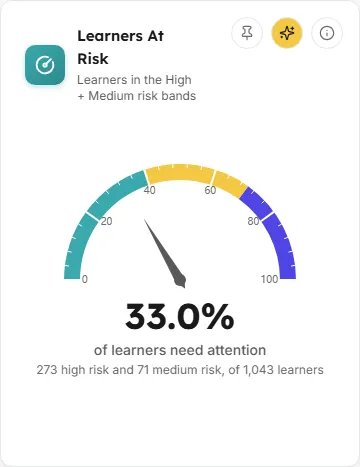
A half-circle gauge showing the share of your learners who need attention right now.
How to read it: the large percentage under the dial is High plus Medium learners as a share of every scored learner, labelled “of learners need attention”. The line below gives the counts, for example “12 high risk and 40 medium risk, of 600 learners”. The green, amber and red zones on the arc (0 to 40, 40 to 70, 70 to 100) are a visual scale for the percentage, not the score bands.
How it is worked out: at-risk learners (score 40 or more) divided by all scored learners, rounded to one decimal place. Only people with an active learner enrolment are scored.
What you can do:Info explains the rule; Ask AI opens the assistant with this card’s figures; Pin to dashboard adds the gauge to one of your personal dashboards, where it stays live.
While it loads: “Scoring learners…” with “Combining logins, progress, grades and activity”.
Why is this lower than “inactive” learners elsewhere? Inactivity alone does not make someone at risk. A learner who has finished everything scores 0, and a learner who signed in recently but has not progressed can still be Medium.
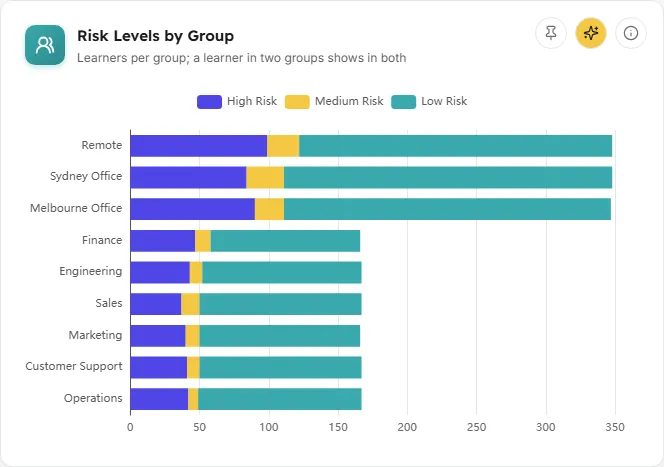
ChartLearners per group; a learner in two groups shows in both
A stacked horizontal bar chart: one bar per group, split into High Risk, Medium Risk and Low Risk learners, with the groups with most learners at risk at the top.
How to read it: a long red and amber section marks a group that needs attention. Groups here are Moodle course groups; the same group name in several courses is shown once. Learners who are in no group appear under No group, so every scored learner is counted somewhere.
The unit line changes when there are many groups: with more than 12 groups the chart shows the 12 with most learners at risk and says so, for example “Learners per group: the 12 groups with most at risk, of 30; a learner in two groups shows in both”.
How it is worked out: every scored learner is counted once in each group they belong to, in a course where they are an active learner. A group in a course they teach, or one they are suspended from, does not count. Groups are sorted by High plus Medium.
What you can do: hover a bar for the three counts; click a bar to highlight that group’s learners in the scatter chart below (click it again to clear); Info, Ask AI and Pin to dashboard.
Empty state: “No groups to show yet. Groups appear here once learners with a risk score belong to one.”
Why do the groups add up to more than the gauge? A learner in two groups is counted in both. The gauge counts each learner once.
A scatter chart with one dot per learner: days since last login from left to right, risk score from bottom to top.
How to read it: dots in the top right have been away longest and score highest. The colour shows the risk band, and a bigger dot means the learner is enrolled in more courses. A learner who has never signed in sits at the far right (180 days).
The unit line: says how many learners are plotted. When more than 200 are scored it reads “Highest-risk 200 of N scored learners”; otherwise “N scored learners”. With a group selected in the chart above it adds “· highlighting” and the group name, and the other dots fade.
How it is worked out: the 200 learners highest on the list, which keeps every High and Medium learner first. Each dot carries the four signal values the score is built from.
What you can do:hover a dot to see the learner’s name, risk score, days since login, enrolment count and four small bars for Recency, Completion, Assessment and Engagement; Clear filter appears above the chart while a group is highlighted; Info, Ask AI and Pin to dashboard.
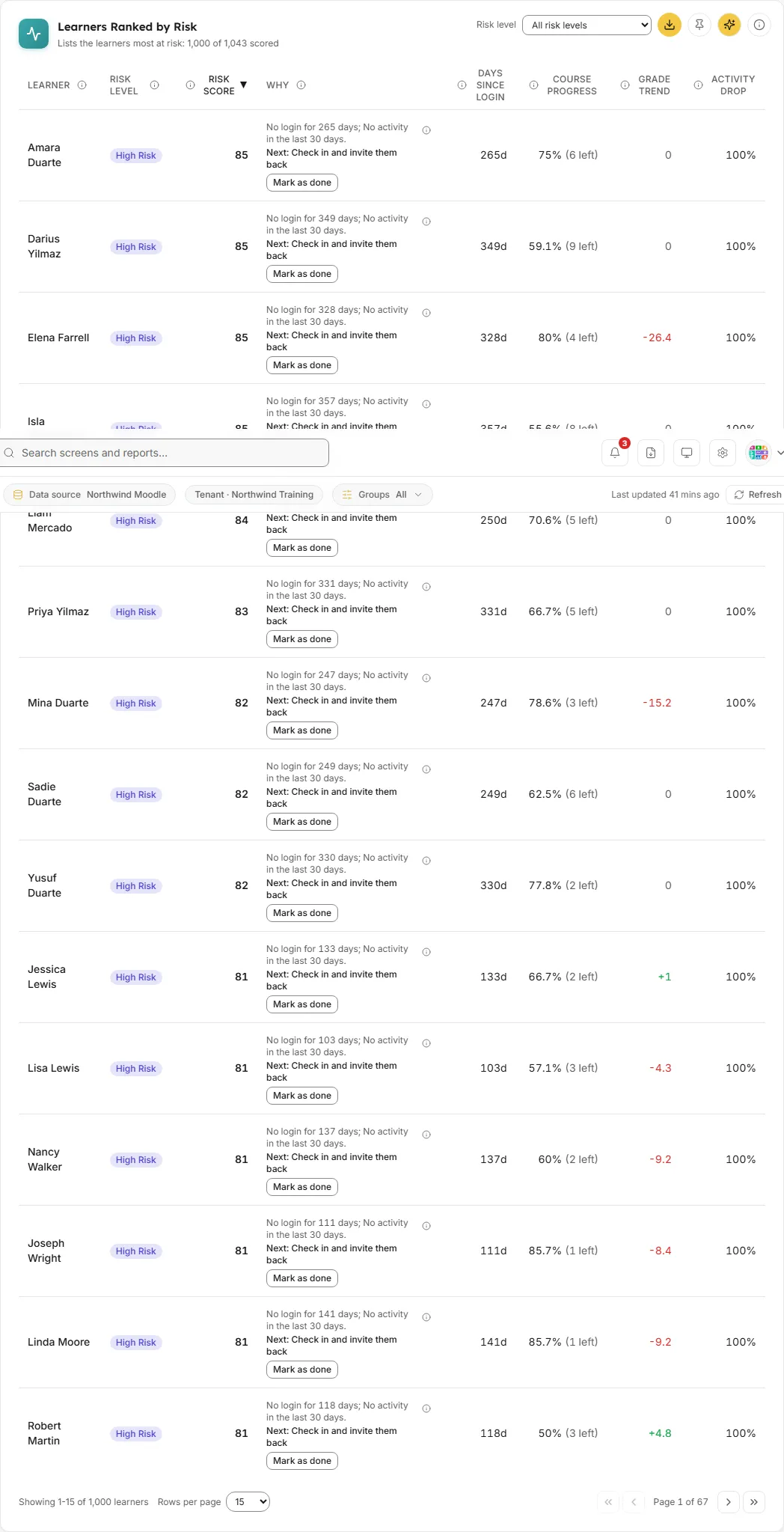
The full list of scored learners, highest risk first, with the reasons behind each score and a suggested next step.
Columns: every heading has its own info icon explaining it.
Learner: the learner’s name.
Risk Level: High Risk, Medium Risk or Low Risk.
Risk Score: 0 to 100.
Why: the warning signs pushing the score up, biggest first, for example “No login for 34 days; 2 courses not finished”, and under it Next: a suggested step such as “Check in and invite them back”, “Help them finish their last course”, “Offer help with their assessments”, “Help them get active again”, or “Make sure they can sign in, then welcome them to their course”. Hover the small info icon for the points each sign adds. A sign that adds fewer than 8 points is context, not a cause; when none reaches that the cell says “No single warning sign stands out.”
Days Since Login: days since the last sign in, or “Never”.
Course Progress: the share of the learner’s courses that are finished, with how many are left, for example “50% (2 left)”. This is courses, not activities, so it differs from the score’s Completion signal.
Grade Trend: recent average grade minus the earlier average, in points. Negative (red) means grades are slipping.
Activity Drop: the percentage fall in activity, last 30 days against the 30 days before.
The unit line changes when the list is capped: the list holds up to 1,000 learners. Every High and Medium learner is always kept; only Low learners are cut. When that happens, and you are looking at all levels or at Low, the line reads “Lists the learners most at risk: 1,000 of N scored”.
What you can do:
Sort by Learner, Risk Score, Days Since Login, Course Progress, Grade Trend or Activity Drop. Click again to reverse.
Risk level menu above the table: All risk levels, At risk (High + Medium), High, Medium or Low. The choice is kept in the address, so a link from Next best actions on the Executive overview opens the list on the right band.
Page through with 15, 50 or 100 rows per page.
Mark as done under a learner’s next step records that you acted. See below.
Download CSV saves the rows on the current page with the reasons, next step, and when you have recorded actions, the action taken and whether it helped. The file is learners-at-risk.csv.
Info, Ask AI (it reads the rows shown at that moment) and Pin to dashboard. A pinned copy of the table is read only, without the Mark as done buttons.
Empty states: with no filter, “No learners have a risk score yet.” With a band chosen, for example “No learners are in the High risk band (score 60 or more) right now.”, followed by the band rule and “Choose All risk levels above to see everyone being scored.”
The ranked table lets you keep a note of who you have followed up, and two weeks later shows whether the learner’s risk moved. This is LearnBoard’s own record: nothing is sent to the learner and nothing is written to Moodle.
Find the learner in Learners Ranked by Risk and act on the suggested next step in whatever way suits you (a message, a call, a conversation in class).
Press Mark as done under their next step. The cell then reads “Done” with the date and your name. Pressing it twice on one day records one action.
If you pressed it by mistake, choose Undo. Only the person who recorded the action can undo it, and only within 24 hours.
For 14 days the cell shows “Result on” and the date the result is due, and whether the learner has signed in since.
After 14 days the cell shows the outcome against the score when you acted: Improved (the score fell by 10 or more, the band got better, or they are no longer on the list), Worse (the score rose by 10 or more, or the band got worse) or No change. A Mark as done again button lets you record a further action.
A line above the table sums up the last 30 days, for example “5 learners acted on in the last 30 days. 2 improved, 1 no change, 0 worse after two weeks. 2 still in their two weeks.” It appears once at least one action has been recorded. Anyone who can open this screen can record an action.
Moodle has no single risk score. LearnBoard combines four things Moodle stores separately: the account’s last access time, activity completion, the gradebook and the standard log. If your site does not use completion tracking, every learner’s Completion signal reads as fully behind; if it keeps no standard log, the Engagement signal reads as a full drop.
Why is a learner who has not logged in for months shown as Low?
They have finished every course they are enrolled in, so their score is 0. The Why column says “Has finished every course they are enrolled in, so nothing is at risk.”
Why does the grade signal sit at 50 for so many learners?
With no grade marked in the last 30 days the Assessment signal is a neutral 50, neither counting for nor against the learner. The Why column says “No recent grades, or grades around 50%”.
It is not, unless you have chosen a Risk level. The list keeps every High and Medium learner; only Low learners are cut beyond 1,000, and the unit line says so.
The Groups button in the bar under the top bar narrows every card and table on this screen to a programme, department, campus, learner category or cohort, until you clear it. “All” means no filter.
Refresh
Last updated shows how old the figures are. Refresh works them out again and reloads every chart on the screen.
Risk level
The menu on Learners Ranked by Risk: All risk levels, At risk (High + Medium), High, Medium or Low. It narrows the table only.
Group highlight
Click a bar in Risk Levels by Group to highlight that group’s learners in the scatter chart. Clear filter or a second click removes it.