

Quick start
This page takes you from your first sign-in to your first useful insight. It works for any role; the steps that only a workspace administrator can do are marked.
At a glance
- Sign in, or accept the invitation you were emailed.
- Administrators of a new workspace connect the learning platform first. Nothing else has data until then.
- Then take the short tour, read the headline figures, and try Ask AI and Pin on a card.
Before you begin
Section titled “Before you begin”You need either a LearnBoard invitation email or a sign-in your administrator gave you. If your organisation uses the Moodle plugin, you may be able to open LearnBoard straight from Moodle instead. See Signing in.
From first sign-in to first insight
Section titled “From first sign-in to first insight”-
Sign in. Open the sign-in screen, enter your Email and Password, and press Sign in. If you were invited, open the link in the email instead, choose a password and press Accept & sign in.
-
Workspace administrators only: finish the setup walkthrough. A new workspace opens on Welcome to your workspace’s name, with four steps:
- Protect your account: set up two-step sign-in. Optional.
- Connect your learning platform: install the free Moodle plugin and paste one code. This is the only required step.
- Make it yours: your logo and colours. Optional.
- Invite your team: bring in colleagues and choose what each one sees. Optional.
Until a learning platform is connected, the menu, search and dashboards stay hidden, because there would be nothing for them to show. When it is connected, press Finish setup, or Finish: I’ll do the rest later to come back to the other steps. The walkthrough stays at
/setupwhenever you want it again.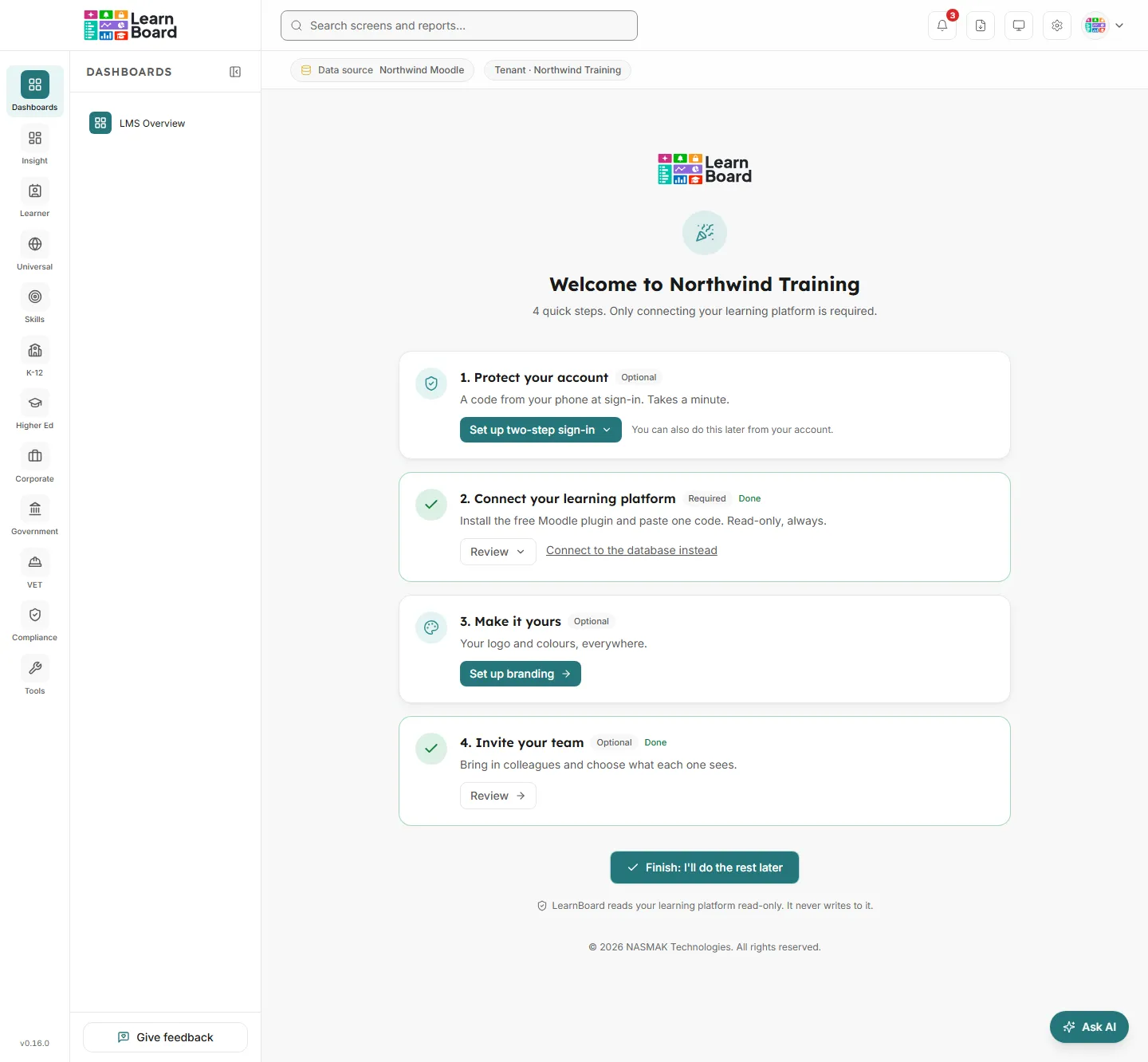
-
Take the tour. The first time you open the Executive overview with data in it, a short tour points out your main sections, the screens inside a section, where the numbers come from, the search box and your headline numbers, skipping anything your role does not show. Move through it with Next and Back or the arrow keys, finish with Got it, or press Skip. It runs once per person, not once per browser.
-
Read the headline figures. The strip of tiles at the top of the Executive overview shows the figures worth knowing at a glance, with the change against the previous period. Words such as “learners” and “enrolments” mean the same on every screen; see the definitions.
-
Ask what a card means. Press the i in the top-right corner of any card to read what it shows. See The Info button.
-
Narrow the figures. Use Groups in the bar under the top bar to narrow every screen to one programme, department, campus, learner category or cohort. See Filters.
-
Ask AI about a card. Press the sparkle button on a card and pick Summarise this or Highs & lows. The answer uses that card’s figures. See Ask AI on a card.
-
Pin it. Press the pin button on a card you want to keep an eye on, name your first dashboard, and press Pin here. Your first dashboard becomes your home page, so it opens every time you sign in. See Pin to dashboard.