

The chart picker
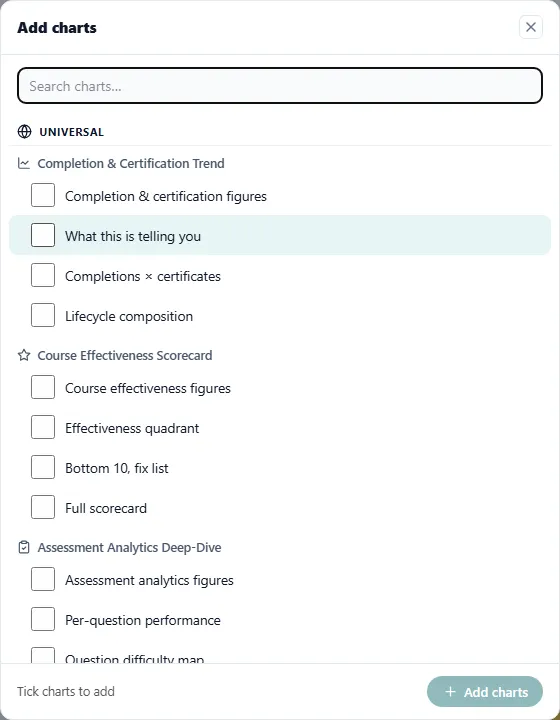
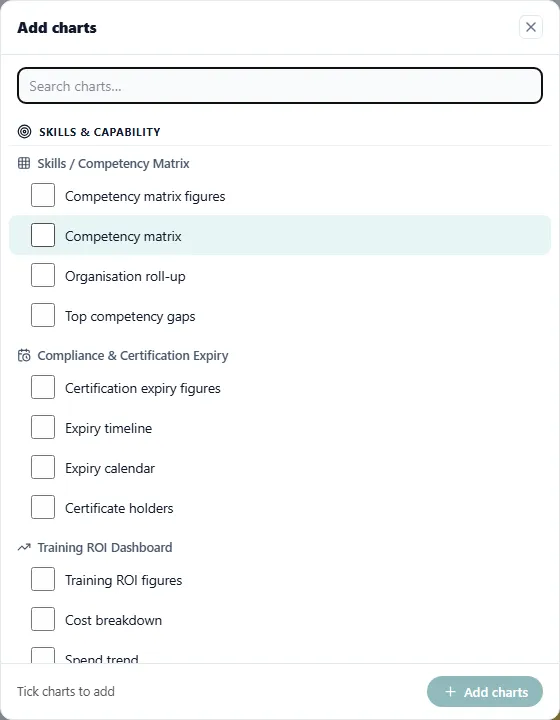
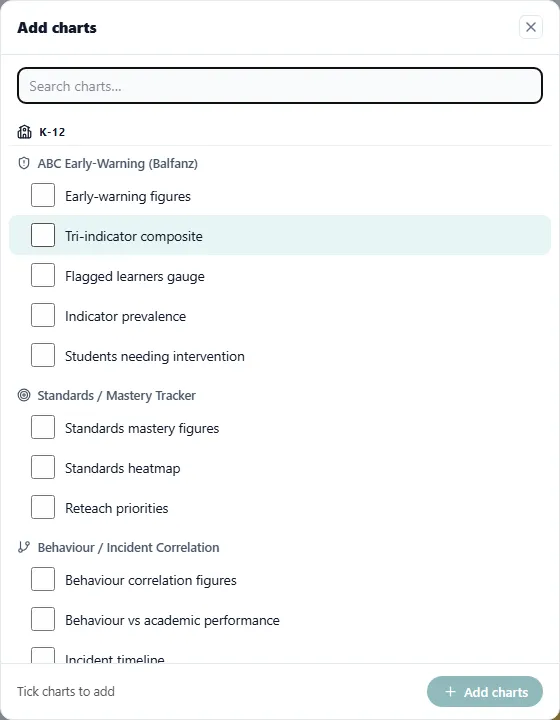
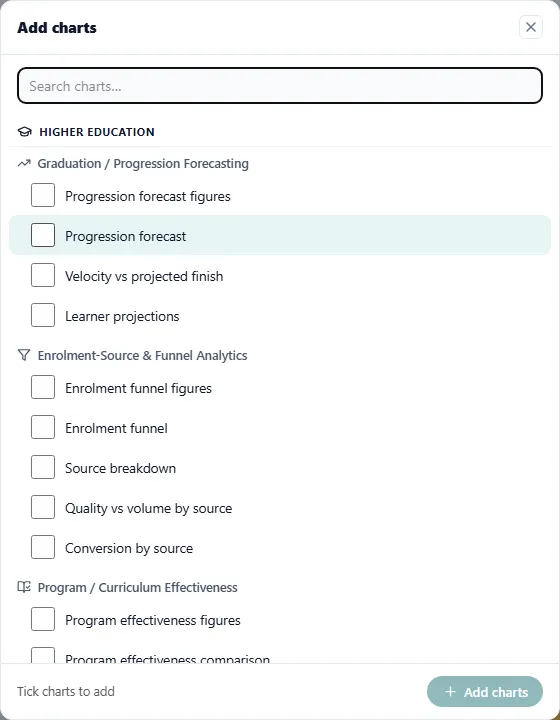
The chart picker is the Add charts list in a custom LearnBoard block. It offers every LearnBoard chart, grouped exactly as the LearnBoard sidebar is, and you tick the ones you want. This page is for whoever arranges charts in a block.
At a glance
Section titled “At a glance”- Turn Edit mode on, then click Add charts in a custom block.
- 208 charts in 9 categories, in the same order, with the same names and icons, as the LearnBoard sidebar.
- Tick any number, then Add them in one go.
- Drag a chart by its title to move it, pull a corner to resize it, × removes it.
- Every change saves itself. There is no save button.
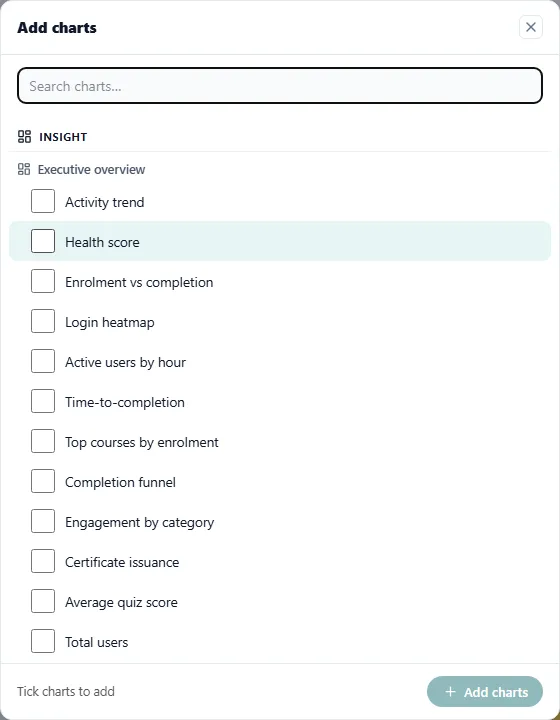
Add charts to a block
Section titled “Add charts to a block”-
Turn Edit mode on for the page. The block shows a toolbar with Add charts and the hint “Drag a chart by its title to move it, pull a corner to resize, × removes it.”
-
Click Add charts, or Add charts to this block under the last chart.
-
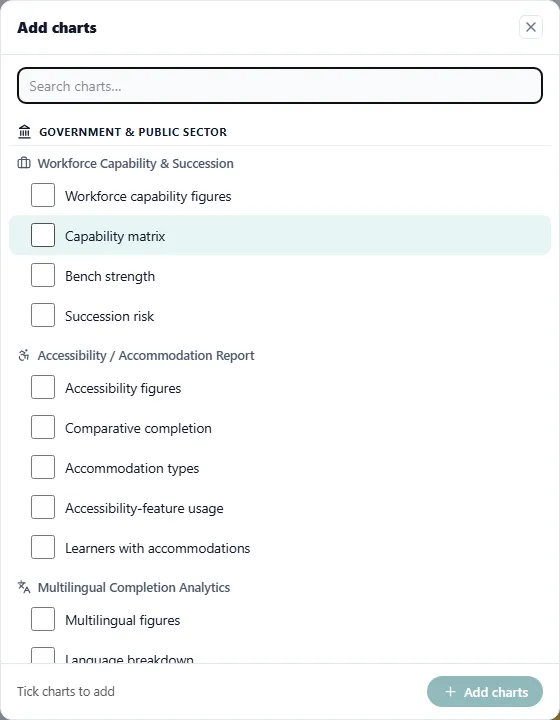
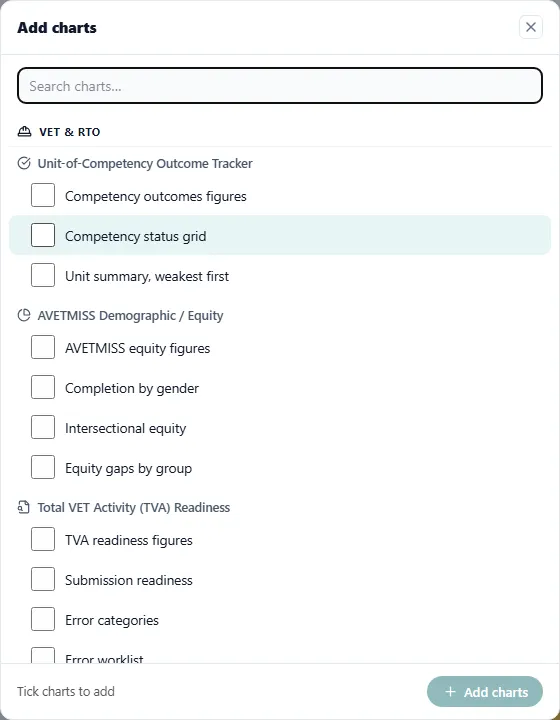
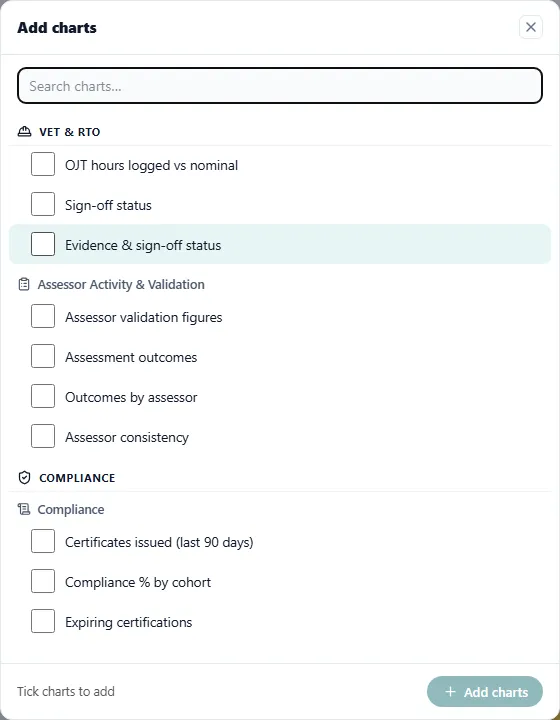
Find a chart: scroll through the categories, or type in Search charts…. Search matches the chart’s name and its LearnBoard card kind.
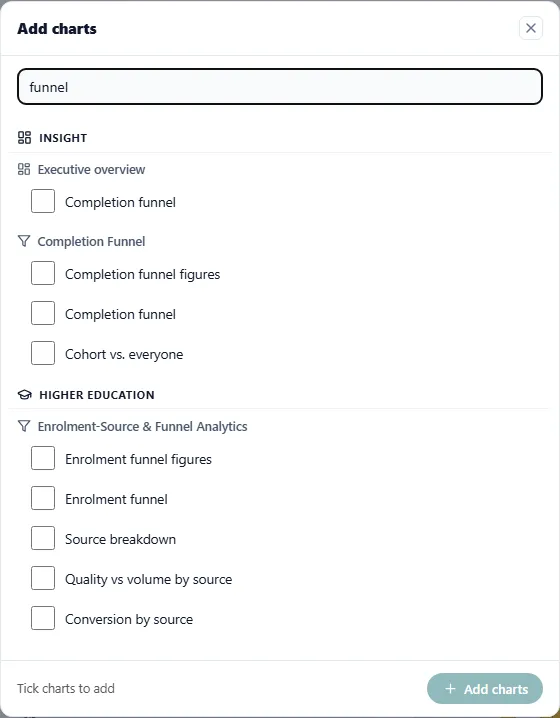
Searching for funnel. -
Tick each chart you want. The footer counts them, for example 2 selected, and the button reads Add 2 charts.
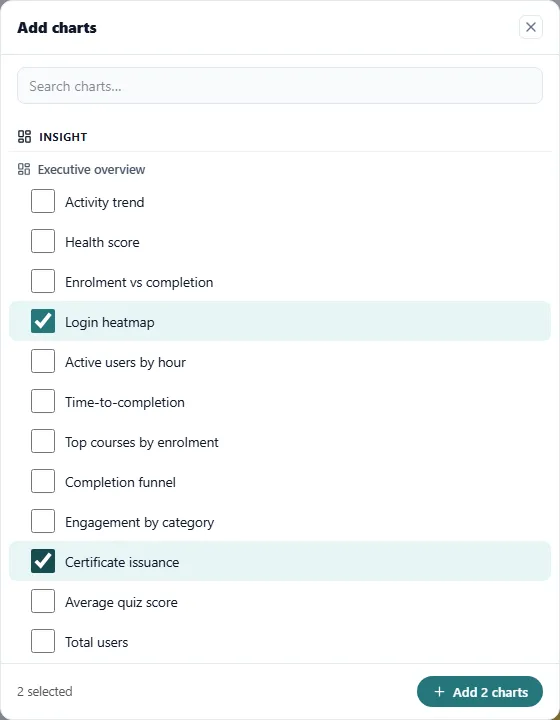
-
Click the Add button. The charts appear at the end of the block, each at the size LearnBoard gives it.
Ticks survive a search, so you can search for one chart, tick it, clear the search and tick another.
Categories
Section titled “Categories”The picker mirrors the LearnBoard sidebar. Each category holds the screens under it, and each screen the charts it offers. Shown here are the number of charts each category held when this page was written. Your list can be shorter: screens your workspace hides from its menu are left out.
| Category | Charts | Screens |
|---|---|---|
| Insight | 60 | Executive overview, Users & engagement, Course performance, Course Readiness, Assessments, Reports & Analytics, Learners at Risk, Learner Profiles, Completion Funnel, Cohort Comparison |
| Universal | 31 | Completion & Certification Trend, Course Effectiveness Scorecard, Assessment Analytics Deep-Dive, Time-to-Completion / Time-to-Mastery, AI-Generated Insight Summary, Course Feedback |
| Skills & Capability | 21 | Skills / Competency Matrix, Compliance & Certification Expiry, Training ROI Dashboard, Skills-Gap & Workforce-Readiness, Pathway / Qualification Progress |
| K-12 | 12 | ABC Early-Warning (Balfanz), Standards / Mastery Tracker, Behaviour / Incident Correlation |
| Higher Education | 24 | Graduation / Progression Forecasting, Enrolment-Source & Funnel Analytics, Program / Curriculum Effectiveness, Accreditation / Graduate-Attribute, Resource / Library Access Analytics, Instructor / Tutor Performance |
| Corporate & Enterprise | 21 | Onboarding Ramp / Time-to-Productivity, Mandatory-Training Compliance, Learner Satisfaction / NPS Trend, Budget Utilisation / Cost-per-Learner, Learning-Path Flow |
| Government & Public Sector | 16 | Workforce Capability & Succession, Accessibility / Accommodation Report, Multilingual Completion Analytics, Mandatory / Regulatory Training Audit |
| VET & RTO | 20 | Unit-of-Competency Outcome Tracker, AVETMISS Demographic / Equity, Total VET Activity (TVA) Readiness, Apprenticeship / On-Job Training, Assessor Activity & Validation |
| Compliance | 3 | Compliance |
Every chart, by name, is listed in the chart catalogue.
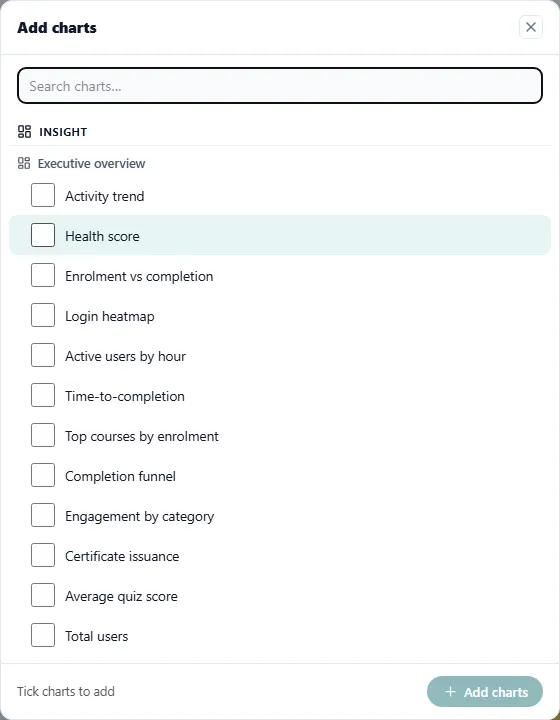

Charts marked Not available
Section titled “Charts marked Not available”A chart whose LearnBoard screen is outside your workspace’s plan stays in the list, so you can see what is there, but it carries a Not available badge and cannot be ticked. Hovering it says “This chart is not available in this workspace.”
Figures strips
Section titled “Figures strips”Entries whose name ends in figures, such as a screen’s figures strip, add the whole row of that screen’s stat tiles as one card.
Move, resize and remove
Section titled “Move, resize and remove”With Edit mode on:
- Move: drag a chart by its title. The others make room.
- Resize: pull the corner at the bottom right of a chart.
- Remove: click × at the top right of a chart.
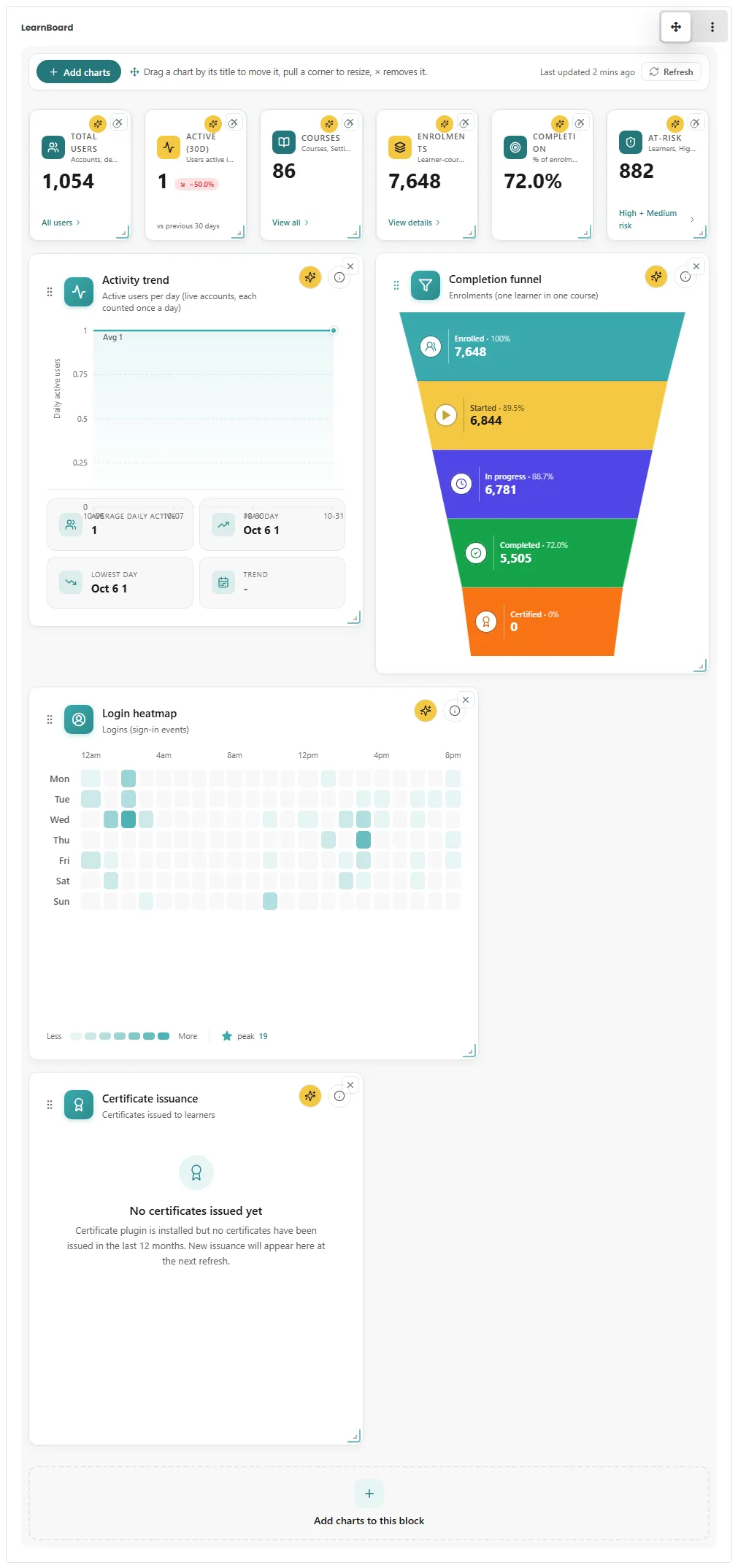
The grid has 12 columns on a wide screen. In a narrow area, such as a block in a side column or on a phone, charts take the full width and stat tiles sit two to a row; in a very thin column they stack.
Saving
Section titled “Saving”There is no save button. Each change is saved to the block in Moodle a moment after you make it, and anything still waiting is saved when you leave the page or turn Edit mode off. Saving needs block/learnboard:addinstance on the block.
On every chart
Section titled “On every chart”Each chart in a block keeps the controls it has in LearnBoard:
- The info button explains what the chart shows and how it is counted.
- The Ask AI button asks LearnBoard’s assistant about the chart, for a role that includes the assistant.
- Last updated and Refresh at the top of the block show how old the figures are and fetch them again.
When a block has no charts
Section titled “When a block has no charts”A custom block with every chart removed shows This block has no charts yet in edit mode, with Add charts. Outside edit mode it shows “This dashboard has no charts yet.”