

Dashboards
Your saved dashboards. Appears as soon as you have one, with your home dashboard first, marked with a star.
Every LearnBoard screen shares the same frame: a two-part menu on the left, a top bar, and a second bar beneath it with the filters and the freshness of the figures. This page explains each part, for anyone using LearnBoard.
At a glance
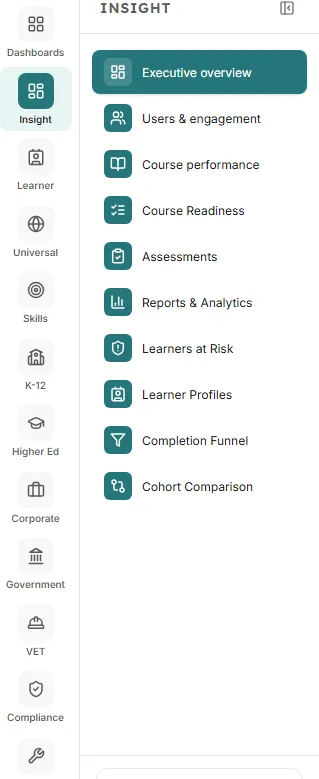
The narrow rail down the left holds the logo, which takes you home, and one tile per section, each with an icon and a short label:
Dashboards
Your saved dashboards. Appears as soon as you have one, with your home dashboard first, marked with a star.
Insight
Executive overview, Users & engagement, Course performance, Course Readiness, Assessments, Reports & Analytics, Learners at Risk, Learner Profiles, Completion Funnel and Cohort Comparison.
Learner
Learner Dashboard, My Team for team leads, and My Learning for your own progress.
Universal, Skills and the sector sections
Universal, Skills, K-12, Higher Ed, Corporate, Government and VET, each a set of specialist screens.
Compliance
Certificates, training compliance and expiries.
Tools
The AI assistant and Alerts.
A section only appears if you can open at least one screen in it, so different people see different rails. A screen your workspace’s plan does not include stays in the menu, greyed with a padlock. See Plans and locked screens.
The wider panel beside the rail lists the screens of one section, with the section’s name at the top. It follows the screen you are on. Click another section’s tile to look at its screens without leaving the page; the panel goes back to following your screen as soon as you open something.
To save space, press the arrow at the top of the panel (Collapse the menu). The menu shrinks to icons and stays that way until you press Expand the menu, even after you move to another screen.
At the bottom of the menu, Usage shows the allowances of your workspace that can run out, such as AI credits and LMS connections, with a bar that turns amber and then red as they fill. Hover a row to read the exact figures and when they reset. Press the arrow beside Usage to fold it away.
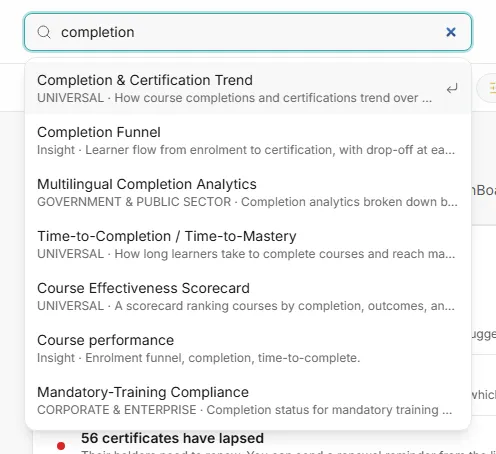
The search box at the top of the page (Search screens and reports…) finds any screen you can open.
risk.It searches screen names first, then section names, then the descriptions. It finds screens, not courses or learners: use the Course performance or Learner Profiles screens for those.
From left to right on the right-hand side:
The Ask AI button at the bottom right of every screen opens the AI assistant in a panel over the page. It is not shown on the AI assistant screen itself, which is the same assistant at full size. See AI assistant.
The left menu folds away. Press the menu button at the top left (Open navigation menu) to open it, and press Close navigation menu or Escape to close it. The search box is hidden on narrow screens, so use the menu to move between screens.